Some Waydroid tips for Linux desktop users.
This is a comprehensive article about “Waydroid”, the Android container for Linux. The Android system used by Waydroid is built on LineageOS and shares the kernel with the Linux host. Ivon will discuss some issues often encountered when operating Android.
Please install Waydroid on your Linux system first: Ubuntu + Waydroid
1. How Waydroid Works#
After installing Waydroid, you should see icons for Waydroid and each Android app in the Linux desktop application list. GNOME mixes them together with ordinary Linux applications, while KDE Plasma specifically shows a Waydroid folder.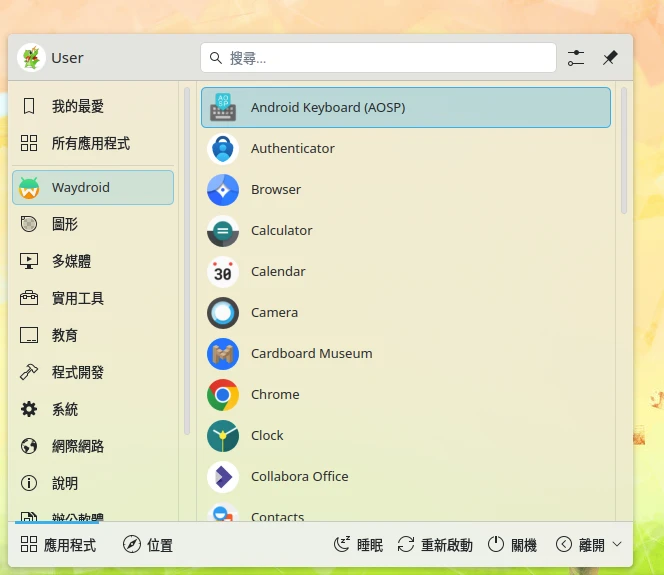
If you click the “Waydroid” icon, the effect is the same as running the waydroid show-full-ui command. At this point, the Android home screen pops up, you can access the notification shade, and all operations are confined within this window. Only one app can run at a time, just like using a tablet.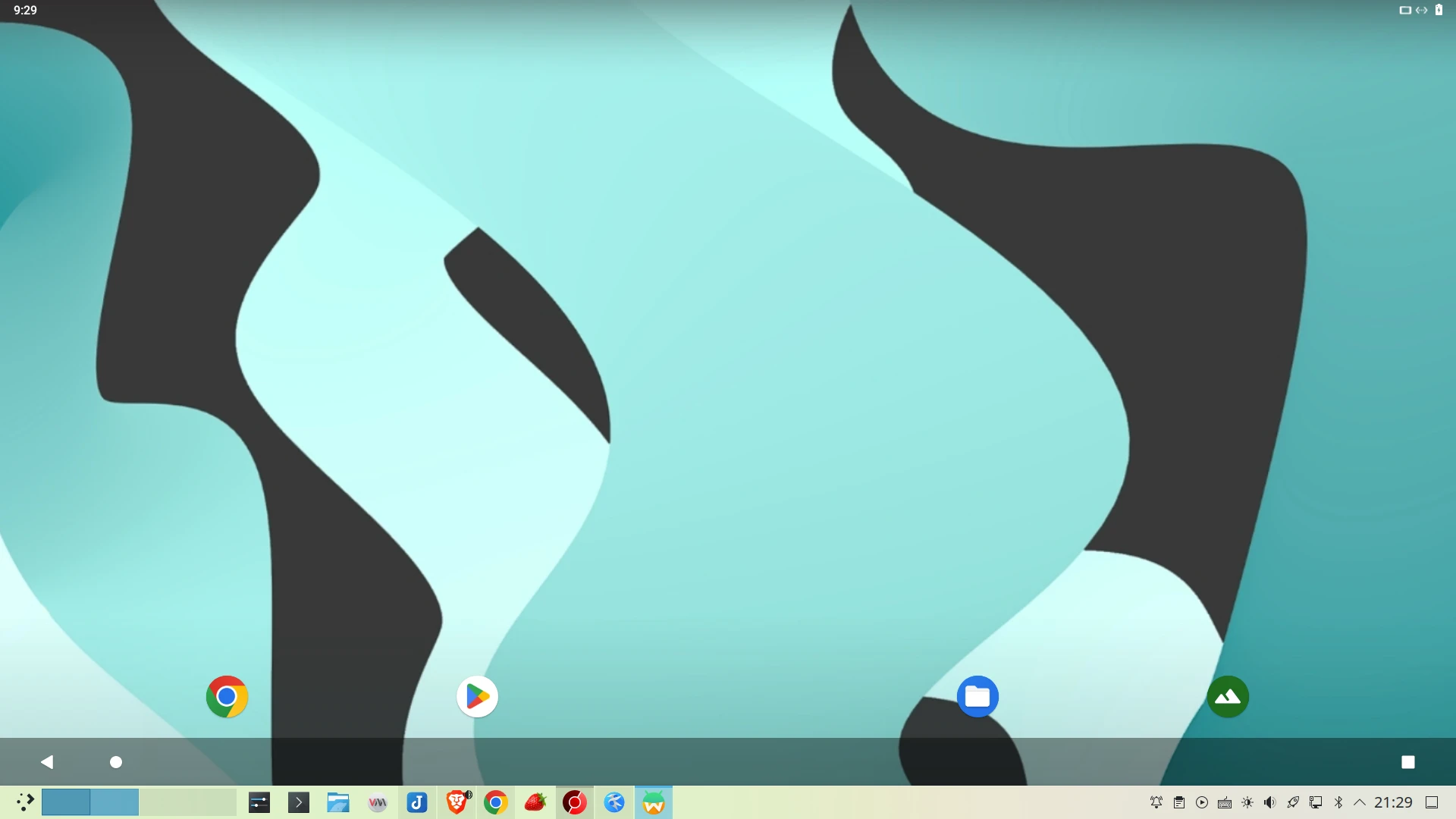
If you click another app icon (launched from the Linux desktop icon, not from the Android desktop icon), the app starts in an independent window and appears separately in the Linux desktop taskbar. The window size is fixed. Still, only one app can run at a time; they cannot run simultaneously. When you switch app windows, the other app pauses. For example, a game app’s screen freezes and Youtube stops playing. These apps cannot use the notification shade, and if you click the back button, the app window closes automatically, but it does not fully stop running.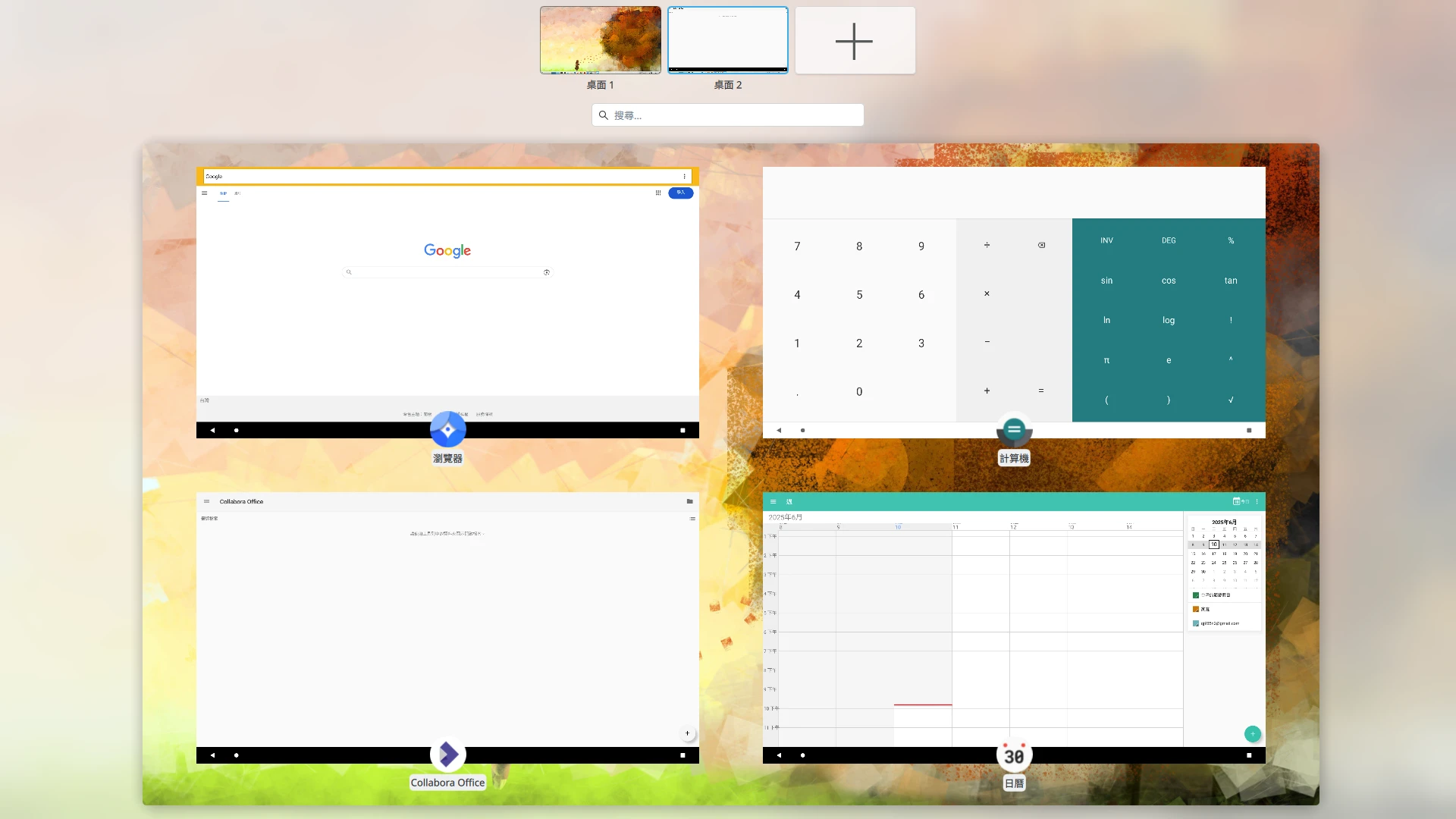
If you enable “multi-window mode” (see below for how to enable it), the Waydroid icon on the Linux desktop disappears. Then, apps launched from the Linux desktop can have their window size adjusted, can run simultaneously, and will not pause when switching apps. When you click close or the back button, the app window closes, but it does not fully stop running.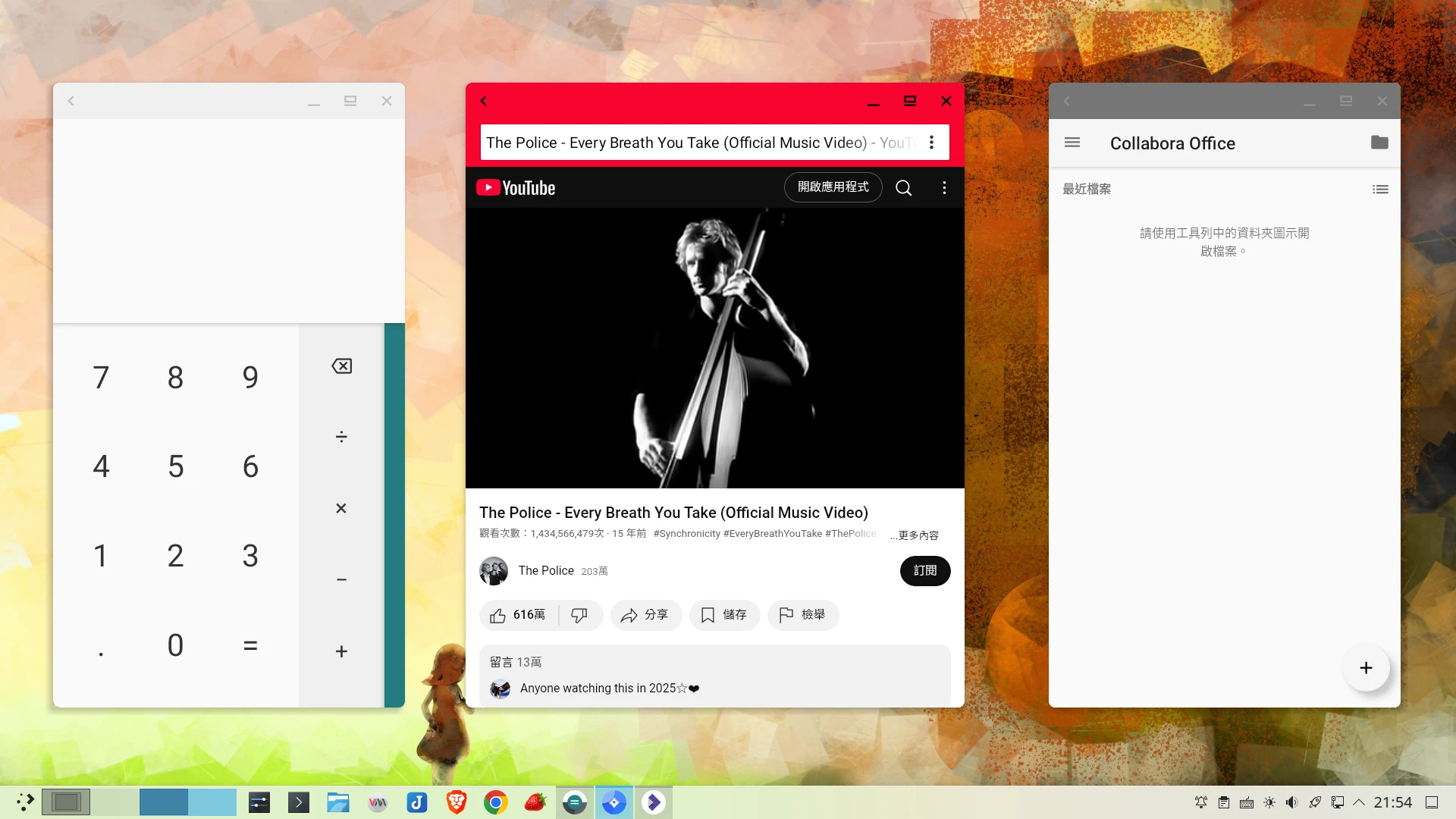
Waydroid syncs the Android and Linux clipboards, but you cannot use Linux input methods to type inside Android apps. You need to install Gboard separately.
2. Waydroid Operation Commands#
Waydroid’s Android system data while running is stored at ~/.local/share/waydroid/data/, the system image is located at /var/lib/waydroid, and app icons are located at ~/.local/share/applications/
Start the Waydroid container service
sudo systemctl start waydroid-containerStop the Waydroid container service
sudo systemctl stop waydroid-containerHow do you update the Android system? Use this command to stop the container and download the latest image:
# Short form: download the latest image
sudo waydroid upgrade

# More complete form: download the latest image with built-in GAPPS from the official update channel
sudo waydroid init -c https://ota.waydro.id/system -v https://ota.waydro.id/vendor -s GAPPS -f
Open the Waydroid home screen with a command
waydroid show-full-uiView system error messages
waydroid log

sudo waydroid logcat
Waydroid can install APKs with commands
waydroid app install <APK檔案路徑>.apkUse the following command to enter the Android shell. It has built-in Root permission and can run Android Shell commands.
sudo waydroid shellAfter Waydroid starts, ADB debugging is automatically enabled. You can start ADB from the Linux host and pair with it. The IP address can be found in Android system settings → About phone.
adb connect Waydroid的IP:5555

adb devices
How do you enable Developer options? Open Android system settings → About phone → Build number, and tap it five times. After that, Developer options will appear under Android system settings → System.
3. Change Waydroid’s Language#
In the Android interface, open Settings → System → Languages, add Chinese, and drag the slider to the top.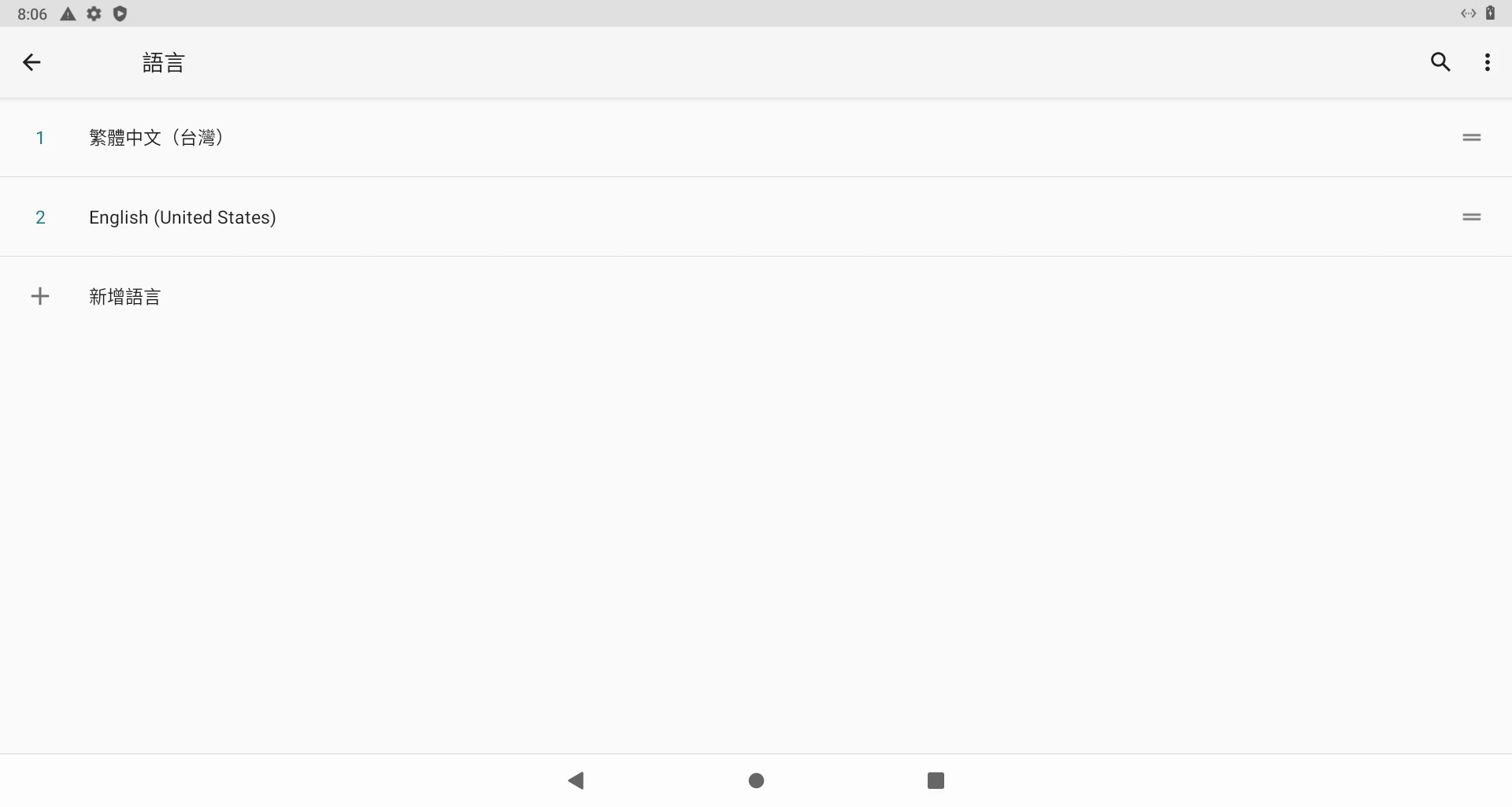
Android’s time should automatically sync according to the time zone and network time after adjusting the language.
4. Fix Waydroid Having No Network#
Try opening firewall ports. Different distributions use different firewalls, such as Firewalld, UFW, iptables, and so on.
Ubuntu UFW commands:
sudo ufw allow 53

sudo ufw allow 67

sudo ufw default allow FORWARD

sudo ufw reload
Fedora Firewalld commands:
sudo firewall-cmd --zone=trusted --add-interface=waydroid0 --permanentThen restart Waydroid:
sudo systemctl restart waydroid-containerIf it still does not work, Waydroid may be conflicting with Docker networking. We do not need to shut down Docker. Just modify the Waydroid network configuration file:
sudo vim /usr/lib/waydroid/data/scripts/waydroid-net.shDisable LXC_USE_NFT:
LXC_USE_NFT="false"Restart Waydroid again and it should work.
sudo systemctl restart waydroid-container5. Google Play Store Device Registration#
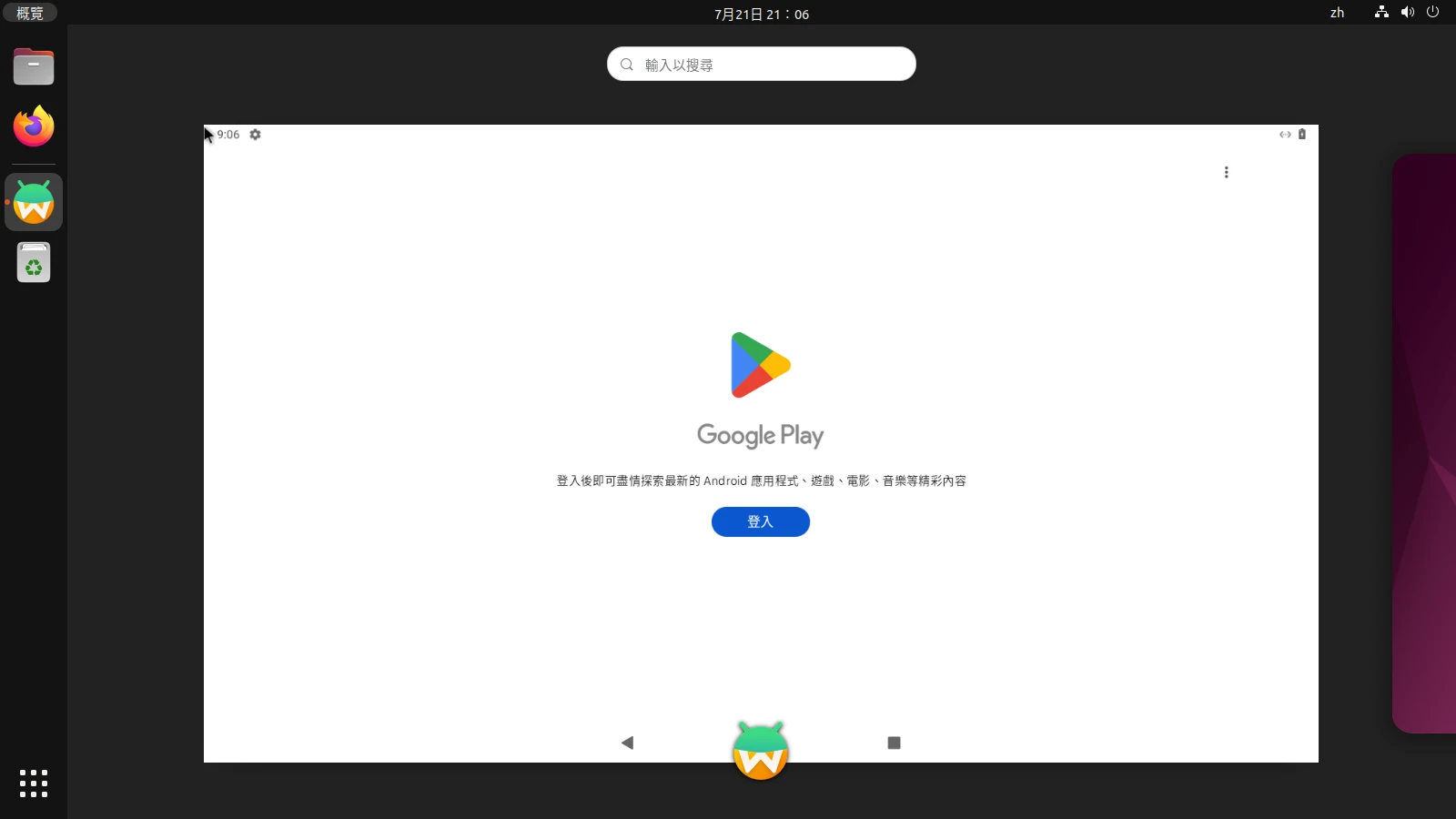
Waydroid is built on LineageOS. You should have downloaded the image with built-in GMS services when installing Waydroid. However, if a third-party ROM does not register the device with Google, it cannot access the Google Play Store.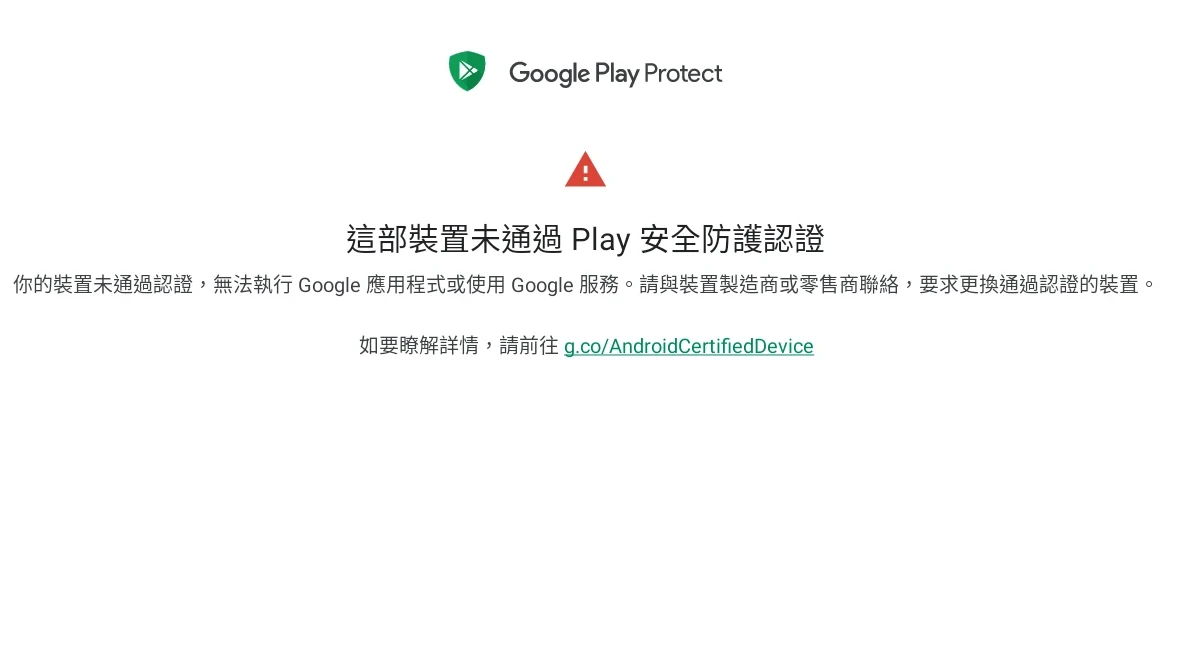
- Enter the Android shell
sudo waydroid shell- Run the following command, and it will spit out a long code, namely the GMS device ID. If there is no output, please confirm whether Waydroid is properly connected to the network.
ANDROID_RUNTIME_ROOT=/apex/com.android.runtime ANDROID_DATA=/data ANDROID_TZDATA_ROOT=/apex/com.android.tzdata ANDROID_I18N_ROOT=/apex/com.android.i18n sqlite3 /data/data/com.google.android.gsf/databases/gservices.db "select * from main where name = \"android_id\";"Go to Google device registration and fill in the code
After waiting 30 minutes, restart Waydroid, and you can use the Play Store.
sudo systemctl restart waydroid-container6. Install an ARM Translator to Fix App Crashes#
ARM computers can skip this step.
Given that most computers use x86 architecture, while many mobile games only provide ARM APKs, you need software that translates ARM instructions into x86 instructions.
How do you confirm that an app only has ARM architecture? By default, without an ARM translator, Google Play may not show certain apps. Or after installing an APK, use Package Manager to check whether the app contains libraries under /lib/x86_64. If it only has ARM, it will crash on startup. You need to install an ARM translator.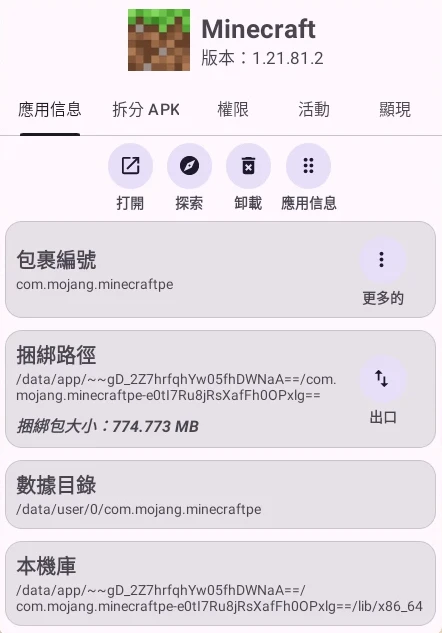
Currently, there are two ARM translators: Intel’s “libhoudini” and Google’s “libndk”, both proprietary software. According to Arch Wiki, libhoudini is suitable for Intel CPUs, while libndk is suitable for AMD CPUs, with optimizations for processor performance. Some apps may work with one but not the other, so testing from multiple angles is needed. Please note that you should not install two ARM translators at the same time. When installing the other one, you should run the script below, select Remove for the old one, and then install the new translator.
- Get the script made by casualsnek, and install dependencies.
sudo apt install lzip

cd ~

git clone https://github.com/casualsnek/waydroid_script

cd waydroid_script

python3 -m venv venv

venv/bin/pip install -r requirements.txt

cd ~/waydroid_script- Run the script, use the spacebar to select
libhoudiniorlibndk, then press Enter to install the ARM translator. ARM translators strictly correspond to Android versions and cannot be mixed across versions.
sudo venv/bin/python3 main.py- Restart Waydroid
sudo systemctl restart waydroid-containerSometimes Google Play still may not show apps outside the x86 architecture. For this, you need to find ARM APKs on ApkMirror and install them to see whether they can start normally.
If the ARM translator has problems running a specific app, try reporting it to Waydroid’s Github issue and see whether there is a community-made patch available. For example, for the game 《Blue Archive》, players made this script to fix login crashes.
After updating the Waydroid system, you may need to reinstall the ARM translator.
7. Enable Multi-Window Mode#
Multi window mode is very helpful for apps that need portrait orientation, and it also lets multiple apps run simultaneously.
- Use the following command to set it to true, letting Waydroid enable multi-window mode and allowing multiple apps to run on the same screen.
waydroid prop set persist.waydroid.multi_windows true

sudo systemctl restart waydroid-container
I recommend enabling “allow freeform windows” in Android Developer options.
After that, the Waydroid icon in the Linux application menu will disappear (you can still open the Android home screen with the
waydroid show-full-uicommand), leaving only app icons.After opening an app, it will look like a native Linux application and can have its window size freely adjusted.
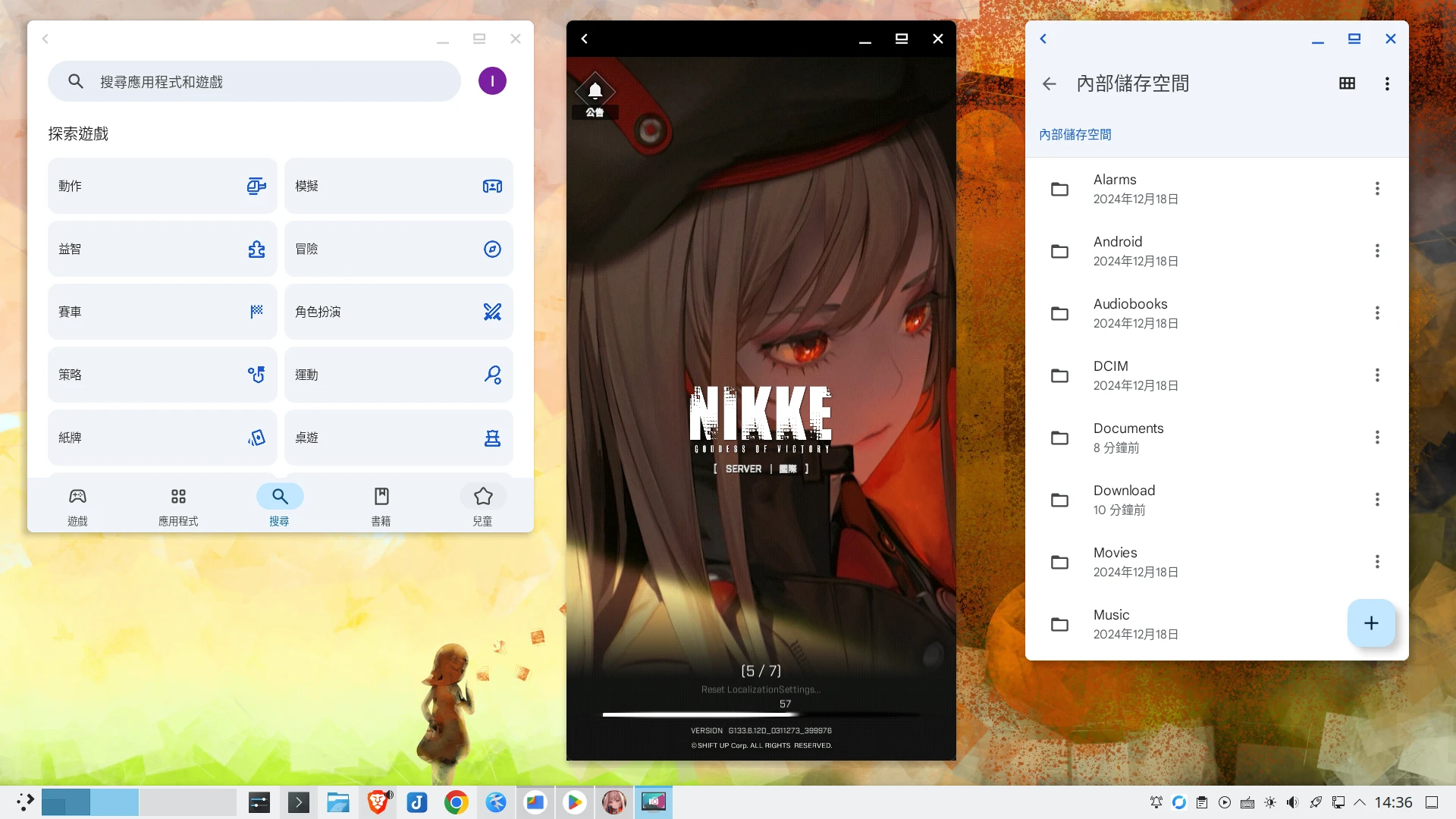
Some apps may still start full screen. Press F11 to switch to window mode, and press F11 again to enter full screen.
If an app enters full screen mode, other apps will pause, and you will not be able to run two or more apps at the same time. It is best to keep them windowed.
Because Android’s multitasking interface cannot be used in multi-window mode, to completely stop an app, you can only open Android Settings → Apps and force stop the app.
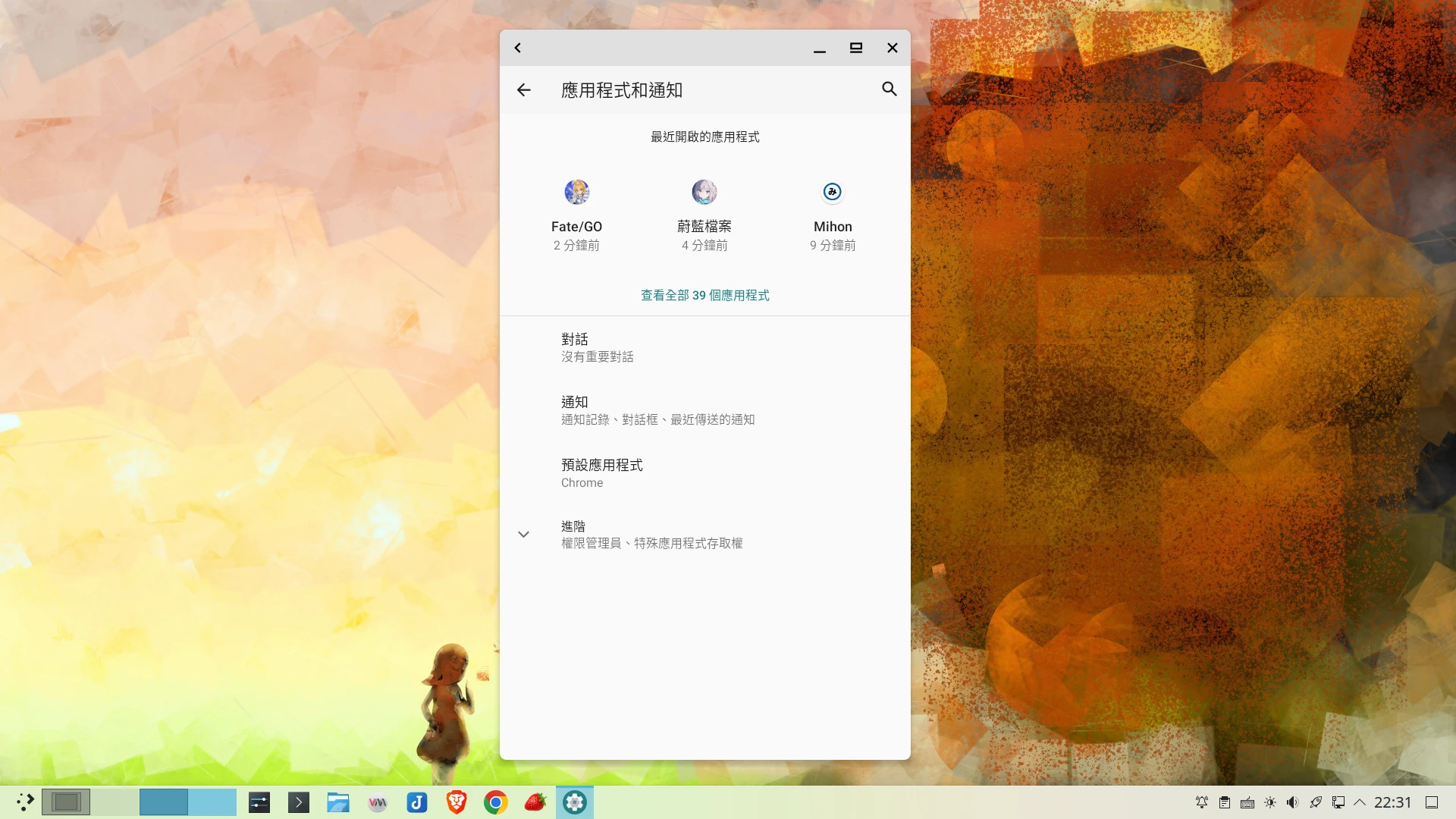
Personally, I think Android 13’s window management is incomplete. Some apps break after resizing, or cannot be resized at all. If you think there is a problem, turn this feature off:
waydroid prop set persist.waydroid.multi_windows false

sudo systemctl restart waydroid-container
In addition, Android also has a built-in “freeform” window feature, launched from the multitasking screen. This lets apps freely resize only inside Waydroid’s window.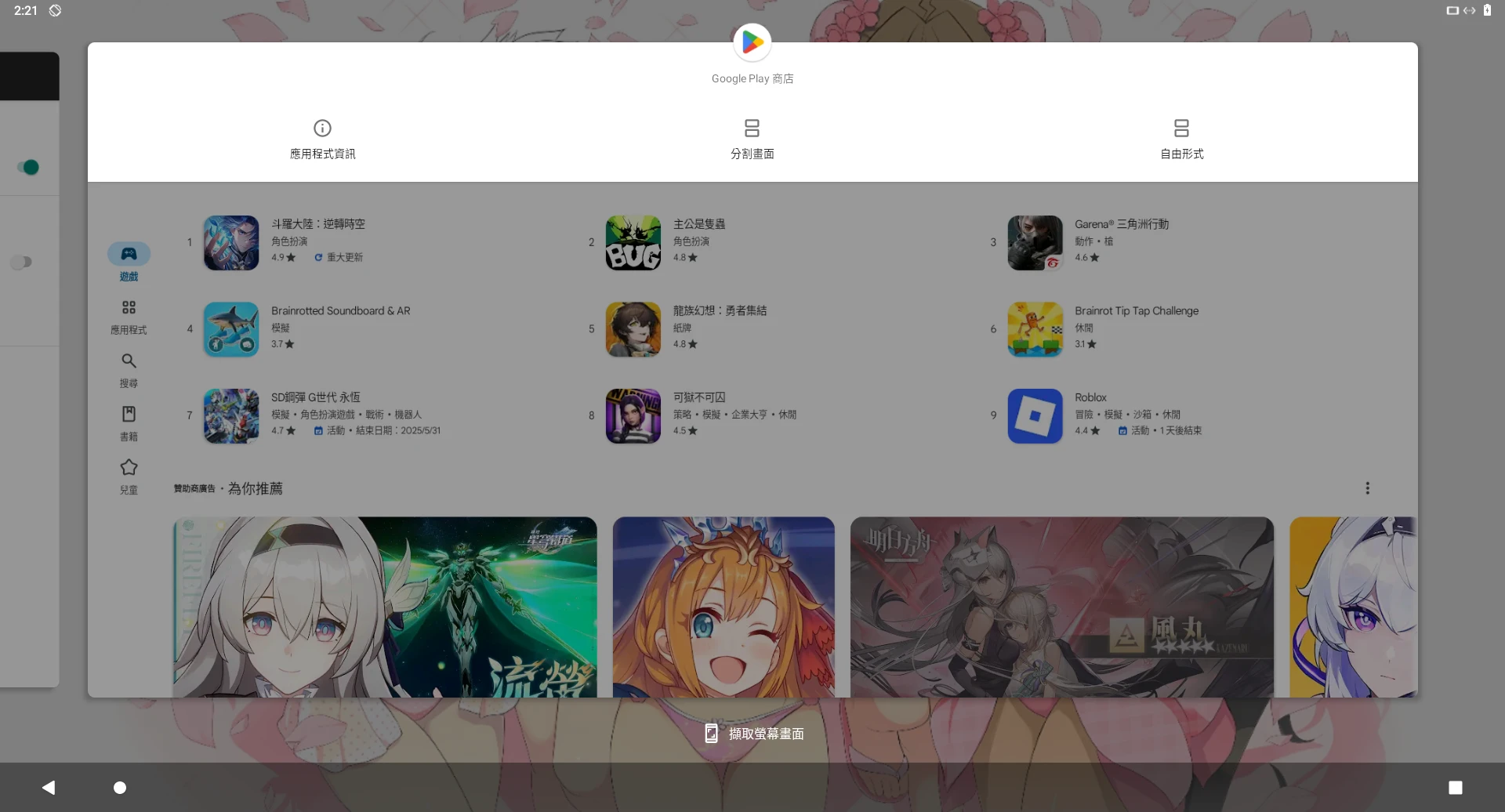
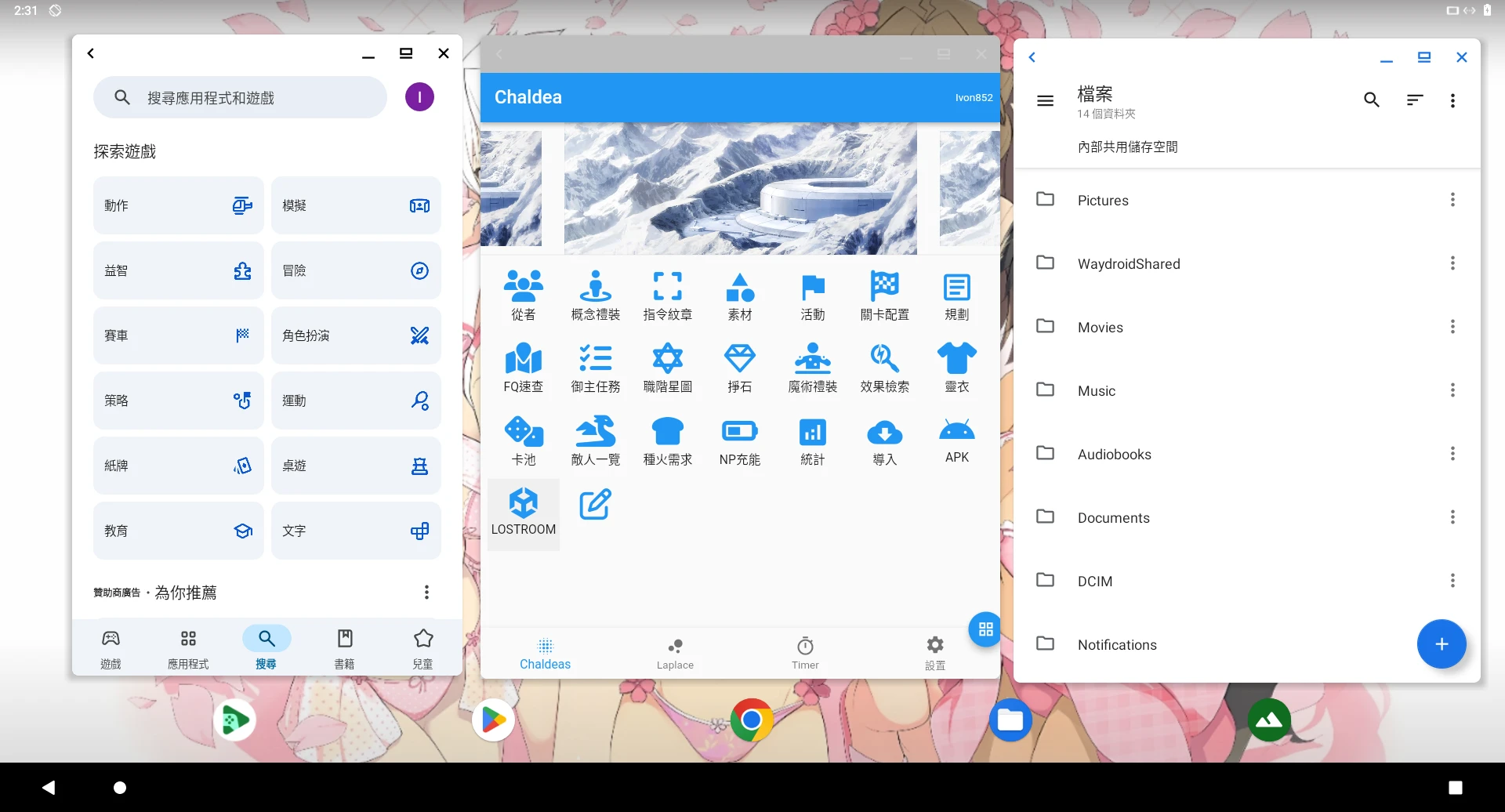
8. Run Multiple Apps at the Same Time#
By design, Waydroid cannot open multiple instances, so you cannot log into two accounts for the same app at the same time to achieve multi-instance use. However, you can use Shelter’s work profile feature to duplicate apps within one Android system.
According to Waydroid’s design, after APKs are installed, each Android app icon appears in the Linux desktop application list. Click there to launch them and run multiple apps. But you must enable “multi-window mode” to run two or more apps “simultaneously”.
In multi-window mode, what should you do if an app refuses to window itself and insists on full screen? Make good use of the desktop environment’s virtual desktops. GNOME, KDE Plasma, Hyprland, and COSMIC all have virtual desktop (also called workspace) features. If an app starts and fills the entire screen of the current virtual desktop, switch to the next virtual desktop and launch another app. Each workspace can run its own apps separately.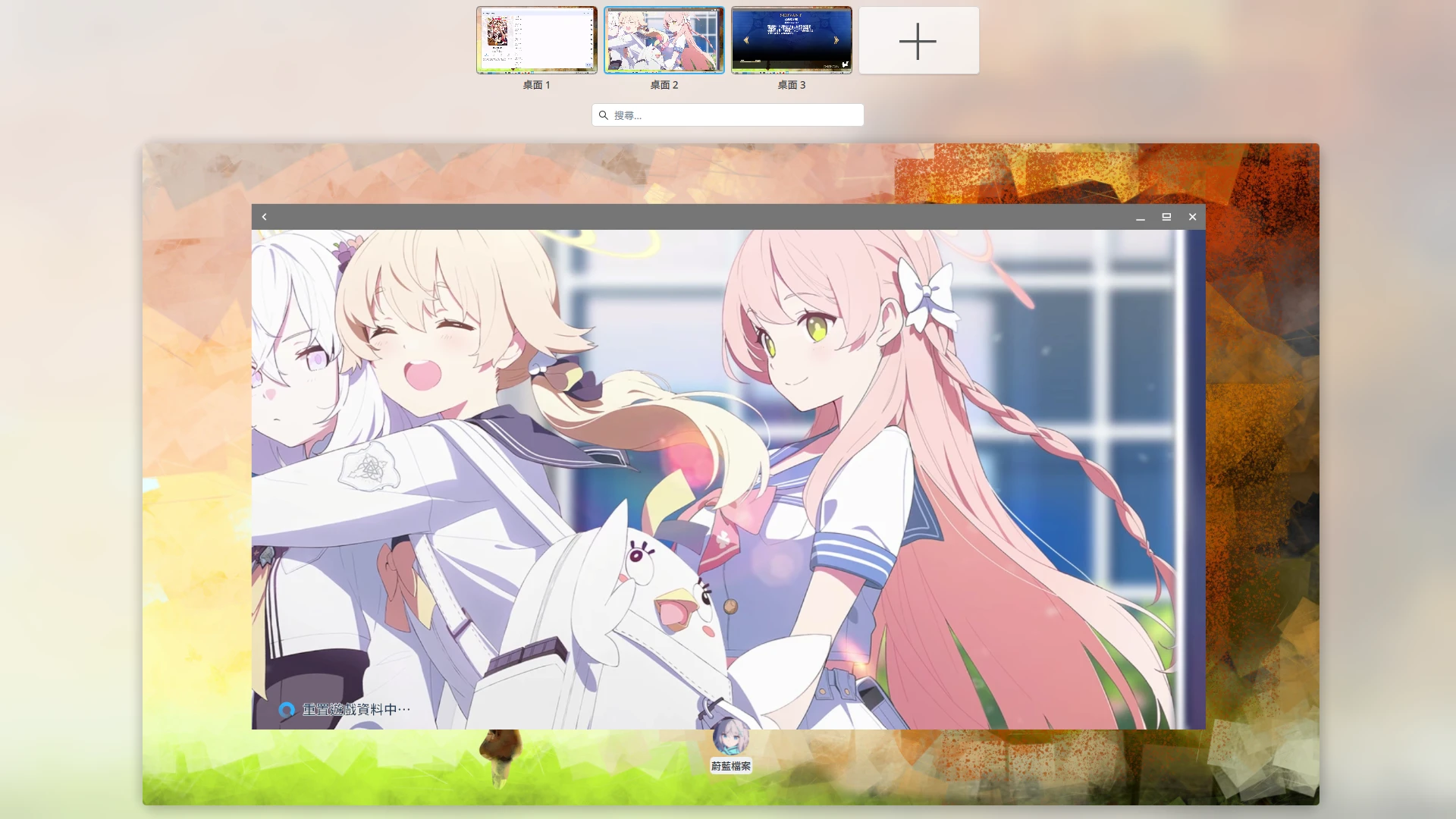
9. Share Files Between Linux and Waydroid#
Waydroid’s data after startup is located under ~/.local/share/waydroid/data/media/0/. This is Android’s internal storage and requires Root permission to access.
If you enter it with KDE Dolphin file manager version 6.0 or later, you can request Root permission to forcibly read Android files.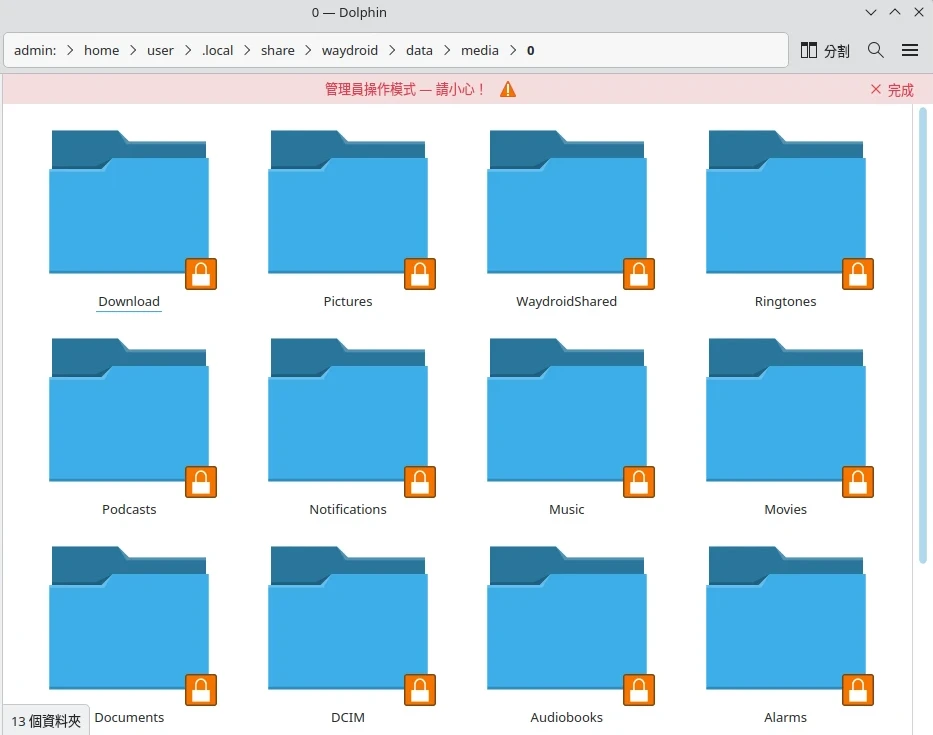
Alternatively, use the method of mounting a regular-permission directory to access files. To avoid affecting other files, I recommend creating a dedicated shared folder named WaydroidShared on both sides. Use the mount command to mount Linux’s ~/WaydroidShared to the WaydroidShared folder inside Waydroid:
sudo mount --bind  ~/WaydroidShared ~/.local/share/waydroid/data/media/0/WaydroidShared

sudo chmod -R 777 ~/.local/share/waydroid/data/media/0/WaydroidShared
You can also transfer files wirelessly with ADB commands. Check Waydroid’s IP in Android system settings → About.
adb connect Waydroid的IP:5555

adb push "本機目錄" "Android的目錄"
Or use SFTP. If the Linux host has the Avahi service installed, you can connect through hostname.local instead of an IP. This way you can connect no matter how the IP changes.
Then, as long as you install Material Files on the Android side, you can type hostname.local to log in to the Linux host’s SSH server and browse files.
10. Simulate Wifi Connection for Apps#
(Note: this feature has stopped working after Android 13)
Some apps require Wifi to be enabled before downloading; otherwise they think you only have mobile data. Then, as they wish, enable fake wifi.
Use the waydroid app list command to check the app’s package name.
Use the following syntax to set it:
waydroid prop set persist.waydroid.fake_wifi "套件名稱"For example, enable simulated Wifi for the Mihon manga reader, enable allowing non-Wifi downloads in that app’s settings, and then restart the container:
waydroid prop set persist.waydroid.fake_wifi "app.mihon"

sudo systemctl restart waydroid-container
11. Simulate Touch Taps for Apps#
Use the waydroid app list command to check the app’s package name.
Some apps do not recognize mouse clicks and need fake touch enabled:
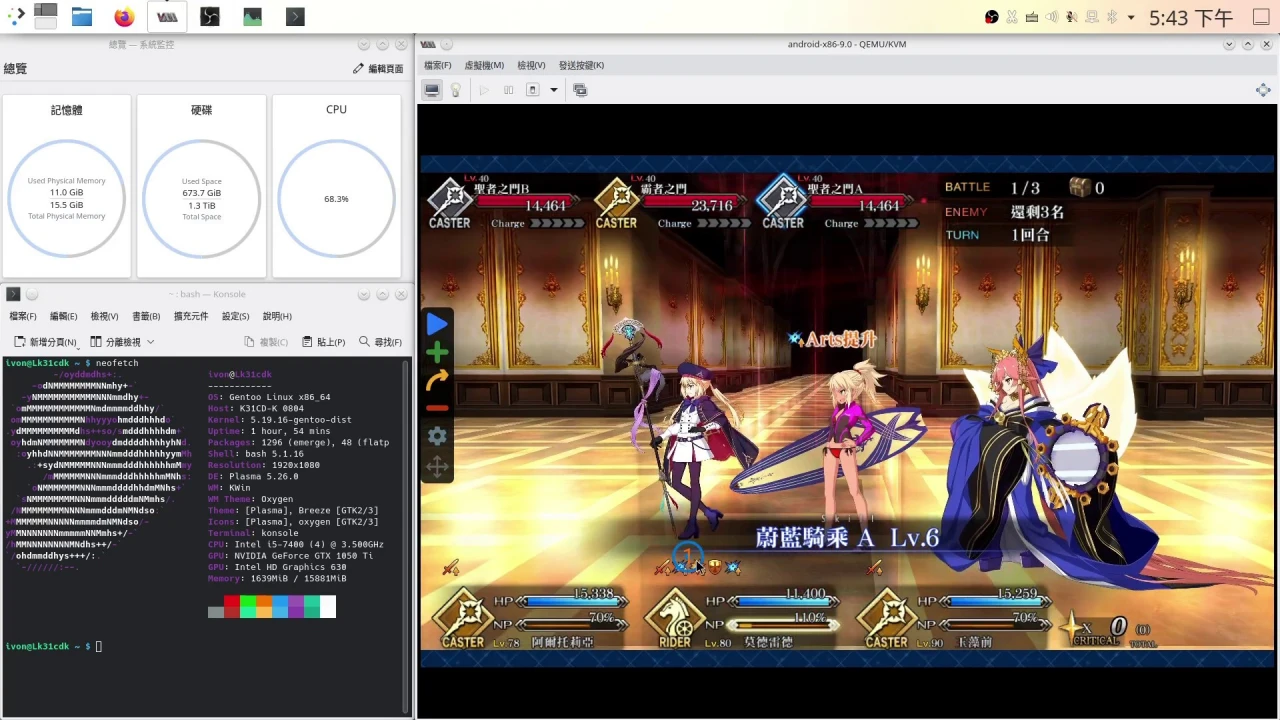
waydroid prop set persist.waydroid.fake_touch "套件名稱"For example, enable simulated touch for Fate/Go, then restart the container:
waydroid prop set persist.waydroid.fake_touch "com.aniplex.fategrandorder"

sudo systemctl restart waydroid-container
If the app still cannot be clicked after enabling simulated touch, consider using another solution, such as: Scrcpy + Waydroid
In addition, if you want to use the computer keyboard to simulate touch operations, install Waydroid Helper.
12. Force App Screen Orientation#
Install an app like Rotation Control to forcibly adjust Waydroid’s screen orientation.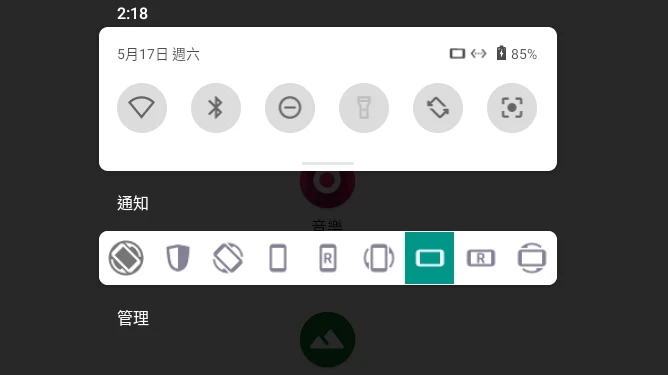
Waydroid may not be able to adjust to a portrait screen resolution unless you use a Linux tablet with a rotatable screen.
To use apps in portrait orientation, I recommend enabling “multi-window mode”, or: Scrcpy + Waydroid
13. Adjust App Volume#
Open Android system settings → Sound to adjust volume.
Physical keys cannot control the volume inside the Android container, so you need to install a separate volume adjustment app. Put it on the Android desktop as a widget, or use Sound Quick Settings to add a volume adjustment button to Android’s notification shade.
The Linux desktop’s volume control panel can mute Waydroid’s output separately, such as pavucontrol.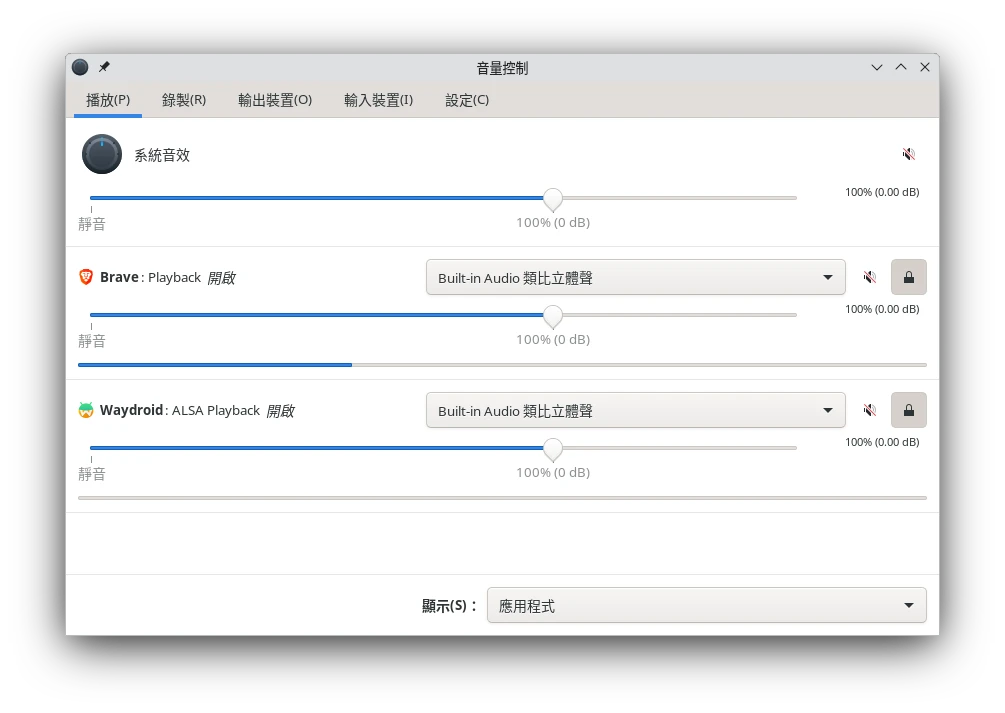
In addition, Waydroid can access Linux’s microphone, and Android apps should be able to record audio normally. Microphone volume can likewise be adjusted from the pavucontrol control panel.
If multiple apps are running and you want to mute a specific app individually, I recommend using the MixedAudio feature of ShizuTools.
14. App Screenshots#
Android’s multitasking screen has a screenshot button for individual apps.
On the Linux side, there is no shortcut key that can trigger an Android hardware-key screenshot, so just use Linux-side screenshot software.
Alternatively, install Screenshot Tile, and Android’s notification shade will gain a native screenshot button.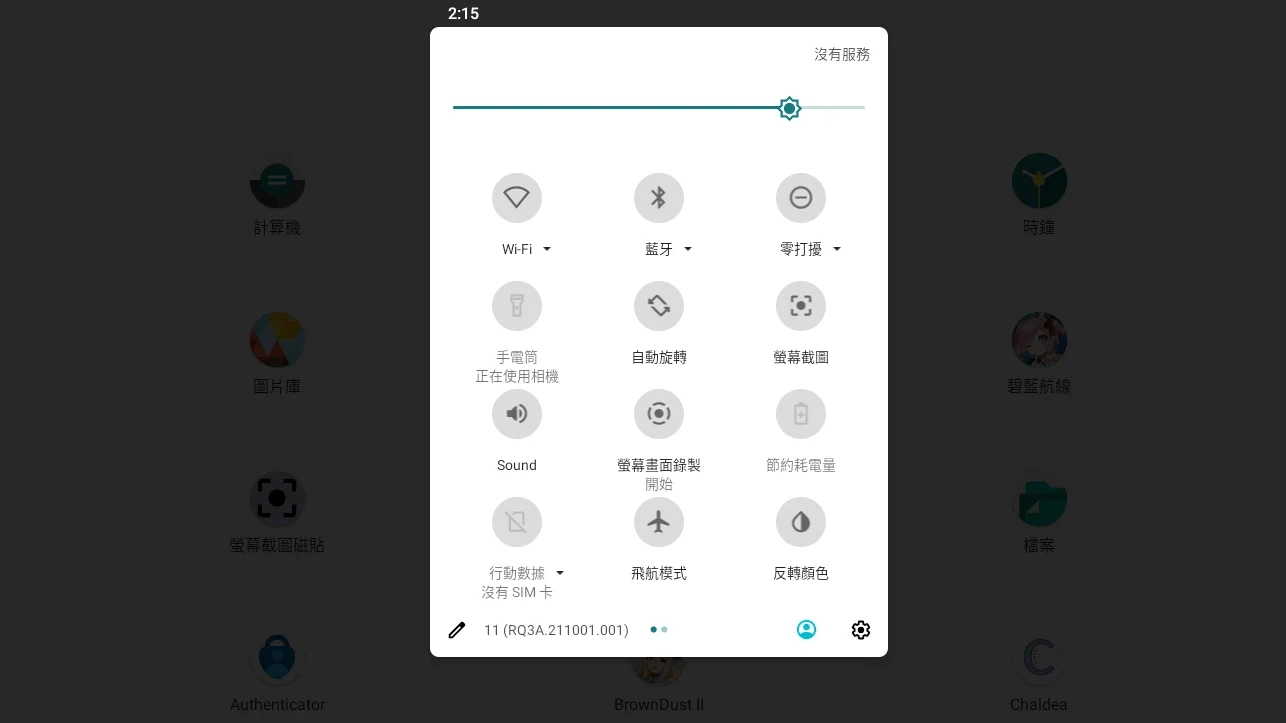
15. Prevent Apps from Detecting Root or Emulator and Crashing#
Sometimes apps refuse to install or crash not because of ARM translation, but because the app thinks your device is unsafe.
Waydroid cannot pass even the most basic Play Integrity API level, so some apps refuse to run.
In addition, apps that require DRM will also be unable to play.
This solution is more complicated, depending on whether you want to install Magisk to hide Root, or spoof the device model. See: Waydroid & Magisk & LSPosed
16. Hide Waydroid App Icons on the Linux Desktop#
GNOME desktop users have this annoyance: Android app icons are mixed together with Linux program icons, causing confusion.
Waydroid’s Android app icons are located at ~/.local/share/applications/waydroid.*. It displays Android apps as Linux Desktop Entries.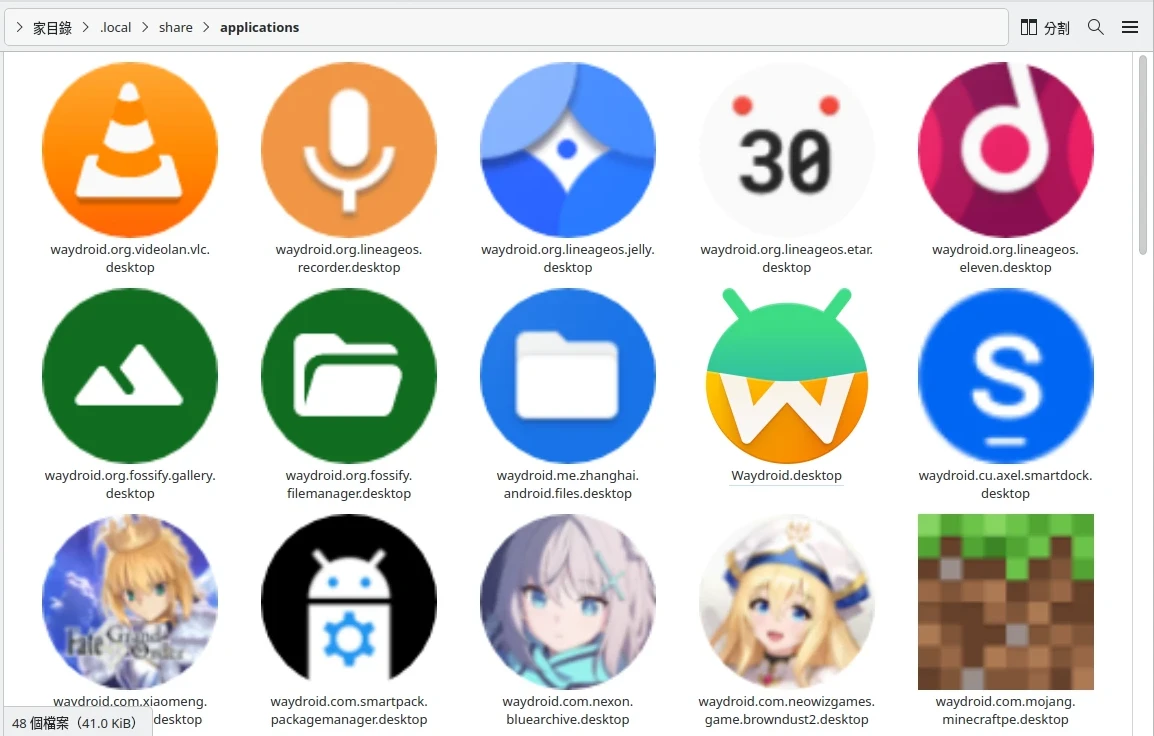
Then, as long as you periodically run a command to set them not to show on the desktop, it is fine (reference).
sed -si '/Actions=app_settings/a NoDisplay=true' ~/.local/share/applications/waydroid.*.desktop17. Start Waydroid on an X11 Desktop#
If it is inconvenient to use a Wayland session, solve it with a nested Wayland session using Weston.
See: Launch Waydroid on X11 Desktop
18. Force Waydroid to Start with Software Rendering on Nvidia Graphics Cards#
At the time of writing, Nvidia’s closed source driver version is 575. Waydroid only supports Intel and AMD graphics cards and does not support Nvidia. If you insist on running it on an Nvidia graphics card, you can only start Waydroid with software rendering. There is no performance to speak of in this mode, and you cannot play games.
Note: someone made a waydroid-choose-gpu.sh script that can select the GPU used by Waydroid. It seems able to solve the Nvidia + Intel graphics card configuration problem by forcing Intel graphics rendering when Nvidia is the primary graphics card. However, because Waydroid needs assistance from the desktop compositor, the GPU used at runtime must be the same one used by the desktop compositor, so this script seems effective only in Intel + AMD configurations.
- Initialize Waydroid
sudo waydroid init -s GAPPS -f- Edit the configuration file
sudo vim /var/lib/waydroid/waydroid.cfg- Fill in the following contents to enable SwiftShader
[properties]
ro.hardware.gralloc=default
ro.hardware.egl=swiftshader- Apply changes
waydroid upgrade --offline- Restart Waydroid
sudo systemctl restart waydroid-container19. Upgrade or Downgrade the Waydroid System Version#
You can use the Custom Image mechanism to upgrade or downgrade the Android system version.
Go to SourceForge to download older system and vendor images
Extract the images and move them to the specified location
sudo mkdir -p /etc/waydroid-extra/images

sudo unzip lineage-*-system.zip -d /etc/waydroid-extra/images

sudo unzip lineage-*-vendor.zip -d /etc/waydroid-extra/images

rm lineage-*-system.zip lineage-*-vendor.zip- Reinitialize Waydroid:
sudo waydroid init -f- Reboot. Start Waydroid. Go to system settings → About phone and confirm whether the version changed successfully.
References#
- Waydroid官方文件
- Waydroid - Arch Wiki
- Report bugs at the Waydroid Github repository