Some PinePhone Linux distributions already provide Full Disk Encryption in their installers. This can protect your phone data from being read out, but it also increases system complexity.
The technology used is “LUKS” encryption. The mobile Linux distributions that currently have this feature and make it easy to configure are postmarketOS and Mobian. Arch Linux ARM and Manjaro ARM also provide a script for installation.
(Images are from Gitlab and the official PinePhone website.)

1. Background #
By default, the PinePhone boots from an SD card. If you insert an SD card with Jumpdrive and boot from it, the phone’s internal partition data is laid bare. Jumpdrive is meant to make system installation easy, and most distributions do not encrypt partitions by default. Convenient, yes. Secure, not really.
So the only way to get protection is to make sure the phone data remains encrypted even when the phone is plugged into a computer and can be read.
2. Introduction to LUKS Encryption #
According to Red Hat’s introduction:
Linux Unified Key Setup (LUKS) is a specification for block device encryption. It defines an on-disk format for data and a password/key management policy. LUKS uses the kernel device-mapper subsystem through the dm-crypt module. This provides a low-level mapping layer that can handle encryption and decryption of device data. User-level operations, such as creating and accessing encrypted devices, are performed with the cryptsetup tool.
Users can encrypt the current disk. When accessing the disk, the user must enter a password before the disk data can be read as plaintext. The disk can still be decrypted on another computer.
3. Enable Disk Encryption on postmarketOS #
postmarketOS can be installed in two ways: with pmbootstrap, or with an officially built image. The main encrypted partition is pmOS_root. After disk encryption is enabled, you need to enter the decryption password during boot.
- Android phones other than the PinePhone are not guaranteed to support disk encryption. Check the Devices table to confirm.
3.1. Method One: Build the system files with pmbootstrap #
- First refer to: postmarketOS General Installation Tutorial
When flashing, add the --fde option to the command. This enables disk encryption when flashing to the phone:
pmbootstrap install --sdcard=/dev/sdb --fde3.2. Method Two: Flash the official prebuilt Installer #
- First refer to: PinePhone System Installation Tutorial
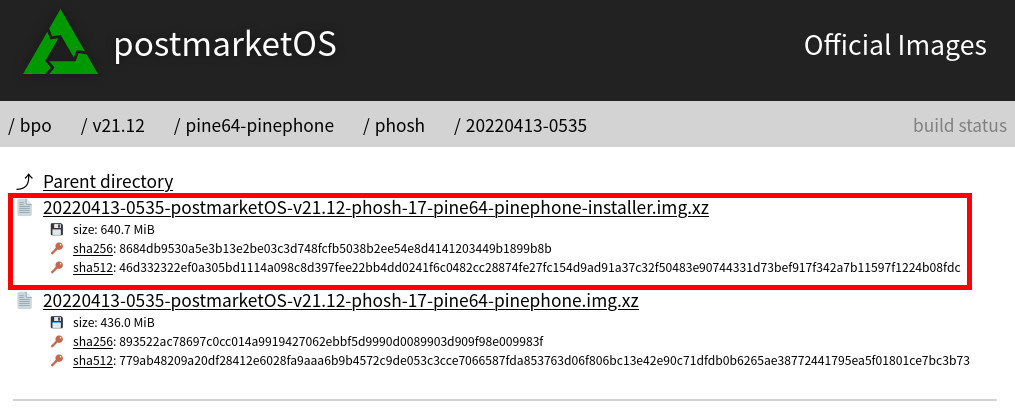
- Download the image file and choose the installer image.
-
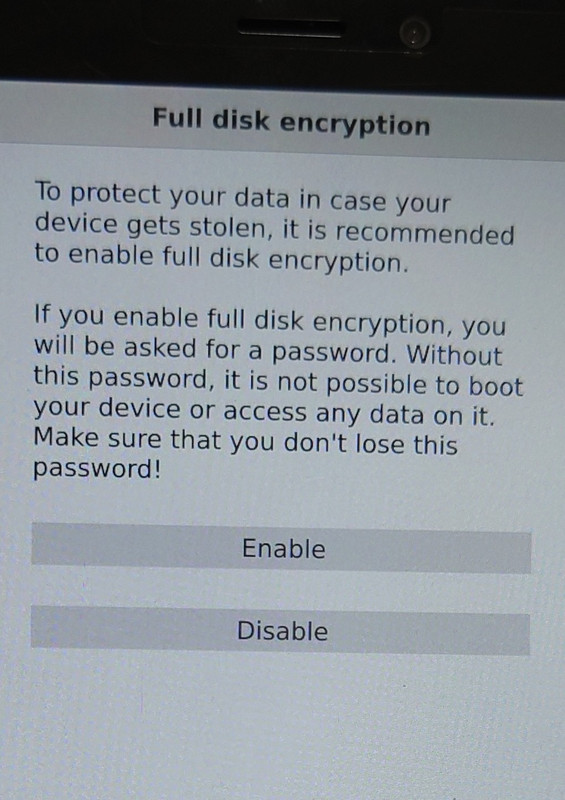
After flashing, boot the phone, select `Enable Full disk encrpytion``, enter a custom 8-digit password, and install the system.
-
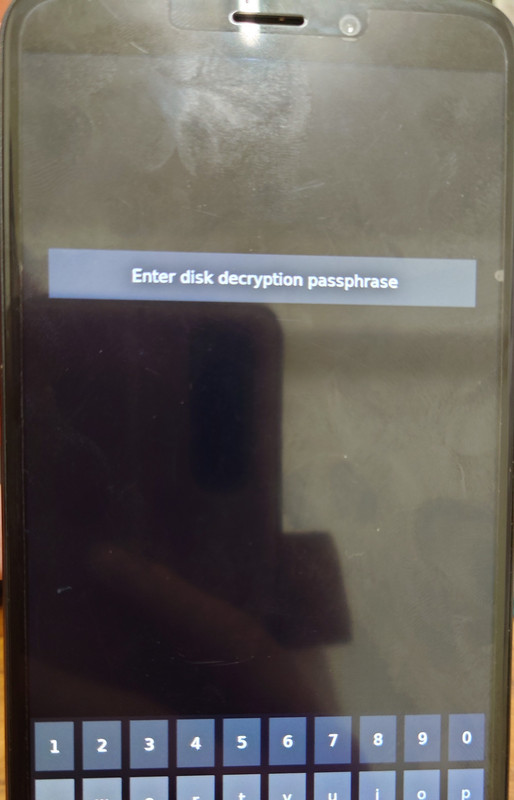
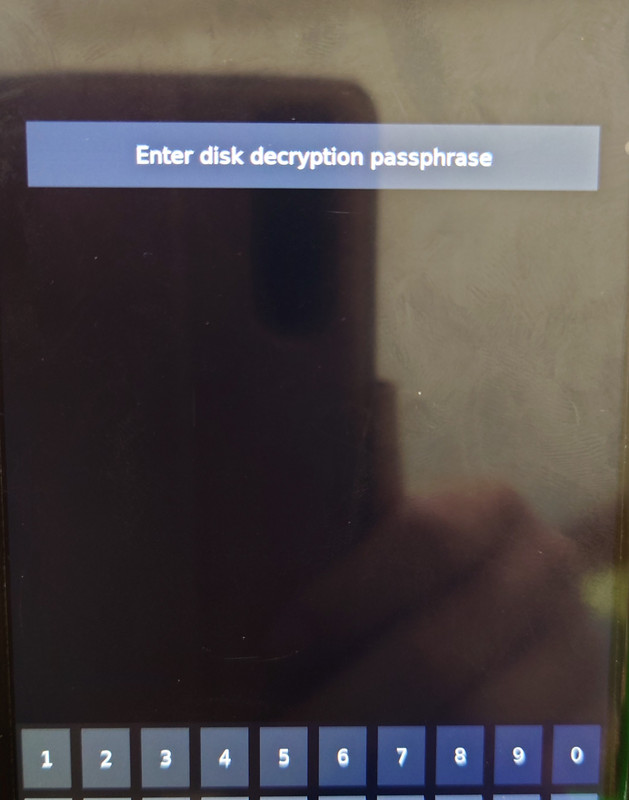
From now on, before entering the system during boot, you need to enter the disk password once.
4. Enable Disk Encryption on Mobian #
Mobian’s installer now provides a disk encryption option.
- First refer to: PinePhone System Installation Tutorial
- Download the system image and choose the Installer.

-
Flash it. After booting, tap
Enable Full disk encrpytionand set an 8-digit password.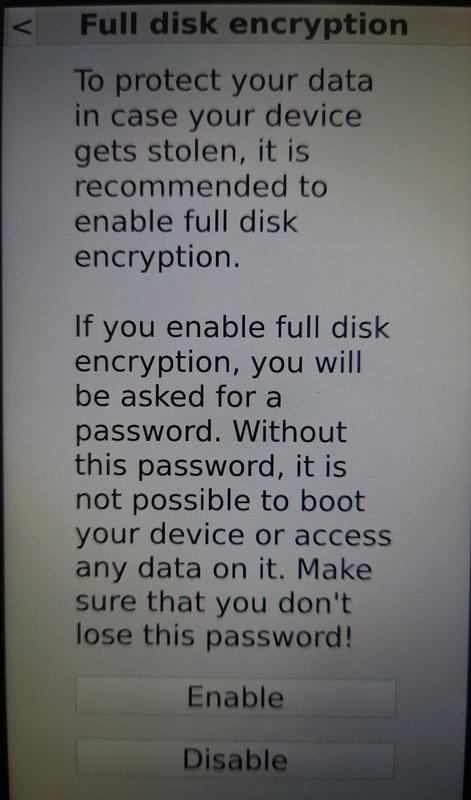
-
After that, you need to enter the disk decryption password at boot.
5. How to Remove LUKS Disk Encryption #
Decrypting the partition requires formatting the disk.
Tow-Boot currently does not support encrypted partitions, so you need to boot with Jumpdrive before the computer can read them. If the computer runs Ubuntu, after plugging in the phone it should prompt for the partition password. After decrypting and mounting it, you can browse the data inside.

You can confirm the encrypted partition (crypt) with the lsblk command:
sdc                     8:32   1  28.9G  0 disk
├─sdc1                  8:33   1   243M  0 part  /media/ivon/pmOS_boot
└─sdc2                  8:34   1  28.7G  0 part
  └─luks-55a4bb3f-165b-44ce-a771-fdc914c32b6e
253:0 0 28.7G 0 crypt-
Back up important data, then open Gparted.
-
Right-click the PinePhone phone partition and unmount it, delete all partitions, then format it as ext4. For the encrypted partition, after unmounting it, click “Cancel encryption”.
For details, see: How to Format an SD Card on Linux