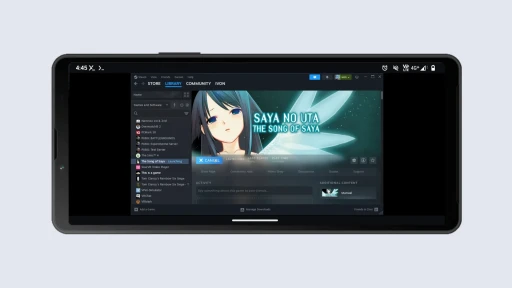
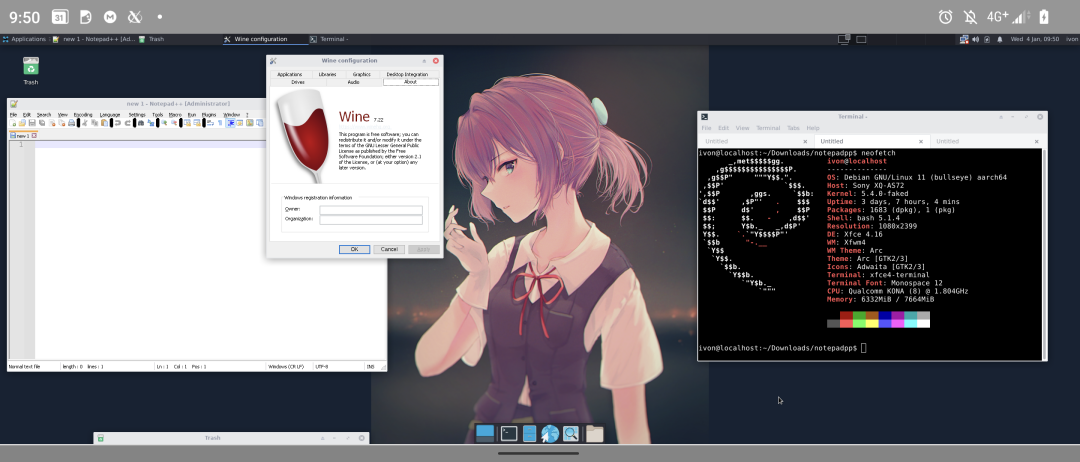
Introducing how to install a complete Linux system virtual machine on an Android phone/tablet without root.
Termux can use QEMU to emulate and run Linux virtual machines, making up for the shortcomings of the proot-distro environment.
Why use QEMU? The Linux environment provided by proot-distro is similar to chroot, but there are still some packages that cannot run, such as Podman, Docker, Snap, Flatpak, and programs that depend on Systemd, so a virtual machine becomes necessary.
QEMU lets you emulate virtual machines with x86 or ARM architectures and run a complete Linux desktop system. The image below shows Xubuntu running on an Android phone.
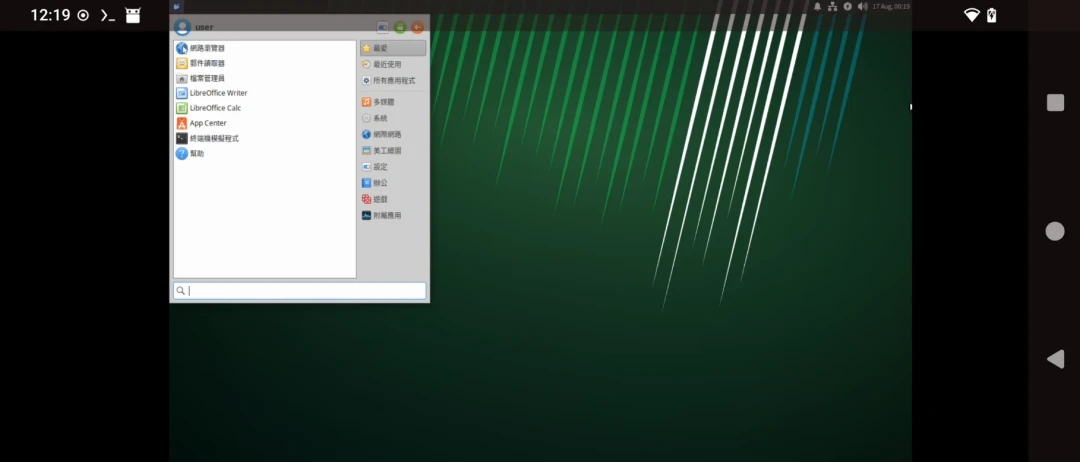
This way, almost all software can run. The image shows Podman execution results.
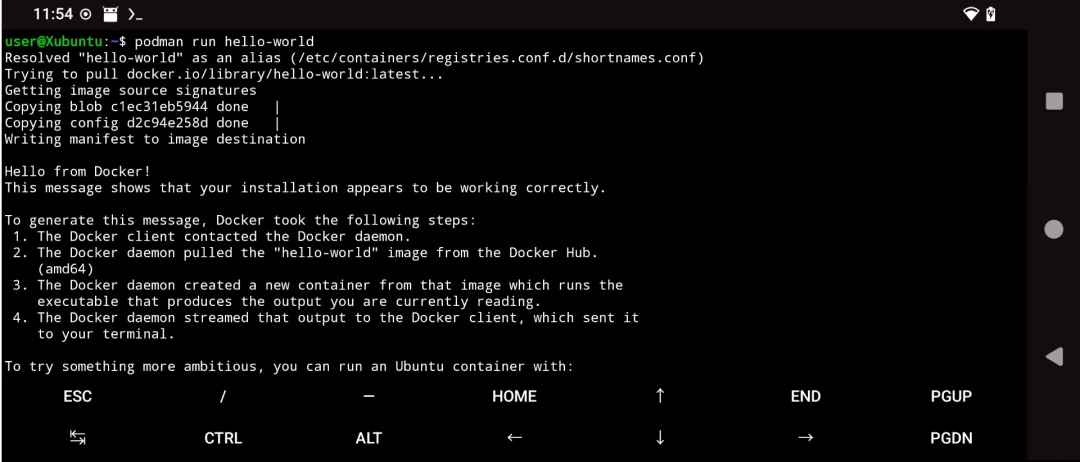
Incidentally, QEMU is the emulator used behind Limbo PC Emulator. After Limbo stopped updating, you can still run virtual machines with Termux’s QEMU package.
Please note: Most Android phones do not have a KVM kernel module (only Pixel phones can use pKVM to accelerate QEMU after root), so QEMU in Termux cannot use KVM to accelerate virtual machine execution like desktop Linux. Without KVM, QEMU virtual machines run extremely slowly. Programs inside the virtual machine run at less than about one fifth the speed of Termux native packages. Text-only programs are barely acceptable, but the office-work experience is poor, let alone gaming.
Given this execution speed, you can skip the graphical interface and SSH directly into it to run programs.
1. Environment #
- Phone: Sony Xperia 5 II
- System version: Android 14
- Processor: Qualcomm Snapdragon 865
- RAM:8GB
- Linux virtual machine system: Ubuntu 24.04 x86_64 (Xubuntu)
A phone running QEMU should use a flagship processor and have at least 8GB RAM.
The Linux distribution used is Ubuntu, but GNOME is a bit too heavy, so here I choose the lightweight Xubuntu, which uses the XFCE desktop. If you do not need a graphical interface, Ubuntu Server is also fine. Besides Ubuntu, there is an even lighter option: Alpine Linux, designed for embedded systems, which boots faster. (See: Termux headless Alpine Linux QEMU VM)
Because there is no KVM acceleration, there is not much difference between emulating an x86 or ARM virtual machine.
Tip: you can run QEMU on a Linux computer (faster with KVM), create a qcow2 image with the system already installed, then put it on the phone and boot it, saving system installation time.
2. Install prerequisite packages #
-
Install a VNC client, such as AVNC
-
Install Termux
-
Open Termux and keep it running in the background
-
Go to the Xubuntu official site, copy the ISO download link, and download it with the wget command
pkg install wget

wget https://ftp.ubuntu-tw.net/mirror/ubuntu-cdimage/xubuntu/releases/24.04/release/xubuntu-24.04-desktop-amd64.iso- Then install QEMU and SSH packages
pkg install qemu-system-x86_64 qemu-utils qemu-common openssh vim ovmf3. Install the Linux virtual machine #
The installation command is similar to running QEMU on a Linux computer, but slightly modified because Android has no KVM.
- Add a 32GB virtual hard disk
qemu-img create -f qcow2 xubuntu.qcow2 32G- Add a boot script
vim startubuntu.sh- Enter the following content
qemu-system-x86_64 -machine q35 \
-drive if=pflash,format=raw,read-only,file=$PREFIX/share/qemu/edk2-x86_64-code.fd \
-m 4096 \
-accel tcg,thread=multi \
-smp sockets=1,cores=4,threads=1 \
-cpu qemu64 \
-vga std \
-netdev user,id=n1,hostfwd=tcp::2222-:22 -device virtio-net,netdev=n1 \
-device intel-hda \
-usbdevice tablet \
-boot menu=on -drive file=xubuntu.qcow2 \
-vnc :0 \
-cdrom xubuntu-24.04-desktop-amd64.iso- Command explanation:
# Run an x86_64 virtual machine
qemu-system-x86_64 -machine q35 \

# Enable UEFI boot
-drive if=pflash,format=raw,read-only,file=$PREFIX/share/qemu/edk2-x86_64-code.fd \

# Allocate 4GB RAM
-m 4096 \

# Without KVM, only TCG acceleration can be used
-accel tcg,thread=multi \

# CPU allocation: 1 socket, 4 cores, 1 thread
-smp sockets=1,cores=4,threads=1 \
-cpu qemu64 \

# Virtual graphics card
-vga std \

# Use a virtio network card and redirect the virtual machine's SSH port for external access
-netdev user,id=n1,hostfwd=tcp::2222-:22 -device virtio-net,netdev=n1 \

# Sound card
-device intel-hda \

# Mouse and keyboard
-usbdevice tablet \

# Virtual hard disk
-boot menu=on -drive file=xubuntu.qcow2 \

# Start VNC server
-vnc :0 \

# Boot ISO
-cdrom xubuntu-24.04-desktop-amd64.iso- Boot it
chmod +x startubuntu.sh

./startubuntu.sh-
Open the AVNC app, enter IP:
localhost:5900, and connect to the Xubuntu desktop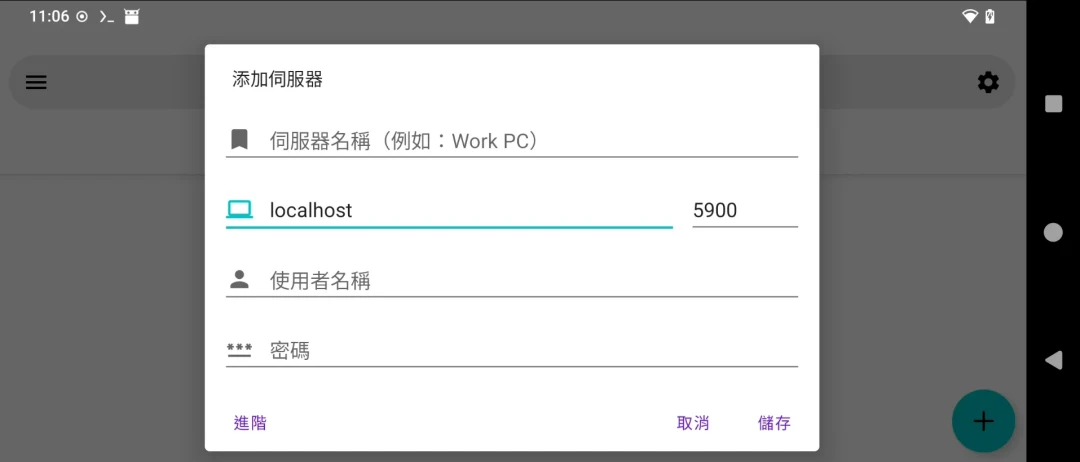
-
Wait until it enters the boot interface, install Xubuntu, then shut down.
-
Edit the script
vim startubuntu.sh- Remove the cdrom option
qemu-system-x86_64 -machine q35 \
-drive if=pflash,format=raw,read-only,file=$PREFIX/share/qemu/edk2-x86_64-code.fd \
-m 4096 \
-accel tcg,thread=multi \
-smp sockets=1,cores=4,threads=1 \
-cpu qemu64 \
-vga std \
-netdev user,id=n1,hostfwd=tcp::2222-:22 -device virtio-net,netdev=n1 \
-device intel-hda \
-usbdevice tablet \
-boot menu=on -drive file=xubuntu.qcow2 \
-vnc :0- Boot with this script afterward and test whether it can enter the system
4. SSH into the virtual machine #
- Open a terminal in Xubuntu and enable the SSH service
sudo apt install openssh-server

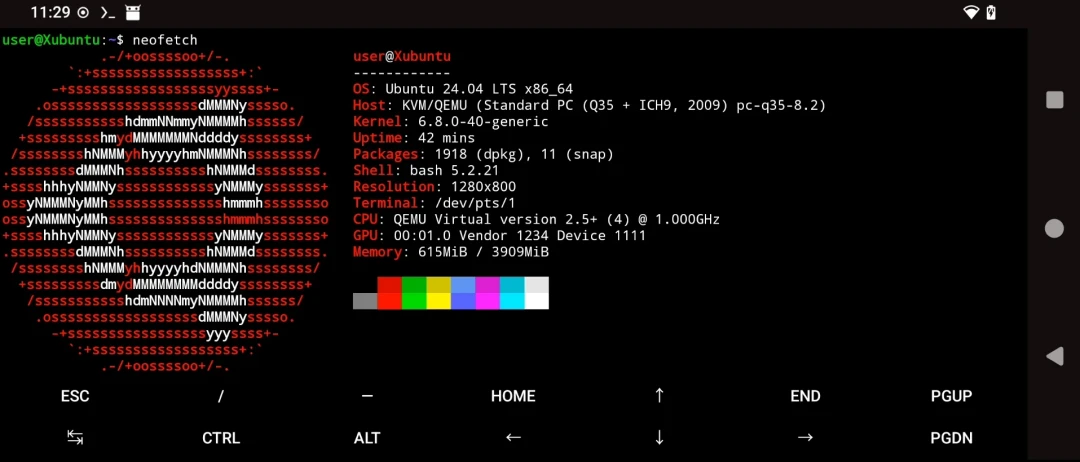
sudo systemctl enable --now ssh- Slide out from the left side in Termux, open a new session, and try to SSH in.
ssh user@localhost -p 2222- SSH operations should be much smoother than the graphical interface, after all it is only text.
5. Actual usage experience #
Booting into the Xubuntu desktop takes at least 10 minutes.
Firefox alone takes five minutes to open, and loading Google’s homepage takes another five minutes. Do not fantasize about GPU acceleration. (Note: do not install it with Snap; it is too slow)
The execution time of podman run hello-world… is about 30 seconds.
In summary, running a graphical interface is impractical, but running text-only programs is still valuable.