After installing the system with Ubuntu Touch Installer, it is time to learn a few operating tips.
1. Gesture controls #
Ubuntu Touch uses this gesture logic: swipe inward from the right edge and pause to enter the multitasking view. Swipe right to switch to the previous app. Swipe left to return to the home screen.
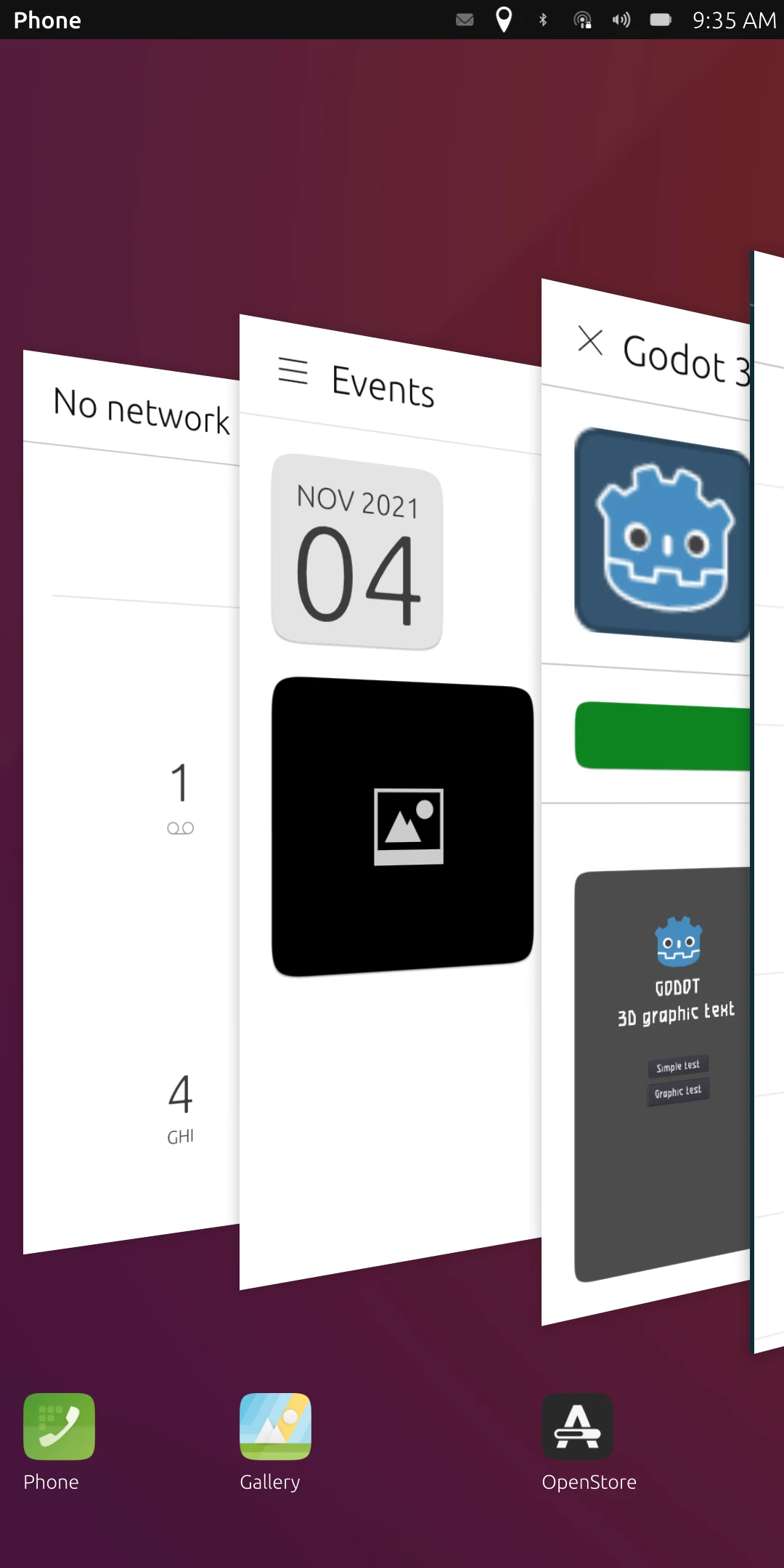
Pull down from the top of the screen to open the status bar.
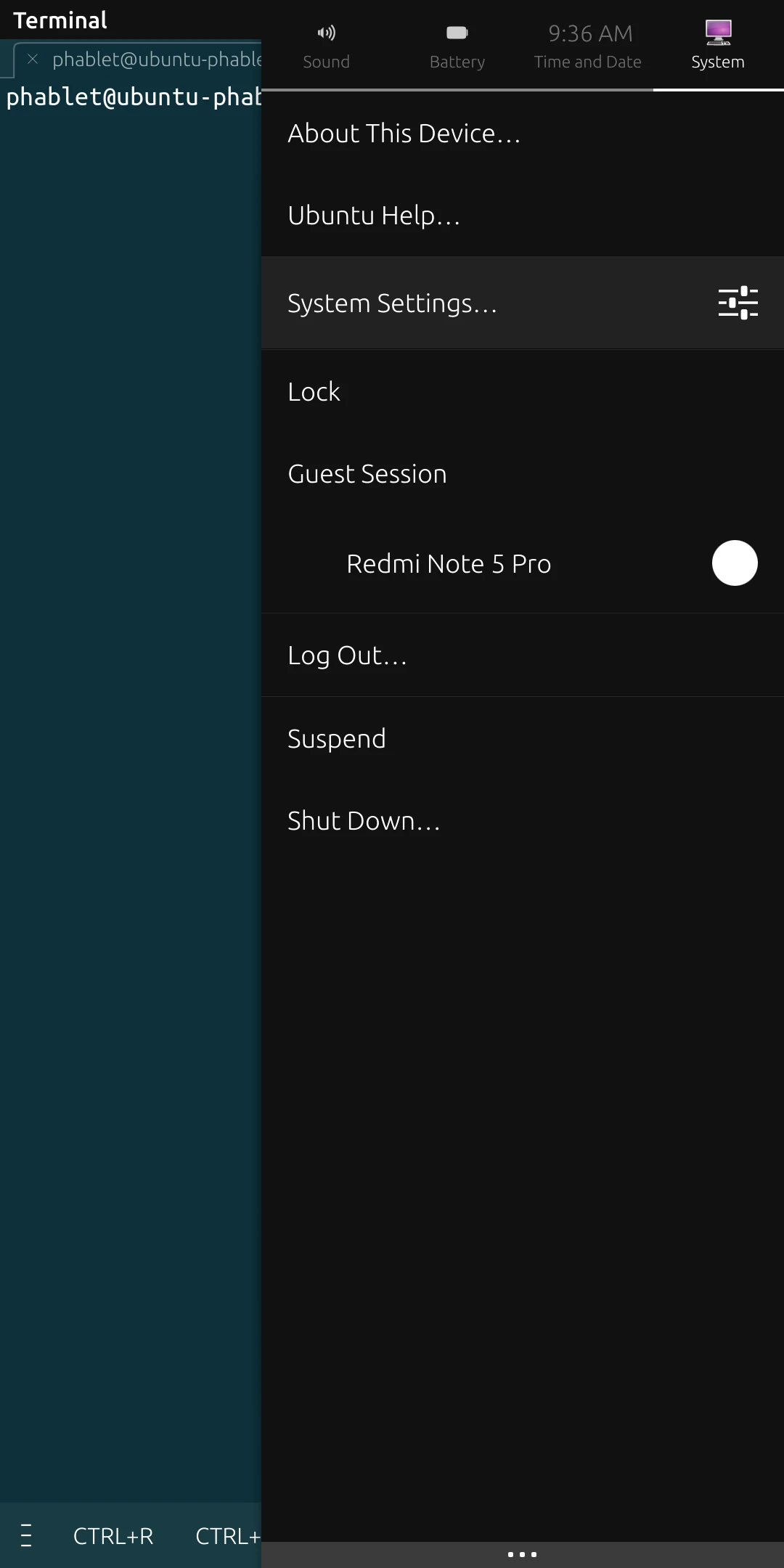
Press the power button to lock the phone.
Swipe inward from the left edge of the screen to open the app menu.
Long-press an app in the app list to enter split-screen mode. Only some apps support this.
2. Ways to install apps on Ubuntu Touch #
Ubuntu Touch includes common software such as a browser, camera, file manager, and terminal. For apps, I recommend downloading them from Open Store.
Ubuntu Touch does have a terminal, but I do not recommend using APT to install packages. It can break the system, and the next OTA update may overwrite your changes anyway.
That leaves only a few software sources:
- Open Store: Open Store lists native apps. There really are not many native apps, though, and plenty of them are HTML5 webpages wearing an app costume.
- Libertine: See the official user manual. It uses chroot or LXC to create a desktop Ubuntu container. The container version corresponds to the Ubuntu Touch system version, currently Ubuntu 20.04.
- Ubuntu Snap: Install desktop software using the Snap format that Canonical keeps pushing. Ubuntu Touch needs snapz0r to enable Snap support.
- Waydroid: Uses LXC to run Android apps, and Android apps inside the container can access the Ubuntu Touch camera. See the official user manual. You can use the built-in Open Store on Ubuntu Touch to download Waydroid Helper APP, and it will install a LineageOS image without GAPPS for you.
If you want to use Linux desktop software, first enable “Desktop mode” in system settings, then create a container with Libertine and install desktop Linux programs inside it. Ubuntu Touch uses Mir as its display protocol, not Wayland, and programs inside Libertine run under XMir.
Notes on using the terminal in Ubuntu Touch #
The Ubuntu Touch system is read-only by default. If you want to install packages with APT, the following commands can disable read-only mode. However, casually running apt upgrade on system packages can easily make the phone fail to boot. Yes, the terminal gives you power. It also gives you paperwork.
# Still effective after reboot
sudo touch /userdata/.writable_image
# Current session only
sudo mount -o remount,rw /
APT is not recommended, but you can still run systemd-related commands and use command-line programs.
Also, some Ubuntu Touch phones modified from Android devices can still transfer files over MTP when connected to a computer.