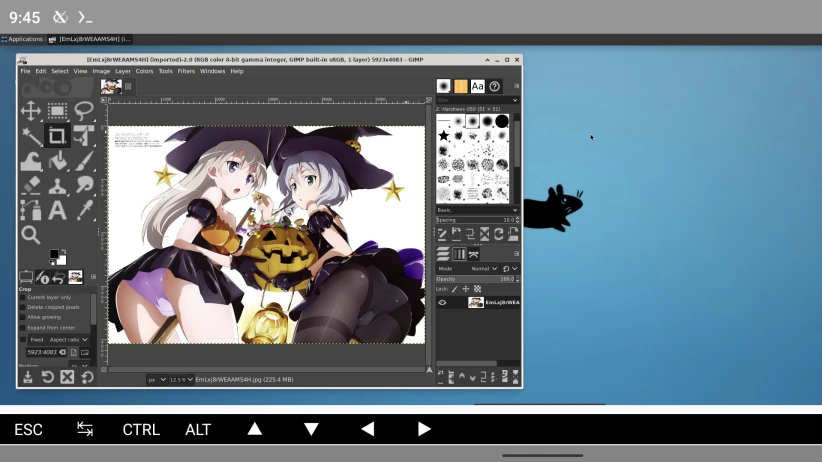
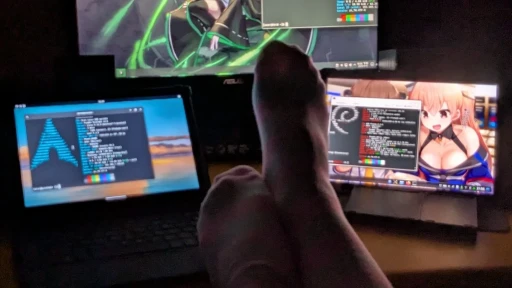
Degoogle your Android phone! This article is about the steps and practice of “de-Googling” an Android phone.
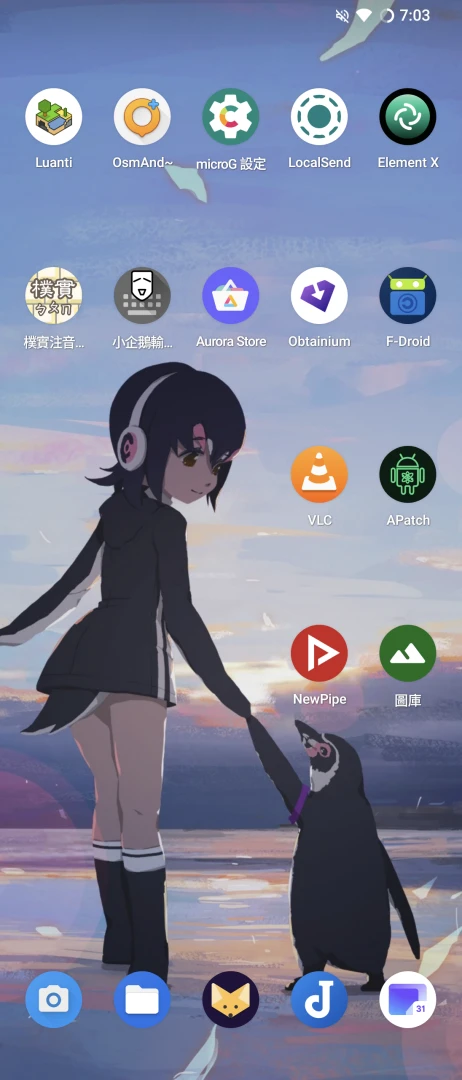
Is it possible to use an Android phone without logging in to a Google account, without using Google apps, and only use them in the browser when necessary? Yes, after flashing a custom ROM to the phone. In the image below, the common apps installed on a fresh Android system are almost all free software.
(This article was originally written in June 2022 and was first posted on Blogger, but yelling about de-Googling on Google’s turf felt kind of weird)
1. Overview of Degoogle #
Did you know? Through the GMS services inside your phone, Google is tracking you 24 hours a day! Every move you make online is recorded by Google, so it can push more ads to you!
Google Services Framework is a parasite on Android phones; it must be removed. That’s Degoogle.
According to the Wikipedia definition, “Degoogle” is a grassroots movement that has emerged in Europe and the United States in recent years.
There is an r/degoogle subreddit dedicated to discussing degoogling strategies.
Degoogle means removing Google services from an Android phone and no longer relying on services provided by GMS.
As for why degoogle? See the links above. Common reasons include protecting privacy, resisting surveillance capitalism, reducing future Barrier of exit, escaping walled gardens, and so on.
Analyzed according to threat model, degoogle can be divided into many degrees, ranging from simply switching your email provider away from Gmail, to completely removing Google services. It depends on personal needs.
What this article discusses is how to perform the most extreme form of de-Googling on an Android phone
Android phones sold outside mainland China mostly come with Google services (GMS), and many apps depend on it to function. Usually, GMS services are set as system apps and cannot be uninstalled.
We are going to uproot the GMS services embedded in the Android phone.
For the best experience, we need to flash the phone with a ROM closer to stock Android, such as “LineageOS” or “GrapheneOS”. These ROMs do not include any GMS services by default, and getting root is also quite easy.
We need to stop using Google services, but too many apps depend on Google services, and some apps simply have no alternatives. At this point, “microG” is a good alternative choice. We can use microG, an open source implementation of Google functionality, to replace GMS services. It minimizes the data that Google services need to collect, has lower privileges than Google services, and can also prevent some apps from failing to run.
Degoogleing naturally means refusing to use Google Play. But you still need an app store, right? This article will introduce how to use “F-Droid”, which only contains free software, and “Aurora Store” to replace Google Play. I will explain the use of these two stores in more detail later.
As for apps, since you have escaped Google, which monitors you, you should use free software as much as possible, reject the whole Google suite, and avoid installing any Chinese spyware.
Alternative apps for common Google services (search, Gmail, maps, calendar, cloud, and so on) are listed at the end of the article.
The benefit of using open source software is that the system-level Barrier of exit is reduced. You are not tied to system services provided by Google or Apple, nor do you become infatuated with proprietary apps provided by a particular OEM.
2. Unlock Bootloader & flash a ROM #
Related article: General Steps for Rooting
My phone is a Sony Xperia 1 III. The stock system is already close to stock Android, but it still contains vendor junk, with many annoying bloated apps. Here I chose the cleaner route: flash a third-party ROM, so even Sony’s built-in software disappears.
For ROM choice, the first option is “LineageOS”. The reason is simple: LineageOS supports the most phones. And by default, it does not include the Google Services Framework, so you can freely choose whether to install it.
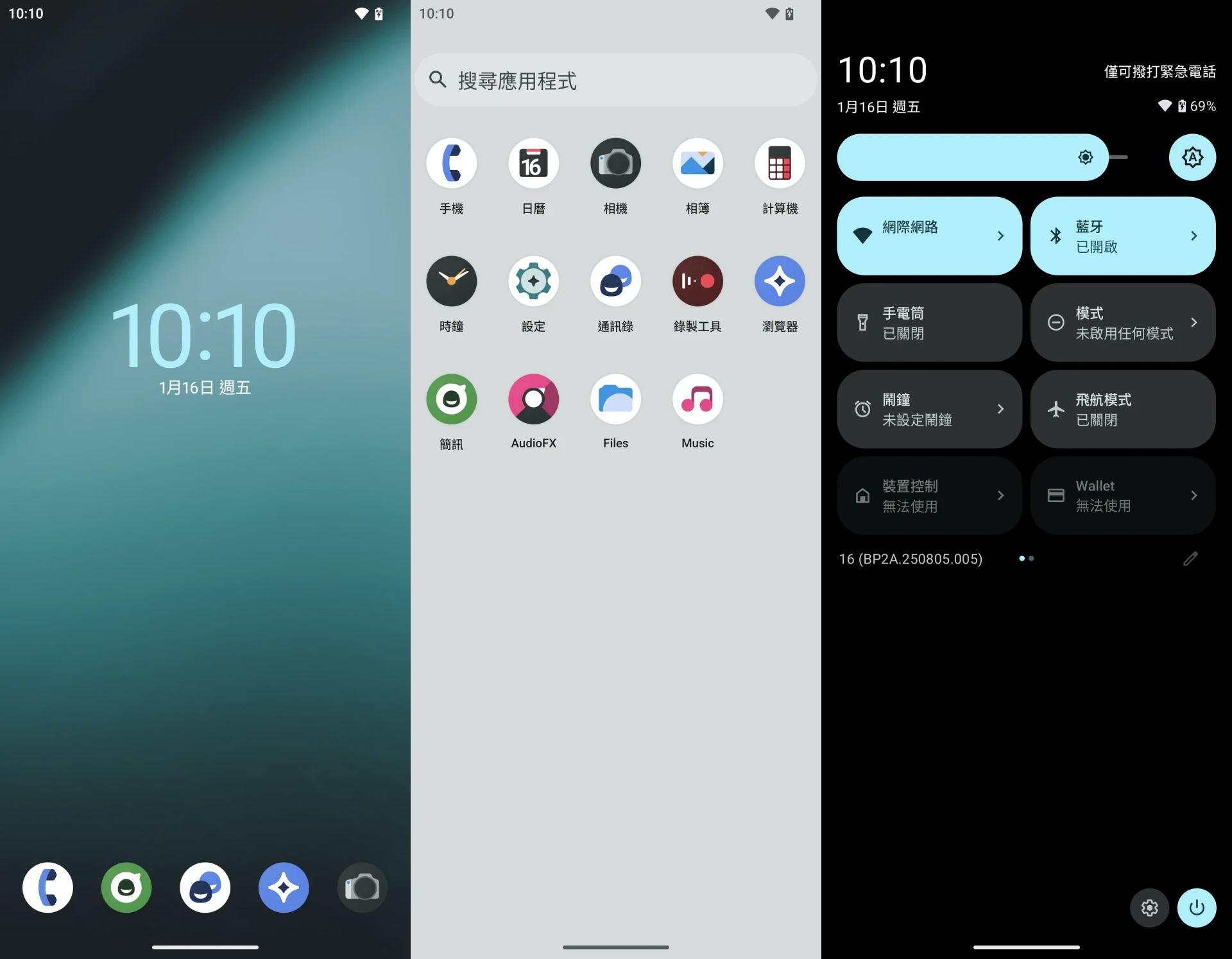
Although LineageOS has very little built in, personally I think stock Android is already good enough.
If your phone supports other third-party ROMs, you do not have to use LineageOS. GrapheneOS, for example, is a good choice. Its privacy-protection options are more thorough than LineageOS. Others than that are fine, too. But you need to pay attention to whether they provide flashable packages without GMS services.
Afterward, use Magisk, APatch, or KernelSU to obtain root privileges. Root is not required, but it is very useful when modifying some system settings.
3. microG installation tutorial #
“microG” is an open source implementation of Google’s service APIs. It originated in Germany and is used to replace GMS services, preventing some apps from failing to run and letting you log in to a Google account inside apps. Compared with MindTheGApps, NikGApps, and OpenGApps, microG is a completely reimplemented service, not developed from Google’s official closed-source components.
microG can only replace part of Google services. Some apps developed by Google itself do not recognize microG. Paid services from Google Play may not necessarily work normally either.
Although using microG feels a little half-baked, since if we say degoogle we probably should not install anything related to Google on the system, it is easy to uninstall later, and you can choose not to log in to a Google account.
Here are two ways to install microG.
Manually install microG APKs #
Installing microG does not require root privileges, but the prerequisite for it to work normally is that the ROM must support signature spoofing, allowing microG to pretend to be GMS services. Ordinary phone ROMs do not enable this feature, which is one of the reasons I first flashed LineageOS.
The benefit of manually installing microG is that later, when you no longer even want to provide microG’s information to Google, you can easily uninstall microG without reflashing the system. It is also easier if you later want to flash real GApps.
-
Go to the microG official site and download the two apps
microG ServicesandmicroG Companion. I recommend subscribing to microG’s repository through F-Droid for easier updates later.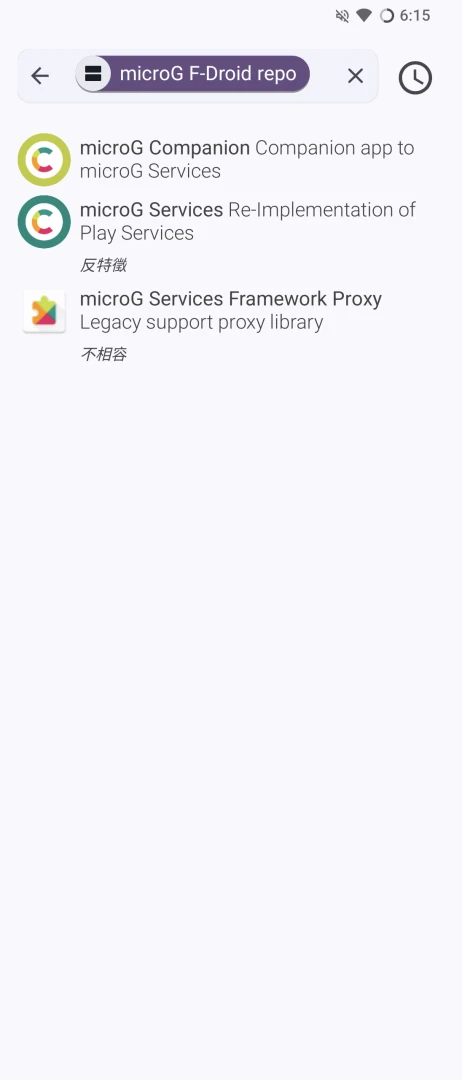
-
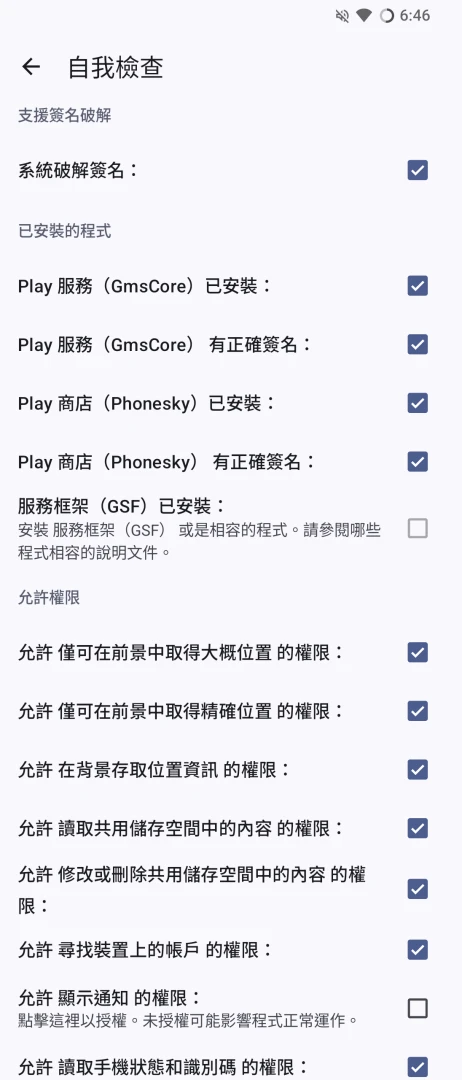
Open microG, tap “Self-Check”, and enable all requested functions. Also check “Register device” on the main screen, so you can log in to your Google account. (Optional. You don’t need to log in to your Google account to use microG.)
-
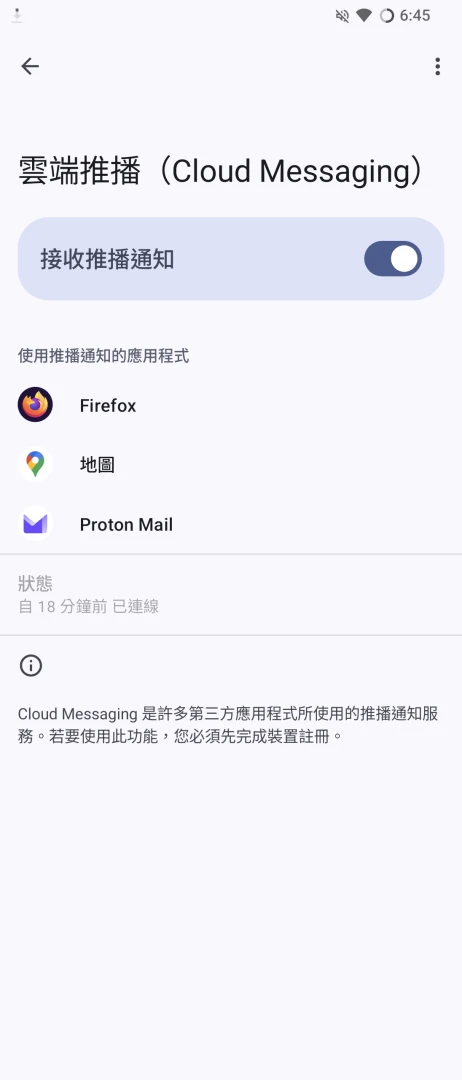
When an app requests FCM for notifications, it will be listed under “Cloud Messaging (FCM)”. If you think letting Google read your notifications is not private enough, consider switching to UnifiedPush.
-
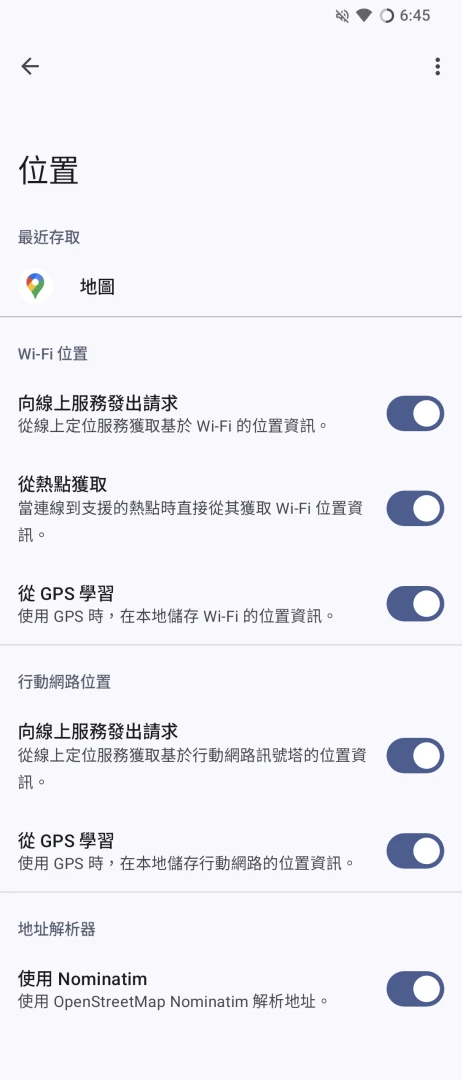
If you want to use navigation, the phone should preferably have a SIM card inserted and Wi-Fi enabled. Then check these options under “Location” and use the online position.xyz service for location. The latest version of microG no longer supports UnifiedNlp backend services. This allows map app navigation to work normally. In my experience, OsmAnd gets a fix more slowly, while Google Maps tries to use Wi-Fi to complete location faster.
-
microG supports SafetyNet attestation, but this security mechanism was retired several years ago and has now been replaced by Google Play Integrity. Passing Play Integrity with microG is difficult and requires flashing a root module fix.
-
If you need to use in-app purchases from Google Play, go to Play Store Services -> check Handle billing requests.
Flash a ROM with built-in microG #
Sites such as LineageOS with microG, iodéOS, and /e/ OS provide precompiled ROMs for flashing, with microG built in as a system service. They are automatically compiled according to the models officially supported by LineageOS.
The installation method is the same as flashing LineageOS.
The downside of this method is that microG cannot be freely uninstalled; you can only reset the system. It may also conflict if you later want to flash real GApps.
4. Install the F-Droid store #
F-Droid is a store dedicated to free software. For utility apps on Google Play, F-Droid usually has open source alternatives.
Install the official F-Droid client or Obtainium to download open source apps.
5. Install Aurora Store #
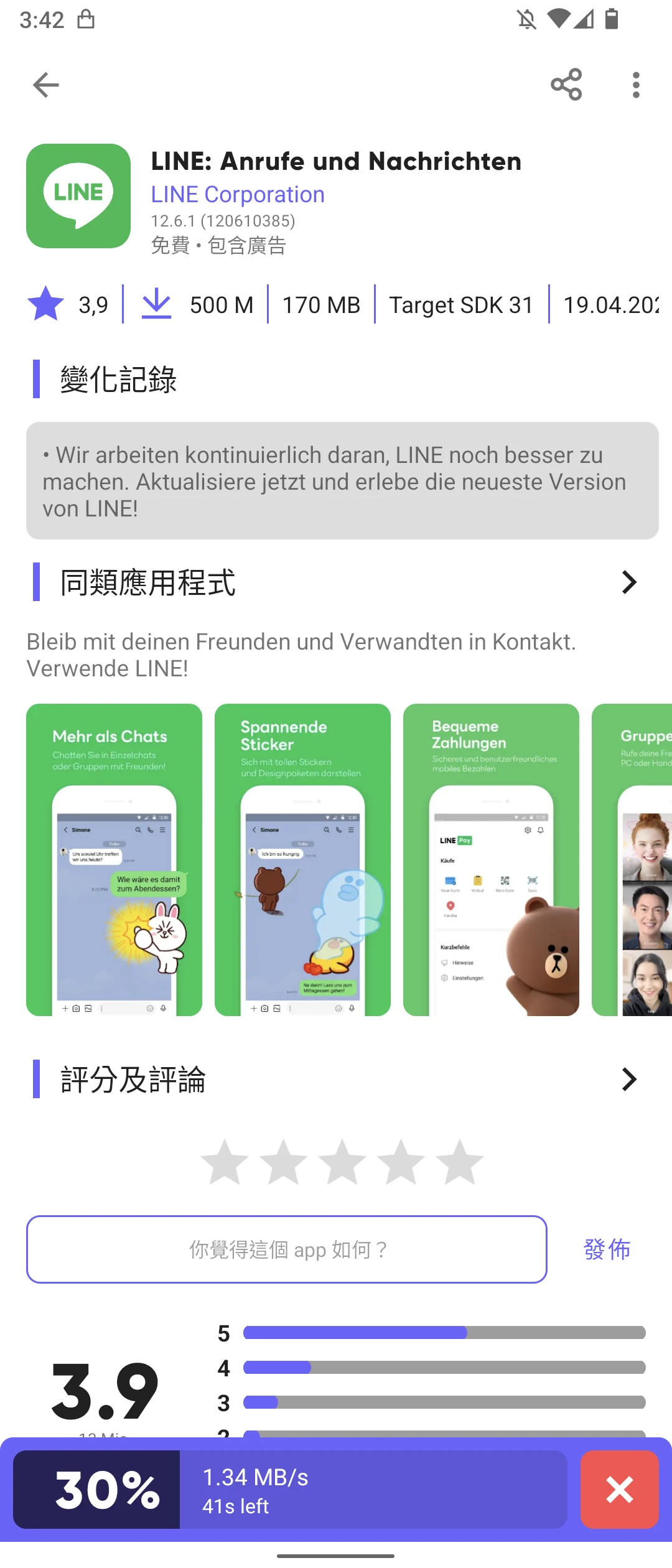
Aurora Store is used to download apps that are only available on Google Play, such as Line, so you do not have to manually grab APKs from ApkMirror.
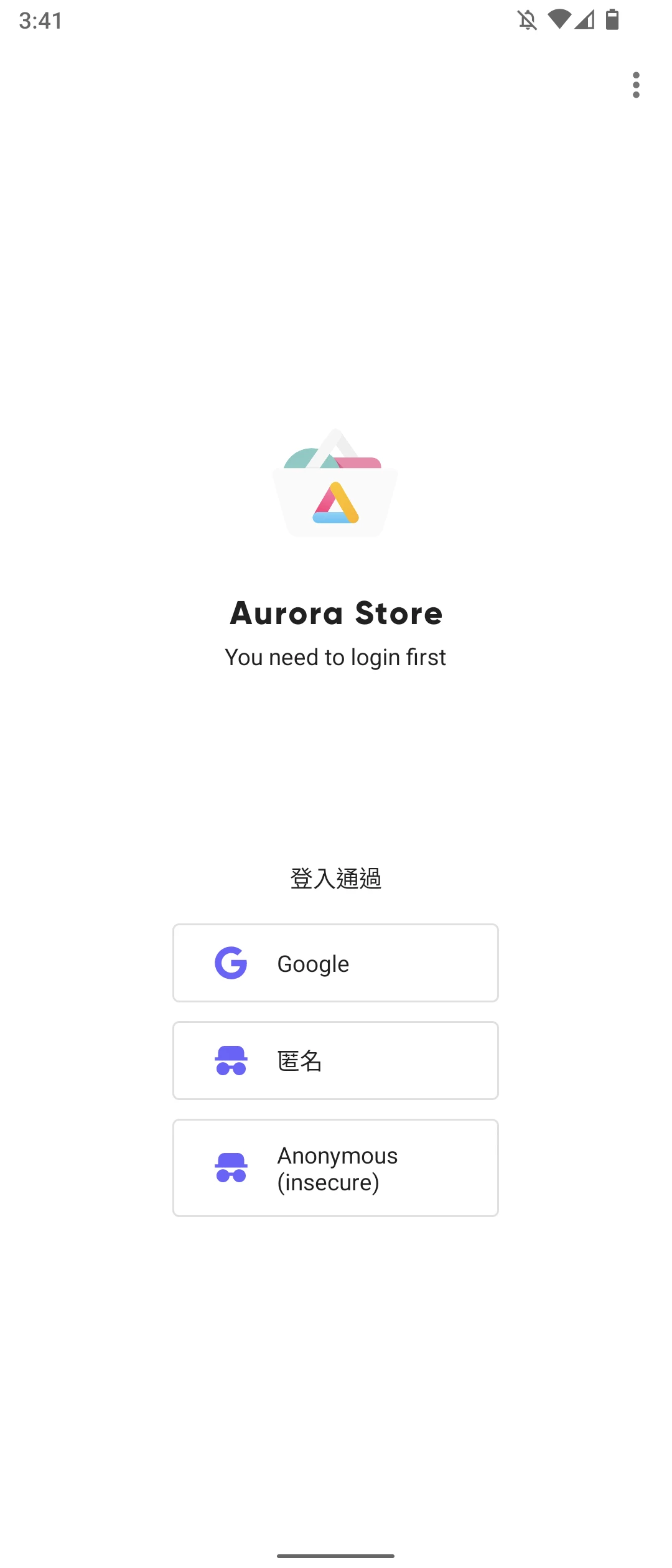
Aurora Store randomly assigns an anonymous Google account to download apps from the Play Store. These Google accounts are registered in bulk by Aurora Store developers and are recycled regularly. You can also choose to log in with your own Google account. Note that Aurora Store is a gray-area app. Although it is safe open source software, its method of letting you bypass the Play Store to download apps can be said to violate Google’s terms of service. Google has the right to ban your account.
-
Go to the Aurora Store official site and download the Aurora Store APK
-
After opening Aurora Store, tap anonymous login.
-
After anonymous login, you can download free apps from Google Play. Incidentally, if the login region is set to a Google account from another country, you can download region-locked apps.
-
Aurora Store treats microG as real Google Play services, so you must add it to the blacklist to avoid automatic updates.
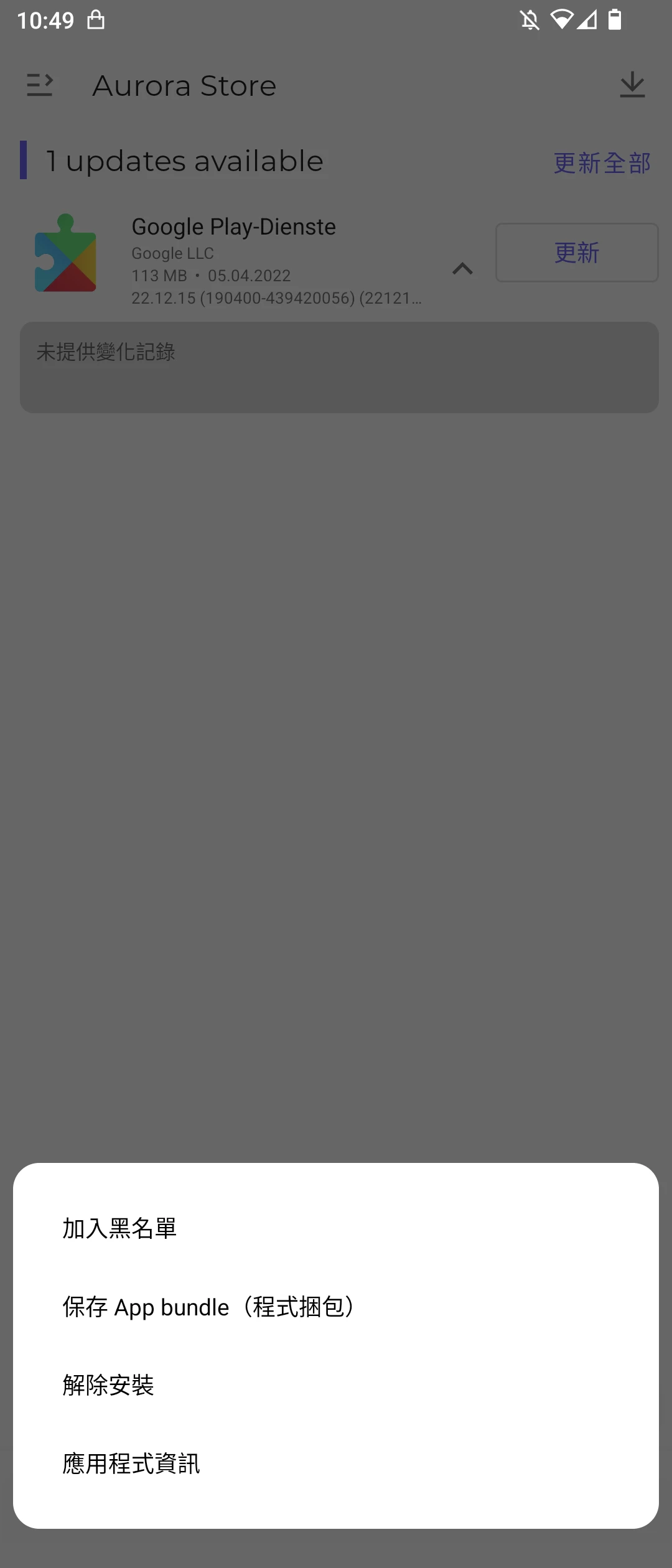
-
By default, Aurora Store logs in with an anonymous Google account, allowing you to download apps from the Play Store. If you log in with your own Google account, Aurora Store can download apps you previously purchased, and in-app purchases can also be used. But you cannot buy apps directly in Aurora Store; you need to purchase them through the Google Play web page and then use Aurora Store to download them.
-
In addition, if an Android device does not have GMS services, and does not even have microG installed, apps may be unable to verify whether you really purchased the app from the Play Store. Some apps depend on GMS services to run. Simply installing Aurora Store is not enough; they depend on microG. However, microG cannot implement 100% of all GMS functions.
6. Modify system network settings to leave Google #
The following operations involve system-level de-Googling, changing DNS, GPS, SUPL, and NTP settings related to Google.
Please follow Mental Outlaw’s video.
7. Alternatives to Google services & free software apps #
The Android system layer is almost fully de-Googled above. Next is the app layer.
*The following is an incomplete list. Use free software as much as possible, including partial replacements and complete replacements. For other apps, refer to Recommended F-Droid Android Apps and Self-hosted services.
Partial replacement means switching to a free client while still using the same service, such as using NewPipe to watch Youtube.
Complete replacement means switching to another company’s service, such as using ProtonMail instead of Gmail. If you want to escape the control of commercial companies, then self-hosting is the only road left.
Most Google products can be accessed with a browser, so when you temporarily need them, you can still use the mobile web page. Among Google services, the hardest one to replace is still Google Search (otherwise you would not have found this article), but DuckDuckGo is still worth trying.
- Google Search: Duckduckgo, Brave Search, Presearch, YaCy (self-hosted), SearXNG (self-hosted)
- Google Chrome browser: Mozilla Firefox, Cromite, Brave
- Google Maps: OSMAnd~ (OpenStreetMap)
- Gmail email: ProtonMail
- Google Calendar: Proton Calendar
- Google Drive: NextCloud (self-hosted)
- Google Docs/Microsoft Office: Collabora Office (LibreOffice)
- Google Keep: Joplin
- Youtube: NewPipe
- Password management: Bitwarden
- File manager: Material Files
- Video/music player: VLC, MPV
- Camera: OpenCamera
- Gallery: Fossify Gallery
- Text editor: Acode
- English input method: Hacker’s Keyboard, OpenBoard
- Chinese input method: TRIME, GCIN, 樸實注音輸入法, Fcitx5
- Sandbox game: Luanti
- Social software: Telegram FOSS, Signal, Elements (can access Matrix and IRC), NewPipe (can access Youtube and PeerTube)
- Linux terminal emulator: Termux