iPad is too limited, Android is too tiny. So why not combine then together?
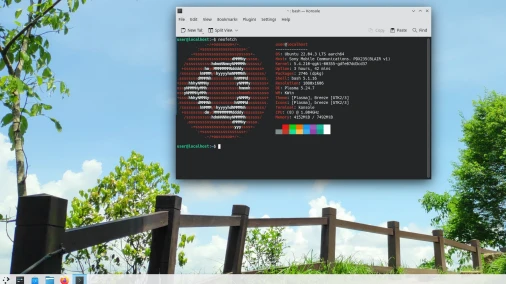
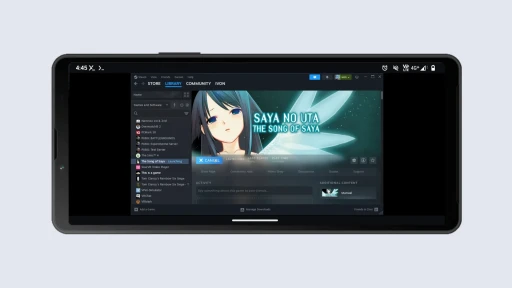
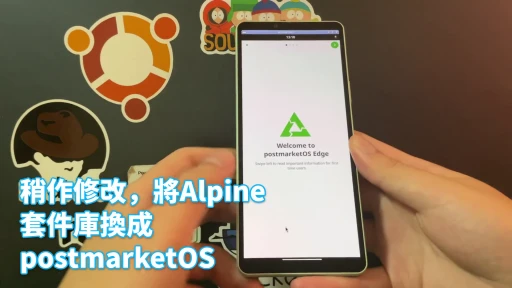
Use Android + Termux Proot Debian + KasmVNC + Safari on the iPad to build a mobile working environment that runs desktop software.
What the iPad cannot do, let the Android phone do!
Use the Android phone as a computer through Termux Proot, run Linux desktop software, and control it through the iPad.
The iPad remotes into the Linux container on Android for operation. What the iPad cannot do, let the Android phone do!
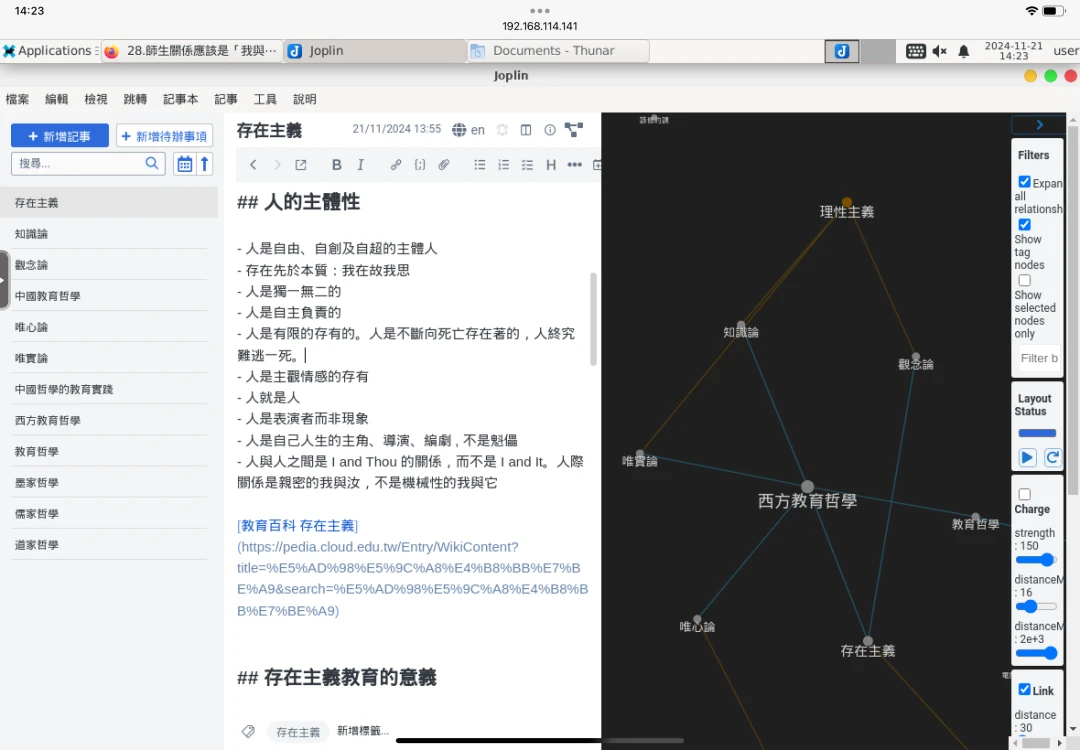
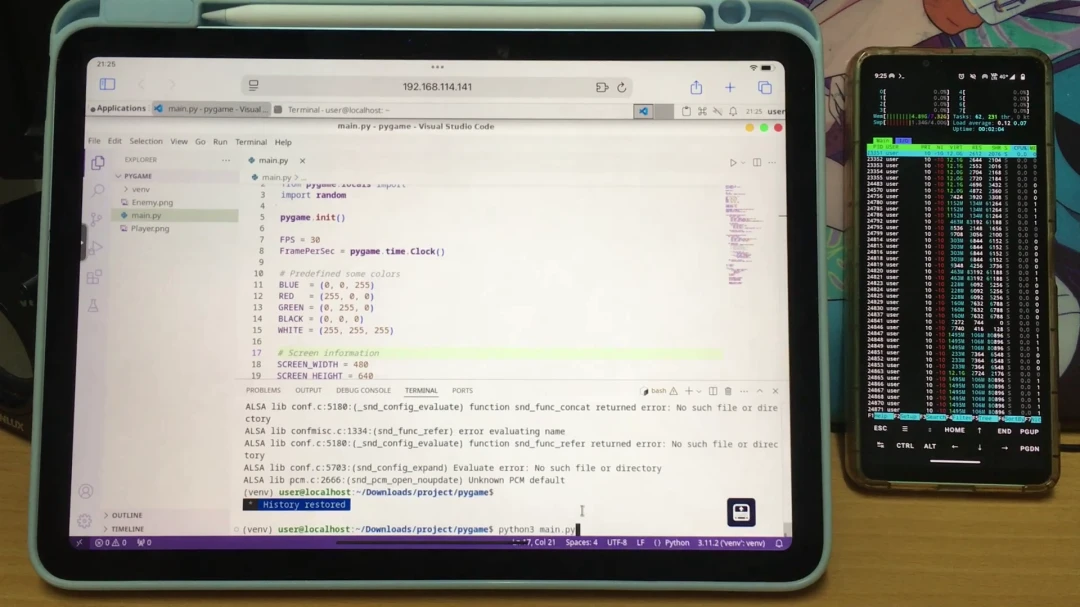
Do not understand what the title means? This is the usage scenario I want:
1. Motivation #
My current mobile work setup is an Android phone paired with an iPad. Although they are different ecosystems, with the help of free software such as LocalSend, the two get along quite pleasantly. Thanks to the large battery of the Android phone, it seems I can share a hotspot to the iPad for 6 hours without running out of power.
All of this is to run desktop software on the iPad. Some software is very smart on the desktop version, but becomes idiotic after being ported to mobile. This is true for both free software and proprietary software.
Take the note-taking software Joplin, for example. Joplin on the iPad is only an enlarged iPhone version, with overly crude functionality, and many desktop features have not been ported, such as the note relationship graph. When dealing with notes, it always feels shackled, and many things have to be handled on a computer. So I started thinking about how to run desktop Joplin.
Sell the iPad and switch to a Surface? I have thought about it, but I do not want to cut off my toes to fit the shoes, so I took out Termux on the Android phone. Termux can run a Linux desktop environment container without root, and it can be accessed by the iPad through VNC.
I previously shared methods for mirroring Android to a large screen with Scrcpy and Rustdesk, but I do not need the entire Android screen! Linux alone is enough. Run the VNC server headlessly; as long as Android has enough RAM, it will not be easily killed in the background, so the Android phone can still be used while Linux programs are running.
The iPad’s network is shared from Android, so the local connection latency for the remote desktop is low. The iPad becomes the screen for Android’s Linux container.
If I could choose, the Android phone should be replaced with a Raspberry Pi. I have written about using a Raspberry Pi with an iPad, after all, its I/O is more complete, and the Raspberry Pi’s size is also suitable for carrying around. But if the phone has a large battery and a powerful processor, why not use what is already there? For example, my Sony Xperia 10 V has only one third of the performance of an iPad Air 6, but it does not heat up when sharing a hotspot and has extremely long battery life, so let’s squeeze it a bit and run Linux on it!
Hey, you say this is a bit putting the cart before the horse: the iPad is so powerful, yet it is only used as a remote desktop client, while all the heavy computation it should handle is pushed onto Android? Nothing I can do. Who told iOS to struggle even with running iSH Shell, and virtual machines still refuse to open up? So even if Android is slow, it can still run more diverse things than the iPad, and it is more computer-like than the iPad. When Android has been squeezed until it runs out of power, charge it from your iPad through Type-C.
2. Setup process #
To simplify the login process, I use KasmVNC’s web VNC server solution, so no app needs to be prepared on the iPad side; a browser is enough to log in.
-
Configure Termux Proot Debian and install the XFCE desktop
-
Install the ARM64 KasmVNC package
-
Start the KasmVNC server, add a user according to the instructions, and configure it to use XFCE
vncserver- Start the KasmVNC server
vncserver-
Turn on the hotspot and share the network to the iPad
-
Obtain Android’s local IP
ifconfig- In Safari on the iPad, enter
https://手機區域IP:8444, log in to the account, and you can connect
3. Install software in Termux’s Linux #
Most free software has ARM64 packages, so you can install them with APT.
For Joplin, I use the deb package compiled by leaguecn. I happened to meet someone like-minded; he also runs desktop Joplin on Android!
When launching Chromium-based software inside Proot, you need to edit the Exec== option in /usr/share/applications/*.desktop and add the --no-sandbox parameter before it can start. Visual Studio Code is the same.
Although iPadOS’s AssistiveTouch dot can emulate a touchpad, it is still recommended to connect a Bluetooth keyboard to operate the Linux desktop.
Although KasmVNC can use the iOS input method to type Chinese, it is not very stable, so I install Fcitx5 input inside the Termux container.
4. Unresolved issues #
It cannot stream Linux desktop audio to the iPad. KasmVNC alone cannot do it. Because iOS has no PulseAudio server, sound can only come from Termux on the Android side. But if you are outside, you probably will not casually blast music anyway; plugging in headphones solves it.
As for the poor graphical efficiency of VNC, KasmVNC is already a server redesigned for modern technology. At least its quality is better than TigerVNC, so do not ask for too much.
There is one option worth considering here: run an X server on the iPad, then project the Linux container’s screen through X11 Forwarding, similar to how Termux X11 is used, except remotely. But the only X Server app on the App Store, Mocha X11, is so expensive… and when I tested the trial version, VirGL 3D acceleration had problems.