According to the Debian Wiki, debootstrap is a wrapper script that can produce a minimal Debian or Ubuntu rootfs (root filesystem) according to personal preference. It is suitable for people who want to set up Linux from scratch themselves, installing a Linux system in a way similar to Arch Linux’s pacstrap.
But that is not my purpose here. I want to move the completed rootfs to a phone for chroot or Termux proot use, and run a Debian environment on the phone.
I will use a Linux computer to create the Debian rootfs. Since the computer is x86_64, I need to use the QEMU emulator in order to enter an ARM64 chroot environment on the computer.
If you do not want to use a computer, then take a more roundabout route: first install chroot Ubuntu on the phone, then install debootstrap inside it to create the Debian rootfs. This method does not need QEMU translation, but it cannot be done through a rootless Termux environment.
- Install the debootstrap package; most Linux distributions include it. As for installing
arch-linstall-scripts, that is because it provides the usefularch-chrootscript
sudo apt install debootstraparch-linstall-scripts- To create an ARM rootfs on an x86 computer, we need to use the
qemu-user-statictool to emulate the ARM64 instruction set
sudo apt install qemu-user-static- Confirm that the binfmt service is enabled
sudo systemctl enable --now systemd-binfmt.service- Create the Debian rootfs directory
cd ~/Downloads
mkdir debian- Start creating the Debian 12 Bookworm rootfs, downloading packages from the Taiwan Debian server
sudo debootstrap --arch arm64 --components=main,universe bookworm debian12 http://ftp.tw.debian.org/debian/- After installation, first put
qemu-aarc64into the rootfs, so it will automatically translate instructions
which qemu-aarch64

sudo cp /usr/bin/qemu-aarch64 debian/usr/bin- Chroot into it and do some initialization. When using
arch-chroot, you do not need to manually mount/procand such; everything is handled automatically
sudo arch-chroot debian-
Use
cat /etc/os-releaseto confirm that it is a Debian system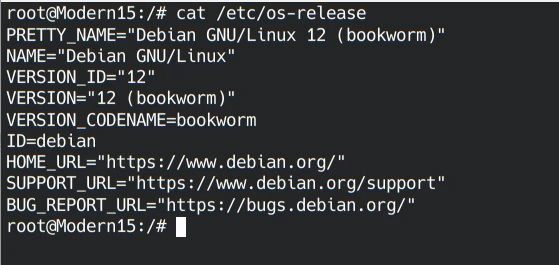
-
After configuring it, exit chroot
exit- Compress the rootfs into a tar.gz
sudo tar -zcpf debian.tar.gz debian/*Send it to the Android phone with ADB and extract it on the phone.
The process of installing a desktop environment is similar, so I will not repeat it. The steps involving commands below can also be completed first on the computer described above.
If the phone has root privileges, refer to chroot Ubuntu
If it does not have root privileges, refer to Termux proot for installing the desktop environment.