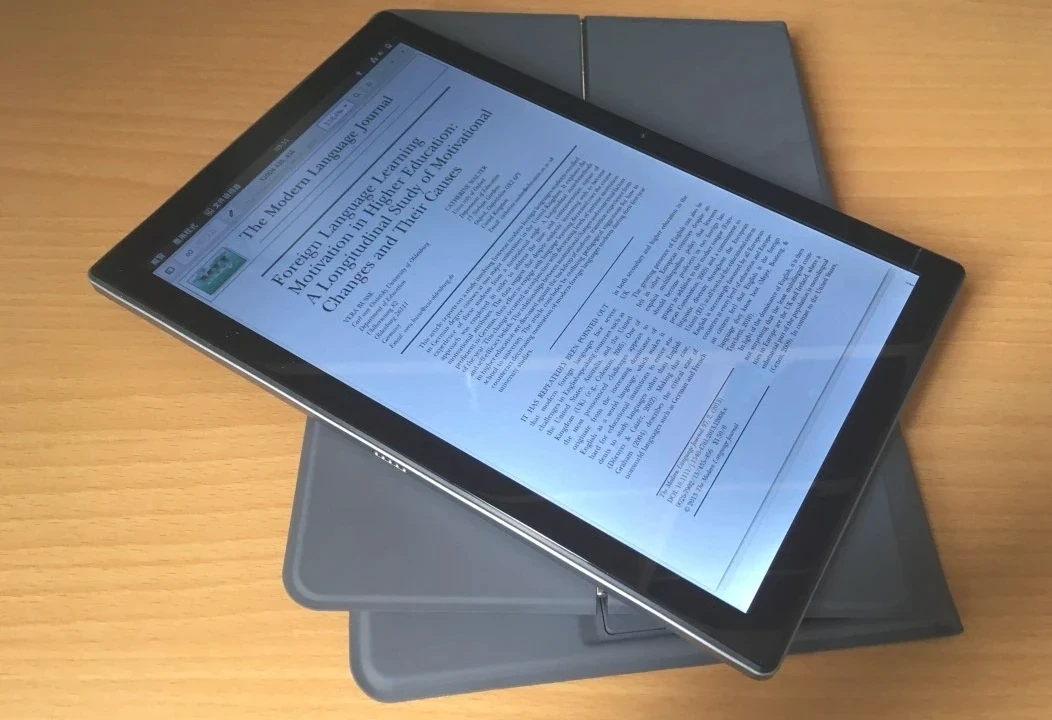
Here is how to install a GNU/Linux system on the Surface Go 2.
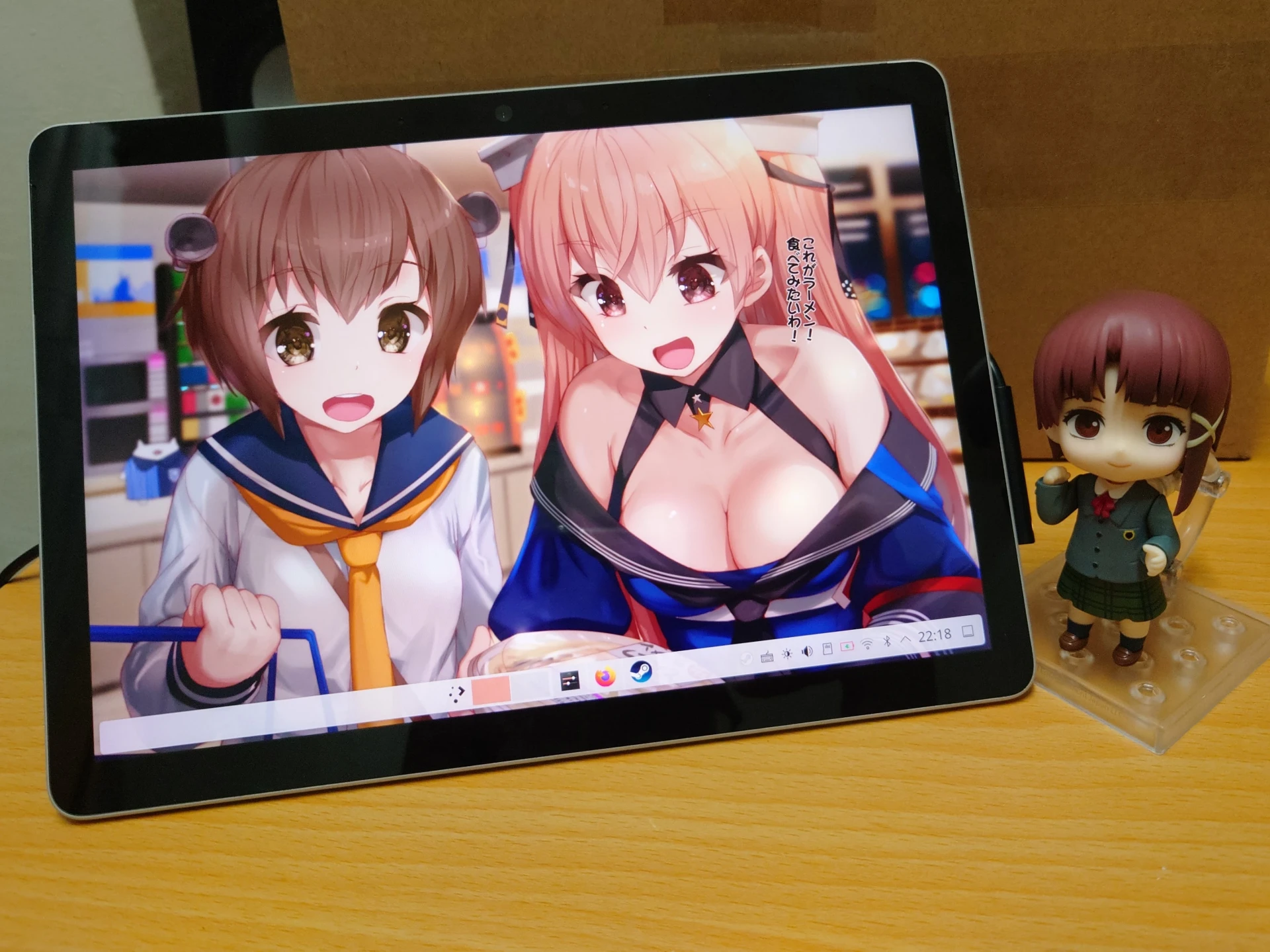
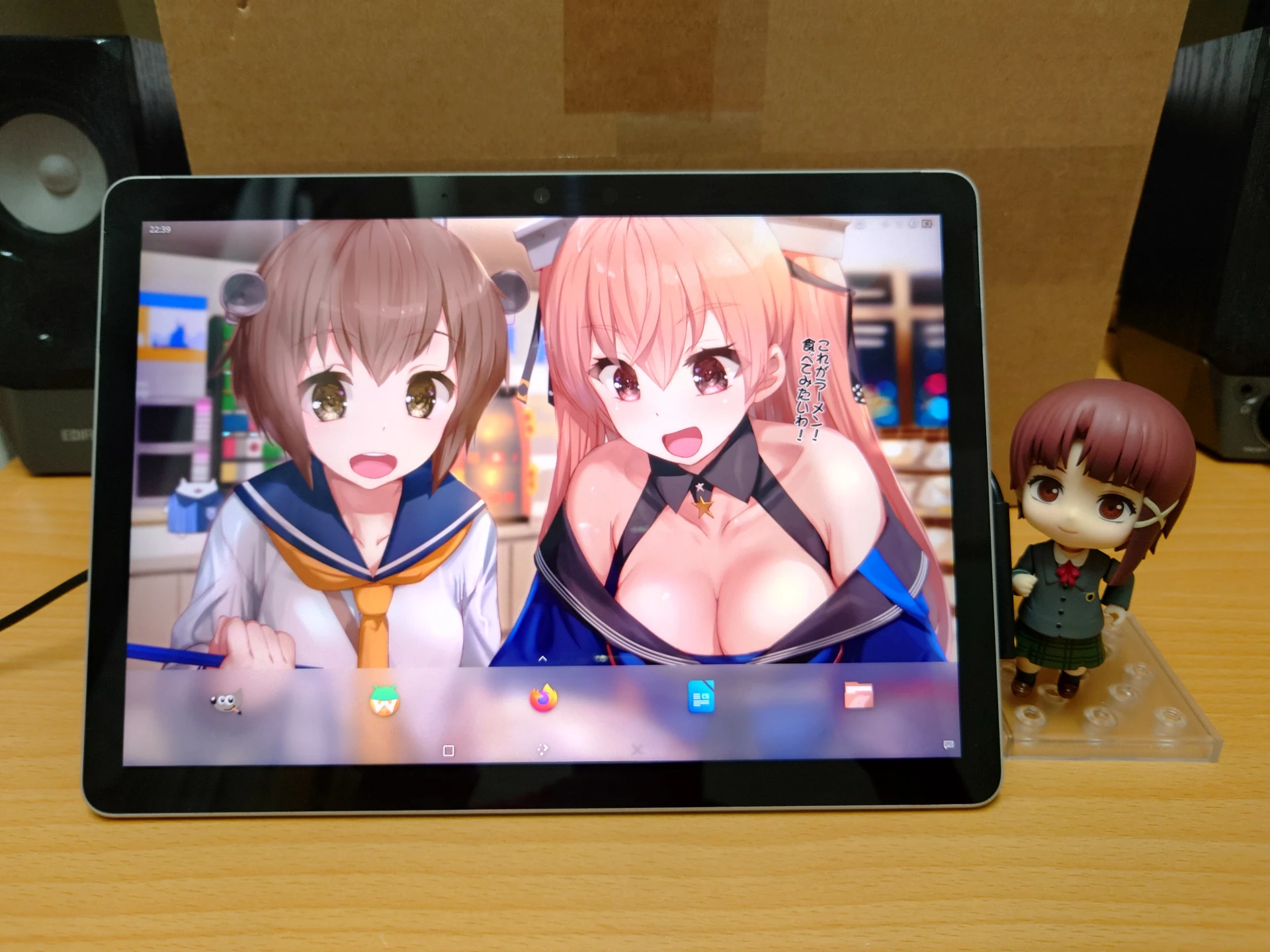
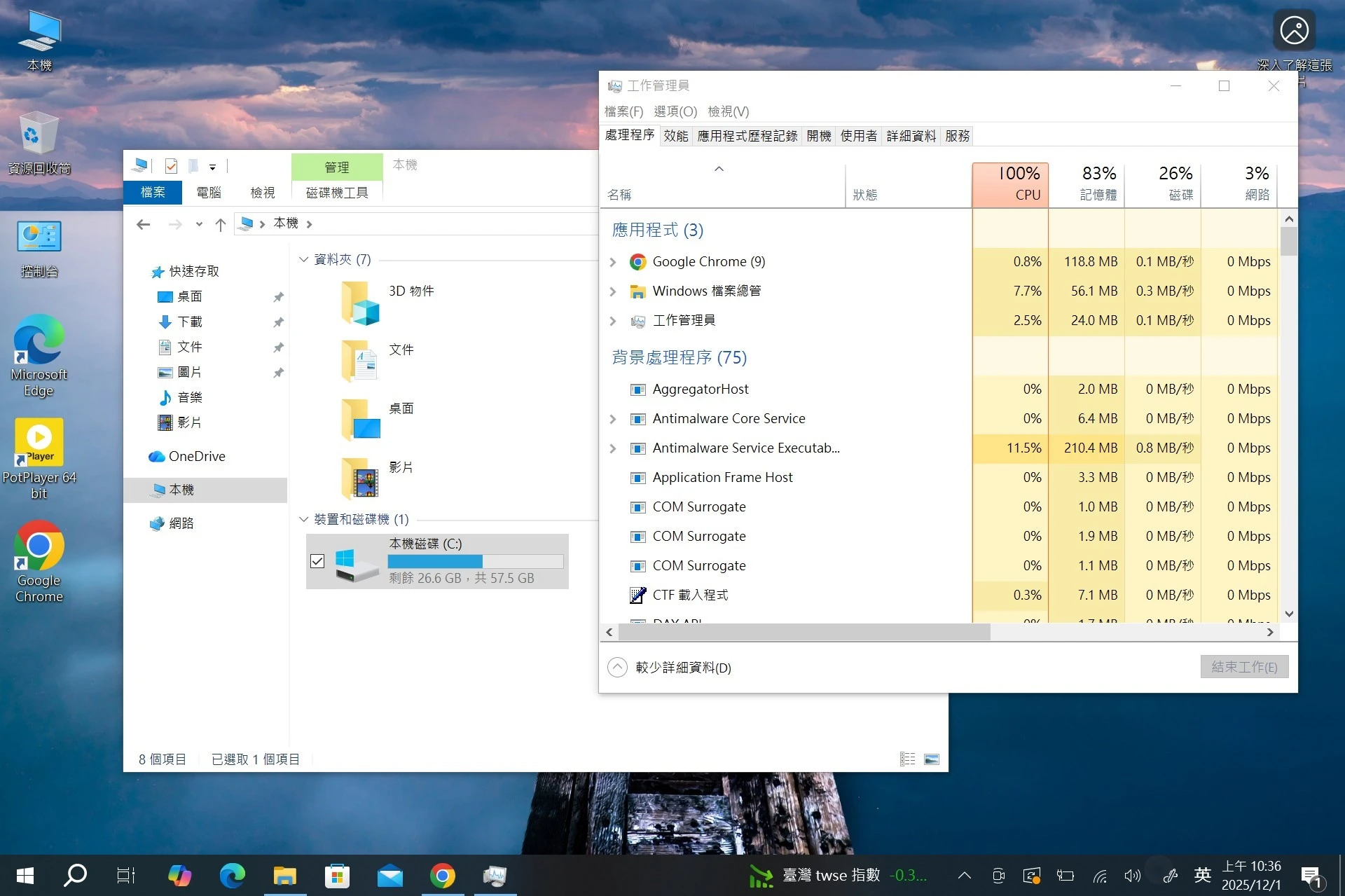
In Microsoft’s Surface tablet family, the Surface Go line is the low-to-mid-range option. The processors are entry-level across the board. No matter how much Microsoft tunes things, it cannot change the fact that Windows 10 wheezes on this thing: battery life is mediocre, the chassis gets warm easily, the CPU casually hits 100%, and Windows system files eat a silly amount of disk space.
If we install Linux on it instead, the user experience improves to some extent. Look at that: a freshly installed Linux system takes less than 10GB of disk space, and RAM usage after boot is around 1GB.
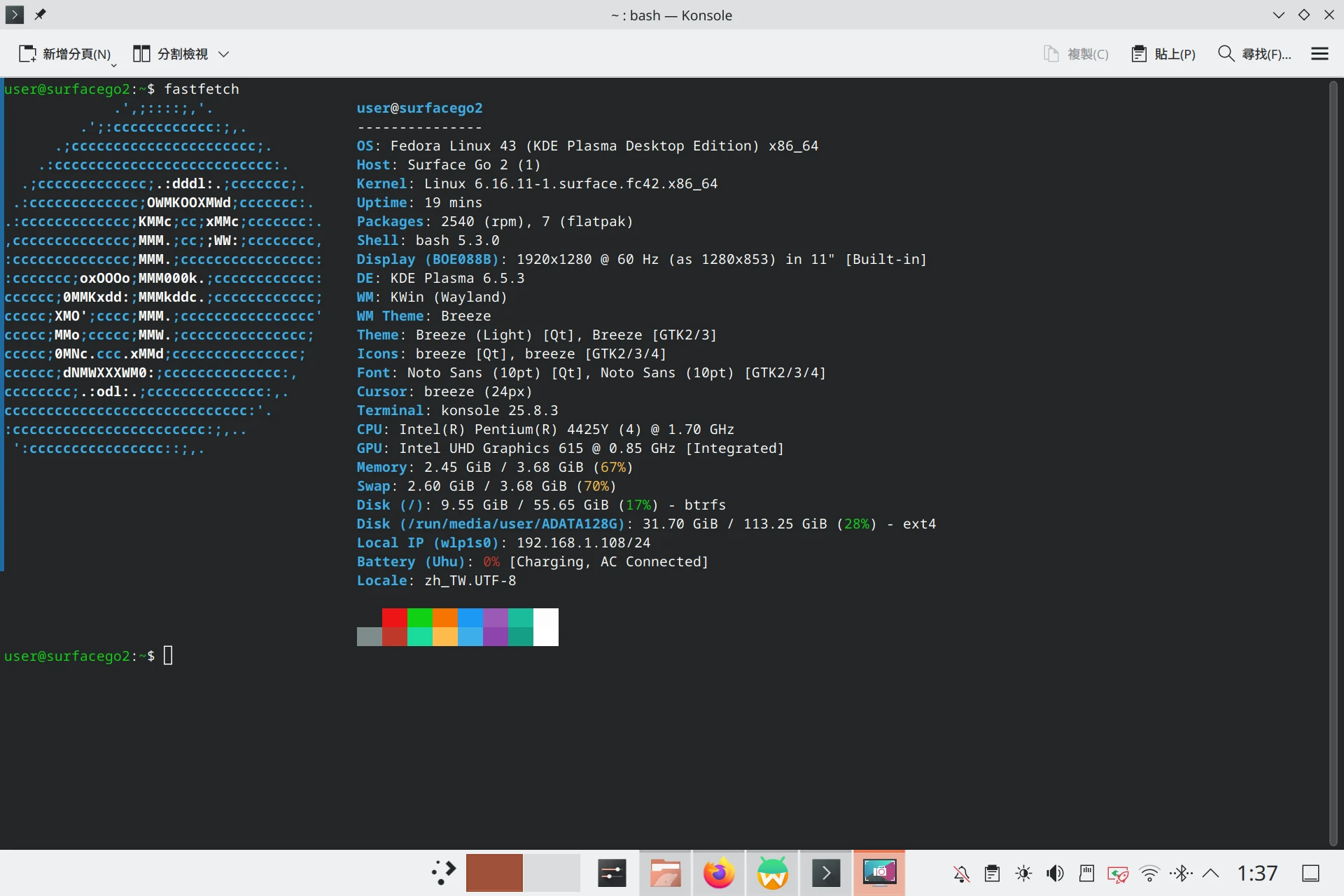
Most Surface tablets are x86 devices using Intel processors. They have standard UEFI, and Intel has contributed actively to upstream Linux, so Linux distro support is generally solid.
For the Surface-specific drivers, the linux-surface project also provides a custom kernel to improve compatibility.
Most Surface features work normally on Linux, including the touchscreen, keyboard, MPP stylus, automatic rotation, automatic brightness, suspend, VA-API video decoding acceleration, and so on.
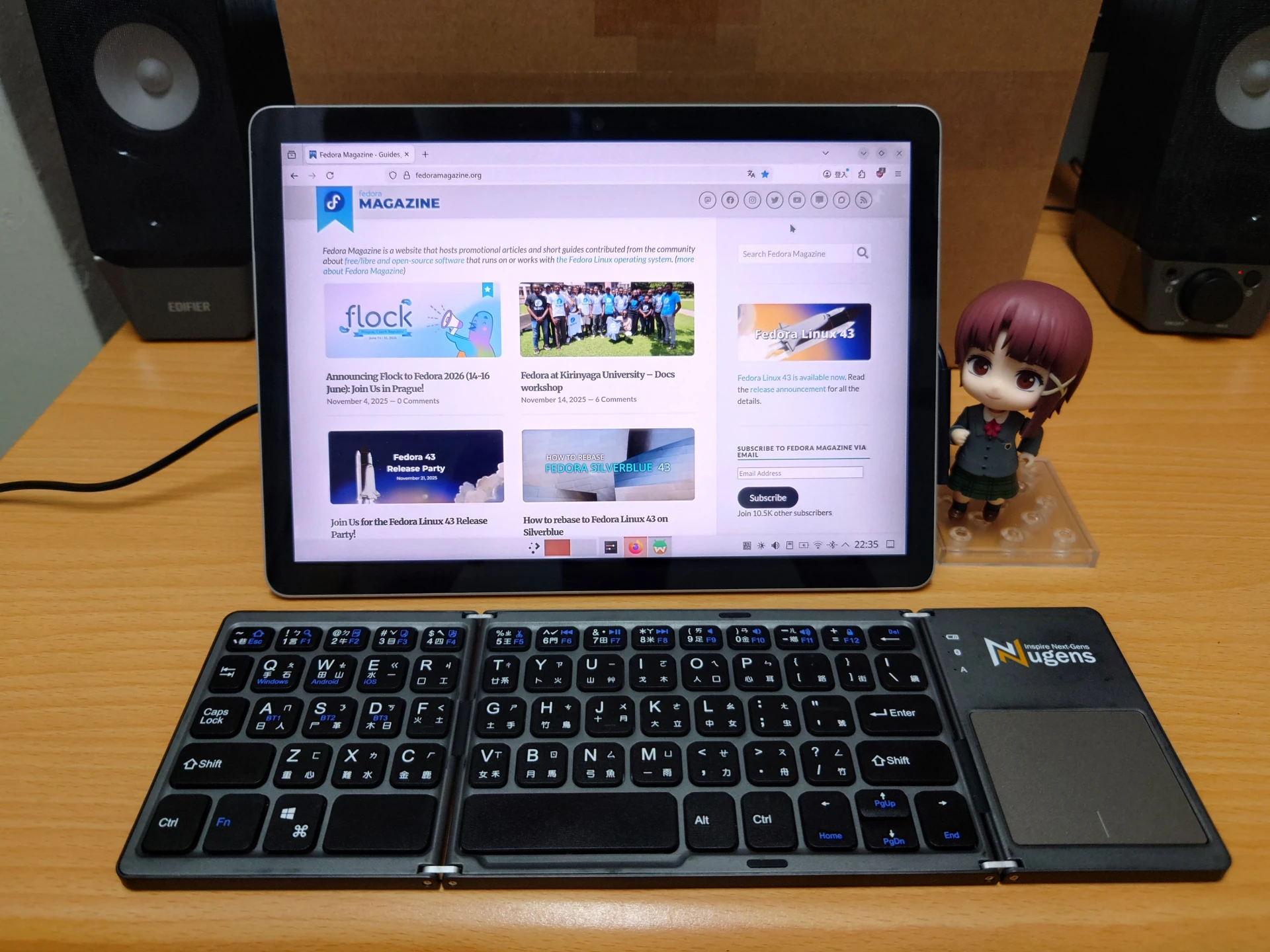
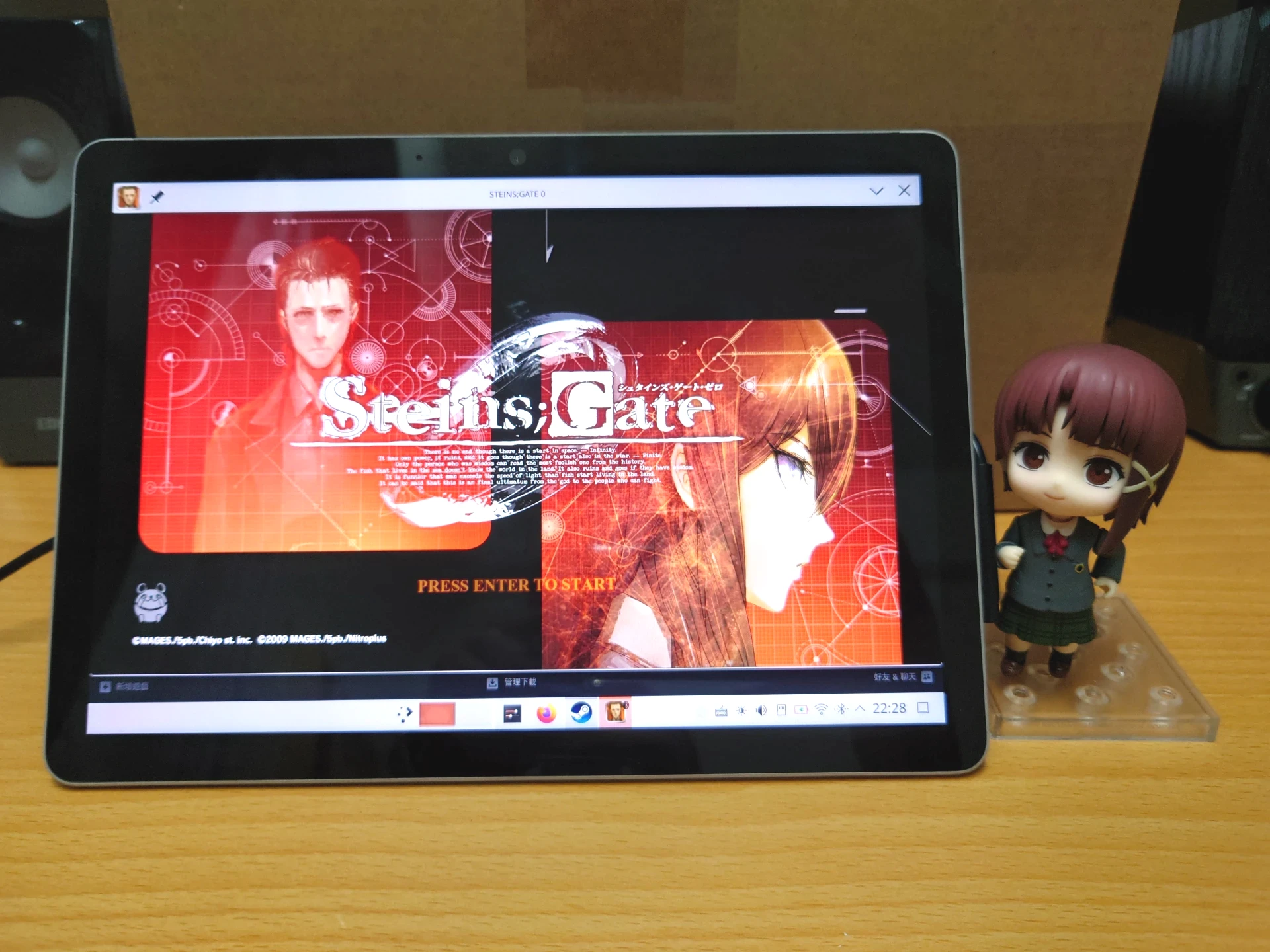
Because Linux desktops are relatively lightweight, using the extra resources for light Steam games is perfectly viable.
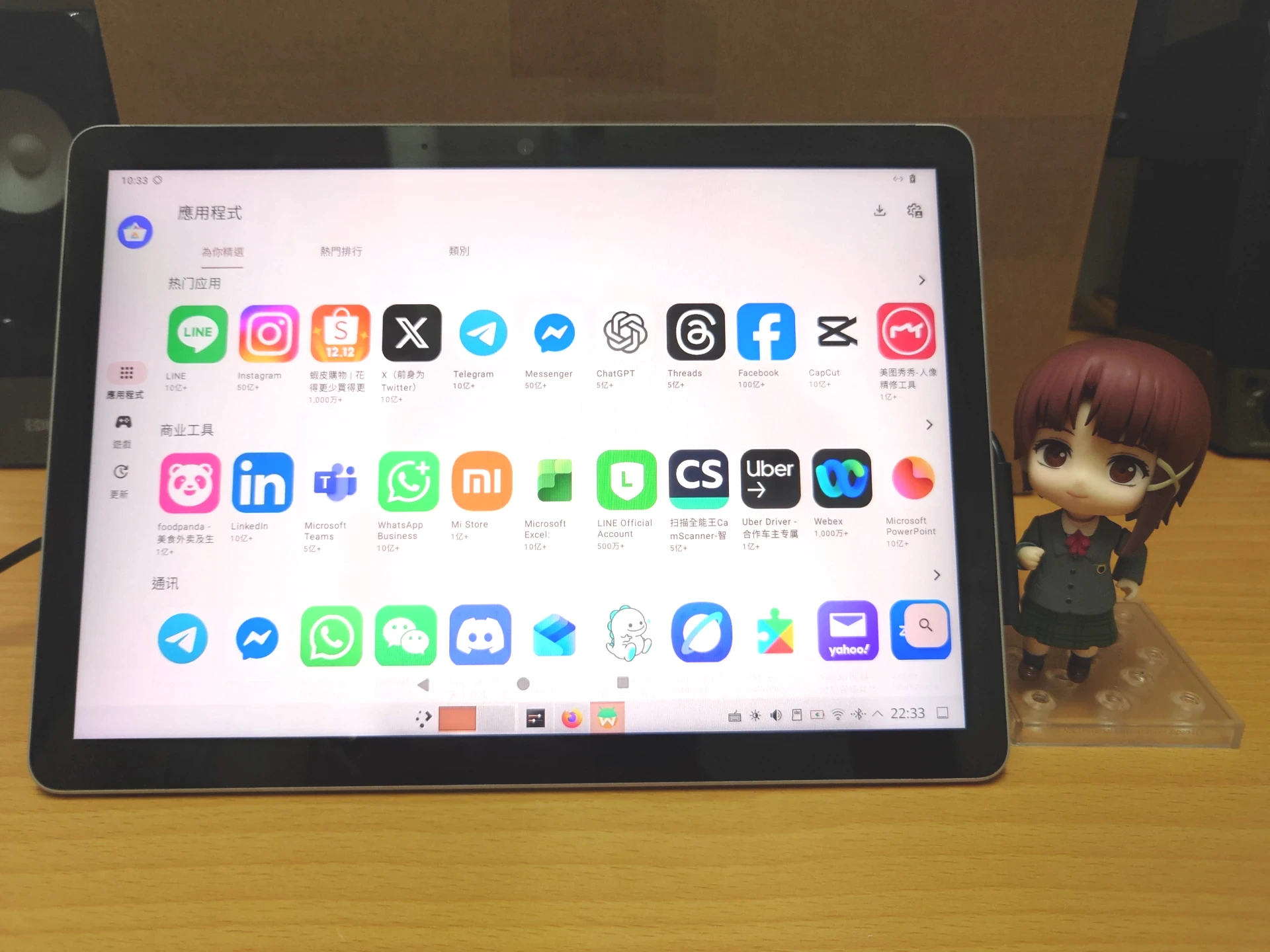
We can also run Android apps nearly seamlessly through a Waydroid container.
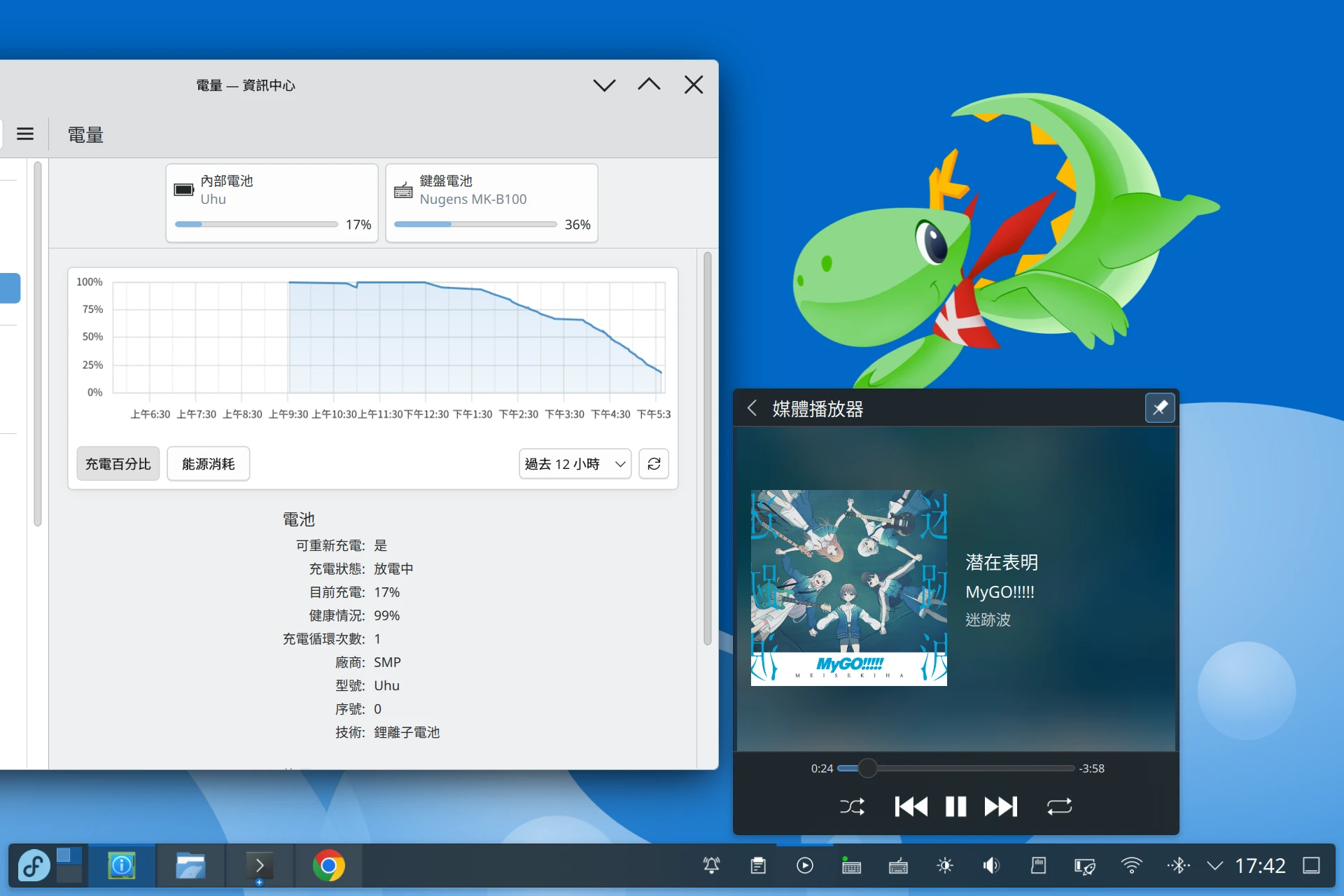
As for battery life, it depends on which apps you run. With ordinary web browsing and typing in Chromium, the Surface Go 2 running Linux lasts about 5 hours, which trades blows with Windows. After all, Surface hardware is designed for Windows; Linux kernel scheduling is not going to beat Microsoft on Microsoft’s own turf.
1. Prerequisites #
Here I use the Wi-Fi version of the Surface Go 2 (Intel Pentium 4425Y, 4G/64G) as the demo machine.
For the state of Linux hardware support on Surface devices, see this table on GitHub: Supported Devices and Features
At the time of writing, the biggest problem with the Surface Go 2 is poor camera quality. The Intel IPU3 camera barely works, and photo quality on Linux is nowhere near as good as on Windows. The camera also depends on libcamera and PipeWire. Only Firefox can access it directly; other apps need v4l2loopback to fake a device. Room for future improvement, as people say when the thing is not good yet.
If possible, update Windows to the latest version first, including UEFI firmware. The UEFI updater may not be usable from Linux.
2. Create the Linux Boot Drive #
Which Linux distro should you use? Any x86 Linux distro is fair game, including Debian, Ubuntu, Fedora, Arch Linux, openSUSE, Gentoo, and postmarketOS. It depends on personal preference and what you want the machine to do. If you want stability, pick Debian or Ubuntu; if you want newer features, pick Fedora or Arch Linux.
Here I chose Fedora Linux. You get newer software, but it is a bit less stable. For the desktop environment, I picked KDE Plasma, which provides a full desktop UI and an on-screen keyboard. This way the Surface Go can work as both a laptop and a tablet. If you lean more toward tablet-style use and do not plan to use a physical keyboard, the default GNOME desktop is probably better.
-
Before installing Linux, it is best to use Windows Update to update the system and firmware to the latest versions. Linux may not be able to download those updates.
-
Download the ISO from the Fedora website and choose the KDE desktop edition.
-
Then use Ventoy to create a boot drive.
-
Since the Surface Go 2 only has a Type-C port, you may need a Type-C hub to plug in the USB drive. The Surface Go 2 cannot boot from an SD card.
3. Install Linux #
-
Shut down the Surface Go 2.
-
Hold the power button and volume-up button to enter UEFI. This interface supports touch, so you do not need to connect a keyboard here, though you may still need a physical keyboard later during installation.
-
Although Fedora supports Secure Boot, I still recommend disabling Secure Boot so you do not have to manually sign drivers later.
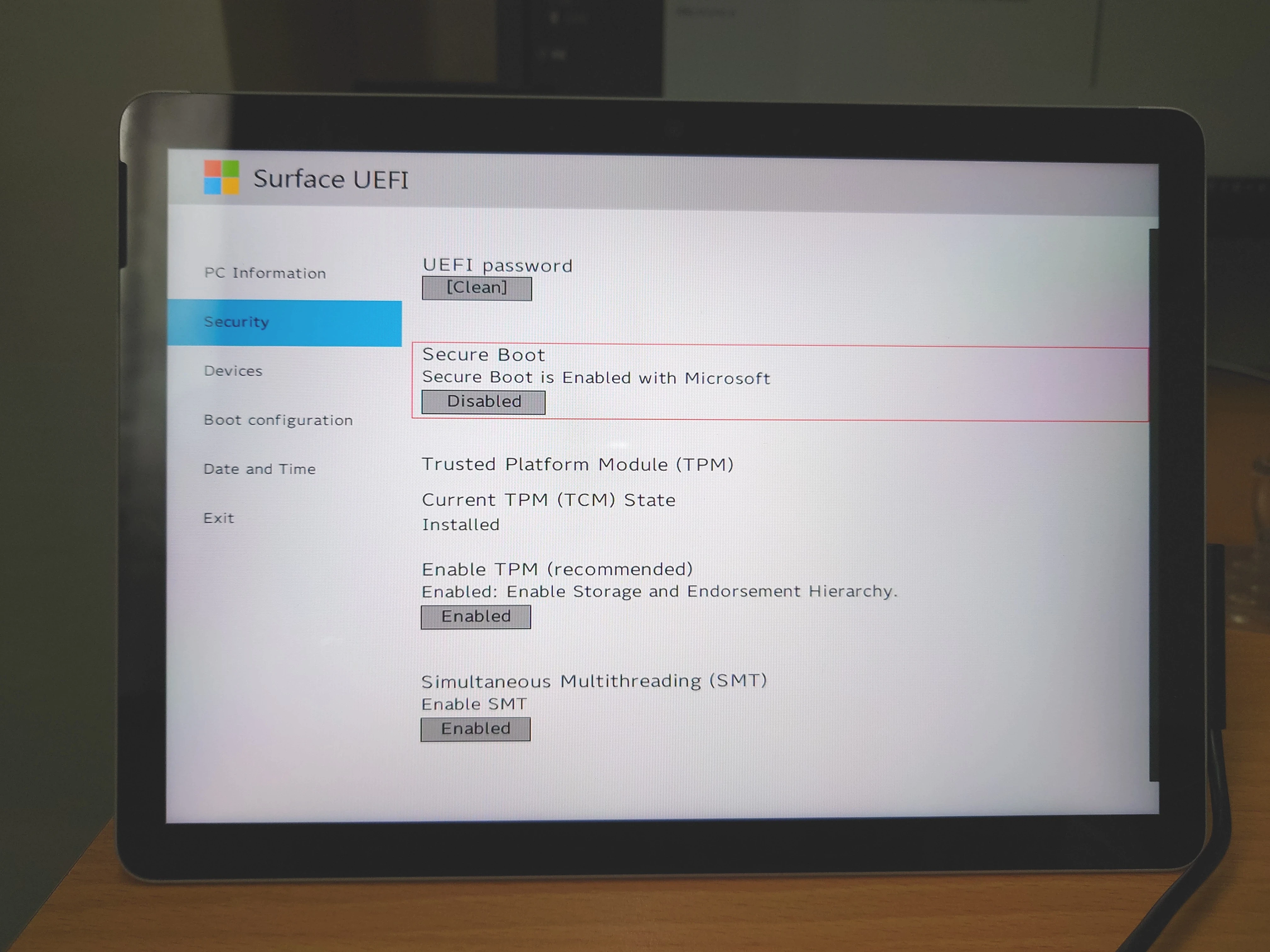
-
Set the boot order to the USB drive.
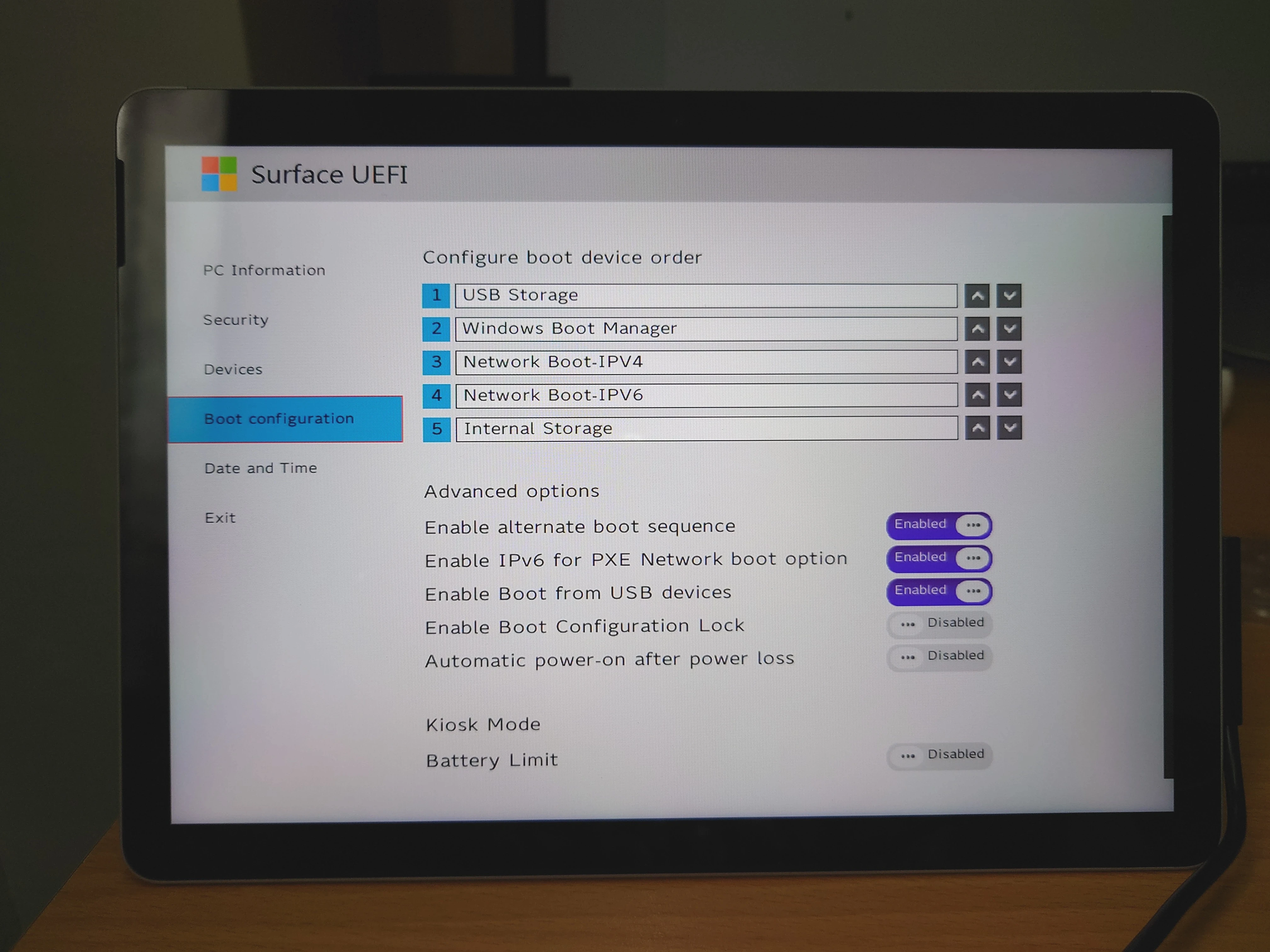
-
Boot and follow the on-screen instructions. Choose to erase the entire disk and install Fedora.
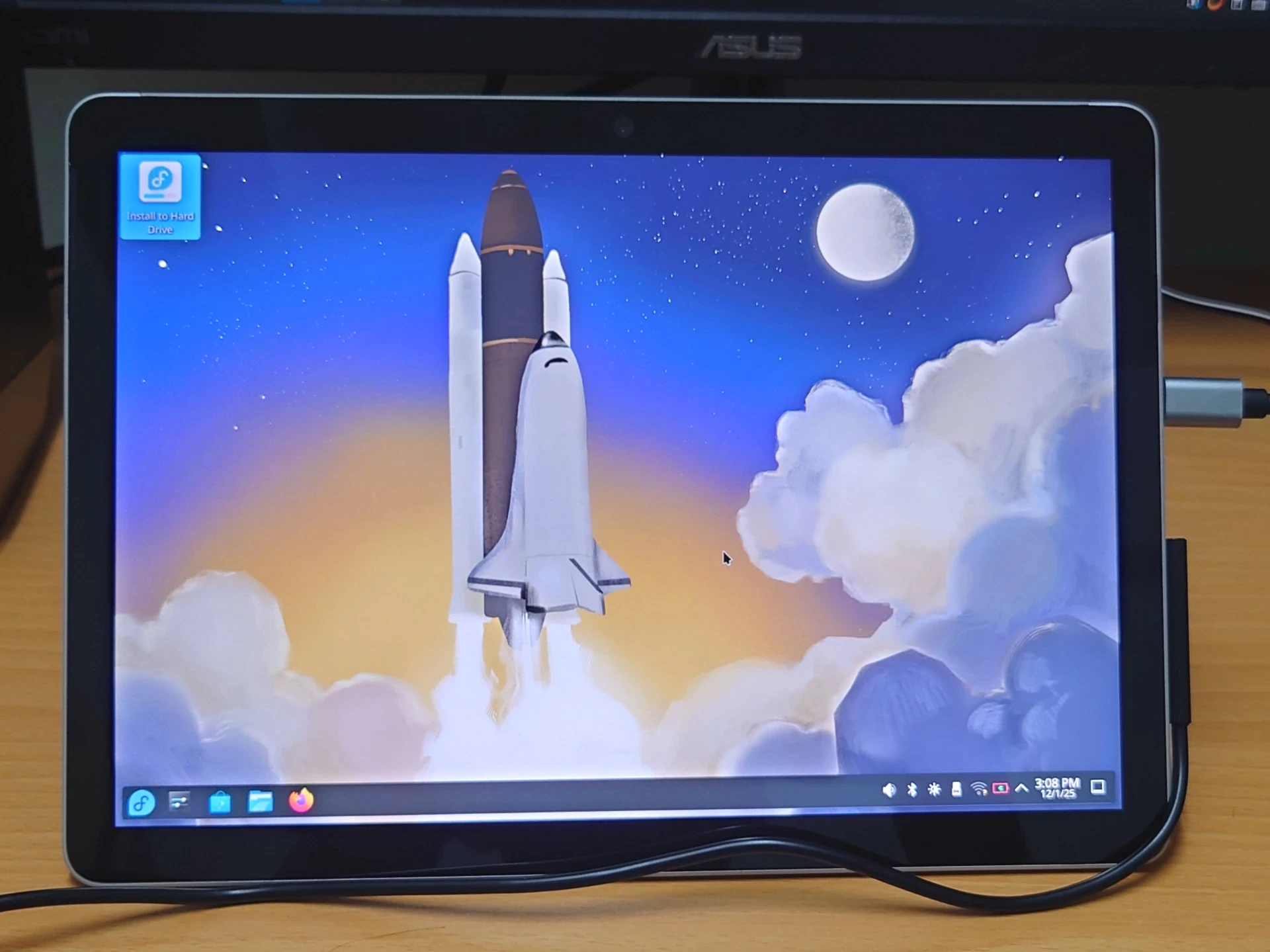
-
For Chinese input, install Fcitx5:
sudo dnf install fcitx5 fcitx5-chinese-addons fcitx5-chewing fcitx5-gtk3 fcitx5-gtk4 fcitx5-qt fcitx5-qt6 fcitx5-configtool- Tip: Fedora enables zRAM by default. If your Surface Go has too little RAM, edit
/etc/systemd/zram-generator.confand increase the SWAP value to expand usable memory. The unit is MB.
[zram0]
zram-size = 8192
4. Install the linux-surface Kernel #
The linux-surface kernel includes driver packages and patches specifically for Surface hardware. Some of these have already been merged upstream. As of Linux 6.12 and later, the kernel already includes most Surface Go 2 drivers. If you do not have a specific need, you can skip this.
For users of stable-release distros like Debian and Ubuntu, installing a third-party maintained linux-surface kernel can make the system less stable. If all hardware features work normally, just use the kernel provided by your distro.
- Install it according to the GitHub instructions. On Fedora, add the package repository maintained by the linux-surface team:
sudo dnf config-manager \
addrepo --from-repofile=https://pkg.surfacelinux.com/fedora/linux-surface.repo- Then install the linux-surface kernel and reboot:
sudo dnf install --allowerasing kernel-surface iptsd libwacom-surface- Check whether the current kernel switched successfully. It should show
linux-surface.
uname -a- Fedora updates its system kernel fairly often, so a newer kernel may override the linux-surface kernel. After installing the linux-surface package, the
linux-surface-default-watchdog.pathservice is enabled automatically to make sure the system boots with the linux-surface kernel.
5. Using the On-Screen Keyboard on KDE #
When no physical keyboard is connected, KDE Plasma automatically enters tablet mode.
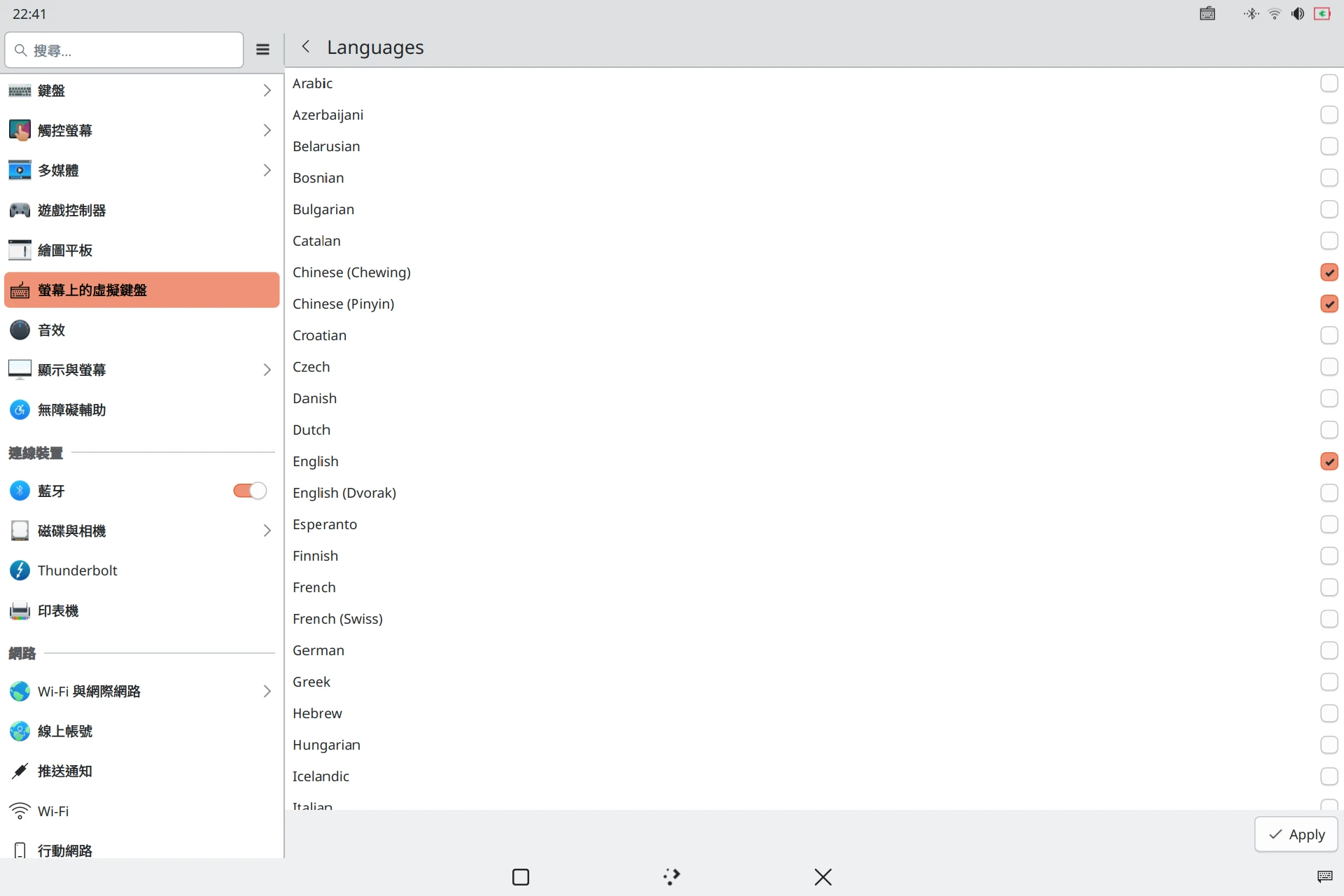
The built-in on-screen keyboard in KDE Plasma 6 is Maliit Keyboard. It supports English and Chinese input, has plenty of bugs, and lands squarely in the “barely usable, but usable” category.
Enable it under System Settings -> Keyboard -> Virtual Keyboard. Note that this keyboard cannot be used together with Fcitx5.
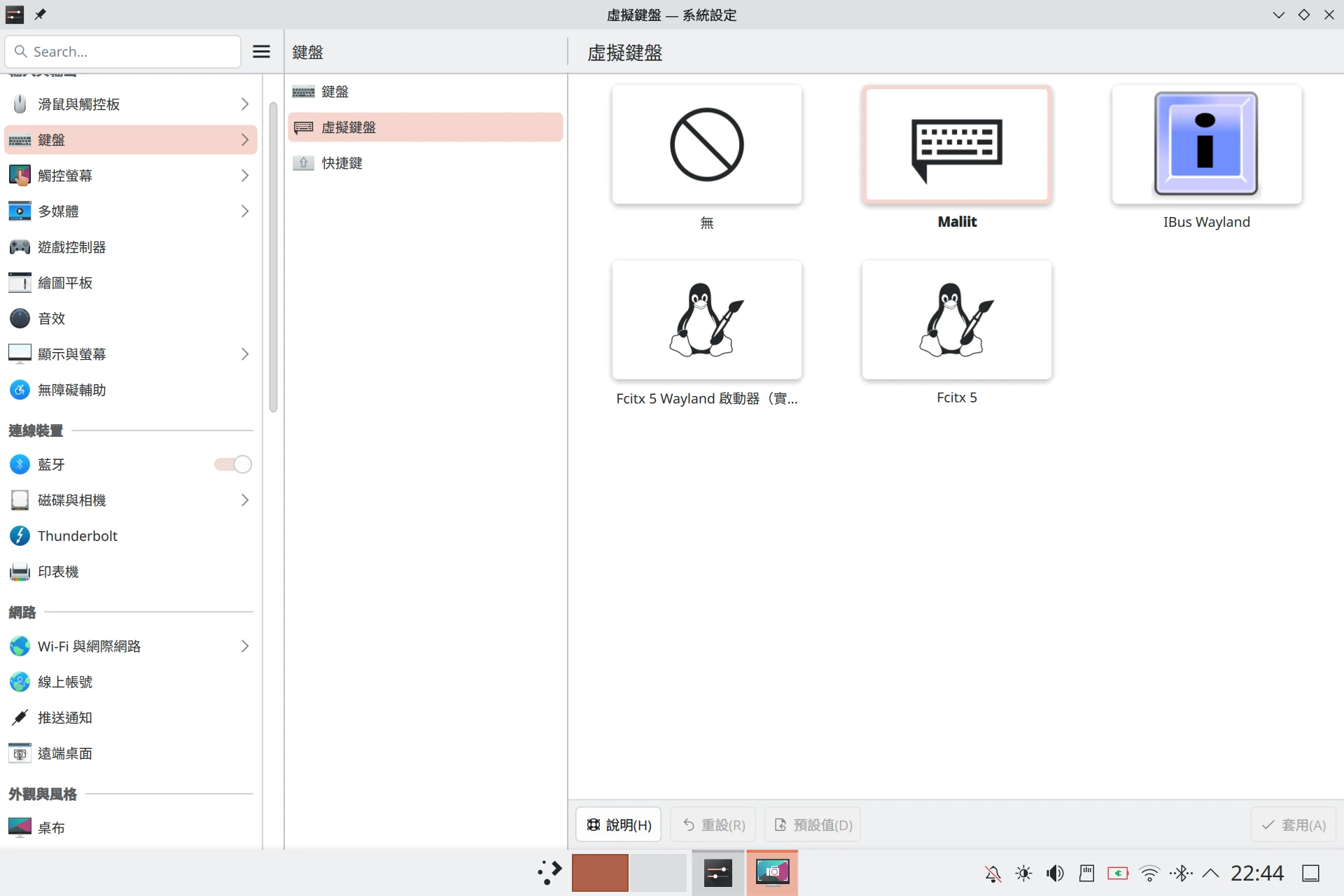
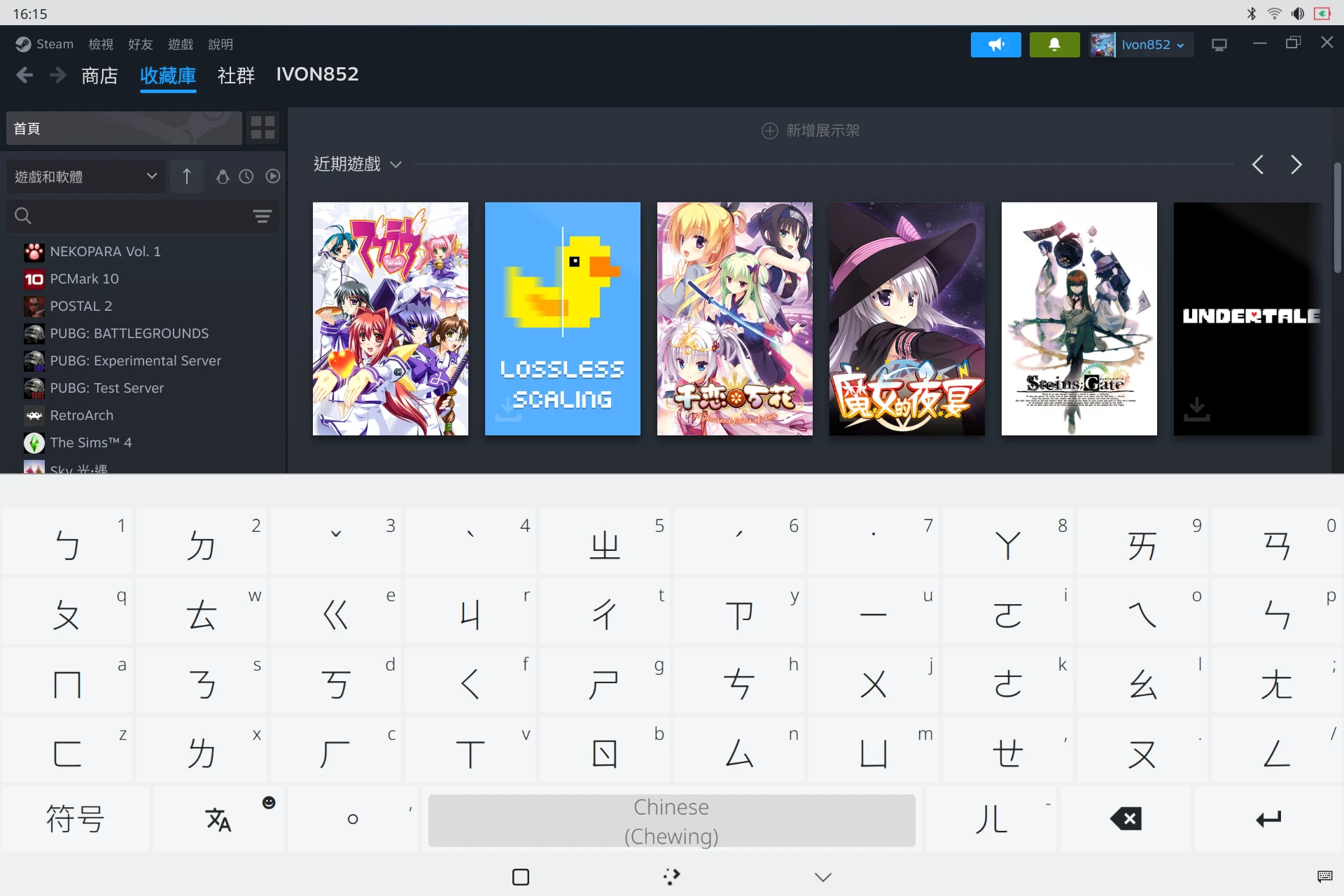
Then tap a text field on the screen, and the keyboard should appear.
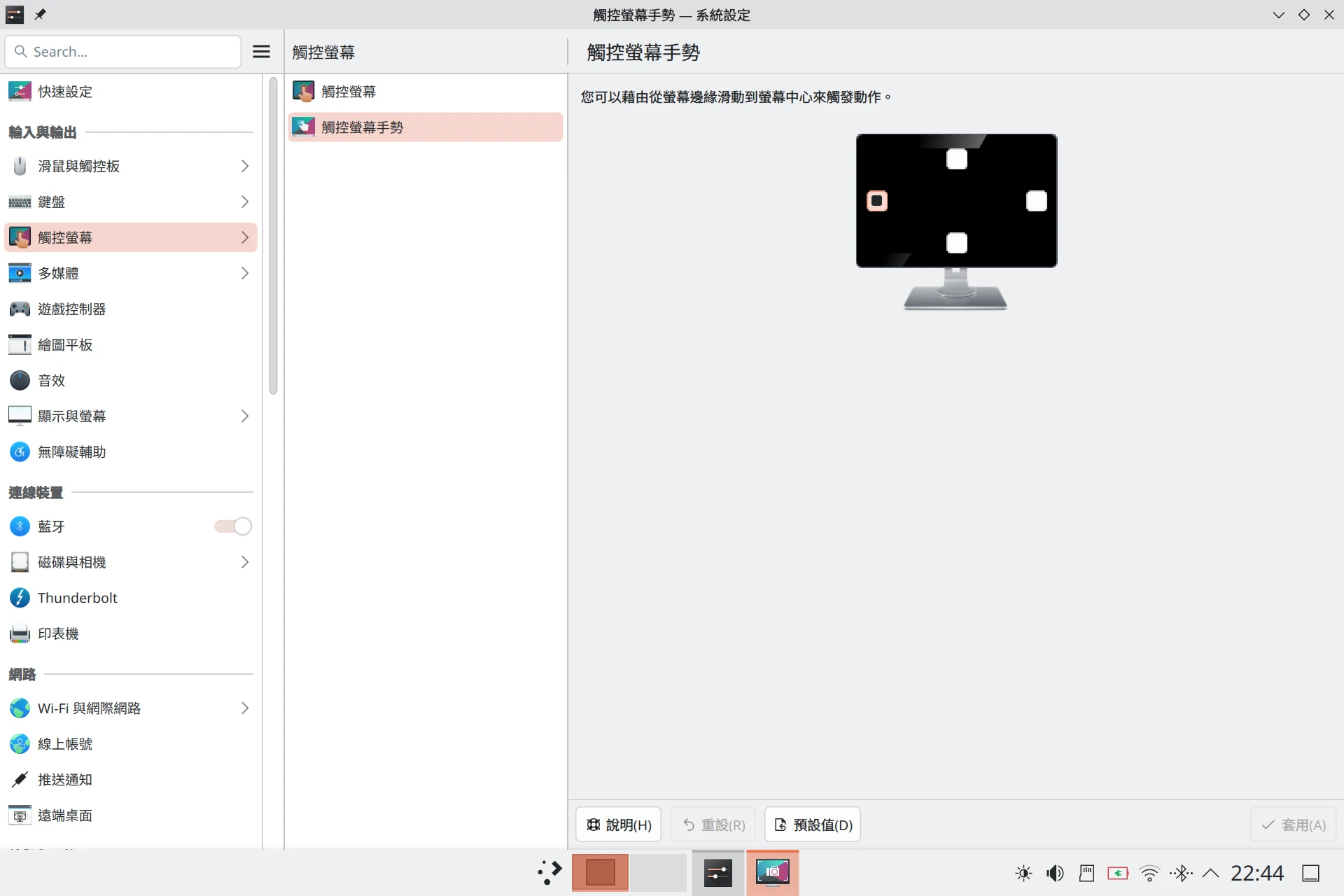
KDE’s System Settings can customize touch gestures. For example, I set a swipe from the left edge of the screen to open the overview of all windows.
That said, KDE Plasma desktop mode still needs a keyboard and mouse most of the time.
If you want pure touch operation, I recommend installing the plasma-mobile or Phosh desktop environment:
sudo dnf install plasma-mobileYou can switch to the “Plasma Mobile” desktop environment from the login screen.
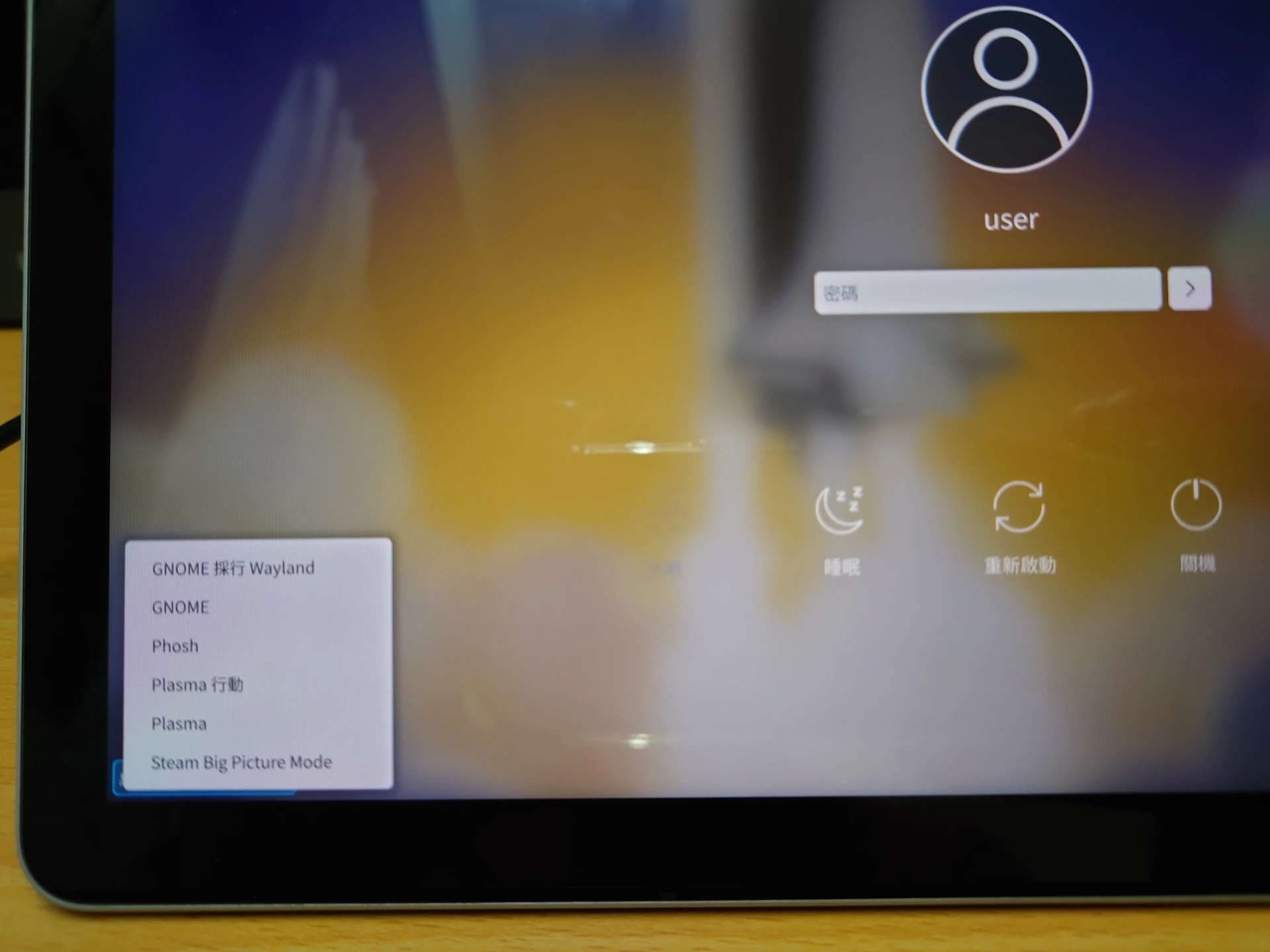
Plasma Mobile gives you an Android-tablet-like experience. Some of its configuration is shared with KDE Plasma.
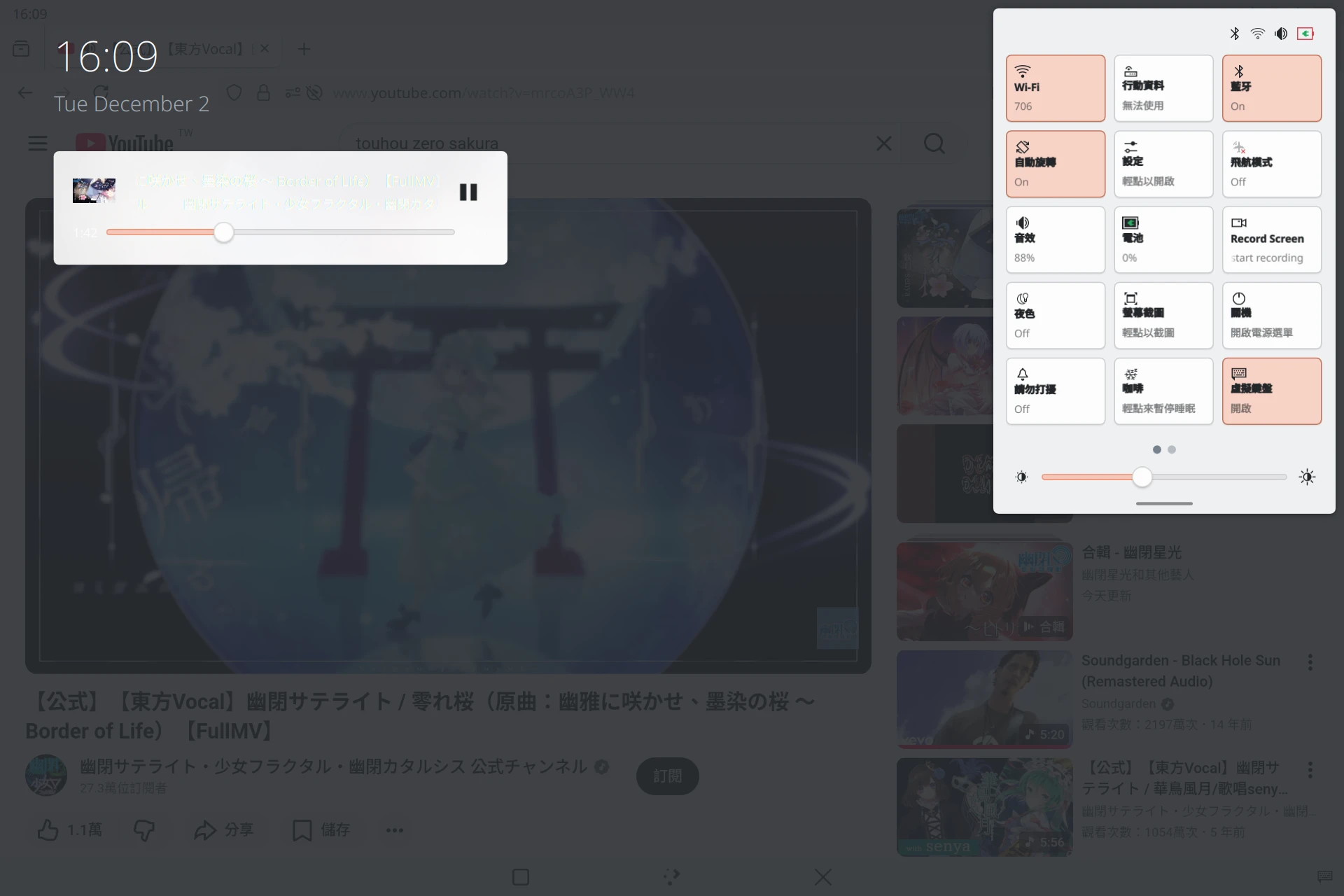
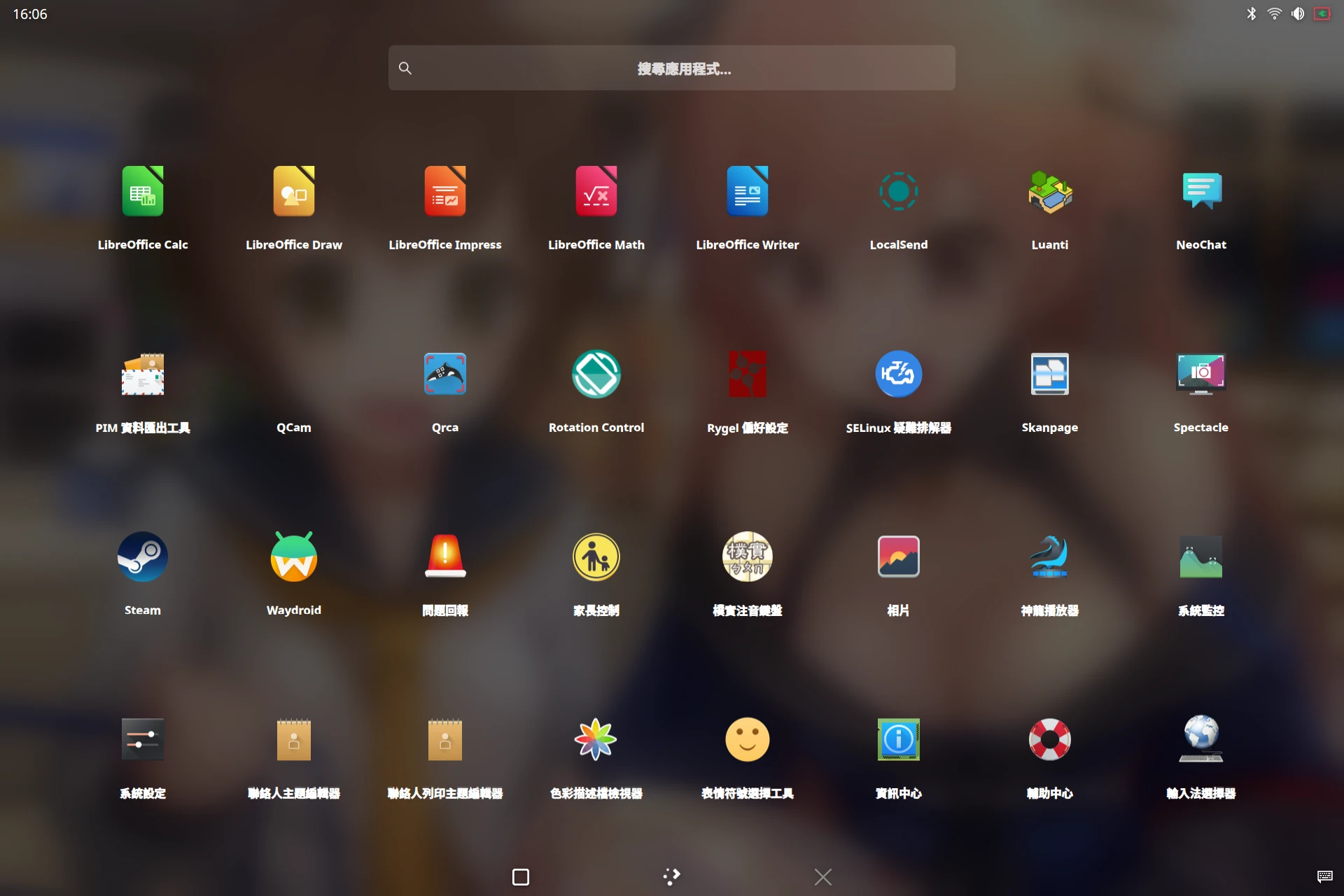
In the plasma-mobile system settings, you can enable Pinyin and Zhuyin input methods.