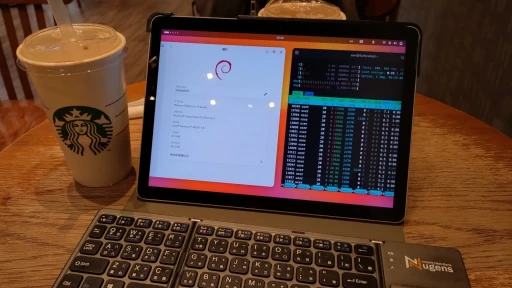
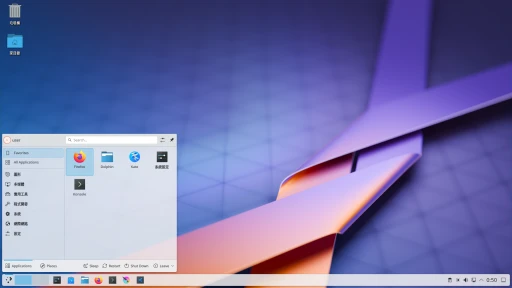
Use virtual / on-screen keyboard on Linux devices with touch screen.
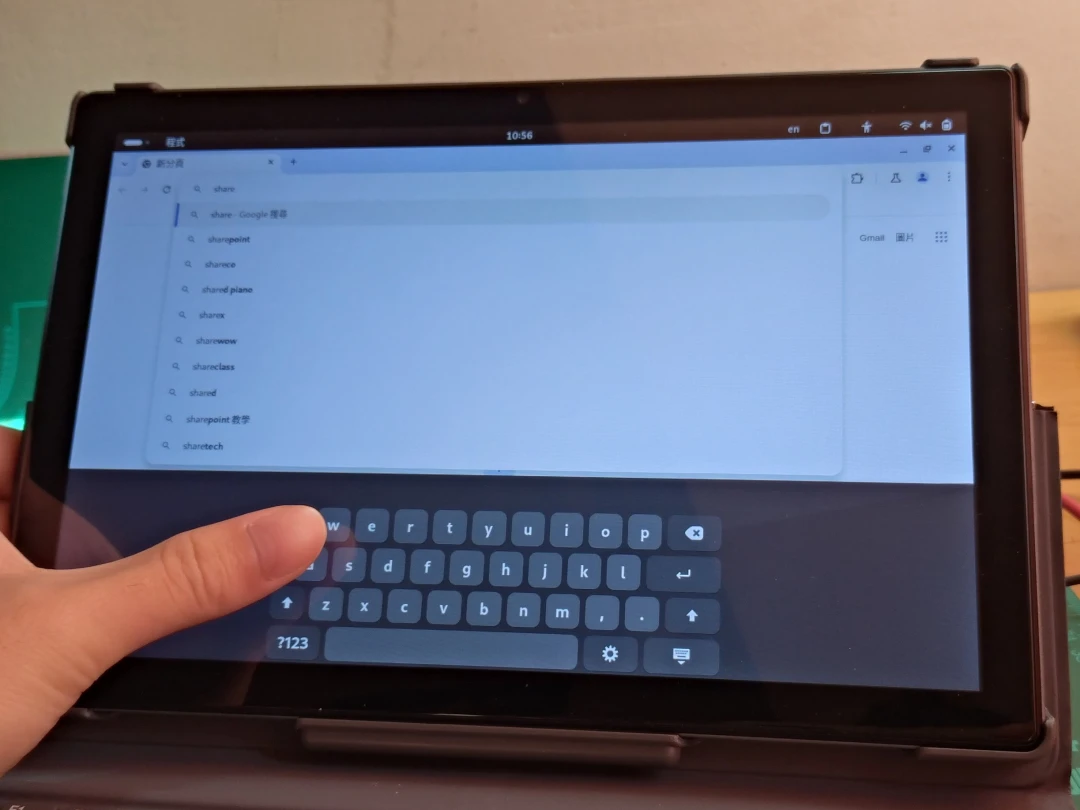
If you use Linux tablets like the Microsoft Surface, Lenovo Yoga, Pine64 PineTab, or Librem Tab, you will probably run into touchscreen text input sooner or later. Can we type Chinese with an on-screen keyboard?
Touch devices usually provide a virtual keyboard for typing. On Windows we have the on-screen keyboard, so what about Linux?
That depends on which Linux desktop environment you use, and whether it runs on the X11 or Wayland display protocol. It gets messy fast, so I will split it by desktop environment.
1. Touchscreen Keyboards by Desktop Environment #
GNOME #
The default desktop environment for distributions such as Ubuntu, Fedora, and Debian. Latest version: GNOME 50
GNOME 40 and later include a built-in on-screen keyboard, available on both X11 and Wayland.
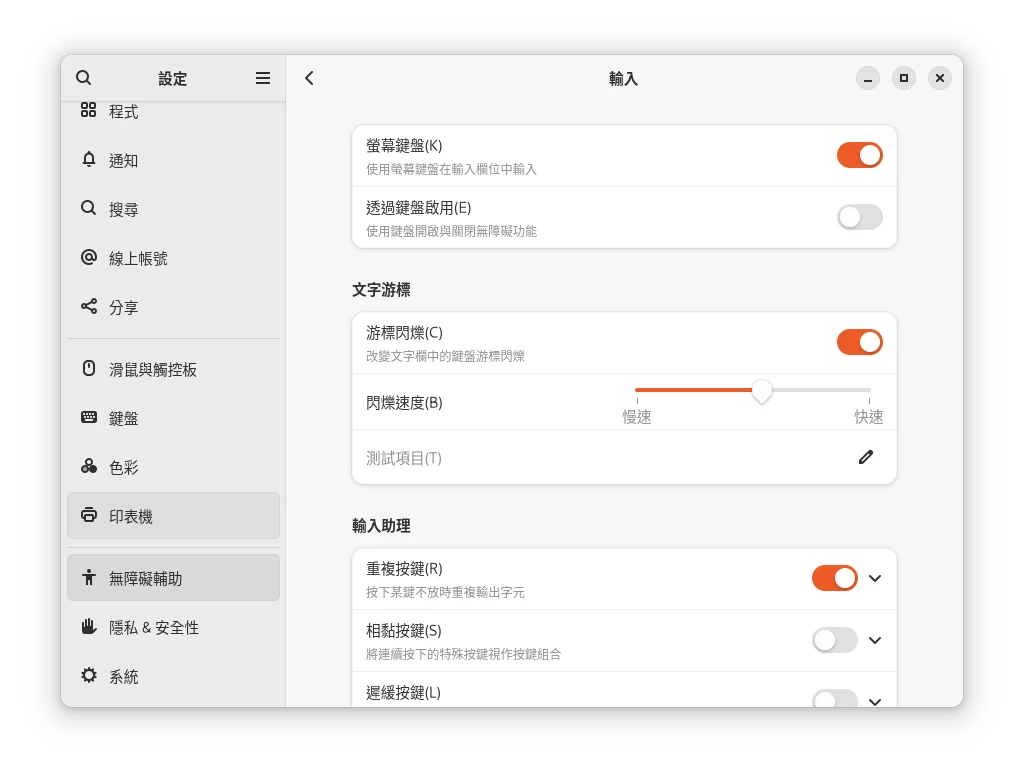
In System Settings → Accessibility, enable the on-screen keyboard.
After that, tapping the screen will bring up the OSK keyboard. Swipe up from the bottom of the screen to open it.
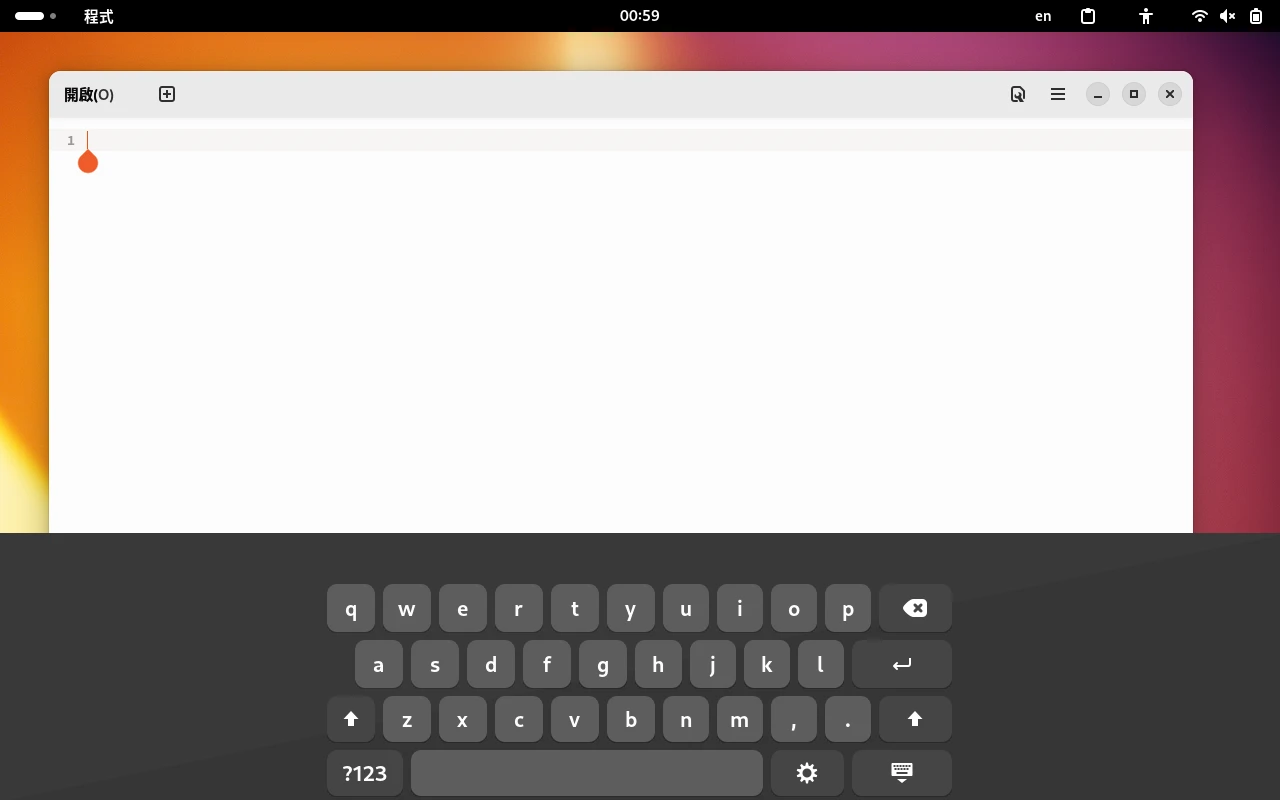
But I think GNOME’s built-in keyboard is too bare-bones. I recommend using the GNOME Extension Manager to install GJS OSK, which gives you a more complete on-screen keyboard.
KDE Plasma #
The default desktop environment for Kubuntu, Fedora Spin, openSUSE, and SteamOS. Latest version: KDE Plasma 6.6
KDE’s touch keyboard has a lot of problems and is not very stable. You need at least KDE Plasam 6.6 or later before it starts becoming more usable.
The Plasma Login Manager login screen has a Maliit Keyboard virtual keyboard.
On KDE with the X11 protocol, there is no good solution. There is qtvirtualkeyboard, but it only works with programs using the QT framework. I recommend installing onboard directly.
KDE on Wayland uses Maliit Keyboard, which is based on an input method originally developed for MeeGo. You may need to install the Mallit Keyboard package manually:
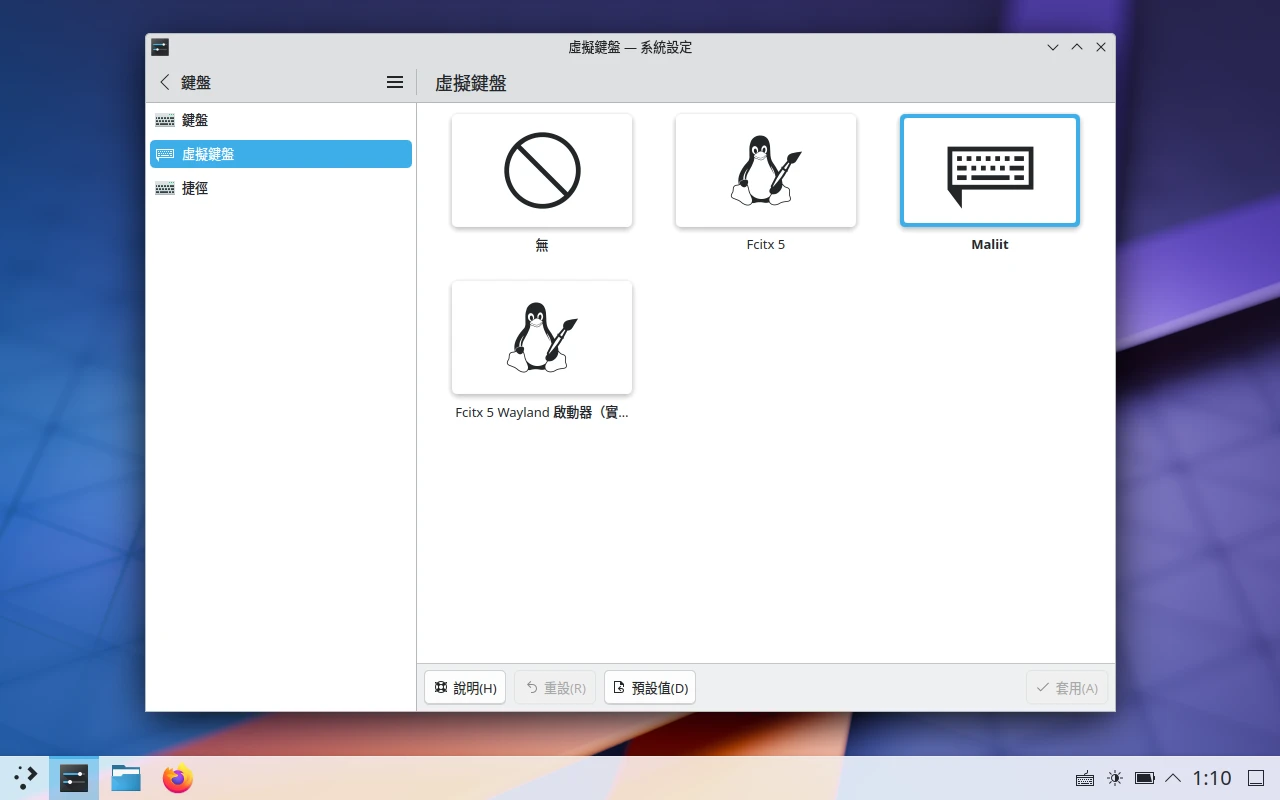
sudo apt install maliit-keyboardThen go to System Settings → Keyboard → Virtual Keyboard, and enable Maliit Keyboard.
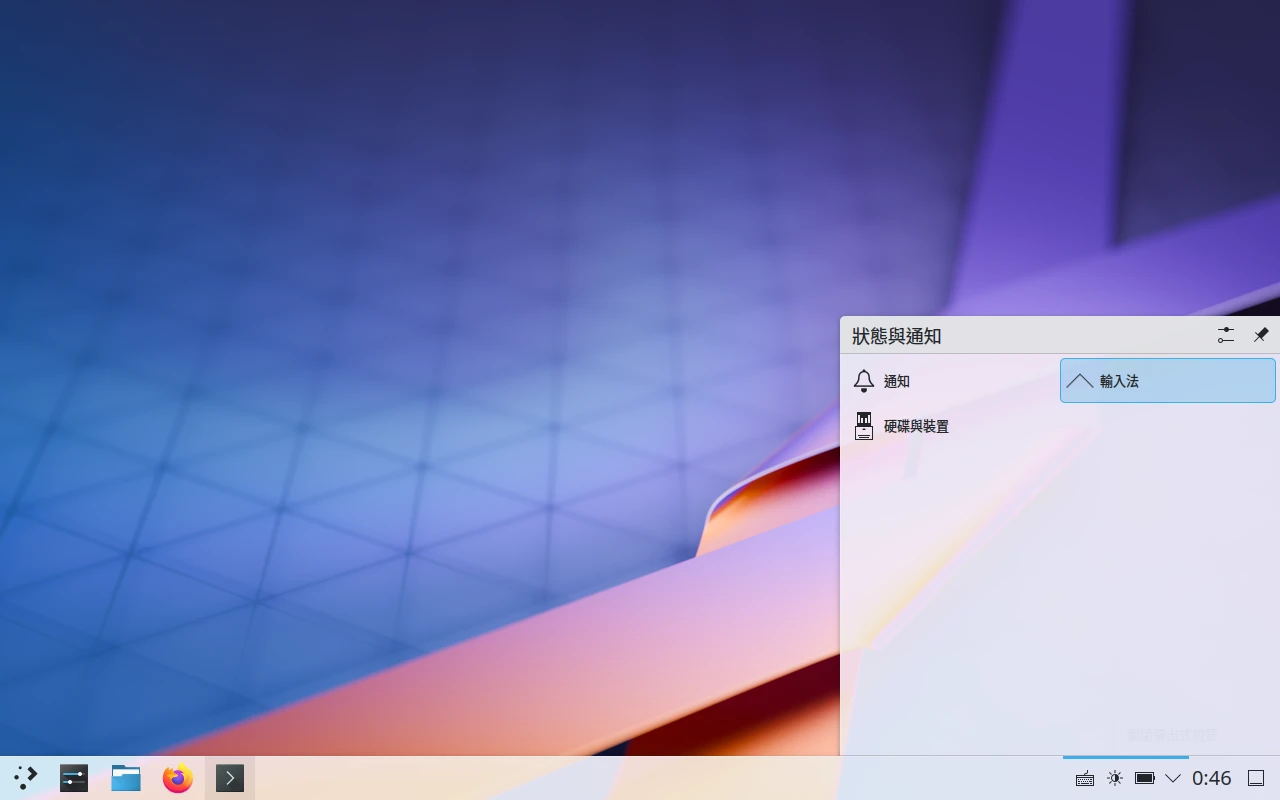
Click the input method icon in the system tray to wake the keyboard. Swipe down to close it.
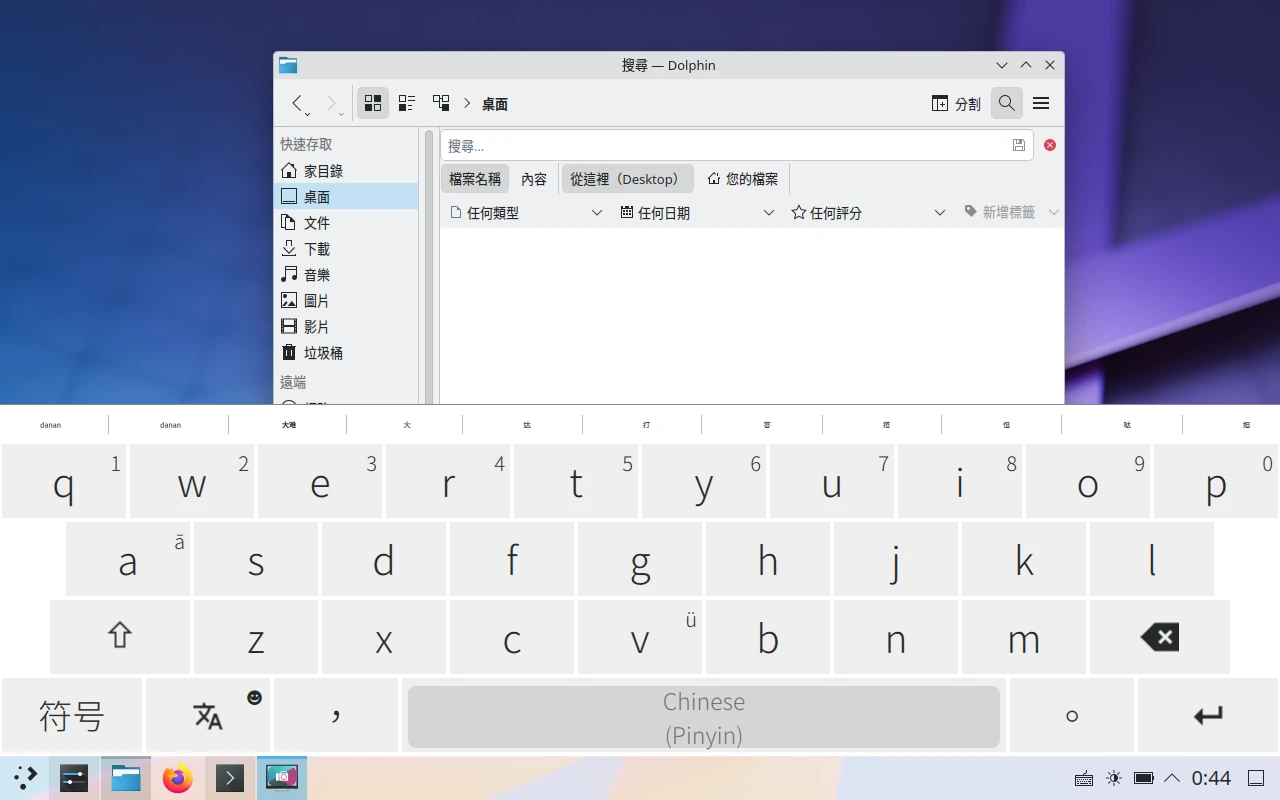
Maliit Keyboard supports Zhuyin and Pinyin input methods.
Also, Maliit Keyboard cannot be used together with the Fcitx5 input method, because Maliit Keyboard and Fcitx5 are both started through KDE Plasma’s virtual keyboard mechanism. You can only use one at a time.
If you want to use an on-screen keyboard to emulate keyboard input events and type Chinese through Fcitx5, you need to switch to fcitx5-osk.
Other Desktop Environments #
First, for desktops running the X11 protocol: XFCE, Cinnamon, LXQT, and i3wm do not have their own on-screen keyboards, but since they all run on X11, installing onboard is enough. GNOME X11 and KDE Plasma X11 can also use this keyboard.
sudo apt install onboardThe Onboard keyboard is highly customizable. You can choose layouts according to your screen size.
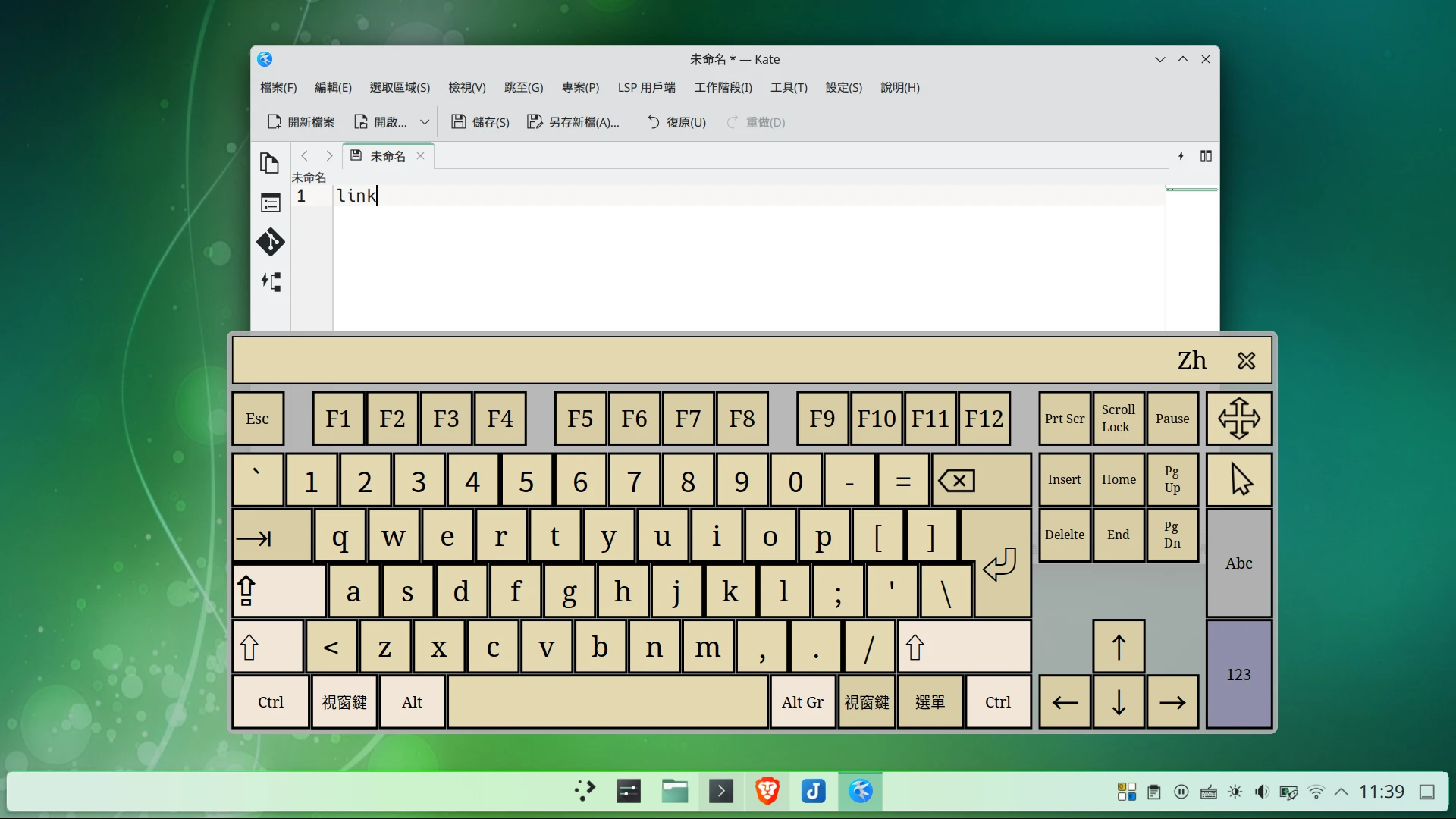
It can also emulate physical keyboard input, so it can work with Fcitx5 for typing Hanyu Pinyin.
Basically, onboard only works properly on X11 desktops. Under Wayland it can only run through XWayland, and there are plenty of bugs.
Next, desktops running the Wayland protocol.
For desktop environments or compositors written on top of wlroots, such as Sway, Hyprland, XFCE, use wvkbd for typing. It is a minimalist Linux on-screen keyboard written in C, and it can emulate keyboard input events. Its appearance is customizable.
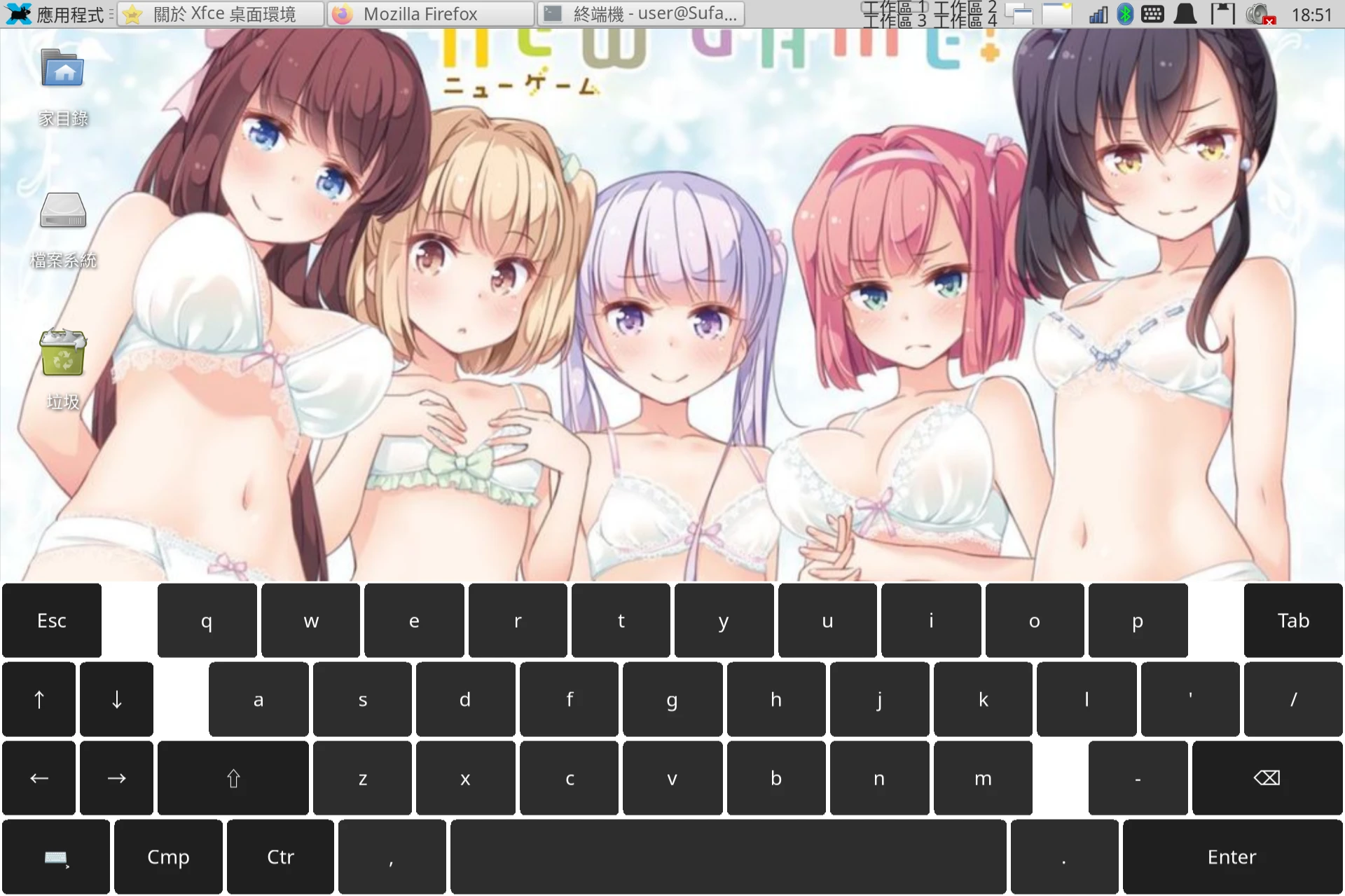
Phosh includes the Squeekboard keyboard, which cannot be used in other desktop environments.
KDE Plasma Mobile 6 includes Maliit Keyboard. It supports Chinese Zhuyin, but it is unstable.
Ubuntu Touch includes Maliit Keyboard. It supports Chinese Zhuyin and is currently the only input method that is genuinely usable. It can only be used in the Lomiri desktop environment.
2. Typing Chinese with a Touchscreen Keyboard #
Unfortunately, Linux touchscreen keyboards almost all support only English, and they cannot display Zhuyin on the keys. So you need to make good use of keyboards that emulate physical keyboard input events.
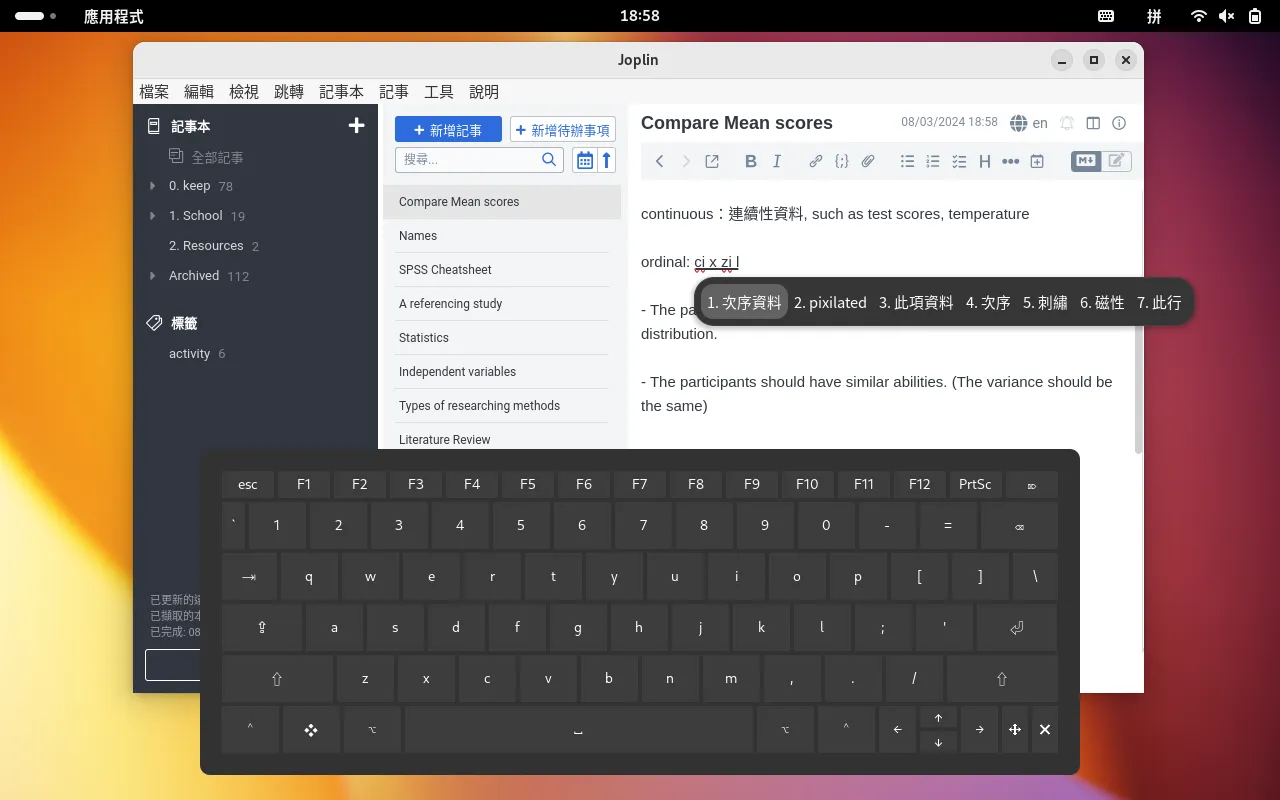
Take the GNOME desktop with GJS OSK as an example.
Install Fcitx5 and enable the Hanyu Pinyin input method. Also install Input Method Panel to display the input method icon.
Then use the on-screen keyboard to press CTRL + Space to switch input methods, or tap the en keyboard icon in the system tray to switch input methods. After that, you can type Chinese using English letters.
If you need “handwriting input converted into text”, please refer to this article: Linux Chinese Handwriting IME