The tips and tricks for the Linux desktop on 2-in-1 laptop tablets.
Here are the settings I use for Linux tablet laptops. I hope these notes can serve as a reference for other users of Linux tablet laptop devices.
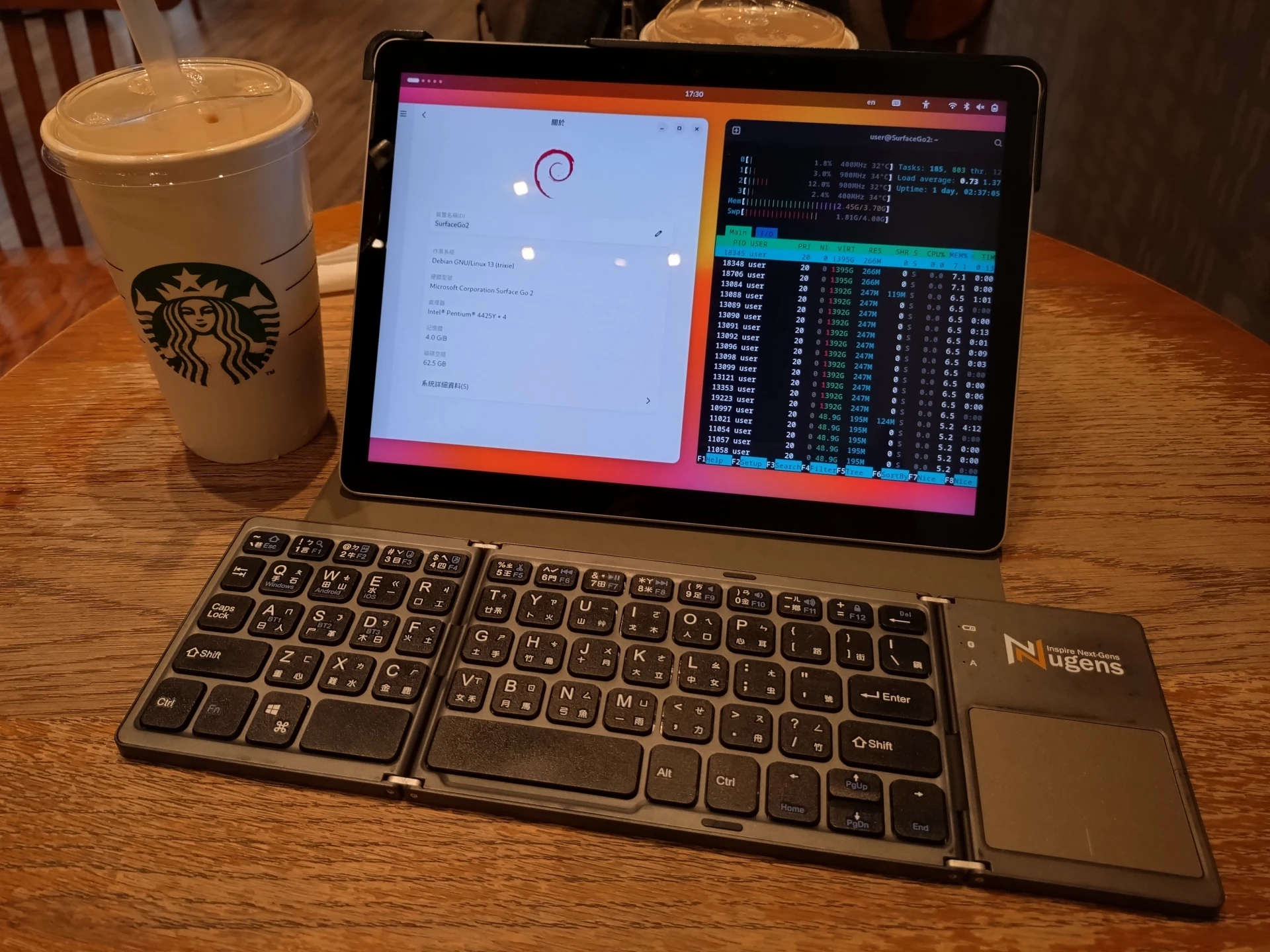
Right now I have two tablets: the Pine64 PineTab 2 and the Microsoft Surface Go 2.
Both sit somewhere between a tablet and a laptop. You could call them 2-in-1 tablet laptops or convertible laptops.
They provide two interaction modes: touch and keyboard.
Because of that, choosing an optimized Linux setup matters. It has to handle both touchscreen input and keyboard/mouse input.
1. Operating System Choice #
The main rule is simple: use whichever Linux distro your hardware supports. Here, “Linux distro” does not include Android or ChromeOS. I want a “pure” GNU/Linux tablet.
x86 tablets have UEFI and drivers that are easier to deal with, so distro choices are plentiful. Personally, I recommend Debian- and Ubuntu-based distros first. They have good support on both x86 and ARM tablets and are stable. Fedora- and Arch Linux-based distros come next: newer features, less stability. The usual bargain.
ARM tablets are more complicated because they lack UEFI and driver support is fragmented. In general, you can try Mobian (Debian), postmarketOS, Ubuntu touch, and similar systems. More niche options include Arch Linux ARM and Fedora Mobile.
2. Desktop Environment Choice #
Personally, I do not think any Linux desktop environment handles both “laptop mode” and “tablet mode” well at the same time. Switching back and forth between two modes inside the same interface is not a wise idea. It should be divided by session, so I install two desktop environments. Linux Display Managers allow multiple desktop environments to be available at login, so I choose the appropriate desktop based on the mode I need at that moment.
There are many Linux desktop environments. At this point Wayland is better; X11 has fallen behind the times. After testing various desktops, I found that GNOME 50 + Phosh is still the best fit for this convertible tablet setup. KDE Plasma 6 is close, but not good enough; it is suitable mainly for keyboard operation. As for the Cosmic desktop, I am still waiting to see how it develops.
- Taking Debian as an example, install GNOME and Phosh from the official repository. Some distros already preinstall GNOME, so you only need to add Phosh.
sudo apt install gnome phosh- Use GDM as the display manager, so after booting you can switch desktop environments from the login screen:
sudo systemctl enable gdm-
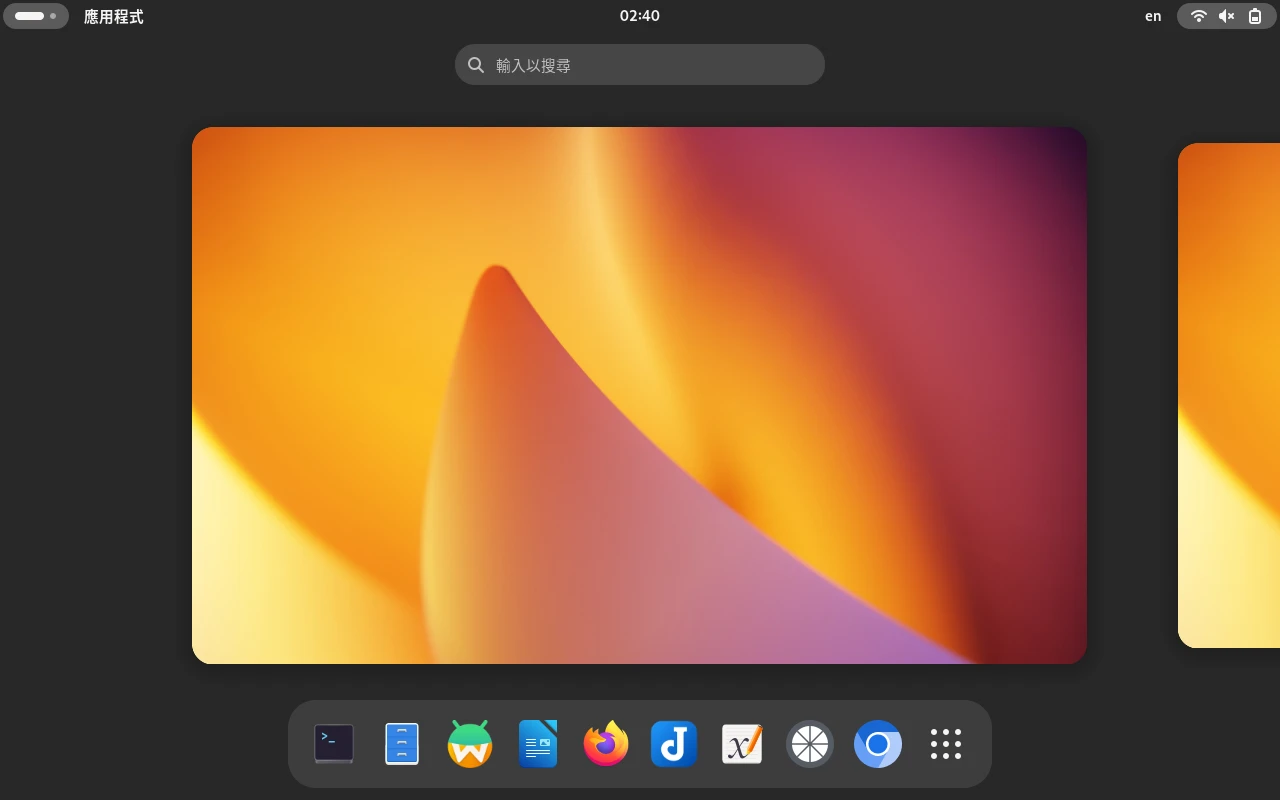
First, the GNOME desktop handles desktop computer mode, meaning when the tablet is connected to a keyboard. Occasional touch input is fine too. Phosh’s one-app-one-screen model does not fit traditional desktop multitasking, and Phosh is not compatible with GNOME extensions. This is where GNOME takes the stage. I use this mode for taking notes, browsing the web, and remote development. If you are not familiar with GNOME’s interaction model, read this first: How to Use the Linux GNOME Desktop: Understanding Its Design Philosophy and Interaction Model
-
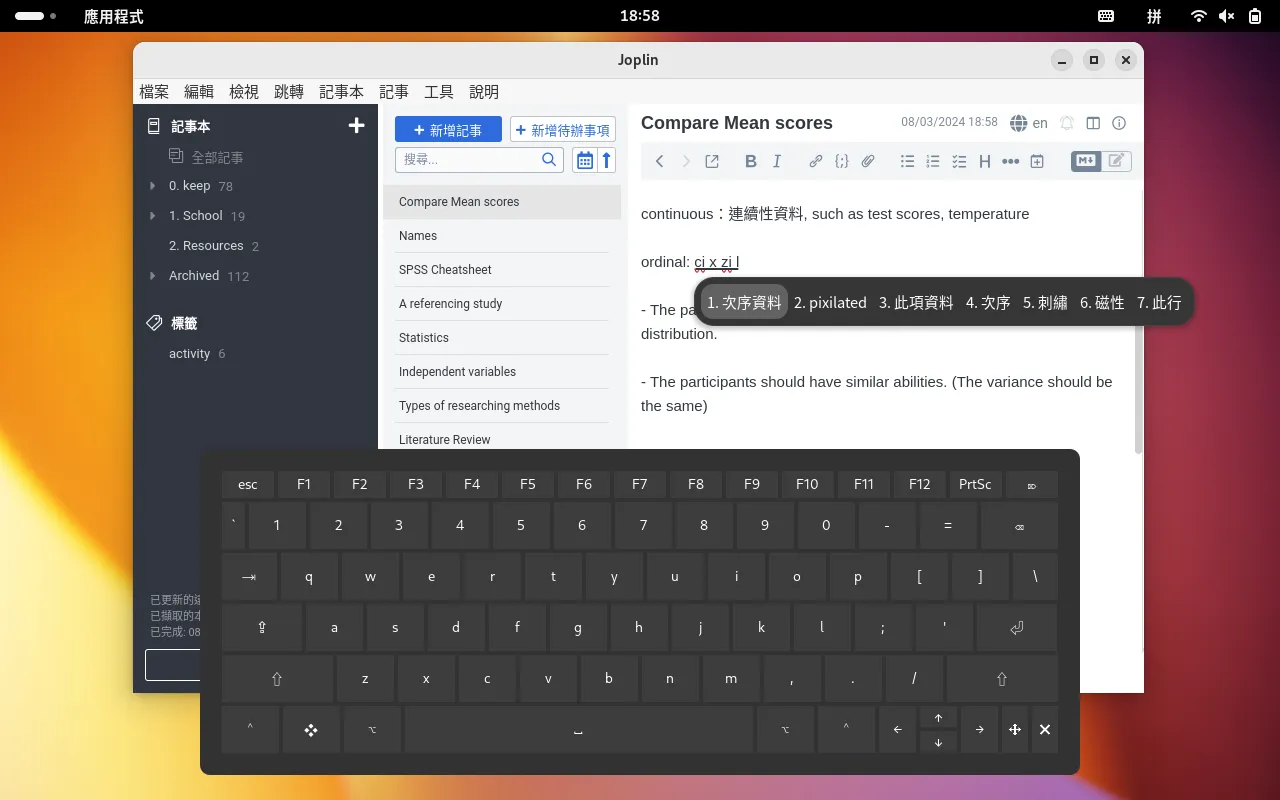
The built-in on-screen keyboard can be enabled in GNOME Settings, but it is not good enough. I recommend installing the GJS-OSK floating keyboard, which can work with Fcitx5 for Chinese input. At the moment it only supports Hanyu Pinyin.
-
Because a tablet is not always plugged in, whether I use GNOME or Phosh, I set automatic suspend after a period of inactivity under System Settings -> Power Management. If I need to temporarily disable automatic suspend, I install the Caffeine extension, which adds a button in GNOME’s top-right menu. GNOME also uses Power Profile Daemon to control system power usage, and the power mode can likewise be adjusted from the top-right menu.
-
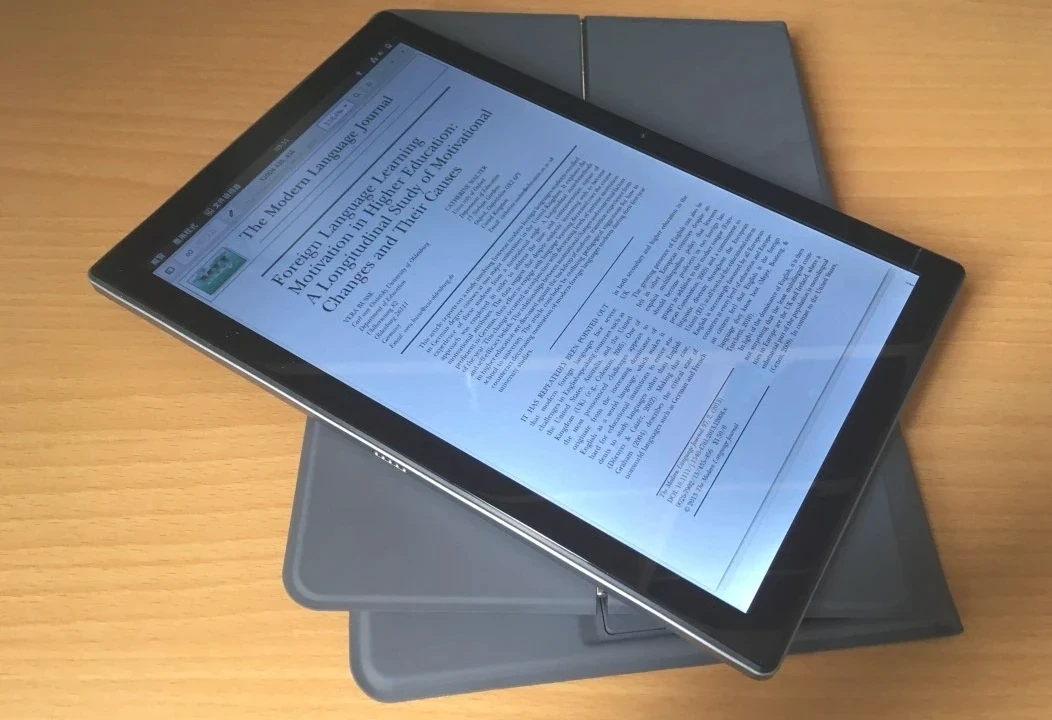
On the other hand, the Phosh desktop handles pure touch mode, meaning when I am holding the tablet and reading ebooks or papers. Phosh animations are noticeably smoother, gestures are optimized for touch devices, and it sticks to the one-app-one-window concept with a global keyboard. Good enough.
Tip: In Phosh 0.35.0 and later, you need to long-press the pill bar at the bottom of the screen to summon the keyboard. The keyboard’s Terminal layout can bring up the Fcitx5 Pinyin input method.
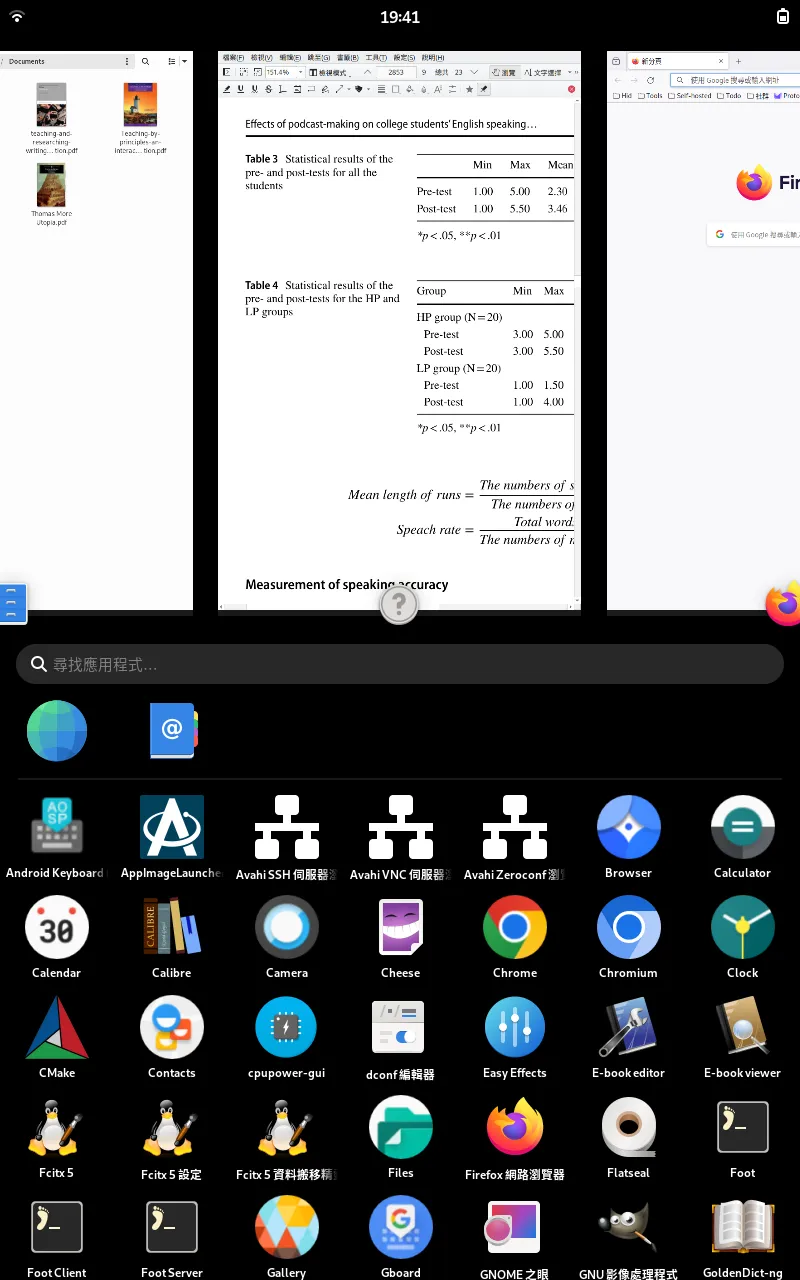
When a keyboard is connected, Phosh automatically enters Docked Mode. In this mode, windows can overlap, and their position and size can be adjusted by dragging.
Phosh may make GNOME app window minimize and maximize buttons disappear. You can automatically restore them by adding the following gsettings command to ~/.profile.
if [[ "$XDG_CURRENT_DESKTOP" == *"GNOME"* ]]; then
   gsettings set "org.gnome.desktop.wm.preferences" button-layout "appmenu:minimize,maximize,close"
fi
3. The Auto-Rotation Problem #
Most tablets have a built-in accelerometer to detect screen orientation.
Wayland desktops handle this better. X11 desktops do not.
For GNOME and KDE Plasma desktop environments, install the iio-sensor-proxy package and the screen will rotate automatically:
sudo apt install iio-sensor-proxy

sudo systemctl enable --now iio-sensor-proxy
4. Commonly Used Apps #
See Recommended Linux Applications
The number of Linux applications designed for touch devices is increasing, but the mainstream is still keyboard-first. So many tasks are probably best done inside a browser.
Even though I use the GNOME desktop, I still use many KDE apps.
Partial list:
- GJS-OSK: a GNOME extension and a better on-screen keyboard.
- Caffeine: a GNOME extension that temporarily prevents the computer from automatically entering suspend.
- GSConnect: a GNOME extension, similar to KDE Connect, for file transfer and notification sync.
- Firefox: I recommend enabling vertical tabs. You can pinch to zoom.
- Chromium-based browsers: Chrome and Brave, for example. They have good mouse and touchscreen support, can go back with gestures, and support pinch-to-zoom.
- Dolphin: a multifunction file manager with touch operation support.
- “Drawing” by maoschanz: touch-friendly photo editing.
- Krita: drawing and image editing software.
- Gwenview: photo viewer and album app. If you want a mobile-optimized interface, KDE Koko is also an option, but I find it hard to use.
- VLC: video player.
- Okular: for reading and annotating PDFs. Fast and packed with features.
- KOReader: lightweight PDF reader.
- Joplin Desktop: for Markdown notes and handwritten notes.
- Rnote: handwritten notes and PDF annotation, more stable than Xournal++.
- EasyEffects + Auto Gain Presets: equalizer for tablet speakers.
- LocalSend: a more stable Wi-Fi file transfer solution.
- Moonlight Game Streaming: remote desktop and gaming.
- Visual Studio Code: universal text editor. If it feels too bloated, install Zed.
- Vim: terminal text editor.
- Konsole: a terminal that supports keyboard and touch operation.
- Fcitx5: Chinese input method. Most of the time I use Zhuyin input when typing with a connected keyboard. For touch input, you need to learn Pinyin.
- Flatpak: convenient for installing newer software. Since apps bundle drivers and dependencies with themselves, they are less affected by system updates.
5. Run Android Apps with Waydroid #
Running Android apps after going through all this effort to use Linux is strange, but having an Android environment is still convenient when you temporarily need one.
For detailed Waydroid usage, see: Waydroid Tutorial
Install the proprietary app Rotation Control to manually control Android screen orientation. If you rotate the GNOME screen, the Waydroid window gets sliced in half. So the best workflow is to disable GNOME auto-rotation and manually rotate the screen inside Waydroid’s app.
Waydroid can receive mouse, keyboard, touch, and stylus input. It even detects pen pressure. Fancy, for a container pretending to be a phone.