When installing Mobian on the PinePhone, the WIKI asks you to install the Tow-boot bootloader before installing the system. So how is this different from the PinePhone’s default U-boot?
1. Introduction #
The default bootloader on the PinePhone/PinePhone Pro is called U-boot, and by default it boots the system from the SD card. Different Linux distributions have different boot settings, so the LED colors shown during boot can also differ. Tow-boot is developed on top of U-boot and tries to unify the rules between different distributions.
More precisely, Tow-boot is a distribution of U-Boot. It tries to add a UEFI-like mechanism to ARM platforms, combining bootloader behavior with GRUB-like functionality.
Besides the PinePhone/PinePhone Pro, Tow-boot also supports some development boards, such as Libre Computer, Odroid, Olimex, Orange Pi, Radxa, Raspberry Pi, and others.
After installing Tow-Boot, if the device has a keyboard, you can use a boot menu similar to a desktop multi-boot setup to choose which system to enter.
Tow-Boot also lets the phone use key combinations to choose whether to boot from the SD card or eMMC.
2. How to Install Tow-boot on the PinePhone #
The current Tow-Boot version is 2021.10-004.
Installing Tow-Boot should not affect the existing system, but make a backup just in case. Famous last words, etc.
-
Download the latest Tow-boot for PinePhone from Github. After extracting it, you will get an mmcboot.installer.img file.
-
Insert the SD card into the computer and flash the Tow-boot img file to the SD card.
# Check the SD card mount point
lsblk

# Unmount it
sudo umount <mount point>

# Write the image file
sudo dd if=mmcboot.installer.img of=/dev/sdb- Insert the SD card into the PinePhone and boot it. The screen will show the Tow-boot installer. Tap
Install Tow-Boot to eMMC Boot, then shut down after it finishes.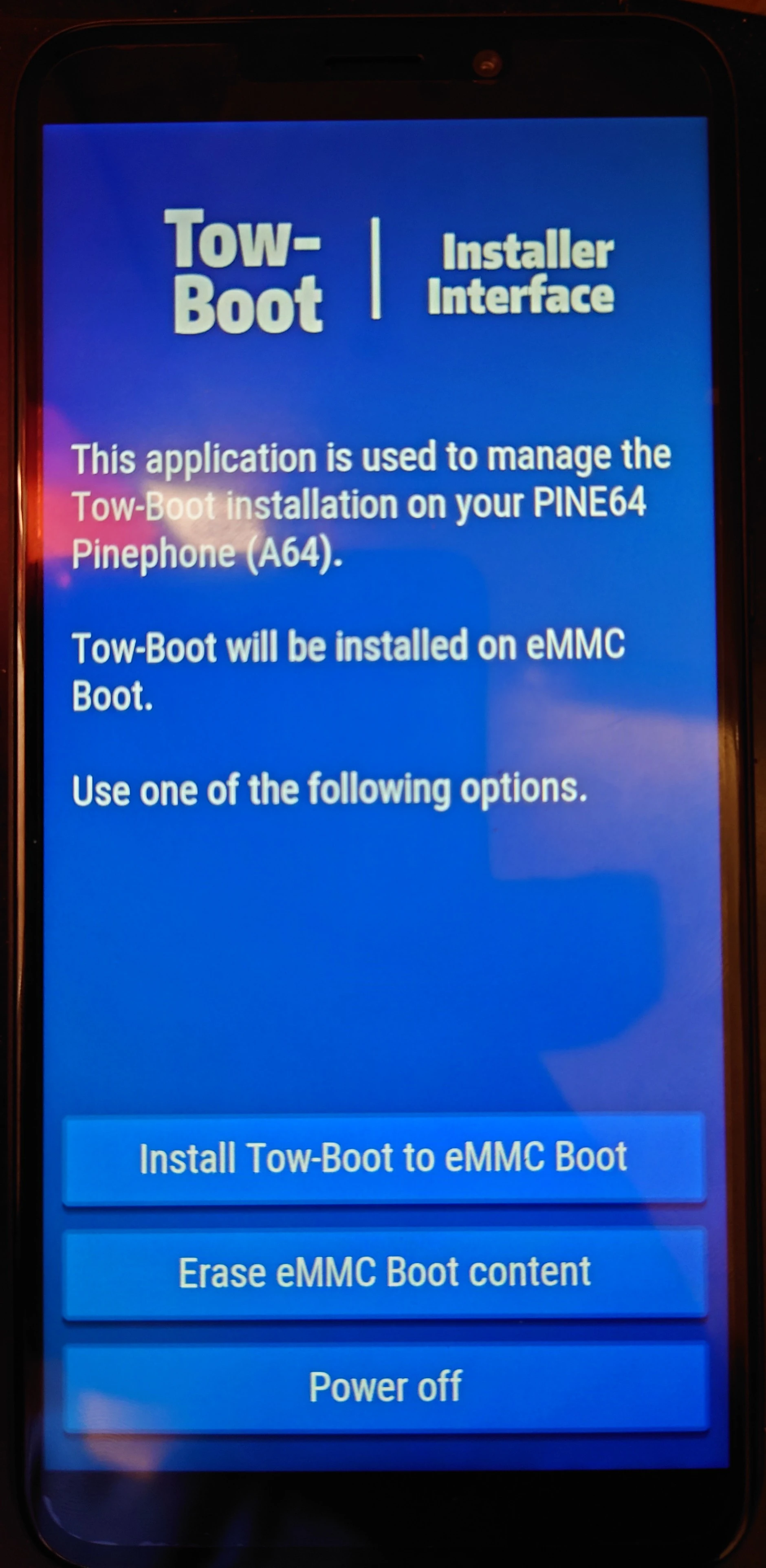
3. Tow-Boot Boot Features #
First, Tow-boot can control the boot process.
On the PinePhone, Tow-Boot turns the LED red after the first vibration during boot, and by default boots the system from internal storage.
Power button + long-press volume down boots the system from the SD card, and the LED turns cyan.
Power button + long-press volume up turns the LED blue. At this point, the PinePhone becomes a USB drive (USB Mass Storage Mode), and after plugging it into a computer you can mount it directly and access the phone’s files. This mode works similarly to JumpDrive.
You can also use dd on the exposed filesystem to flash a new system image. See PinePhone installation guide.