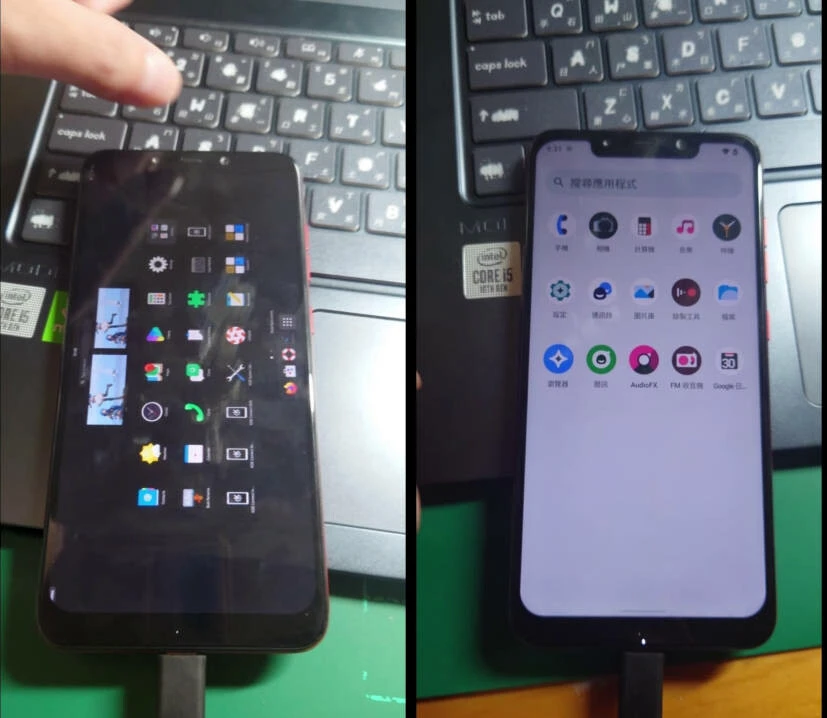
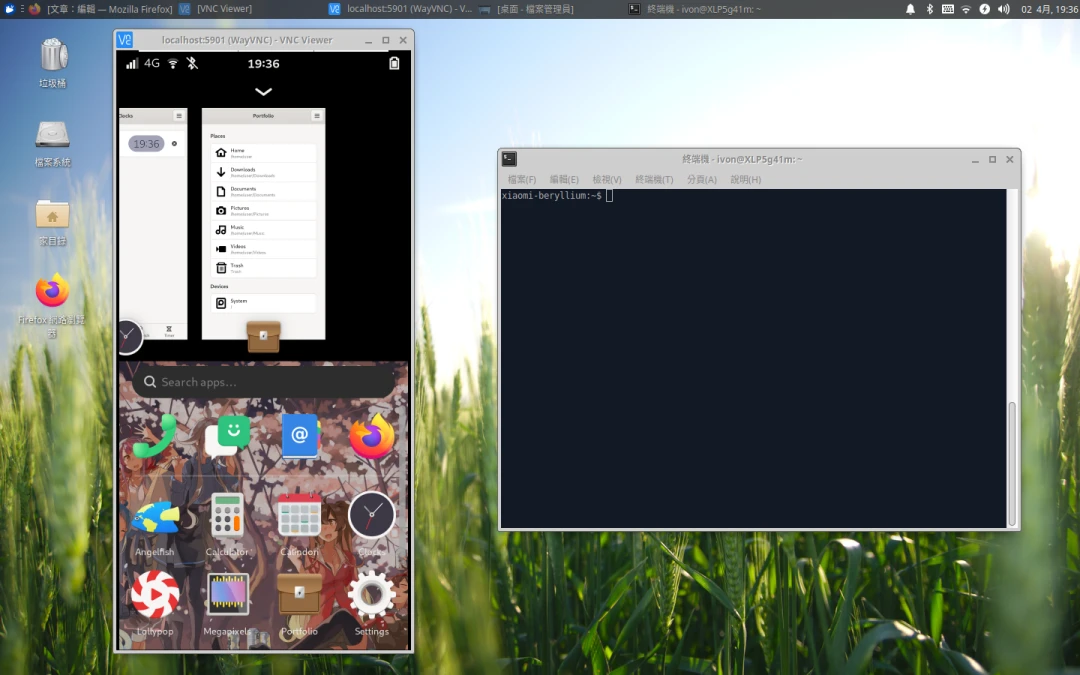
Using a tiling window manager on a phone? A wild idea, but someone actually built it.
Sxmo: Simple X Mobile is a collection of suckless software, used as one option for a Linux phone desktop environment.
This is what it looks like at boot. You cannot tap anything.
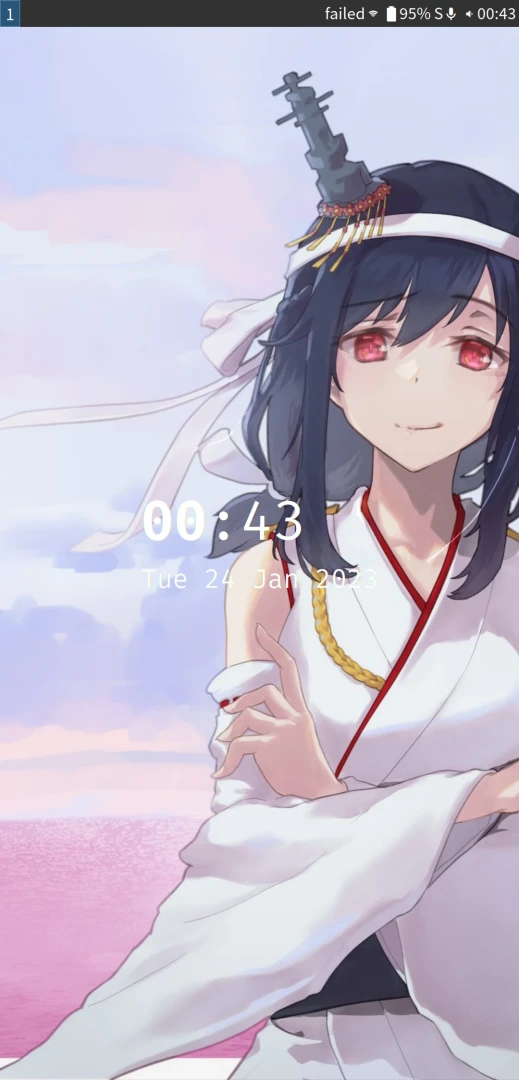
You have to press the corresponding hardware buttons to perform actions.

Open multiple apps, and you can arrange them in any order.
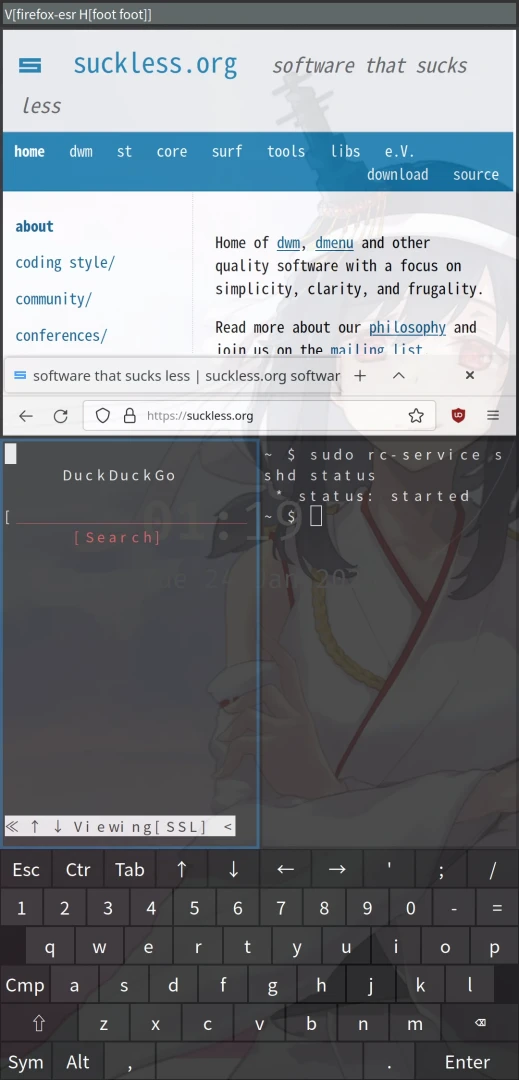
SXMO’s design philosophy is similar to tiling window desktops like i3wm and Sway on Linux. Any part of the desktop can be “hacked into” and customized. SSH is a first-class citizen.
The included software differs a bit depending on the display protocol:
With X11, the window manager is dwm, the app menu is dmenu, the touch gesture daemon is lisgd, and the touch keyboard is svkbd.
With Wayland, the window manager and compositor is Sway, the app menu is bemenu, the touch gesture daemon is lisgd, and the touch keyboard is wvkbd.
In the images built by the postmarketOS official site for supported devices, SXMO uses Wayland.
1. Commands #
The SXMO author includes some convenient scripts in the system menu, such as screenshots.
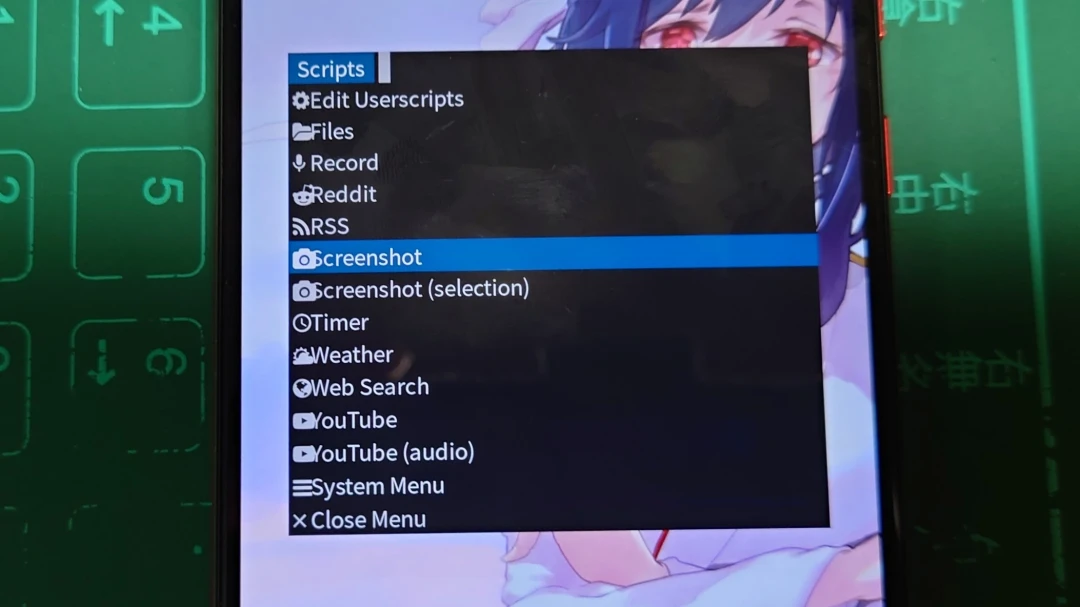
But sometimes commands are still the easiest way to change system settings.
See postmarketOS tips to configure SSH and automatically connect to Wi-Fi at boot.
2. Default Key Bindings #
SXMO works very differently from mainstream phones today. It is also far from Phosh and Plasma Mobile on Linux phones.
That means even though SXMO supports touch interaction with apps, it also inherits the tiling window manager way of doing things: relying on shortcuts. Since phones today generally do not have keyboards, the only usable key combinations are the power and volume buttons.
By default, SXMO binds the following key combinations:
Volume Up
Press once to open the current app’s menu. You can use touch, or move with the volume keys and confirm with the power button.
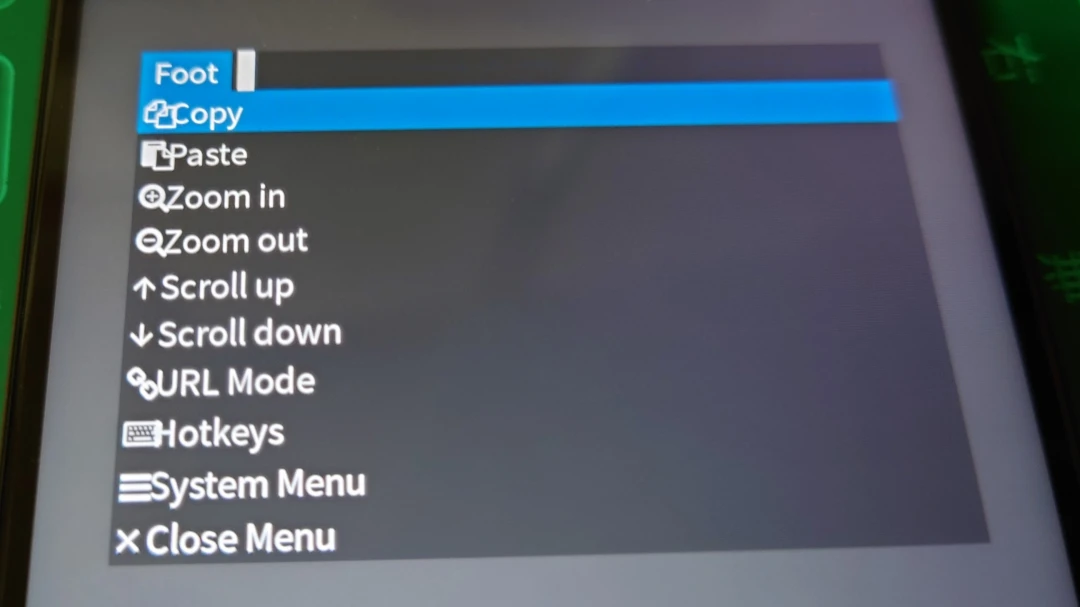
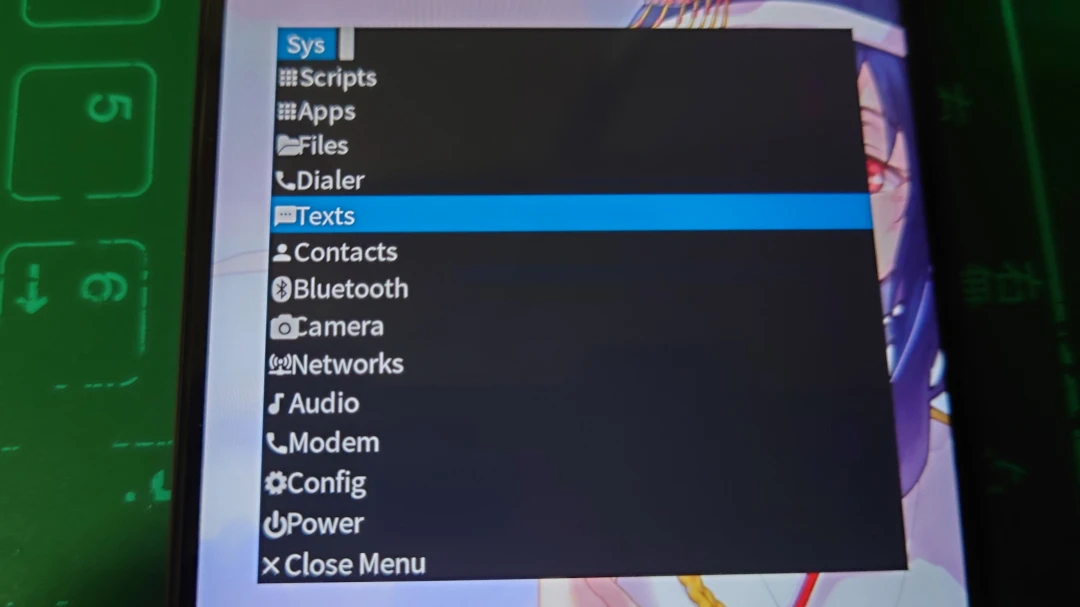
Press twice to open the full app menu. Config can change system settings such as brightness, volume, and screen rotation.
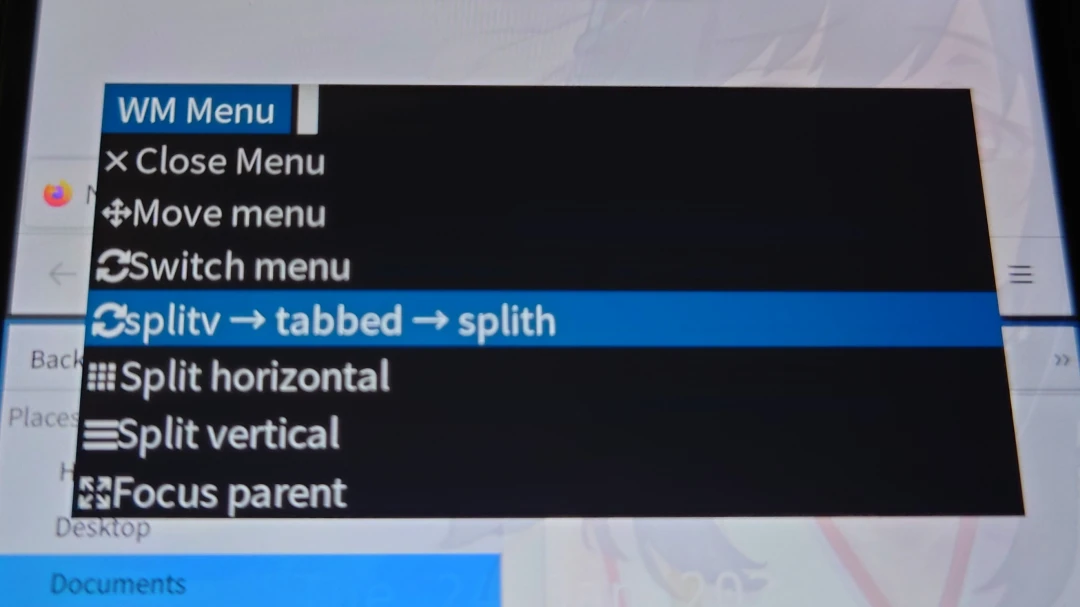
Press three times to change how the current app is stacked, such as changing vertical window layout to horizontal. The default tabbed layout is better suited for a phone interface.
Volume Down
- Press once to toggle the wvkbd or svkbd keyboard
- Press twice to switch the dwm window manager layout
- Press three times to terminate the current app
Power Button
- Press once to activate screen lock. SXMO has four screen lock states; see the next section
- Press twice to cycle the screen lock in reverse
- Press three times to open the foot or st terminal
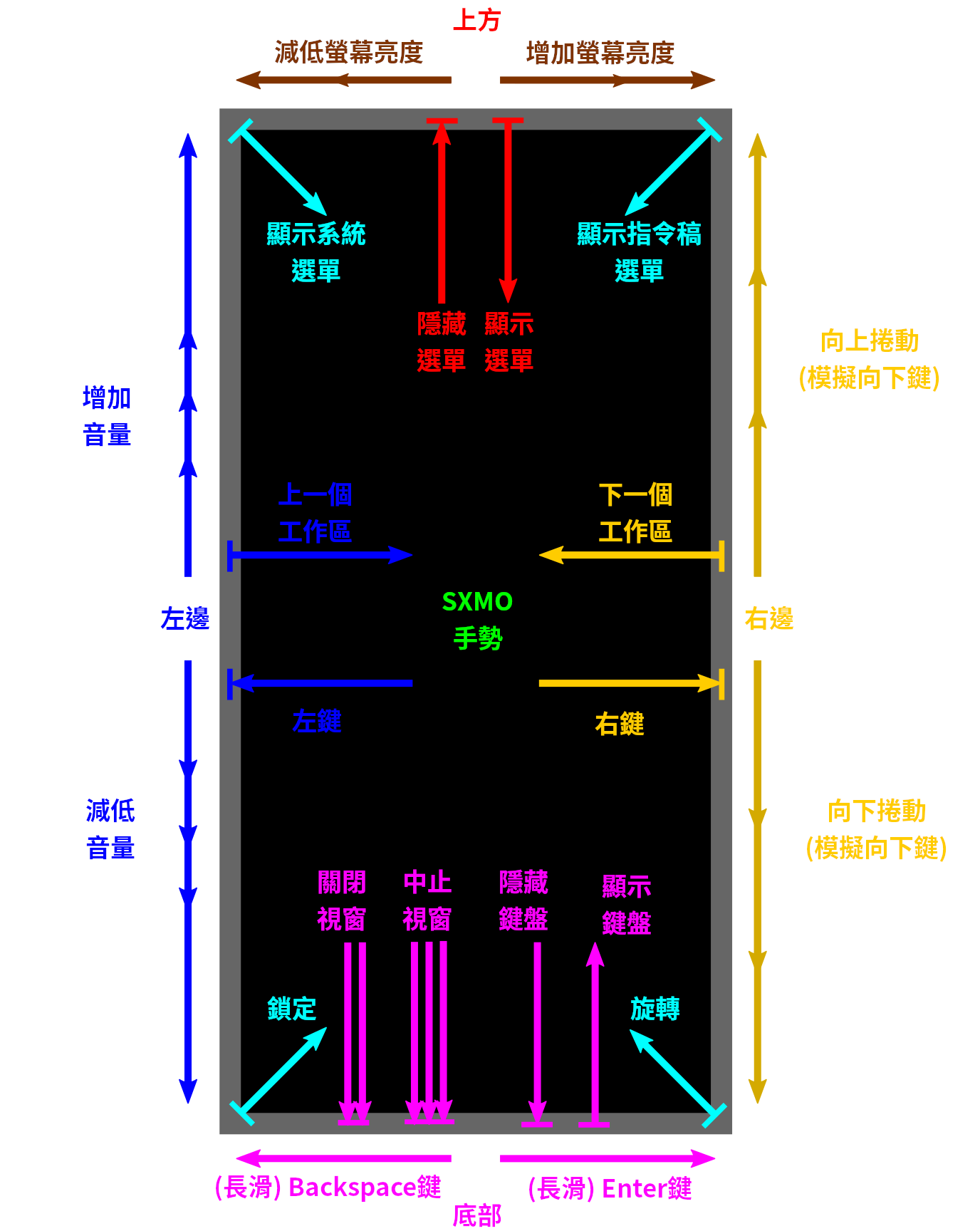
You also need to memorize some common gestures. The arrows represent the number of fingers. If the phone has rounded screen corners or bezels, edge gestures may be hard to trigger. Redrawn from the SXMO USERGUIDE.
3. SXMO Lock States #
SXMO does not require typing startx to enter the desktop, okay… It still uses a display manager named TinyDM to guide boot into the desktop.
SXMO’s “screen lock” has four states. It does not yet support a screen lock password.
Each single press of the power button cycles through the states in the order shown below. Pressing the power button twice cycles in reverse. Redrawn from the SXMO USERGUIDE.
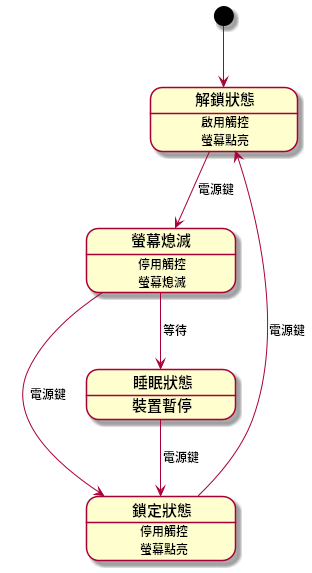
So after pressing the power button once, it enters the locked state with the screen off. You need to press twice to return to the unlocked state.
Unlocked: unlocked state, screen on, touch enabled → Lock: locked state with screen on, touch disabled, lock screen shown → Off: locked state with screen off, touch disabled, lock screen off → Crust: sleep mode, the phone suspends to save power.
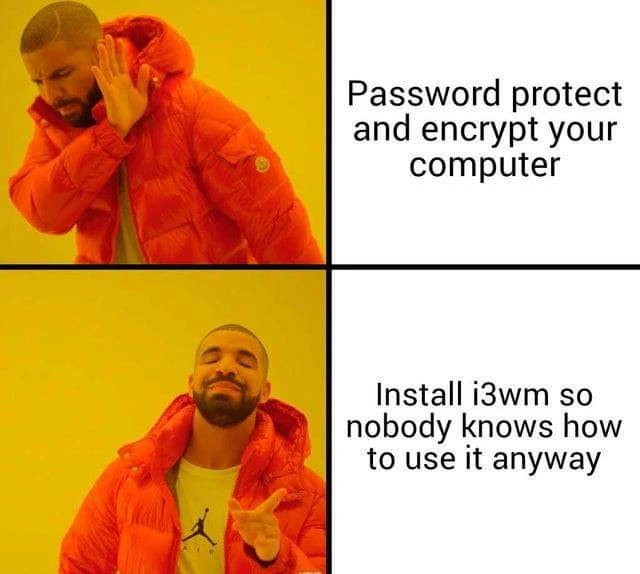
This inevitably brings this meme to mind.
4. SXMO Config File Locations #
SXMO config files are mainly located in ~/.config/sxmo/. The Sway window manager config file, ~/.config/sxmo/sway, is used to configure key bindings, wallpaper, and other options.
If the window manager is dwm, you have to modify the source code to change key bindings, then recompile and reinstall before the changes take effect.
The default event hooks are located in /usr/share/sxmo/default_hooks/, and they are all made of scripts. Copy them to ~/.config/sxmo/default_hooks/ before customizing them.
After changing Sway’s config file, reload it before the changes take effect. To reload the config, run sway reload in a terminal or over SSH.
4.1. Change the Wallpaper #
Edit ~/.config/sxmo/sway with VIM, modify this line, and point the path to the image you want:
output * bg /home/user/Pictures/background.png4.2. Set Transparency and Window Borders #
Transparency makes apps appear transparent so you can see the wallpaper. Edit ~/.config/sxmo/sway with VIM and add the following content. for_window controls which apps get transparency applied.
set $opacity 0.9
for_window [class=".*"] opacity $opacity
for_window [app_id=".*"] opacity $opacity