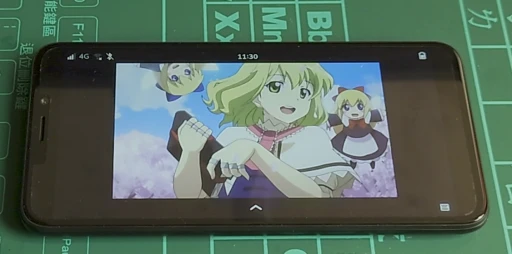
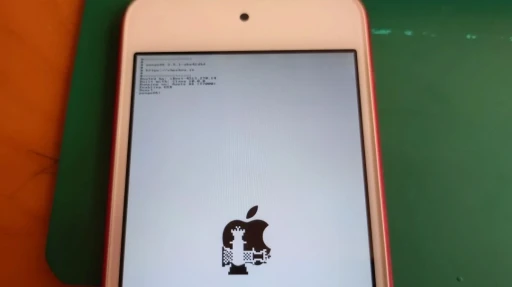
postmarketOS is a phone-oriented Linux operating system based on Alpine Linux. It has already been ported to quite a few Android phones.
- Related article: What is postmarketOS
postmarketOS has a graphical interface, but sometimes you still need the command line. If you need to type commands, SSH is usually the sane way to do it remotely. postmarketOS also provides terminal apps for the phone itself.
In this article, Ivon uses postmarketOS v25.12 with the Phosh desktop environment to demonstrate a few practical postmarketOS tricks.
1. How Phosh works #
Phosh is a desktop environment designed for mobile devices. Its original author is Purism. Phosh is built with GNOME and wlroots technologies. Its Wayland compositor is phoc, its display manager is TinyDM, which is specially packaged by the postmarketOS maintainers, and its touch keyboard is Stevia. Stevia is a touch keyboard developed by the postmarketOS maintainers, and it has more features than the original Squeekboard.
If you install the system with an official postmarketOS image, the default user account is user and the password is 147147.
After unlocking the phone, you will see all applications. Long-press an icon to pin frequently used apps to the top.
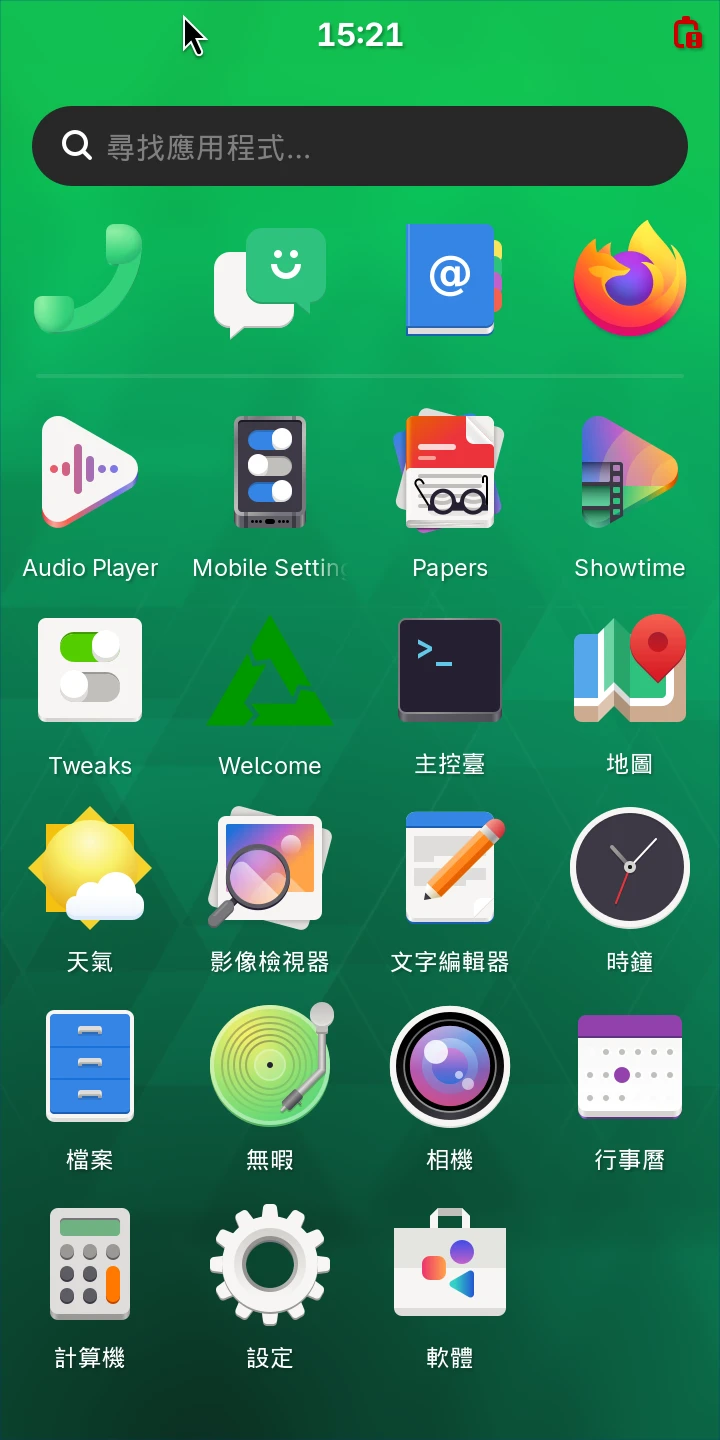
After opening multiple applications, swipe up from the bottom of the screen to enter the multitasking view. Swipe left and right to switch apps. Swipe an app’s small window upward to close it.
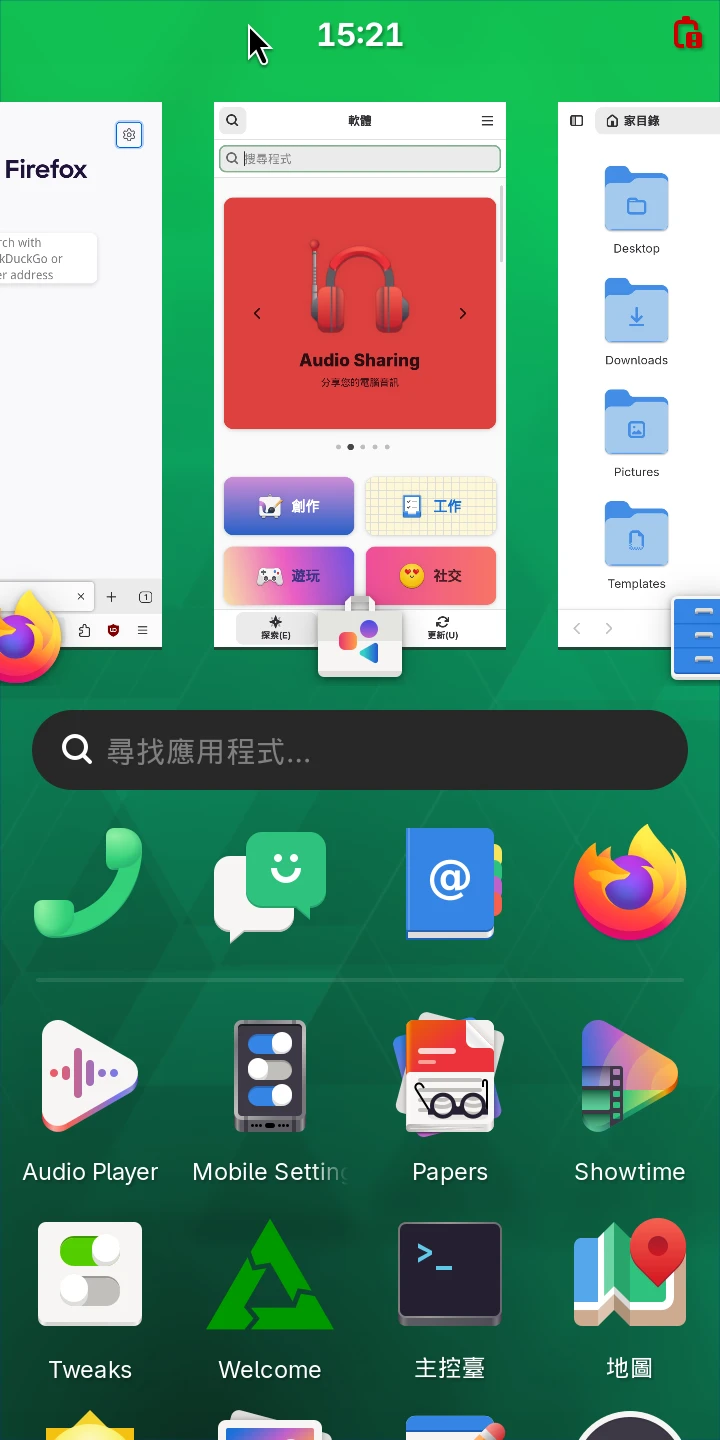
Swipe down from the top of the screen to open quick settings. Use the upper-right buttons to lock the screen or power off.
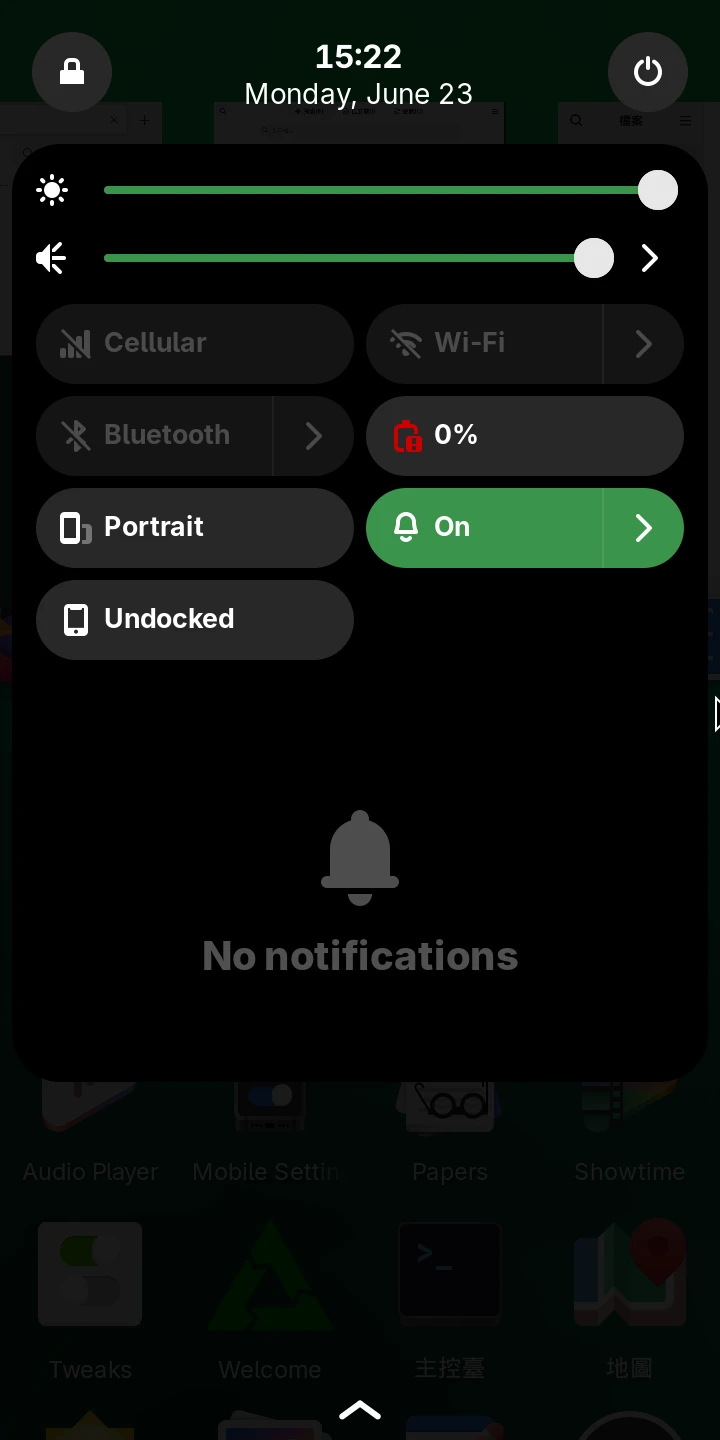
Phosh has Docked and Undocked modes, and you can switch between them manually in quick settings. Undocked is the normal phone mode, where one app window fills the whole screen. Docked mode automatically turns on when you connect a physical keyboard or external display. It makes windows resizable and stackable, more like using desktop Linux.
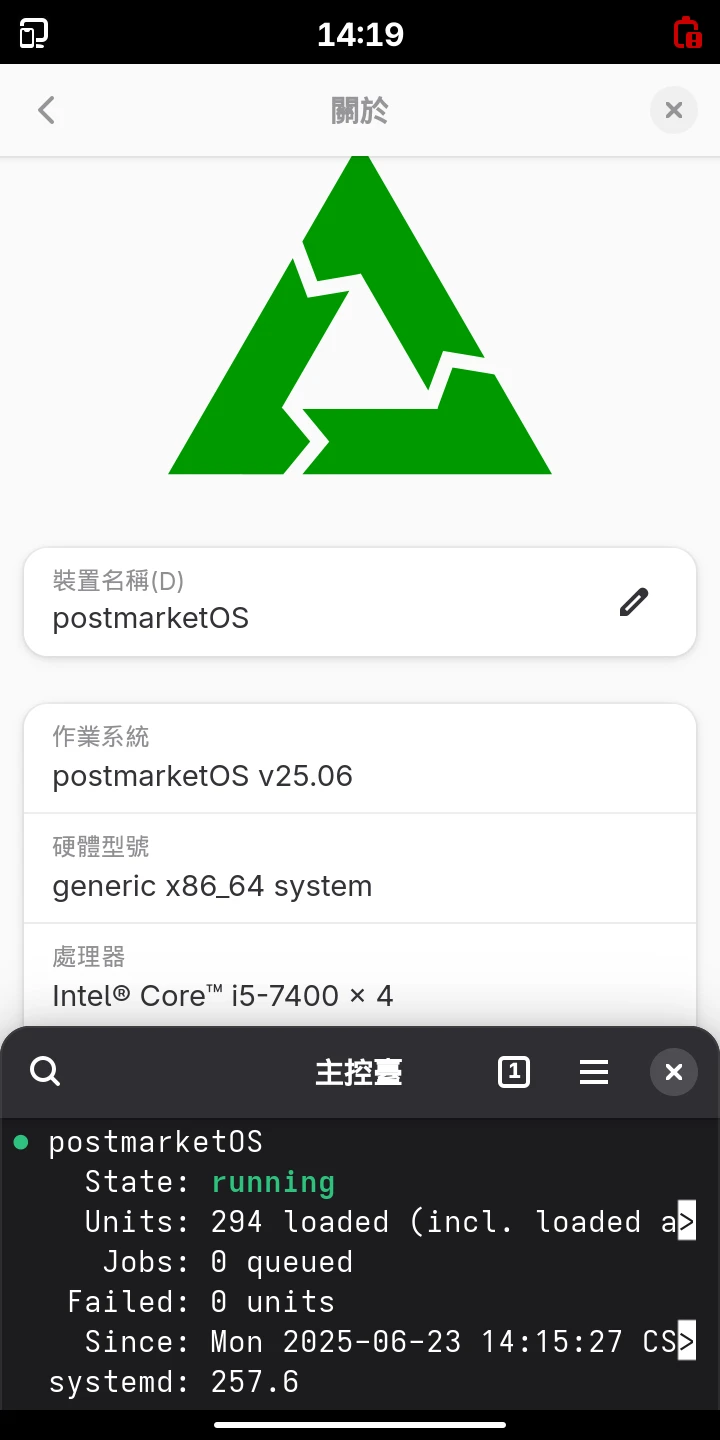
To change the wallpaper and ringtone, install the postmarketOS Tweaks app:
sudo apk add postmarketos-tweaksAfter opening this app, you can set the wallpaper, configure when sleep mode, also called suspend, should trigger, and choose whether to force app UI scaling for a small screen.
To let a specific app prevent the phone from sleeping, use the gnome-session-inhibit command:
gnome-session-inhibit –inhibit suspend <command>2. Linux phone apps #
App stores #
Even though you can install desktop Linux applications on postmarketOS, including programs written with GTK and QT, not every Linux app works smoothly on a small screen. Some UIs do not reshape themselves automatically, so you have to test them yourself. See: Applications by category - postmarketOS Wiki
Phosh has an app store called GNOME Software. It can download apps from the postmarketOS APK package repositories and Flathub. You click to install apps just like on an Android phone, without typing commands.
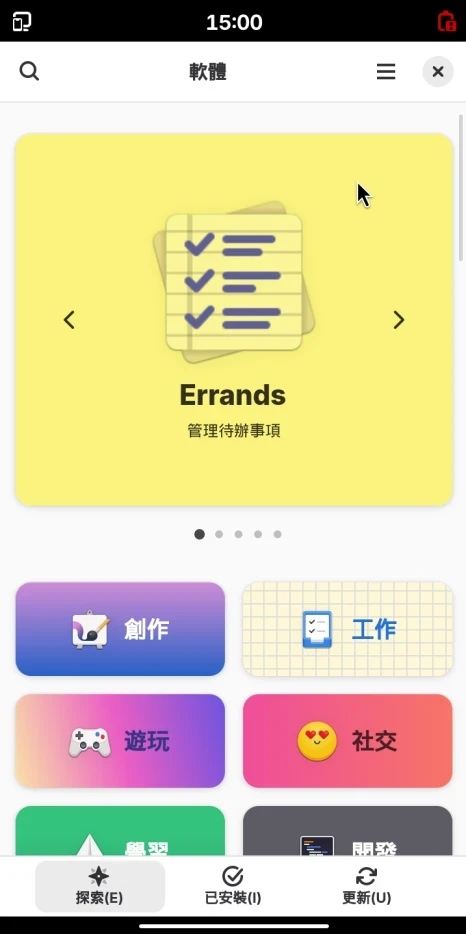
Honestly, though, GNOME Software’s interface is not exactly smooth. The most convenient way to install software is still typing commands. Very futuristic, as always.
Flatpak and the GNOME Software plugin need to be installed separately before they show up:
sudo apk add flatpak gnome-software gnome-software-plugin-flatpak

flatpak remote-add --user --if-not-exists flathub https://flathub.org/repo/flathub.flatpakrepo
Tips for mobile Firefox #
postmarketOS ships a modified Firefox with custom CSS, making it easier to operate with touch gestures. Its features are mostly the same as the desktop version, but it forces Duckduckgo as the search engine. Tap Firefox settings in the lower-right corner, then Search, then restore the default search engine, and you can use Google Search.
Firefox’s default User Agent here is “Firefox on Android.” You can install User-Agent Switcher and Manager to switch the User Agent.
Maps and navigation #
Go to system Settings -> Privacy and enable location access, then install a maps or navigation app.
I recommend installing Pure Maps through Flatpak. It can be used for navigation.
Running Android apps with Waydroid #
Use an LXC container to run Android apps. See Waydroid + postmarketOS
Remote desktop #
Most postmarketOS desktop environments use Wayland. Phosh is a Wayland desktop based on wlroots.
If your device’s Type-C port does not support HDMI output, how do you project it to a large screen?
Answer: share it with WayPipe or WayVNC.
3. postmarketOS Chinese localization and input methods #
Phosh on postmarketOS partially supports Chinese. Common apps like Firefox also support Chinese.
At the time of writing, the Phosh environment still does not have a “touch” Chinese input method. In that case, you can use the built-in touch keyboard to emulate physical keyboard input, then pair it with Fcitx5 Pinyin to type Chinese.
- First, install Chinese fonts and Fcitx5 packages. If the packages built by postmarketOS do not work, try the Flatpak version of Fcitx5.
sudo apk add font-noto-cjk fcitx5 fcitx5-chinese-addons fcitx5-configtool fcitx5-gtk4 fcitx5-gtk3 fcitx5-qt-
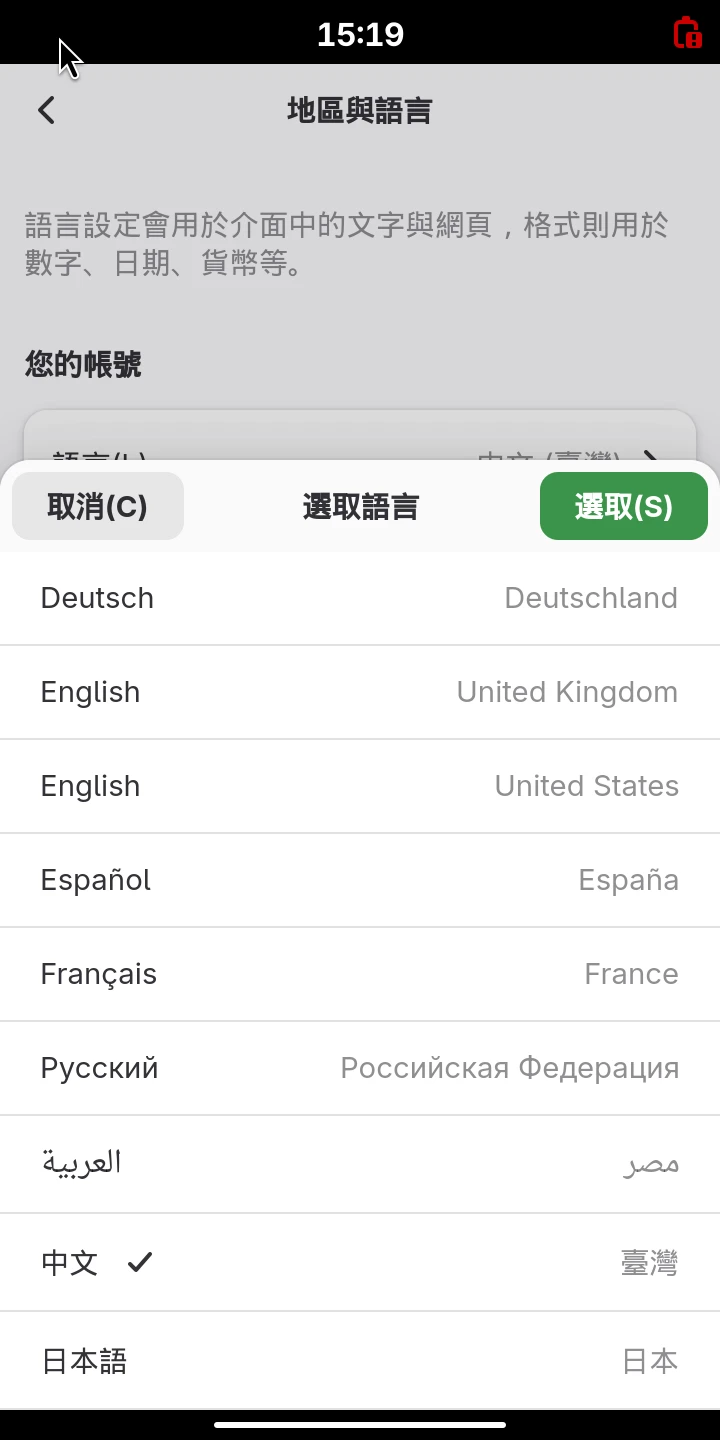
To change the system language to Chinese, open Settings -> System -> Region & Language, change it to Chinese (Taiwan), then log in again.
-
Edit the environment variables:
sudo vim /etc/environment- Add the following content:
# Specify the input method framework
GTK_IM_MODULE=fcitx # If you are running pure Wayland apps in GNOME, you do not need this line
QT_IM_MODULE=fcitx
XMODIFIERS=@im=fcitx
SDL_IM_MODULE=fcitx
GLFW_IM_MODULE=ibus

# Force the locale environment variables
LANG=zh_TW.UTF-8
LC_CTYPE=zh_TW.UTF-8
LC_NUMERIC=zh_TW.UTF-8
LC_TIME=zh_TW.UTF-8
LC_COLLATE=zh_TW.UTF-8
LC_MONETARY=zh_TW.UTF-8
LC_MESSAGES=zh_TW.UTF-8
LC_PAPER=zh_TW.UTF-8
LC_NAME=zh_TW.UTF-8
LC_ADDRESS=zh_TW.UTF-8
LC_TELEPHONE=zh_TW.UTF-8
LC_MEASUREMENT=zh_TW.UTF-8
LC_IDENTIFICATION=zh_TW.UTF-8
LC_ALL=-
Click the Fcitx5 icon and enable the Pinyin input method.
-
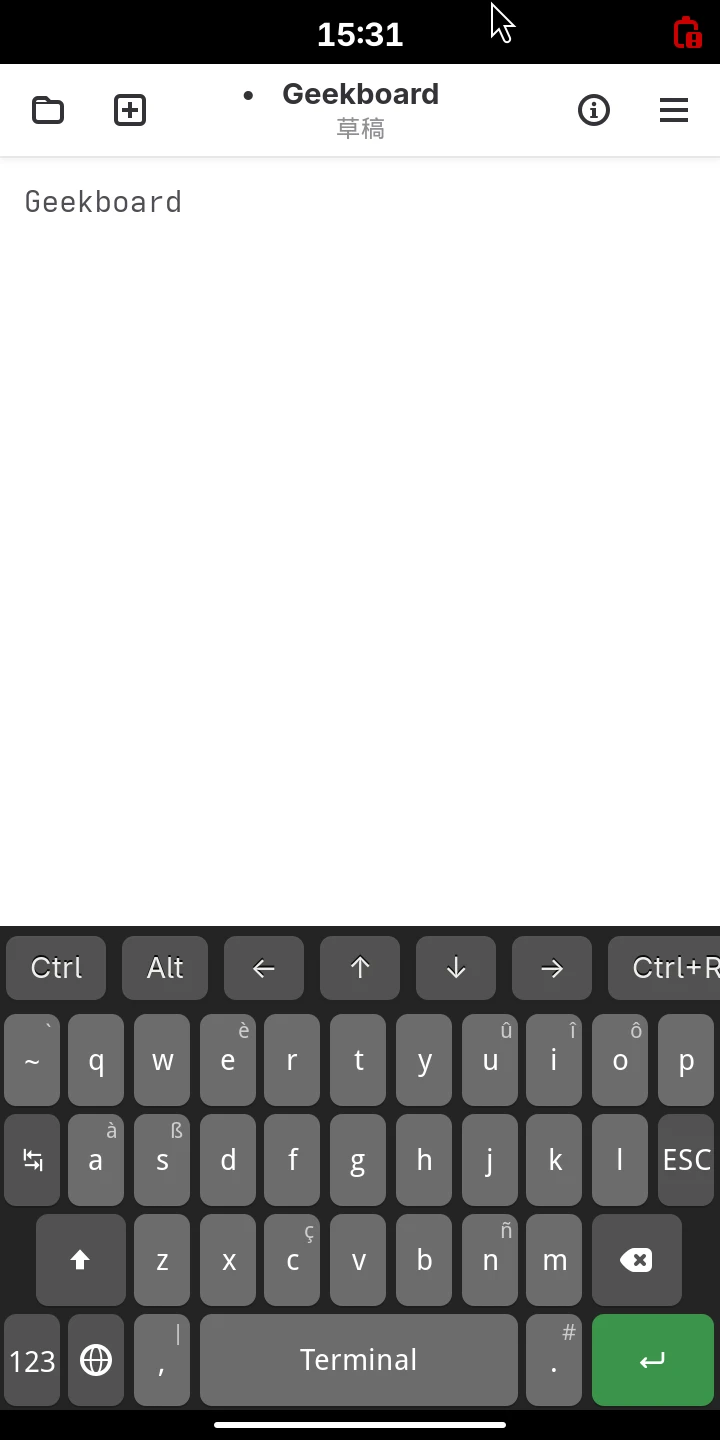
In Phosh, you need to long-press the pill bar at the bottom of the screen to bring up the on-screen keyboard. The touch keyboard will not appear in Docked mode. One of the keyboard modes is the “Terminal” layout, which can emulate physical keyboard input events. Press CTRL+Space to wake up Fcitx5’s Pinyin input method.
4. postmarketOS system administration #
postmarketOS is based on Alpine Linux and inherits its package manager: APK (Alpine Package Keeper). This APK has nothing to do with Android APKs.
Usually, you can find a terminal app on a newly installed system.
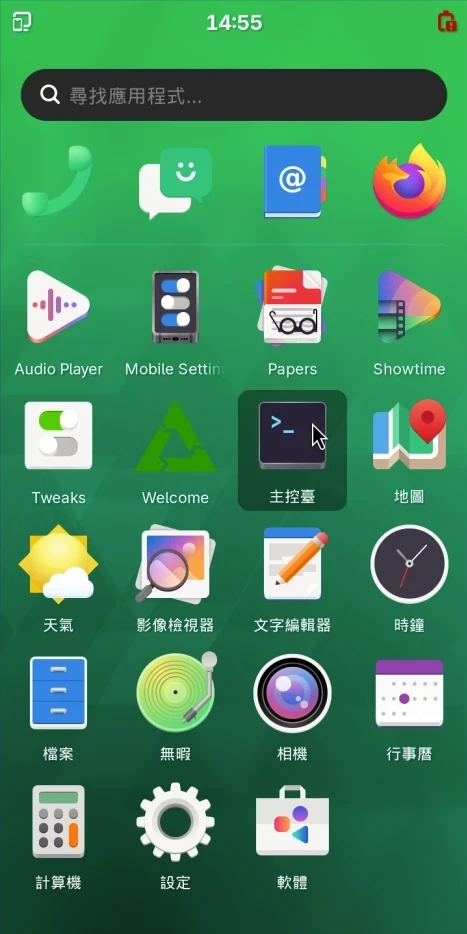
postmarketOS uses doas to elevate user privileges. When you run the sudo command, it is actually linked to doas. If you use an official postmarketOS image, the default user account is user and the password is 147147.
Package management #
Use the following commands to update system packages:
sudo apk update

sudo apk upgrade
If you installed the Stable Release of postmarketOS, you can use the following commands to upgrade whenever a major version is released, for example v24.06 -> v24.12:
sudo apk add postmarketos-release-upgrade

sudo postmarketos-release-upgrade
Reboot command:
sudo rebootPoweroff command:
sudo poweroffUse the following command to search for packages:
sudo apk search "package name"Install a package:
sudo apk add "package name"Remove a package:
sudo apk del "package name" Service management #
postmarketOS uses Systemd as its init system. Versions before v24.12 used OpenRC, and versions after v25.06 switched to Systemd. Users can freely choose OpenRC or Systemd during the pmbootstrap init stage, but the official prebuilt system images use Systemd.
Systemd-related commands:
# Stop or start a service with systemctl, such as docker:
sudo systemctl stop docker
sudo systemctl start docker

# Use systemctl to make a service start automatically at boot:
sudo systemctl enable docker
OpenRC-related commands:
# Stop or start a service with rc-service, such as docker:
sudo rc-service docker stop
sudo rc-service docker start

# Use rc-update to make a service start automatically at boot:
sudo rc-update add docker
Firewall #
postmarketOS uses iptables as its default firewall. Install UFW if you want easier management:
sudo apk add ufw

sudo systemctl enable --now ufw

# Deny all incoming connections
sudo ufw default deny incoming

# Allow the SSH port
sudo ufw allow ssh

# Reload rules
sudo ufw reload
5. Network connections #
Wifi network #
Just like on a normal phone, to get online through the graphical interface, tap Settings on the Phosh desktop, then Mobile Network or Wifi.
In the terminal, use ip addr to check network interfaces, then connect with nmcli:
sudo nmcli dev wifi connect "Wifi name" password "Wifi password" ifname wlan0

sudo nmcli device set wlan0 autoconnect yes
If the phone cannot get online, you can also reverse-share a Linux computer’s network connection to the phone with USB Networking.
Mobile network #
If the graphical interface cannot enable the 4G network, use the following commands.
- Confirm that the ModemManager service is enabled:
sudo systemctl status modemmanager- Use
sudo nmcli dto check network status:
DEVICE TYPE STATE        CONNECTION
qrtr0 gsm disconnected --- Try automatically connecting with APN:
sudo nmcli con add con-name "modem" type "gsm" ifname "qrtr0" auto-config "TRUE"- Bring up the connection:
sudo nmcli c up "modem"To enable 4G hotspot sharing: on the Phosh desktop, open Settings -> Wifi, turn on Wifi, then tap the upper-right corner to turn on the mobile hotspot.
SSH connection #
After installing postmarketOS, you can connect the phone to a computer and make it an RNDIS device. Then SSH from the computer into the system. The IP is fixed. Use sudo systemctl status sshd to confirm whether the phone’s SSH service is running:
ssh username@172.16.42.1If the phone itself is connected to the network, you can also connect through its local IP:
# Enable SSH on the phone
sudo apk update
sudo apk add openssh
sudo systemctl start sshd
sudo systemctl enable sshd

# Check the phone's IP
ip addr

# SSH from the computer to the phone
ssh username@LAN_IP
Set the time zone and correct the time #
Use a symbolic link to set the time zone to Taipei:
sudo ln -sf /usr/share/zoneinfo/Asia/Taipei /etc/localtimeYou can also use Alpine Linux’s script to correct the time automatically:
sudo setup-timezone
# Enter Asia/Taipei
Or configure automatic time synchronization at boot:
sudo apk add systemd-timesyncd

sudo systemctl enable systemd-timesyncd