For attempts at running Linux on iOS devices, I have previously discussed iSH Shell terminal and the UTM virtual machine approach. This time I am going to try installing Linux directly on an iPhone.
1. Background #
checkm8 is arguably Apple’s biggest vulnerability in recent years. Combined with checkra1n, it can complete the jailbreak process before boot. In 2020, some wizard put together Project Sandcastle and successfully ran Android 10 on the iPhone 7. The author also started porting the Linux kernel. Even though Apple almost sued them, the project is still under development.
Recently, people have already developed LineageOS ports, such as Android device tree for “snowcastle”, which can run the latest Android 16 on supported iPhones.
A few years later, more developers tried running Linux on other iPhones. The vulnerability checkm8 relies on only supports A7 to A11 chips, meaning devices from the iPhone 5S through the iPhone X. Older or newer devices do not work.
Ideally, the iPhone 7 is currently one of the better-supported devices. It can mount postmarketOS on AFPS and boot, and some developers have even gotten Wayland running on it. Unfortunately, I do not have one.
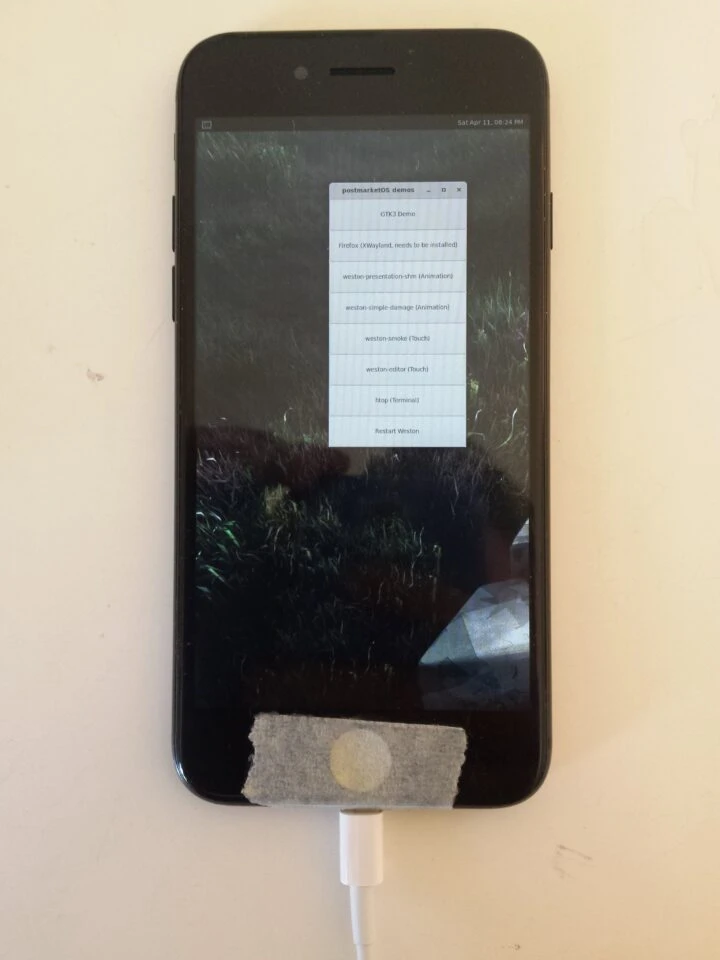
I have two old iOS devices that support checkm8: an iPhone SE (iOS 15) and an iPod touch 6 (iOS 12). There are many successful Linux boot cases online, but they do not mention their iOS versions. On iOS 15 and later, you can only jailbreak with palera1n, and you need to use the command palera1n -p -f to start the pongoOS Shell. I tested it and ran into other problems. So I switched to the iPod touch 6 for testing. Its processor is similar to the iPhone 6, so it should theoretically work.
So how do we run Linux? First, enter the pongoOS Shell through checkra1n, then boot Linux from there.
Which Linux distro should we pick? Although someone on Reddit successfully compiled Ubuntu and booted it, and someone on Twitter got Asahi Linux running (see references at the end), there are more successful photos on the postmarektOS Wiki. Also, that community pays more attention to mobile Linux, so I used that distro as the base for this attempt.
There are two possible approaches after that. One is to compile Linux into a ramdisk and boot it; after rebooting, the data disappears.
The second is to use the Netboot feature provided by pmbootstrap for network booting. Data still disappears after reboot, but the rootfs stays on the computer.
So, strictly speaking, none of this is really “installing” Linux on an iPhone. The system is not actually written to the iPhone’s storage; it only boots Linux temporarily. At the moment, no matter which method you use, you still need a computer to guide the device into Linux.
2. Requirements #
- A Linux or Mac computer. I used Ubuntu 24.04.
- An iOS device that supports checkra1n, meaning A7 to A11 chip devices from the iPhone 5S through the iPhone X. I used an iPod touch 6 running iOS 12.5.7.
- Lightning to USB OTG adapter, mouse, and keyboard. Linux has no touch driver, so after the iPhone boots you need to control it with a keyboard and mouse. If you are comfortable controlling X11 with SSH commands, you can skip these.
3. Compile pongoOS #
pongoOS is the program that runs before loading the iOS XNU kernel.
-
Before compiling pongoOS, you need checkr1an. (paler1an does not require compiling pongoOS.)
-
Download the checkra1n executable from the official website and put it in a system directory.
wget https://assets.checkra.in/downloads/linux/cli/x86_64/dac9968939ea6e6bfbdedeb41d7e2579c4711dc2c5083f91dced66ca397dc51d/checkra1n

sudo mv checkra1n /usr/bin/- Install Clang 11 on Linux.
sudo apt install clang-11 xdd- Install ld64 and cctools-strip from the checkra1n package repository. Other distros need to manually compile them for newer Clang versions.
echo 'deb https://assets.checkra.in/debian /' | sudo tee /etc/apt/sources.list.d/checkra1n.list
sudo apt-key adv --fetch-keys https://assets.checkra.in/debian/archive.key

sudo apt update

sudo apt install ld64 cctools-strip- Get the pongoOS source code and compile it, using konradybcio’s fork.
git clone https://github.com/konradybcio/pongoOS

cd pongoOS

LD_LIBRARY_PATH="/usr/lib/llvm-11/lib/" EMBEDDED_CC="/usr/bin/clang-11" EMBEDDED_LDFLAGS=-fuse-ld=/usr/bin/ld64 STRIP=cctools-strip make all
Note: the pongoOS source has not been updated in a long time, so it sometimes fails to compile. You can also compile it inside a macOS virtual machine. The following commands compile it with Xcode on macOS Ventura:
xcode-select --install

git clone https://github.com/konradybcio/pongoOS

cd pongoOS

make all
You will end up with build/Pongo.bin.
4. Compile the Linux Kernel #
- Install build dependencies.
sudo apt install build-essential clang libncurses5 flex git bc bison- Get the linux-apple kernel source provided by konradybcio.
git clone https://github.com/konradybcio/linux-apple

cd linux-apple- Get the defconfig provided by SoMainline.
wget https://raw.githubusercontent.com/SoMainline/linux-apple-resources/master/example.config -O ./.config- Adjust PAGESIZE.
make ARCH=arm64 LLVM=1 menuconfig-
Press
/to search, enter_PAGE, and press 1. -
For PAGESIZE, set A8 processors to 4K and A9 or newer processors to 16K. Then press Exit and save
.config.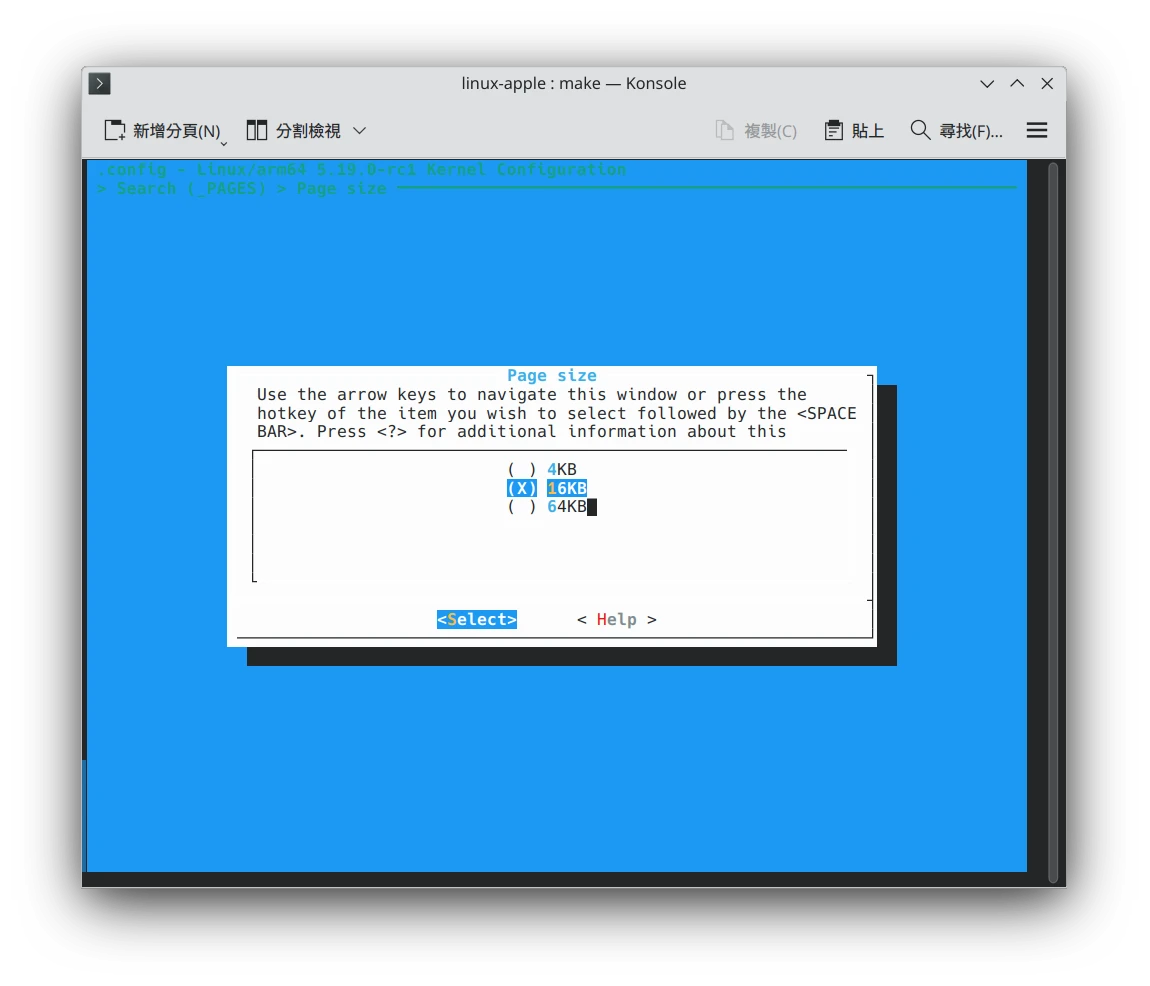
-
Compile the kernel.
make ARCH=arm64 LLVM=1 -j$(nproc) Image.lzma dtbs-
You will end up with
arch/arm64/boot/Image.lzma. -
Get the dtbpack script and put it in the Linux kernel directory.
wget https://raw.githubusercontent.com/SoMainline/linux-apple-resources/master/dtbpack.sh

chmod +x dtbpack.sh- Generate dtbpack.
./dtbpack.sh5. Compile the postmarketOS rootfs #
-
Install pmbootstrap.
-
Initialize it. Select apple-iphone6 as the device model and xfce4 as the desktop environment.
pmbootstrap init- Create the rootfs.
pmbootstrap install6. Boot into Linux #
-
Set up libimobiledevice and confirm that Linux recognizes the iPhone.
-
Connect the iPhone to the computer and manually enter DFU mode: power it off and wait 5 seconds. Hold the power button for 3 seconds, then hold power + Home for 10 seconds. Release the power button and keep holding Home.
-
After confirming it is in DFU mode, open a terminal in the pongoOS source directory and use checkra1n to enter the pongoOS Shell.
cd pongoOS

sudo checkra1n -v -V -p -c -k ./build/Pongo.bin-
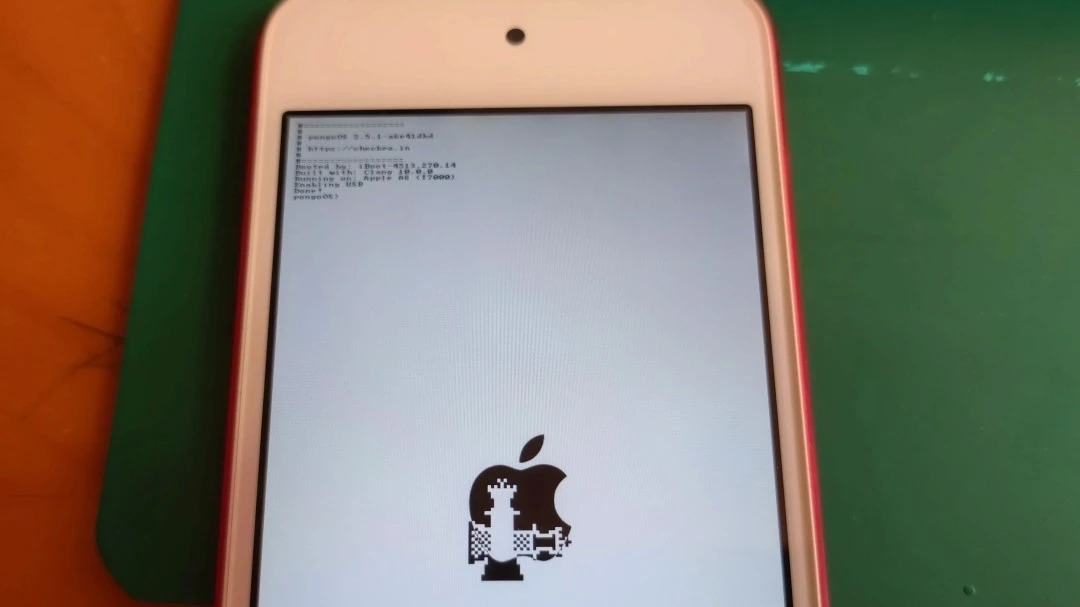
At this point, you should see the pongoOS Shell on the iOS device screen.
-
Start postmarketOS netboot.
pmbootstrap initfs hook_add netboot

pmbootstrap export- Send the Linux initramfs to the iOS device.
cd pongoOS

python3 scripts/load_linux.py -k "linux-apple-kernel-directory/arch/arm64/boot/Image.lzma" -d "linux-apple-kernel-directory/dtbpack" -r /tmp/postmarketOS-export/initramfs-
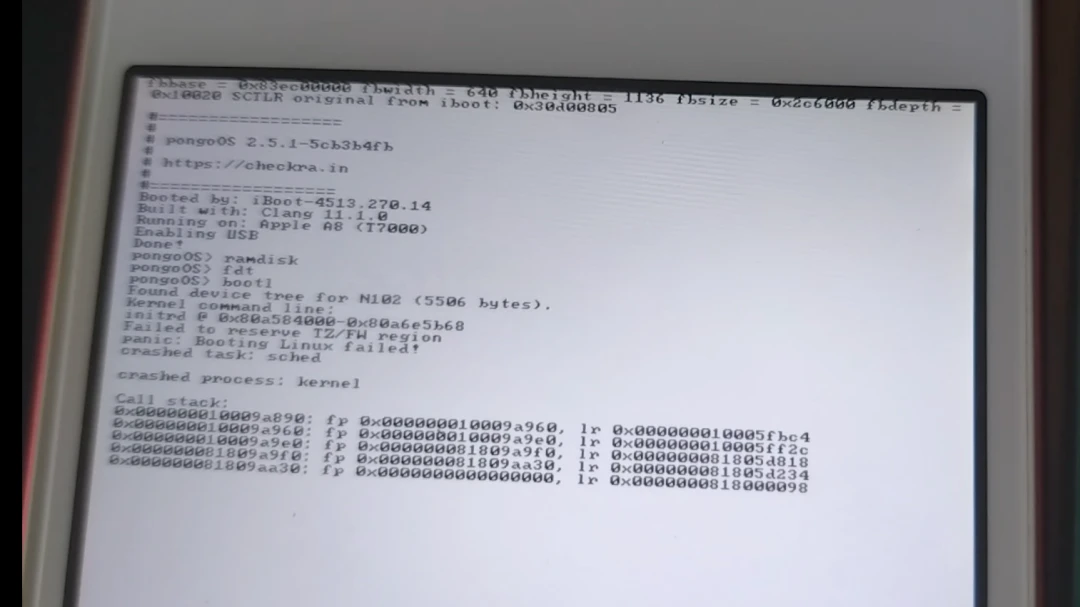
Wait for Linux to boot… and it kernel panics. Damn it.
-
If it boots normally, send the Netboot rootfs and you can enter the Linux system.
pmbootstrap netboot serve

ssh user@172.16.42.1
7. Conclusion #
Every time I do this kind of thing, I think of this song. It’s all a waste of time again.
At the moment, this is not practical. It is a bit like stubbornly flashing postmarketOS onto an Android phone with terrible driver support. The biggest problem is still poor driver support. Just look at the table provided by SoMainline: almost every hardware feature has an X next to it.
And who is going to reverse engineer Apple device drivers? Are there developers with Asahi Linux-level enthusiasm for this? On top of that, booting Linux still depends on a hardware vulnerability.
Aside from booting and running some Linux programs, there is not much room for this to grow.
A more realistic strategy is probably to run a JIT-accelerated UTM virtual machine on the iOS device, then run a Linux VM inside it. Much more practical, which is annoying but true.
References #
- Resources for Linux on checkm8able iDevices - Github
- Apple iPhone 6 (apple-iphone6) - postmarketOS Wiki
- Running postmarketOS on iPhone 7 - project-insanity.org
- Linux with Wayland is now running on iPhone 7 - project-insanity.org
- SUCCESS: iPhone 7 booting Ubuntu 20.04 to full gnome-shell desktop GUI - Reddit
- Linux on iPad Air 2 - Twitter