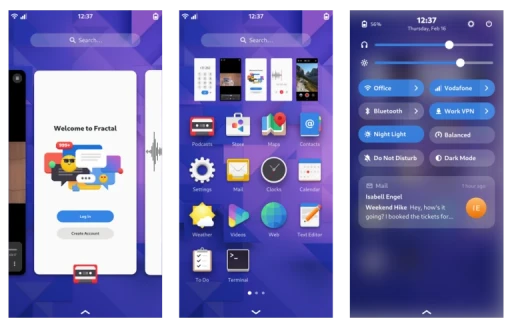
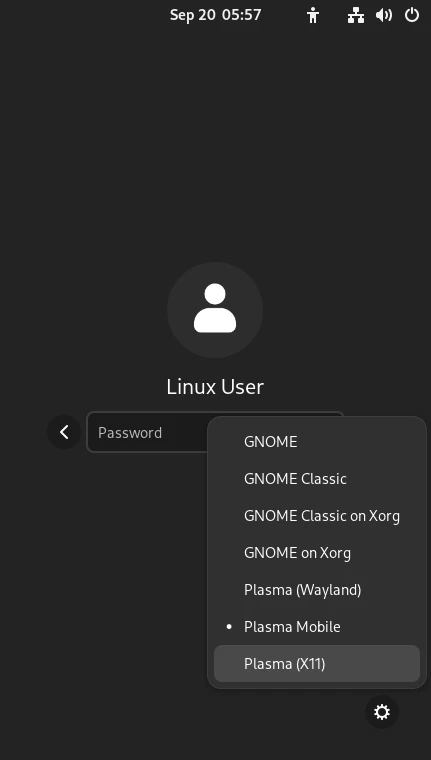
For an introduction to postmarketOS, see this post.
The official postmarketOS tool pmbootstrap can build flashing files and install the system onto an Android phone.
But if your phone is on the official Main or Community support list, you can also download a prebuilt image directly from the postmarketOS website instead of building one with pmbootstrap.
The postmarketOS developers regularly provide stable system updates for officially supported devices, so you can actually use it as a daily system.
The nice part is that you do not need a Linux computer to flash postmarketOS this way. On Windows, installing Platform Tools is enough.
This post uses a Xiaomi Pocophone F1 as the example, with the Bootloader already unlocked.
To avoid partition layout weirdness, I first installed the latest stock MIUI firmware, then flashed postmarketOS. Flashing postmarketOS will overwrite Android. You can restore it later with MiFlash.
1. Download Platform Tools #
Go to Google’s Platform Tools website, download the package for your system, and extract it.
The directory containing adb.exe and fastboot.exe is the working directory you will use later.

2. Download the postmarketOS Image #
postmarketOS has Stable and Edge releases. The download page provides the Stable builds.
-
Go to the Releases page on the postmarketOS website and select your device model.
-
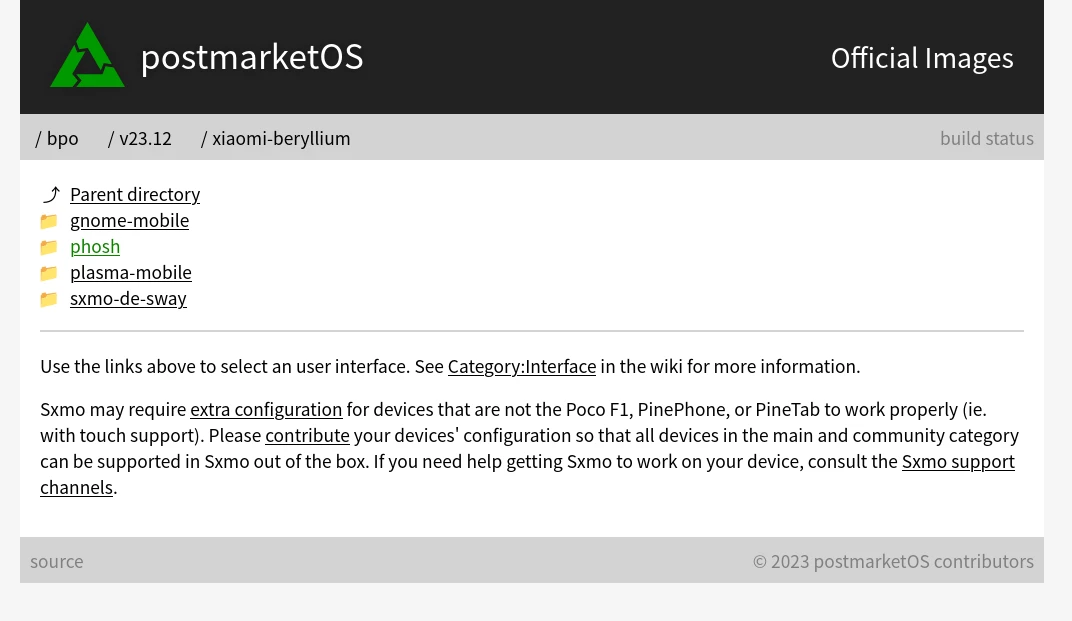
For the Poco F1, postmarketOS provides Phosh and Plasma desktop variants. I picked Phosh.
-
After opening it, choose the latest version. For the Poco F1, pay attention to the display manufacturer. Mine is Tianma, so I chose “tianma” and downloaded the files at the bottom containing
tianma-boot.imgandtianma.img.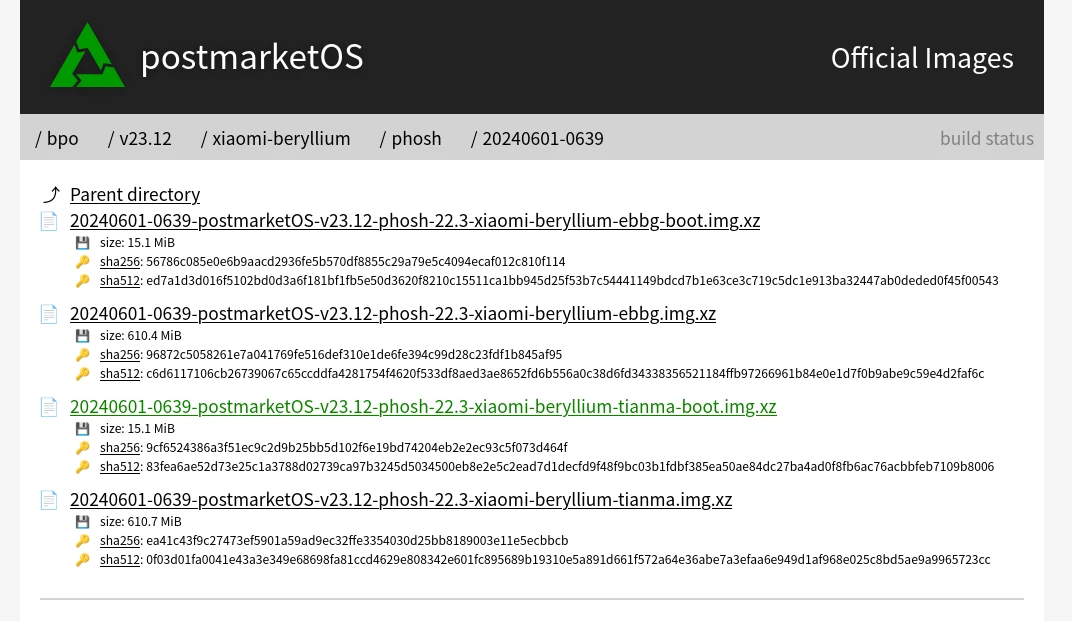
3. Flash the System #
Extract the two downloaded files with 7-zip. You will get a boot image boot.img and a system image img.
Move those two files into the Platform Tools directory. In an empty area, hold Shift and right-click, then open a PowerShell terminal.

-
Power off the phone, then hold the power button + volume down to enter fastboot mode. Connect the phone to the computer. Use a USB 2.0 port only.
-
Run the command to flash
boot.img:
./fastboot flash boot 20240601-0639-postmarketOS-v23.12-phosh-22.3-xiaomi-beryllium-tianma-boot.img- Flash the system image:
./fastboot flash 20240601-0639-postmarketOS-v23.12-phosh-22.3-xiaomi-beryllium-tianma.img- Reboot, and you are done. The default postmarketOS login account is “user”, and the password is “147147”.
./fastboot rebootIf your device successfully boots into the postmarketOS desktop environment, and GPU acceleration, touch, networking, and audio all work, read this next: postmarketOS tips. It covers the settings quirks and how to use postmarketOS as a phone system without constantly yelling at it.