In this article, Ivon wants to discuss the development status of the “X Window System” and “Wayland” on Linux systems, talk about Wayland’s pros and cons, and help you decide whether you should switch to Wayland. At the end, I also list the Linux distributions that let you experience the newest Wayland technology the fastest.

Things are changing. The Linux community often discusses whether we should abandon X11 and switch to a Wayland session. So, what is X11? What is Wayland?
The X Window System is a set of software that determines how images are displayed on your Linux computer, but it is too old and has many problems. Now there is software that adopts the Wayland protocol, aiming to replace this old software with modern code. However, because Wayland has had problem after problem, even though more and more Linux distributions are adopting it, after more than a decade of development the X Window System still cannot be completely replaced.
Below, let us examine the current state of X11 and Wayland.
1. The Opportunity for Change: Comparing X11 and Wayland #
The X Window System and Wayland are both sets of software responsible for displaying graphics on Linux. As for comparing their underlying principles, I am too limited in learning to embarrass myself here; there are already plenty of resources online, and the “Further Reading” section at the end has many interesting articles you can read in detail. Here I will briefly summarize my personal understanding.
The X Window System, abbreviated as X, was born earlier than Linux. The X Window System appeared in 1987 and was used to display graphical environments. That was still the age of Unix! By now it already has more than 30 years of history.

Why does Linux need to “install” the X Window System before it has a graphical display? Because the Linux kernel really does not include software for displaying graphics.
The desktop environments Linux users see, such as GNOME, KDE Plasma, and XFCE, do not directly control the screen. Instead, they are built on top of the graphical display mechanism provided by the X Window System. The X Window System is responsible for the lowest-level window display and input events, while the desktop environment is responsible for the user interface and operating experience.
Here, the X Window System became the common low-level standard followed by various desktop environments.
At the beginning, the designers only defined the X communication protocol standard; they did not specify X’s implementation in detail, so different X window software projects appeared. Around 2000, the X.org software developed by the X.org organization replaced XFree86 and gradually became the accepted standard. APIs and the like were all defined by them. X.org was therefore adopted by major desktop environments. Because the X protocol adopted by X.Org is version X11, the X server they developed is also called X11.
The reason the X Window System is called a server is that it can accept simultaneous connections from multiple X clients. This is a “client-server architecture,” echoing the needs of the old mainframe era, and it communicates through Network Transparency. See the diagram below for the principle.
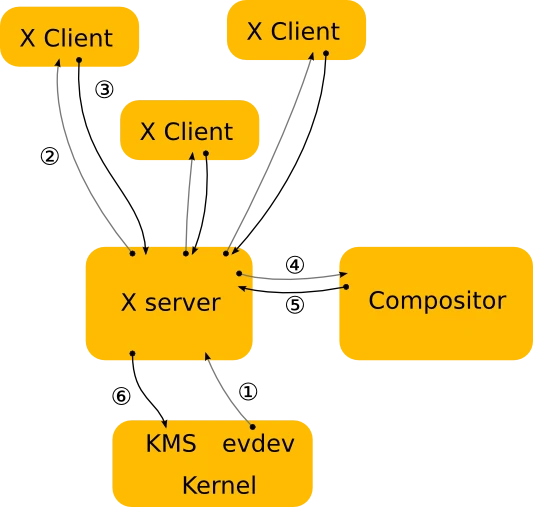
What is Network Transparency? Through an X server, you can transmit a window from another computer over the network and display it on your own computer. This lets many people connect to the same host and work at the same time.
And on personal computers, the X Window System also communicates according to a client-server architecture. Each software window is an X client that communicates with the X server on your computer, and then the image is displayed.
As for what desktop windows should look like, the X Window System protocol does not specify that in detail. This gave desktop environment developers a great deal of room to maneuver. Developers can use a compositor to decide the appearance of windows, including the position of the close button, title bars, animation effects, and so on. That is why cool 3D animated desktops like Compiz could appear.
The client-server architecture is both an advantage and a disadvantage of the X Window System’s design. The advantage is that remote work is convenient and highly flexible.
The disadvantage is that security is poor. Who said the “server” in X server must be running remotely? When the X server runs locally on your computer, it still maintains a client-server relationship. Transmission between programs is not encrypted and can easily be intercepted by other programs, such as keyloggers. Also, frequent transmission between client and server causes poor graphics efficiency and leads to screen tearing.
Although most desktop environments and GPU drivers have found ways to avoid the tearing problem, Nvidia still phones it in, because its drivers are not open source and often run into problems.
There should be a better solution to the problems of the X Window System… and so Wayland appeared in 2008, initiated by developers who had once participated in the X11 project.

Wayland aims to completely change the client-server architecture of the X Window System, allowing programs to use graphics hardware more efficiently. Wayland itself is a communication protocol specification; the software actually responsible for drawing windows is called a Wayland compositor.
In other words, Wayland developers only define the communication protocol specification. They do not specify in detail how compositors should be implemented; they only released a reference implementation called “Weston.”
Here is a diagram of Wayland’s principles. You can see that the X server is gone, everything is handled by the compositor, the entire communication process has been simplified a lot, and Network Transparency has also been cut.
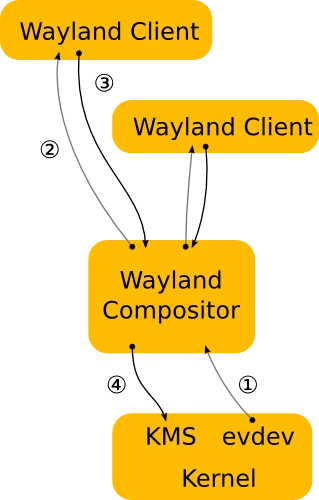
So what is “X"Wayland? To prevent a pile of old programs under the X server from becoming unusable, Wayland developers proposed XWayland as a transitional solution: run an X server under Wayland so those old programs can operate under Wayland. Even so, XWayland does not guarantee 100% compatibility with old X programs. Some bizarre APIs may not be usable, and developers are still better off rewriting their programs into native Wayland programs.
Now that Wayland is here, what about X11? You should know that X11 development has basically stopped, and many new features in the Linux world have shifted toward Wayland, such as code for supporting HDR content.
According to Phoronix’s report, X11’s development pace has reached a historical low in recent years; it is basically not moving.
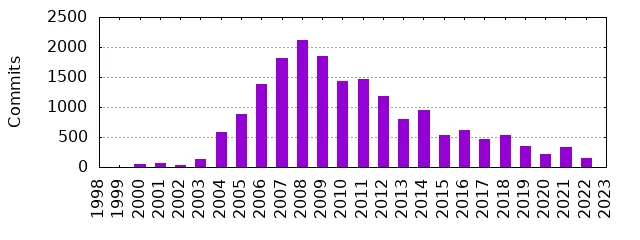
Do you know why? I heard there are only three people in the world who can understand the entire codebase of the X Window System. You know and I know, but Captain One-Eye does not know. If even Captain One-Eye does not know, developers have no way to begin modifying the ancient mountain of shit that is the X server codebase. Many X server designs no longer meet modern needs. It is time to abandon X, so developers simply made something new.
But because of all kinds of problems, as of the time of writing, Wayland still cannot completely replace X. Because Wayland and X.Org have incompatible architectures, it is equivalent to tearing everything down and rebuilding from scratch; programs have to be rewritten. Many operations that are easy to do in X.Org simply have no corresponding APIs available in Wayland, and the core developers of the Wayland protocol have to improve them slowly.
Although Wayland has many problems, developers around the world are very seriously fixing bugs. Major Linux distributions are gradually making Wayland the default option.
Commercial companies RedHat, Canonical, and SUSE are strongly pushing Wayland as the default option. RedHat has already completely removed X.Org support in RHEL 10, forcing users to use only the Wayland desktop. If you want to run X11 programs, run them with XWayland.
Ubuntu 26.04 uses a Wayland-only desktop environment by default.
With many major companies doing this, it should push developers to keep pace and migrate to Wayland as soon as possible.
2. Why Use Wayland? #
Wayland’s more obvious advantages are as follows:
- Whether GNOME or KDE, Wayland animations simply look much smoother than X11.
- Better graphics performance. It thoroughly solves the screen tearing problem, benefiting users of Nvidia proprietary drivers.
- Supports modern graphics features such as non-integer scaling for HiDPI screens, different resolutions on different monitors, HDR images, VRR dynamic refresh rates, color management, and so on.
- Browser support for two-finger zoom.
- Better support for touch gestures. GNOME and KDE Plasma can use touchpad gestures to switch desktops, and Firefox and Google Chrome can use two-finger zoom and swipe left or right to go back to the previous page. These are only available on Wayland.
- Makes good use of PipeWire and XDG Desktop Portal technologies to unify screenshots, screen recording, audio processing, screen sharing, remote desktop, and file picker paths. This lets OBS Studio record the screen and lets Rustdesk perform remote desktop sharing.
- Provides the text-input input method protocol, allowing input methods such as Fcitx5 to input Chinese across various programs.
- Strengthens system security and eliminates keyloggers.
At this stage, even if you do not like Wayland, you can switch back to an X11 session at any time from the login screen, the Display Manager. The two can coexist.
3. Why Not Use Wayland? #
Once you start talking about Wayland’s shortcomings, there is no end to it. This article was first written in 2024, and after revising it in 2026, I found that many problems I mentioned before have slowly been solved!
In the past, X11 had a common X.Org Server that let various desktops implement features according to a shared standard. After moving into the Wayland era, the Wayland protocol itself only defines a very small portion of things, and the rest has to be implemented by compositors. This leads to the problem of users being tied to specific desktop environments. There is no common solution, which is quite troublesome for developers. For example, the function for obtaining a window’s position is not defined by Wayland, but depends on how the compositors used by GNOME and KDE Plasma implement it. This causes inconsistent behavior. At that point, developers can only try to achieve compatibility by defining XDG Desktop Portal standards as much as possible.
For example, global hotkey triggering in the Wayland era requires active support from the desktop environment. It cannot be implemented through xdotool like on X11. In addition, settings that control monitor layout also have to be controlled by the desktop environment; you cannot rely on one tool, xrandr, to handle everything.
As for browsers, the latest Firefox and Chromium use Wayland sessions by default and are almost problem-free. But some programs that use the Chromium core, such as those written with Electron, still default to the old XWayland mode if developers do not update the core! This leads to poor performance.
In addition, under Wayland, some commercial remote desktop software that stubbornly refuses to update will have problems, such as Chrome Remote Desktop. You have to use TeamViewer and AnyDesk to support Wayland.
Wine, which translates Windows programs and is the upstream project of Steam Deck Proton, added a native Wayland driver in its latest 10.0 version. But very few Steam games support Wayland, and many games still run through XWayland, causing graphics bugs when gaming in a Wayland environment. This requires graphics drivers to support “Explicit Sync” to avoid screen flickering. The latest Nvidia, Intel, and AMD drivers should already support it.
Although Wayland has improved HiDPI screen problems and allows arbitrary scaling factors, programs running under XWayland do not scale along with the Wayland desktop. If you force XWayland programs to scale, they become blurry. Neither GNOME nor KDE Plasma has a good way to handle this problem. We can only hope program developers provide pure Wayland versions as soon as possible.
There are also some small problems I did not list. You may only encounter Wayland incompatibility when running specific programs, forcing you to switch back to X11.
4. How to Switch to Wayland? #
As mentioned above, Wayland is not a single piece of software. It is implemented individually by each desktop environment.
The biggest considerations are always your Linux distribution’s update speed and your desktop environment’s level of Wayland support.
How do you know whether you are using X11 or Wayland? Open a terminal and enter the following command, and you will get a clue.
echo $XDG_SESSION_TYPEIf you want to switch between X11 and Wayland, the system login screen, the Display Manager, usually provides an option for you to choose.
As of the time of writing, the Wayland support status of each desktop environment is as follows:
- GNOME 50: The elder brother of Linux desktops. It has had good support since GNOME 42 and almost no bugs. But having no bugs does not mean it can completely replace X11’s features. After GNOME 50, X.Org support was completely removed; only Wayland is available.
- KDE Plasma 6.5: Wayland is broadly stable and should not crash at the drop of a hat. KDE developers are preparing to completely remove X11 support in KDE Plasma 6.8.
- XFCE 4.21: Already supports Wayland and lets users freely choose a compositor. It will launch its own compositor, XFWL.
- Cinnamon 6.6.5: Already supports Wayland, but will not immediately cut off X11.
- LXQT 2.3.0: Already supports Wayland and lets users freely choose a compositor.
- Tiling window managers such as i3wm and dwm: They cannot be ported, but can be replaced with Sway and Hyprland. Experts who use these tiling window managers probably do not need me to tell them; you can judge for yourself whether it is appropriate.
If you want to switch to a Wayland environment, first try a Linux distribution that ships the “GNOME” desktop environment. GNOME is the elder brother of Linux desktop environments, and its Wayland support is the best.
As for Linux distributions, if you want to receive Wayland updates and bug fixes quickly, then users of rolling releases such as Arch Linux, Fedora, openSUSE Tumbleweed, Debian Sid, and Gentoo have an advantage. But you have to bear the cost of possible instability after system updates.
Users of stable releases such as Debian Stable, Ubuntu LTS, openSUSE Leap, and Rocky Linux have to wait longer before receiving Wayland update fixes. From my personal observation, the desktop environments included in Debian 13 and Ubuntu 26.04 already have quite good Wayland support.
Further Reading: Tracking Wayland Development Progress #
- Wayland’s official page on FreeDesktop.org: https://wayland.freedesktop.org
- Unresolved problems in the Wayland environment: Think twice about Wayland. It breaks everything!
- Can we migrate to Wayland yet: Are we Wayland yet?
- A weekly post written by a KDE developer: Does Wayland really break everything?
- An article by Huibang Chenggong that vividly explains the principles of the X Window System: 【心得】Linux 出專欄啦! (14):桌面環境系列=〉x11 和 wayland ,談技術債與財源問題(厲害吧!!)
- Understand what X11 is through HTML5: Explanations - X Window System Basics