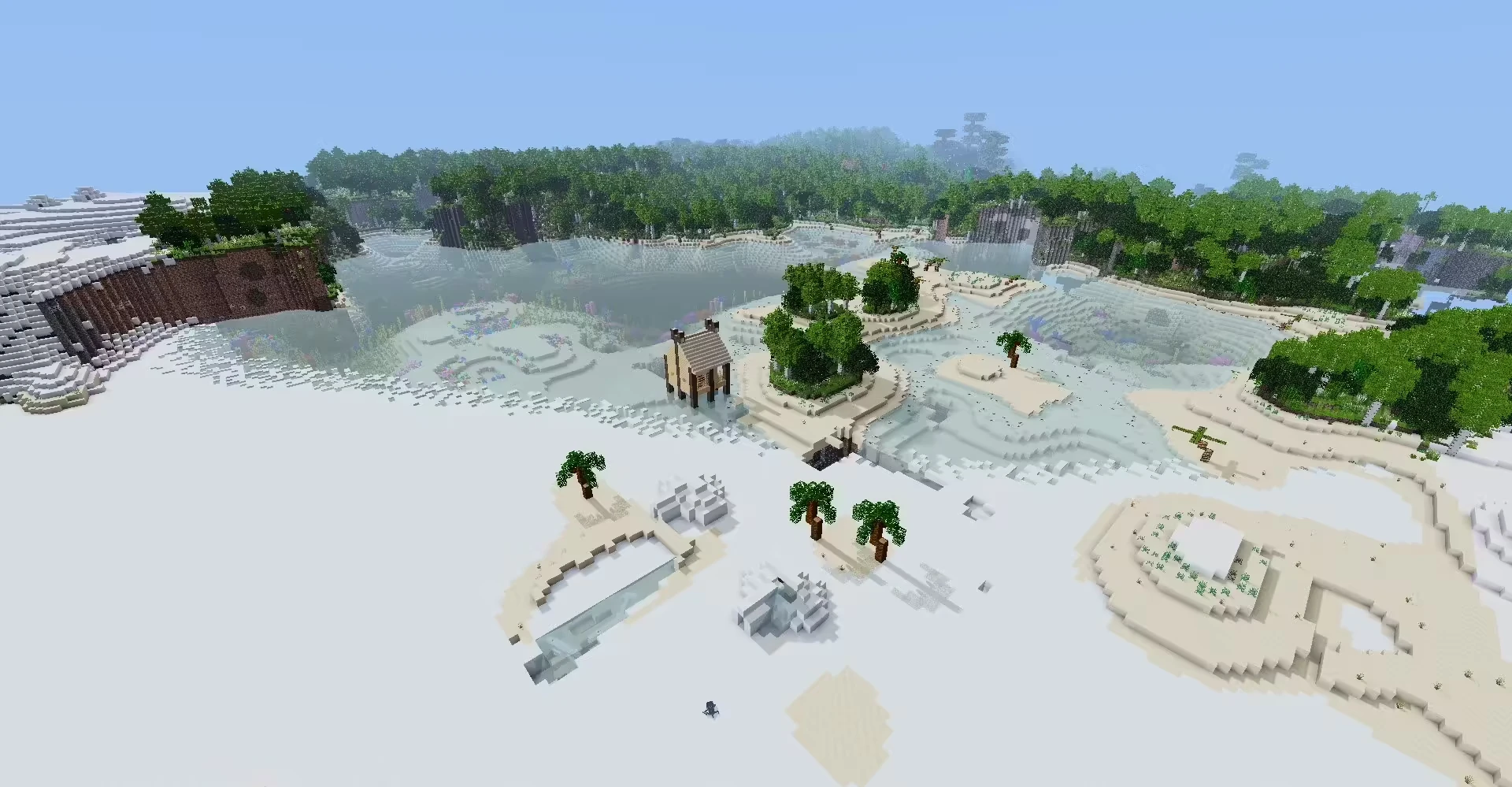
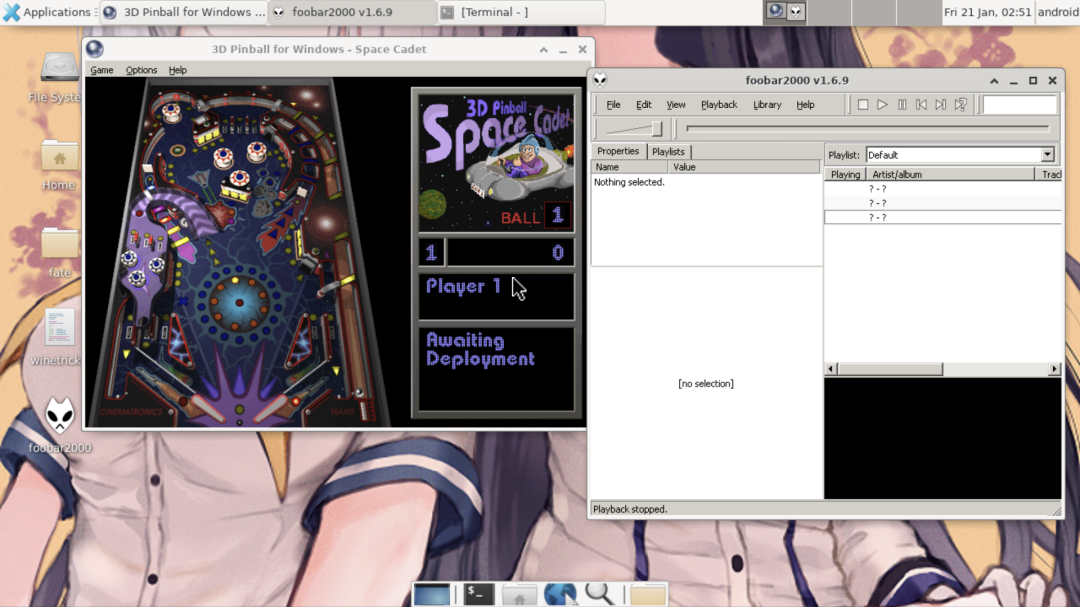
Termux’s QEMU package can run an emulator on an Android phone, emulating a full x86 computer operating system such as Windows or Linux, without root privileges. The effect is equivalent to Limbo PC Emulator.
This article introduces how to install Windows 7 on an Android phone with Termux. Besides 32GB of storage on the phone, you also need patience.
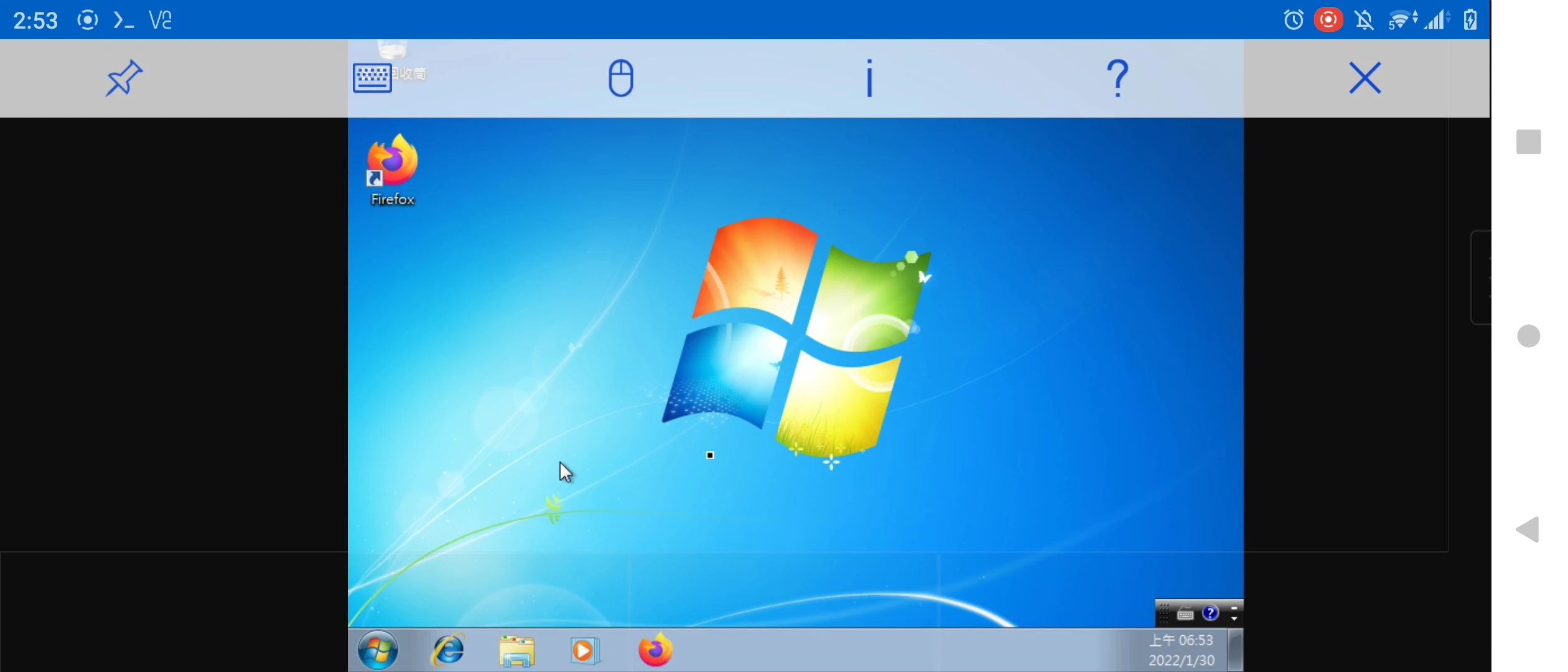
Why choose Windows 7? Because it is not as outdated as Windows XP, and not as resource-hungry as Windows 10. In an environment where QEMU itself is slow as hell, Windows 7 performance is barely acceptable.
See the end of the article for the post-installation experience.
1. Hardware requirements #
Processor: Qualcomm Snapdragon 845 or above
RAM: at least 4GB
Storage: at least 32GB
At the time of writing, the phone I used was a Sony Xperia 5 II running Android 12.
2. Prepare prerequisites #
-
Install Termux and configure permission to access the phone’s storage.
-
Install VNC Viewer.
-
Download the Windows 7 installation disc ISO, selecting the 64-bit version. Microsoft has removed the download link from its official site now, so please find a pirated copy yourself.
-
If Termux has already been granted storage access permission, it can mount it directly later. For example, if the ISO file is located at
/Download/windows7.isoin the phone’s internal storage, then the path inside Termux is:
storage/shared/Download/windows7.iso- Install QEMU packages in Termux
pkg update
pkg install qemu-utils qemu-system-x86_64- Create a
win7directory to store files
mkdir win7
cd win7- Create a 32GB virtual hard disk
qemu-img create -f qcow2 win7.qcow2 32G- Use the
vim runwin7.shcommand to create a boot script, fill in the following content, then enter:wq!to save
qemu-system-x86_64 -machine q35 -m 4096 -smp sockets=1,cores=4,threads=1 -cpu qemu64 \
-accel tcg,thread=multi \
-hda win7.qcow2 \
-vga std \
-netdev user,id=n1 -device e1000,netdev=n1 \
-device AC97 \
-usbdevice tablet \
-vnc :0 \
-cdrom ../storage/shared/Download/windows7.iso
3. Start installing the system #
- Run the boot script
chmod +x runwin7.sh
./runwin7.sh-
Pull down the notification shade and tap
Acquire Wakelockfor Termux to avoid having it killed in the background. -
Open VNC Viewer, add a new connection, and enter
localhost:1to connect to the emulator display.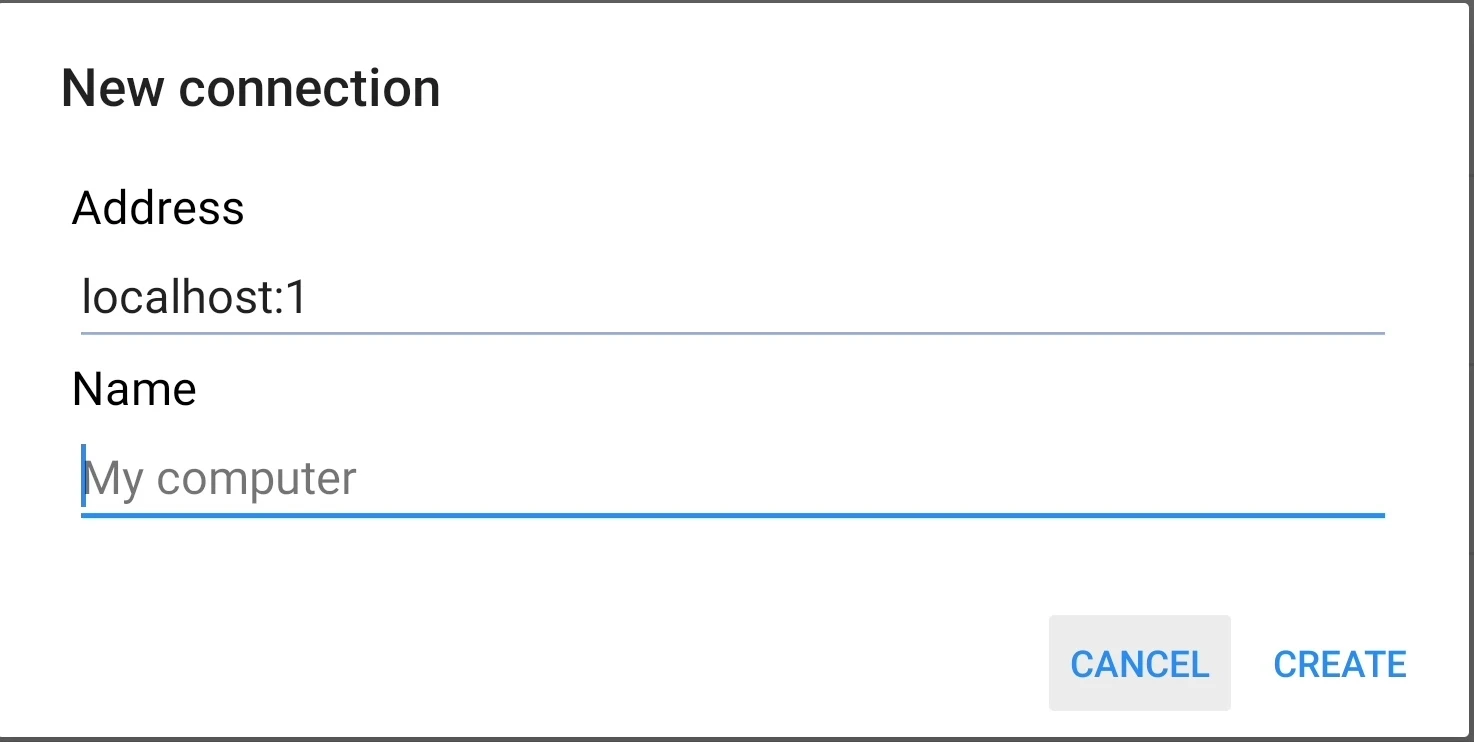
-
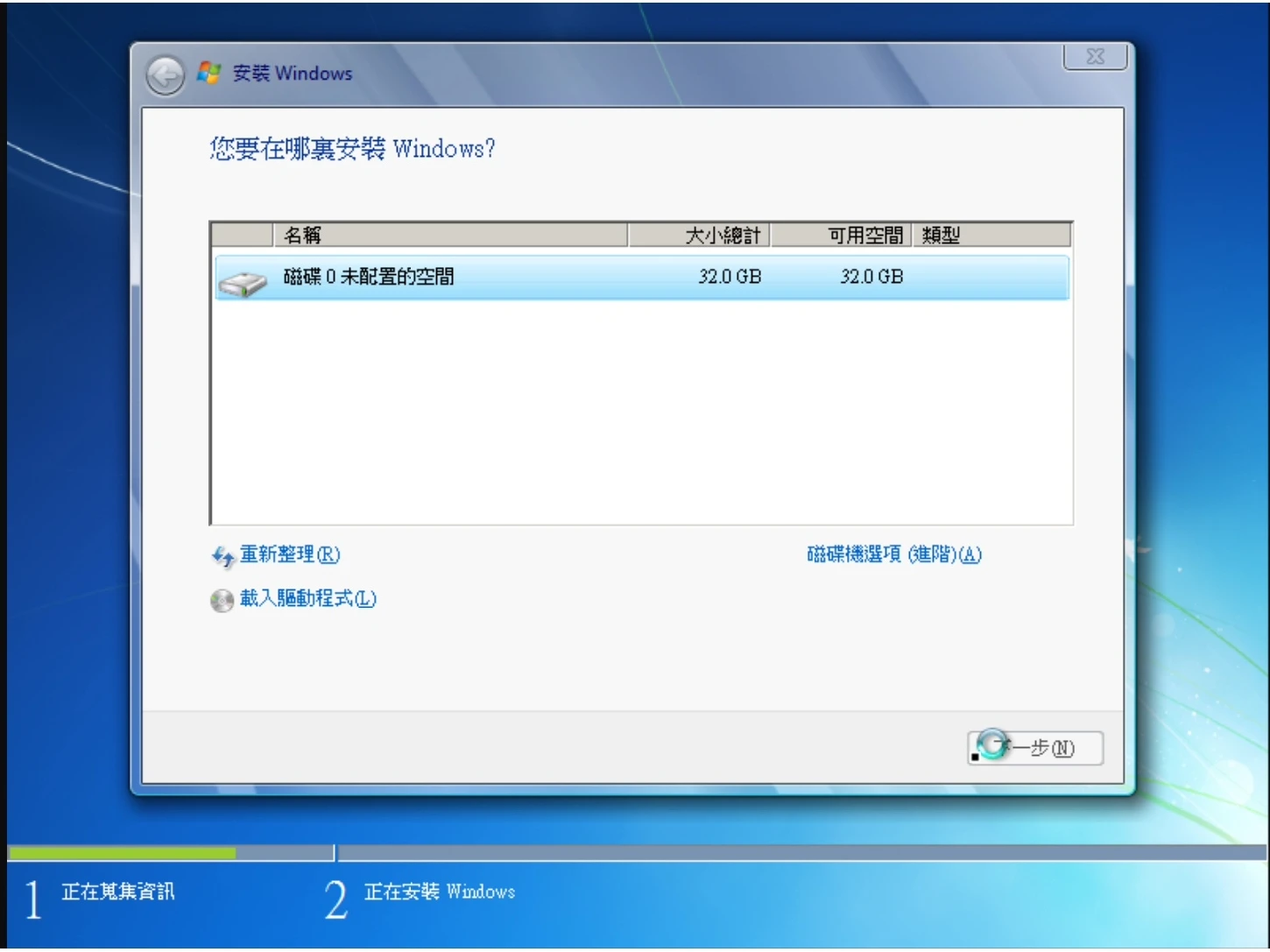
After booting, wait about five minutes for it to load, then follow the on-screen instructions to install Windows 7. It takes about one hour.
-
If installation requires a reboot, exit VNC Viewer and return to Termux.
-
Press
CTRL+Zto terminate QEMU, modify the boot script, remove the cdrom parameter, and save it.
qemu-system-x86_64 -machine q35 -m 4096 -smp sockets=1,cores=4,threads=1 -cpu qemu64 \
-accel tcg,thread=multi \
-had win7.qcow2 \
-vga std \
-netdev user,id=n1 -device e1000,netdev=n1 \
-device AC97 \
-usbdevice tablet \
-vnc :0- Reopen Termux and rerun the script. Open VNC Viewer and continue installation.
4. Actual usage #
Using it really feels like a slideshow. After installation, booting into the desktop takes at least one minute.
Firefox takes two minutes to open, and loading a Wikipedia page takes three minutes.
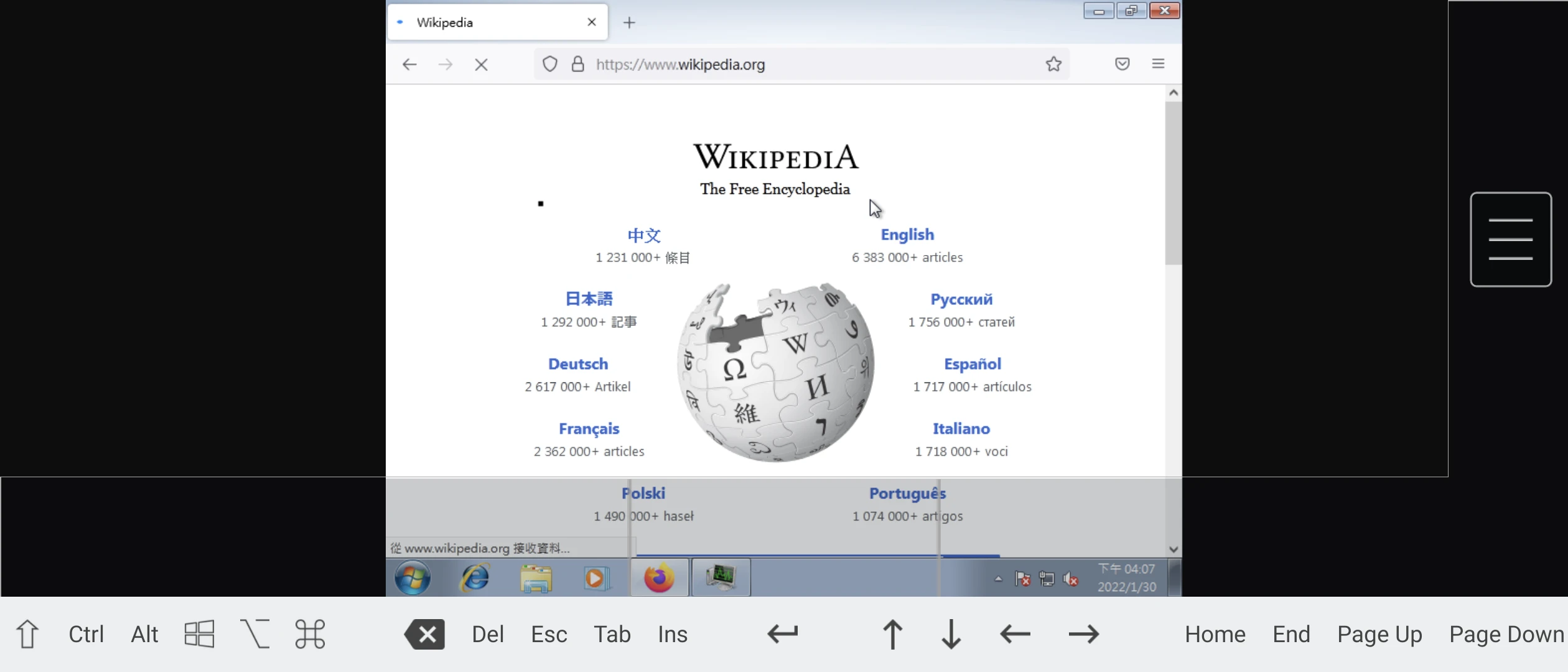
Watching the video makes it even more obvious
QEMU on Android is pure software emulation, without any KVM acceleration technology, so do not expect to play games.
The phone’s ARM CPU is emulating x86 across architectures, and Android phones do not support KVM either. Under all these losses, even Qualcomm s800-series processors do not perform that well; moreover, applications have a hard time getting 3D hardware acceleration.
However, this qcow2 virtual hard disk can be moved to a computer and booted with the same command using QEMU on the computer. If you want to optimize it, you can configure it on the computer and then move it back to the phone to boot.