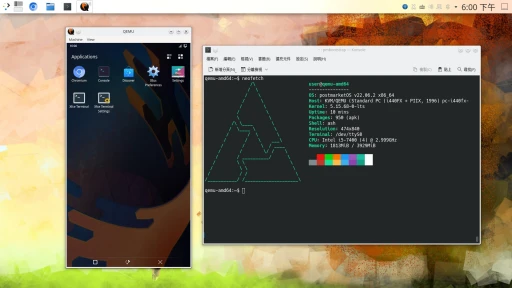
Configuring Waydroid only session on Linux. Turning a Linux tablet into a semi-Android tablet.
Waydroid draws Android app windows on the Wayland compositor of the Linux desktop.
So can we install Waydroid on Linux and enter an Android system through the display manager?
In short, after a Linux computer boots and logs in, it automatically enters Waydroid, making it feel roughly like using Android-x86.
What is this useful for…? The use case I can think of is temporarily treating a Linux tablet as an Android tablet.
Or maybe temporarily turning a PinePhone running Ubuntu Touch or postmarketOS into an Android phone?
I tried this because I wanted to turn my Linux tablet, the PineTab 2, into a fake Android tablet.
The official Waydroid documentation calls this a “Waydroid only session”.
Strictly speaking, Waydroid does not have its own compositor. It needs a Wayland compositor to start. The idea is to make Waydroid into a Desktop Entry that can launch a desktop environment session, so the Linux display manager can recognize it and start Waydroid with it.
Also, Waydroid runs inside an LXC container, so it cannot access Linux hardware like the camera or files in the home directory unless you manually bind mount them in.
Waydroid can only do so much. If the Wayland compositor you choose is too barebones, shutting down requires typing a command. Very futuristic.
1. Practicality First #
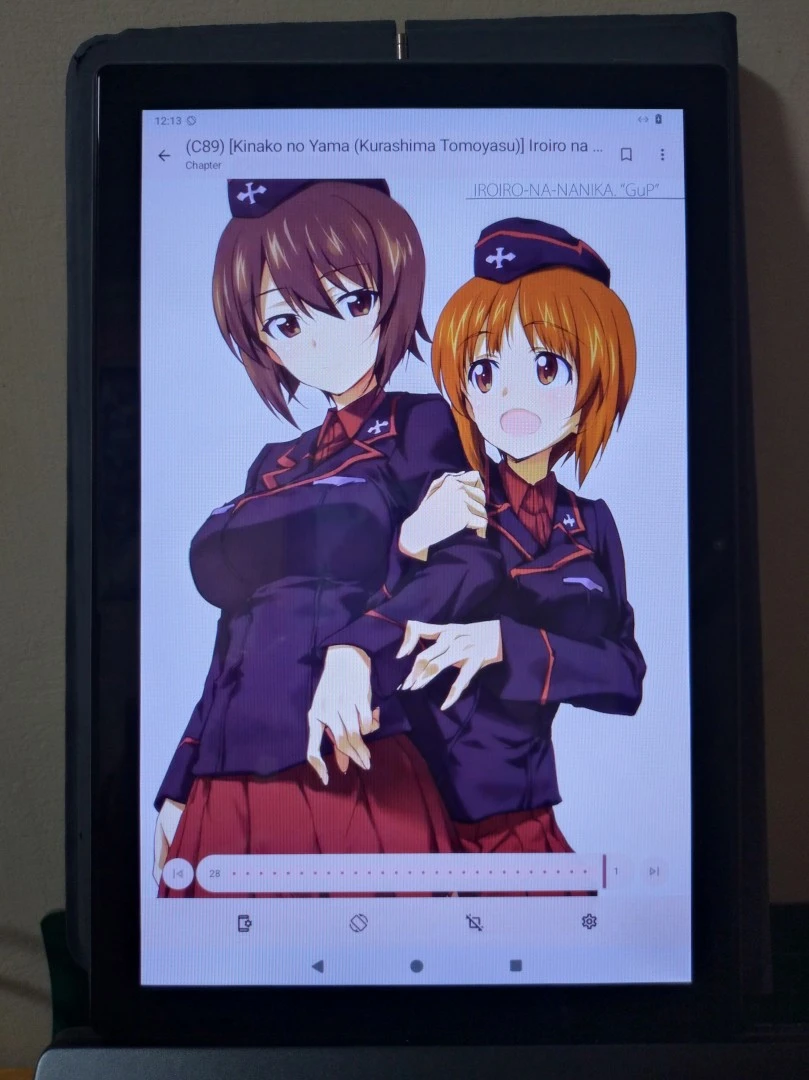
Conclusion first: I do not recommend using a Waydroid only session without pairing it with a desktop environment. Waydroid is not a complete Android system. From inside the container, it cannot control the host Linux system’s volume, brightness, screen orientation, or shutdown. It cannot even lock the screen.
The result looks like this:
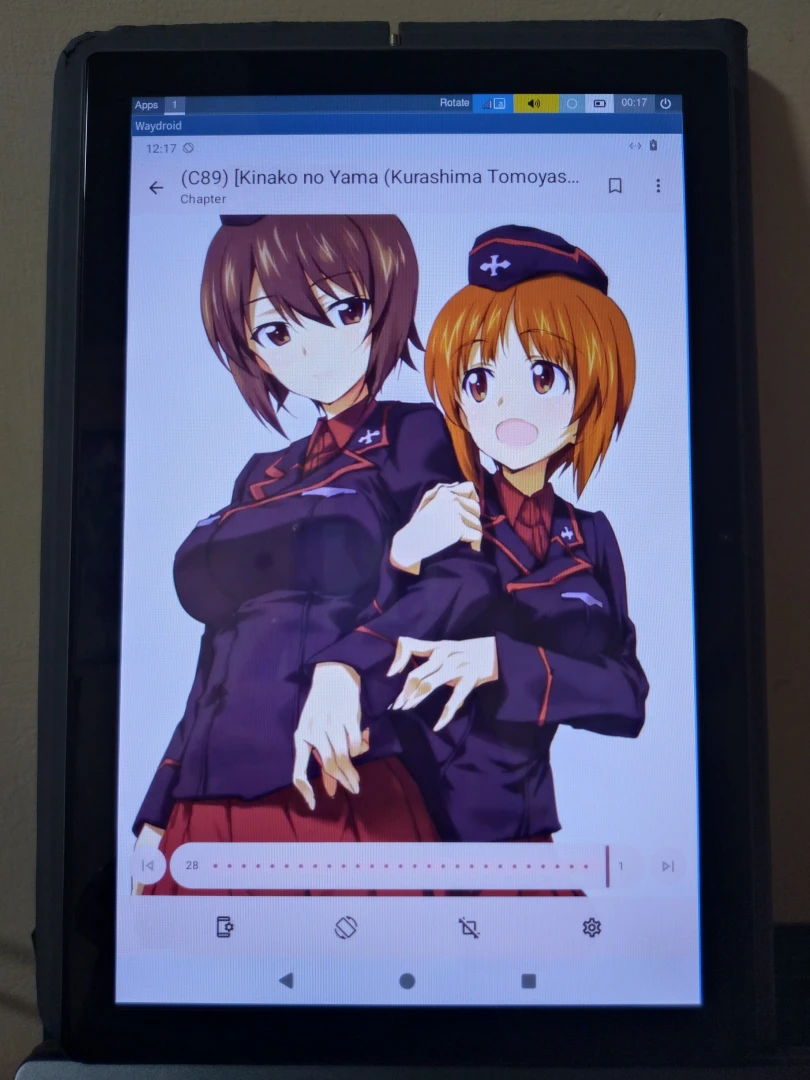
If you want Waydroid to be as fullscreen as possible without letting the desktop environment eat too many resources, I recommend using it with a lightweight Wayland compositor such as Phosh, Sway, SXMO, Gamescope, and so on. They let you freely assemble the components that appear on the desktop.
That makes Waydroid’s behavior easier to control:
2. Cage + Add a Desktop Entry #
The official Waydroid documentation mentions methods using GNOME Mutter, Weston, and Wayfire. I think Kwin or Sway should also work? But the goal here is to keep things as simple as possible: just start Android, no extra components.
So I chose Cage, a small program that starts a single Wayland Client, to launch a fullscreen Waydroid session.
- Make sure the Waydroid service starts automatically after boot:
sudo systemctl enable waydroid-container- Install Cage:
sudo apt install cage- Add a new Desktop Entry. It will appear in the display manager menu:
sudo vim /usr/share/wayland-sessions/waydroid.desktop- Fill in the following:
[Desktop Entry]
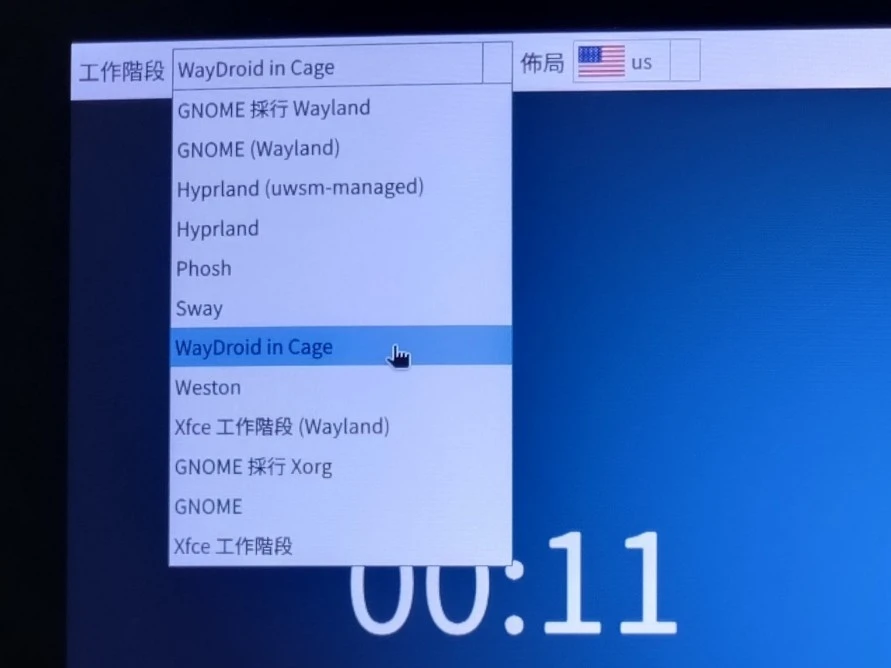
Name=WayDroid in Cage
Comment=Android OS in a container
Exec=/usr/bin/cage waydroid show-full-ui
Type=Application- Reboot. On the display manager screen, click the Waydroid button to start it.
3. Another Solution: Gamescope + Waydroid #
Gamescope can use the Steam client’s Big Picture Mode as a desktop environment, and it does not consume much in the way of resources. So all we need to do is add a shortcut in Steam that launches Waydroid, then start Waydroid from there and use the Steam menu to control the computer hardware.
-
Open the Steam client, click Games -> Add a Non-Steam Game to My Library, and select Waydroid.
-
Then start Waydroid from Gamescope. Even after entering fullscreen, you can still click the Steam menu to switch to other games. In my testing, though, Waydroid did not seem to start properly.
4. Start Waydroid Automatically After Desktop Login #
If you want “Waydroid to start automatically and maximize after logging into the desktop environment”, then XDG Autostart is enough. Copy Waydroid’s Desktop Entry over:
cp ~/.local/share/applications/Waydroid.desktop ~/.config/autostart/The above method only applies to desktop environments running Wayland sessions.
Some Wayland compositors can start inside an existing X11 session, becoming a nested Wayland session: Start Waydroid on a Linux X11 Desktop with Weston, Without Depending on a Wayland Desktop