Allow apps in proot-distro to draw windows on XFCE desktop in Termux. Integrate X11 GUI apps in proot-distro with Termux host desktop environment.
By default, use Termux’s native packages to run the XFCE desktop environment, and through X11 network transparency, allow X11 program windows inside proot-distro to be displayed on the XFCE desktop.
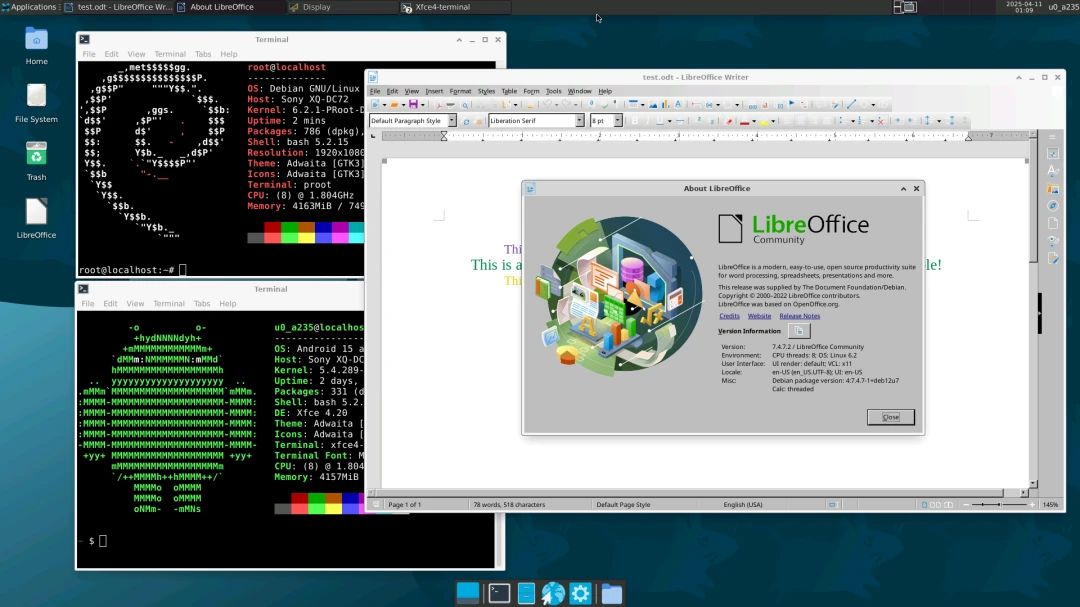
Here, the side responsible for running native XFCE programs can be called the Termux host for now, while proot-distro is naturally the container. The process is shown below:
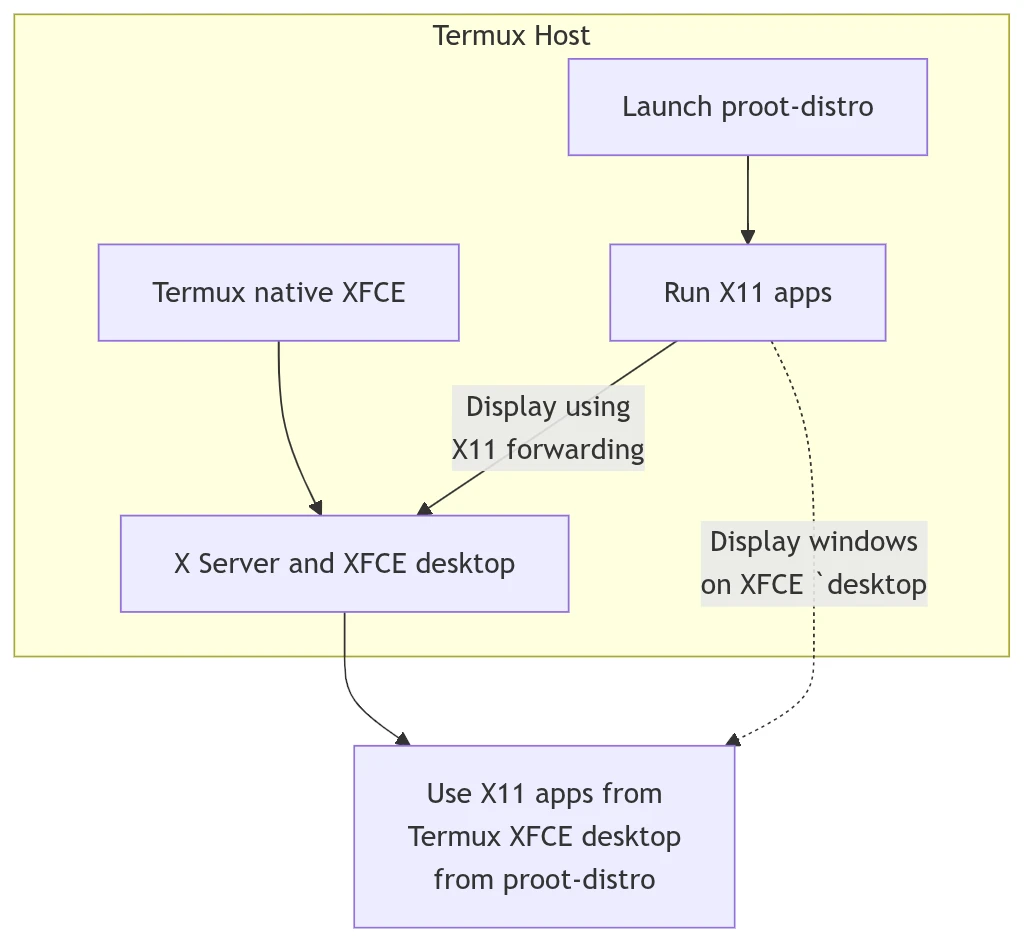
This usage is a bit like the Linux desktop container tool Distrobox. It allows X11 graphical programs inside Docker to be displayed on the host desktop.
You might think: why not just start XFCE directly from proot-distro? Why use Termux’s XFCE packages?
Because it is faster. Processes inside proot are emulated with ptrace, so they are inherently slower than programs compiled natively for Termux. Termux now has more and more packages, even the Chromium browser (included in TUR Repo), so in the future there is less need to let the guest usurp the host by running the desktop environment in proot-distro. If most commonly used programs can run as Termux native versions, there is no need to use proot-distro; only start proot-distro when necessary to run programs that are only included in Debian repositories.
1. Install a desktop environment for Termux #
See Termux Install XFCE4. For graphical display, either Termux X11 or VNC is fine.
Here we also need to add one extra package, used to control X client permissions for connecting to the X server:
pkg install xorg-xhostTest whether the Termux desktop environment can start.
In addition, we can open XFCE’s file manager, open the storage/shared directory, and read files from Android internal storage.
2. Configure proot-distro #
I installed proot Debian
It is recommended to add a normal user and configure Chinese localization inside proot-distro.
Termux lacks the locales package and cannot configure Chinese.
Also install graphical programs inside proot-distro, such as LibreOffice:
sudo apt install libreoffice3. Launch programs inside proot-distro from the Termux desktop #
- First run
xhostto allow programs inside proot-distro to draw windows on the X server of the Termux desktop. Because proot processes are started by the Termux user, use thewhoamicommand to pass in the current username and allow this user to connect.
xhost +SI:localuser:$(whoami)- Log in to proot-distro. You must use
--shared-tmpto share X server resources, and add--termux-hometo mount Termux’s home directory as well (if you do not want files to be messed up by programs inside proot, you can skip mounting it)
proot-distro login debian --user user --shared-tmp --termux-home- Specify the
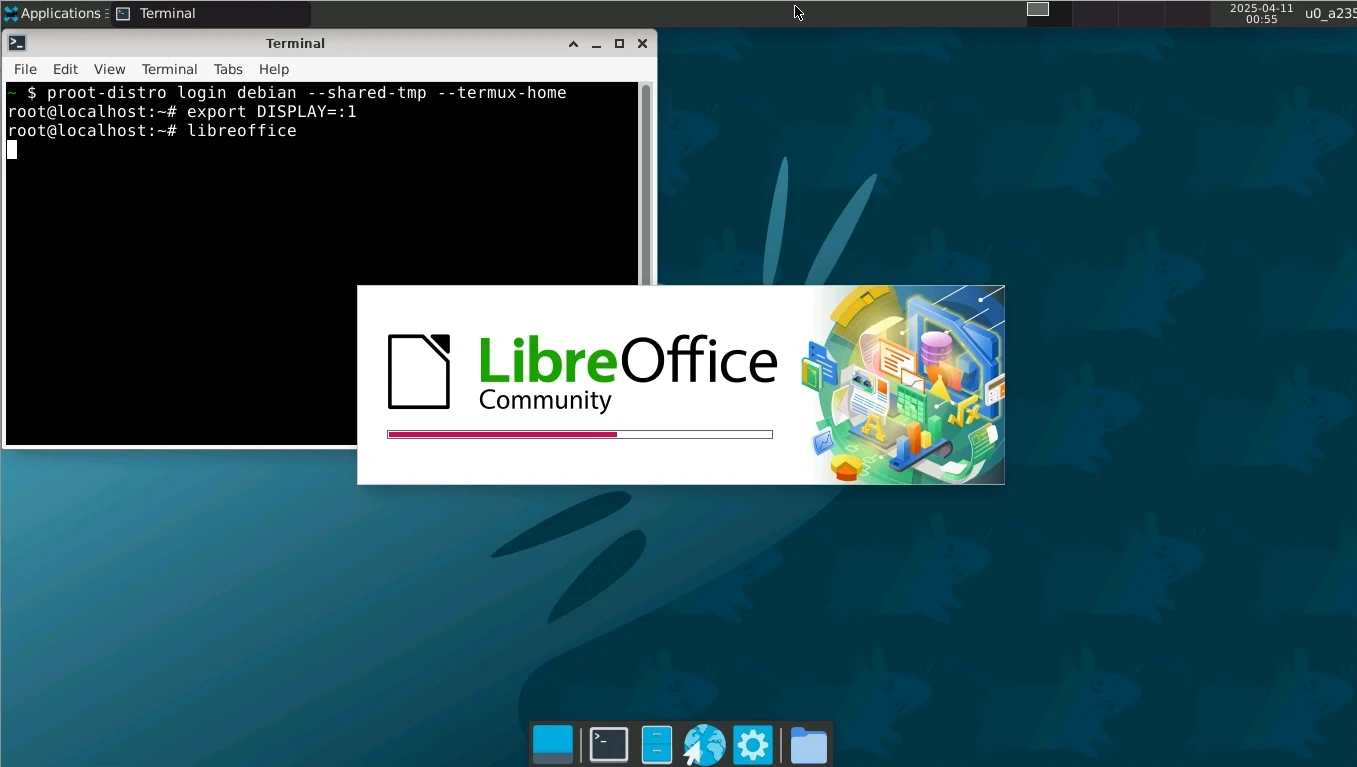
DISPLAYenvironment variable. The value should be the address of the Termux X server, generally:0. Then run a program, such as LibreOffice:
export DISPLAY=:0

libreoffice-
You will then see the LibreOffice window start.
-
Files on the Termux desktop can be dragged directly into the LibreOffice window to open them.
But if you open the file picker from LibreOffice, by default you can only see directories inside proot-distro. However, because the Termux home directory was mounted above, the user’s home directory /home inside proot-distro becomes shared with the Termux home directory.
You can also read Android internal storage directories from /sdcard.
4. Add a graphical shortcut on the Termux desktop #
Make it a Desktop Entry, and you will not need to manually log in to proot-distro and type commands.
XFCE has a quick way to generate a Deskop Entry: right-click the desktop -> Create Launcher

Enter the following command in the Command section. Log in to Debian proot and start LibreOffice with bash.
proot-distro login debian --shared-tmp -- bash -c "DISPLAY=:1 libreoffice"For the icon file, you can choose an image from any directory, but I choose to use the original one. Click Icon, select Image Files, open the file picker, and enter the path /data/data/com.termux/files/var/lib/proot-distro/installed-rootfs/debian/usr/share/icons/hicolor/. Then you can find the icon files inside Termux proot-distro.
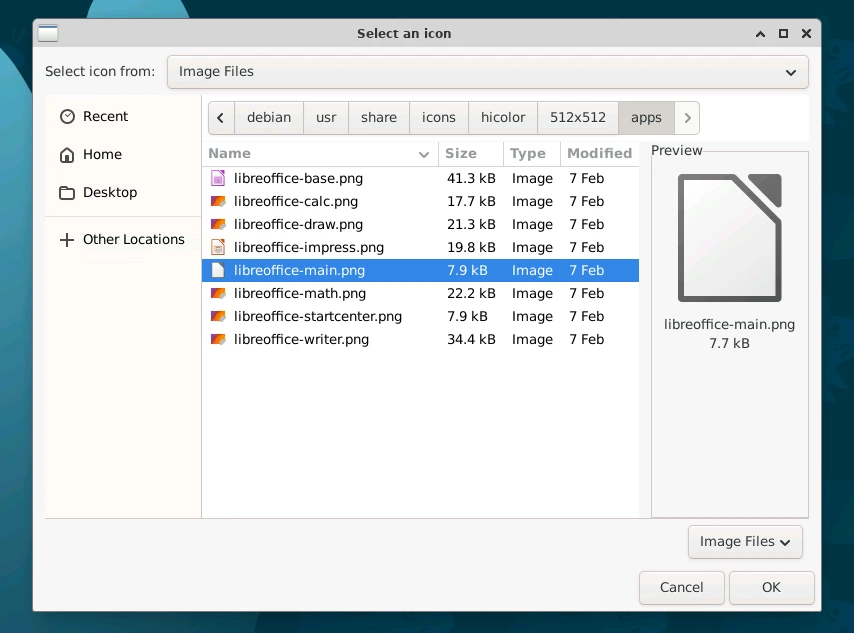
Save it, double-click, and LibreOffice starts directly. Other programs can be handled the same way.