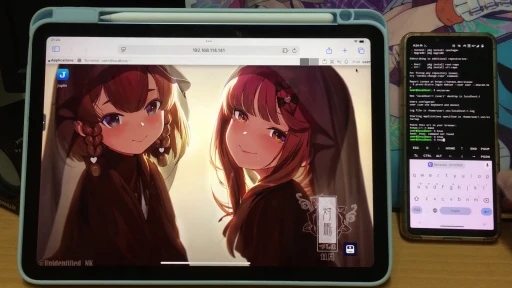
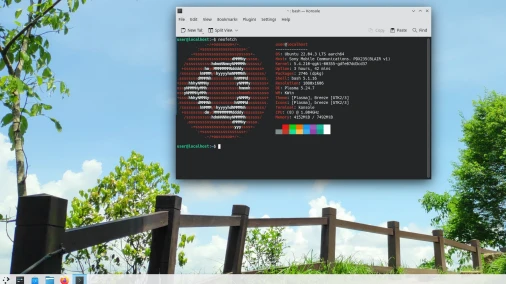
Sharing how to write Python programs with the Android phone app “Termux”, plus a bit of Ivon’s personal experience.
Many Android apps for writing Python on phones are awkward. They can only install packages written in pure python, and they fall over as soon as they encounter wheels. Perhaps their goal is more like Duolingo, for beginners to practice, rather than building a serious Python development environment.
Among them, only Termux keeps evolving. Although pip install still cannot run 100% like a normal Linux environment, more and more packages are being compiled as Termux-specific versions! Through the Python packages provided by Termux, you can run some simple
Python programs and process files on your phone. Root privileges are not required.
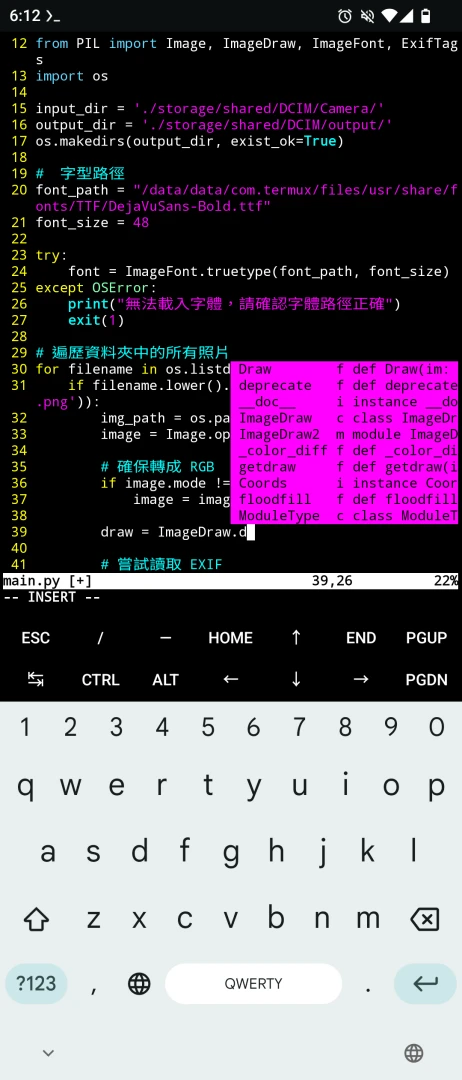
For example, install Pillow through pip and write a small program that batch-processes EXIF photo information. It reads all photos in the phone’s DCIM folder, prints the date on each photo according to EXIF information, and outputs them to another folder. (This program really works; the source code is here)
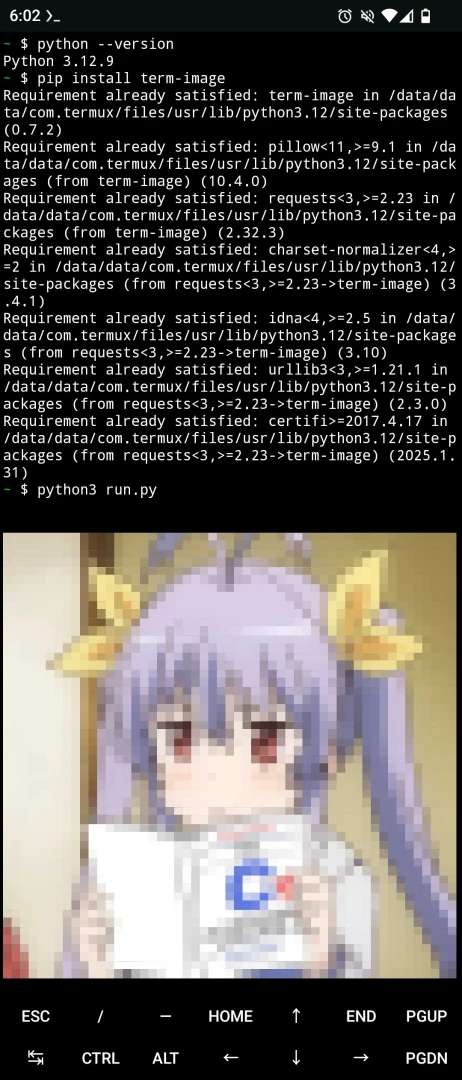
Or use term-image, written in Python, to display images from the phone in the terminal.
1. Text-only or graphical interface? #
Termux is a text-interface terminal emulator by default. You need to type commands to run Python programs. Although a graphical interface can be run through Termux X11, is it really necessary?
Text-based Python programs can only output plain text, including operations such as calculating numbers, arranging stars, batch-processing files, downloading files, and so on. To write programs in a text interface, you need to learn to edit with Vim or Emacs. This is a good chance to practice operating text editors.
With a graphical interface, you can run Python programs that need to display windows, draw charts, and so on. There are many choices for programming in a graphical interface, including VS Code and Jupyter Notebook, but they consume more phone resources.
A graphical interface is not necessary. If you only want to write small programs, you do not necessarily need an IDE; Vim is enough.
This article focuses primarily on the text environment, with graphics second.
2. Run Python in Termux or proot-distro? #
Python can run directly in Termux, or you can use proot-distro to create a Debian environment and then run Python inside it.
What is the difference between the two? Termux’s Python packages are versions compiled for the Termux environment and run with native performance. But Termux is not a standard Linux environment, so some Python packages may not work.
As for proot-distro, the environment is closer to a Linux system, so installing Python inside it has better compatibility, and Debian’s repositories have more ready-made Python packages available without relying on pip wheels. But proot-distro runs more slowly.
This article focuses on the Termux environment.
3. How to install Python in Termux? #
-
Install Termux
-
Install Python and pip, including the Python-venv module:
pkg install python3 python-pip- Confirm the Python version. At the time of writing, it should be 3.12
python3 --versionThe full path to the Python package executable is $PREFIX/usr/bin/python3
Packages installed by pip install go to $PREFIX/lib/python3.x
According to Termux Wiki information, because Termux is rolling-release, Python always upgrades along with pkg upgrade. After Python is upgraded to the next major version, packages installed by pip install have to be manually reinstalled.
4. Switch Python versions #
Because Termux is rolling-release, it only provides the latest version of Python packages. The path is $PREFIX/usr/bin/python3. Packages installed with pip install also correspond to the Python version above.
How do you switch Python versions? Although the Python version manager “uv” has a Termux package, its functionality is not normal. If you plan to install Anaconda, Termux probably cannot install it directly; it needs to be installed inside proot-distro. See Termux proot-distro Anaconda
So the remaining method is to use old Python versions provided by TUR Repo. The Termux main repository cannot provide old Python versions, so TUR Repo fills that gap.
For example, if the current version is Python 3.12 and you need the older Python 3.9, install it from TUR Repo:
pkg install tur-repo

pkg search python3

pkg install python3.9
After installation, use the following path to execute it: $PREFIX/usr/bin/python3.9
For example, python3 main.py becomes python3.9 main.py
To install Python packages for a specific version, use python3.9 -m pip install <套件名稱>
To create virtual environments for different versions, use python3.9 venv -m venv
5. Tips for pip install #
Usually, to use external Python modules, you must install packages with pip install before you can import modules in Python programs.
When installing Python packages, if the Termux repository has a packaged version (usually starting with python-*), use pkg install to install it from the Termux repository. If that does not work, then use pip install.
Because the Termux environment is not exactly the same as a desktop Linux environment, pip install sometimes fails when it encounters packages that need wheel compilation. So I recommend using versions packaged by Termux developers.
For example, the Pillow package can be installed from the Termux repository
pkg install python-pillowIf you need an older version of Pillow, then consider installing it with pip install
pip install pillow==9.5.06. Install Vim and Python plugins #
Turn the text editor Vim into an environment suitable for editing Python.
Install Vim:
pkg install vimSearch online for Vim basics. Termux provides many shortcut keys on the screen, enough for you to operate Vim and type.
Vim itself only has very basic code highlighting, which may be a bit insufficient for editing Python programs. So install plugins to strengthen its functionality.
There are many Vim plugins. How do you decide which ones to install? I think Real Python’s article VIM and Python – A Match Made in Heaven gives a very detailed explanation. The Vundle package manager mentioned there can also be installed in the Termux environment.
However, the YouCompleteMe autocompletion system needs some patches before it works. See How to install YouCompleteMe on Termux by micjabbour
7. Basic Python command-line execution #
Introducing how to write a simple Python program, then execute it with a command and output the result.
If the Python program needs to write files, you need to understand Termux path conventions. See Termux Files Management.
- It is recommended to create a project directory and put all Python programs used in the same directory
mkdir project1

cd project1- (Optional) Create a Python virtual environment here to isolate it from system packages
python3 -m venv venv

source ./venv/bin/activate- Create a Python program file
touch main.py- Edit the file with Vim
vim main.py- Fill in simple Hello World code
print("Hello World!")- Run the program, and it should output the result.
python3 main.py8. Write Python with a graphical IDE #
For this operation, a keyboard and mouse are recommended.
Writing programs with a graphical IDE saves the trouble of typing commands.
When talking about graphical IDEs, many people probably think of VS Code. Unfortunately, Termux only has the code-server package, not the desktop version of VS Code.
Although Termux provides the code-server package, allowing you to run the web version of VS Code in the phone’s browser, I think that since you are already using a graphical interface, it is better to run a complete X server with Termux X11. This way, you can not only open VS Code, but also let Python programs use PyQT to draw windows.
Considering that Termux does not include the desktop version of VS Code, I recommend installing VS Code inside proot-distro and then starting the graphical interface.
9. Notes on using Python inside proot-distro #
When you run the proot-distro login command, Termux mounts its own PATH into it as well, so sometimes when running the python command, you may execute the Termux version instead of the version inside the container.
How do you confirm? Use which python and which python3 to confirm the Python path. If it is not /usr/bin/python3, then you are executing the Termux version.
Add the following content to ~/.bashrc inside proot-distro to solve this problem:
alias python=/usr/bin/python3
alias python3=/usr/bin/python3
alias pip=/usr/bin/pip
alias pip3=/usr/bin/pip3