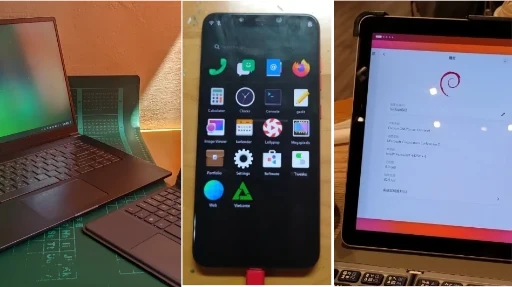
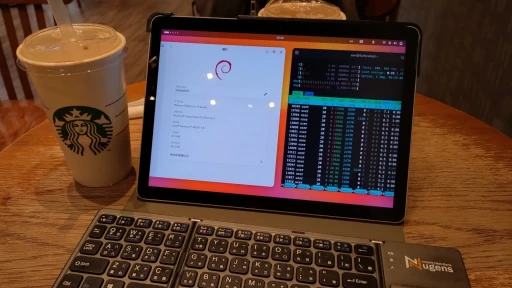
Dual-boot (kind of) Linux and Android on a tablet.
I think I found a way to run a Linux + Android dual-system tablet setup on a Surface Go 2. It is not perfect, but at least it works.
I previously wrote about using a Waydroid only session. This is basically the improved version.
1. Expected Result #
Linux allows multiple desktop environments to be installed on one system. GNOME is a heavy desktop suited for laptops and tablets, while Phosh is a lightweight desktop suited for phones and tablets. Waydroid runs Android apps on Linux through an LXC container. It is not a virtual machine, so resource usage is low. Combine them and you get the following result.
With GNOME + Phosh + Waydroid, you can get a fake mixed Linux + Android dual-system experience on one system, without actually installing separate systems on different partitions and doing real dual boot. This lets the Surface Go 2 squeeze out whatever usefulness it still has.
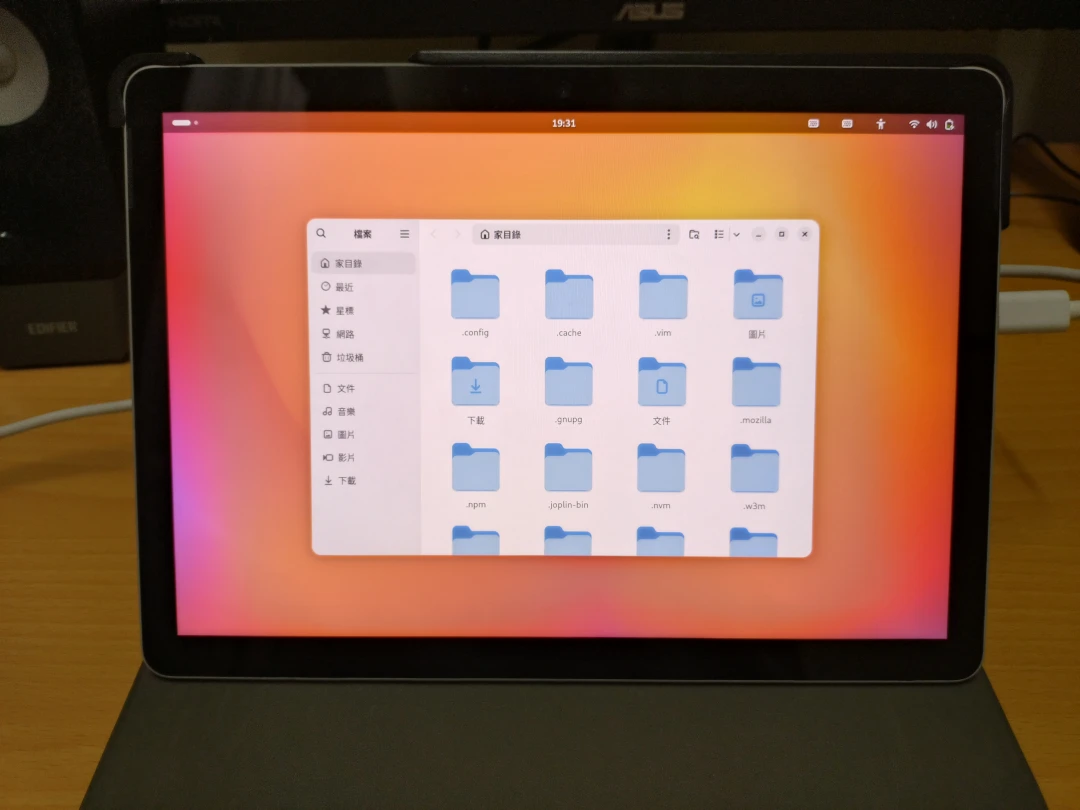
Simply put: when I need a computer mode with keyboard and mouse operation, I enter the GNOME desktop.
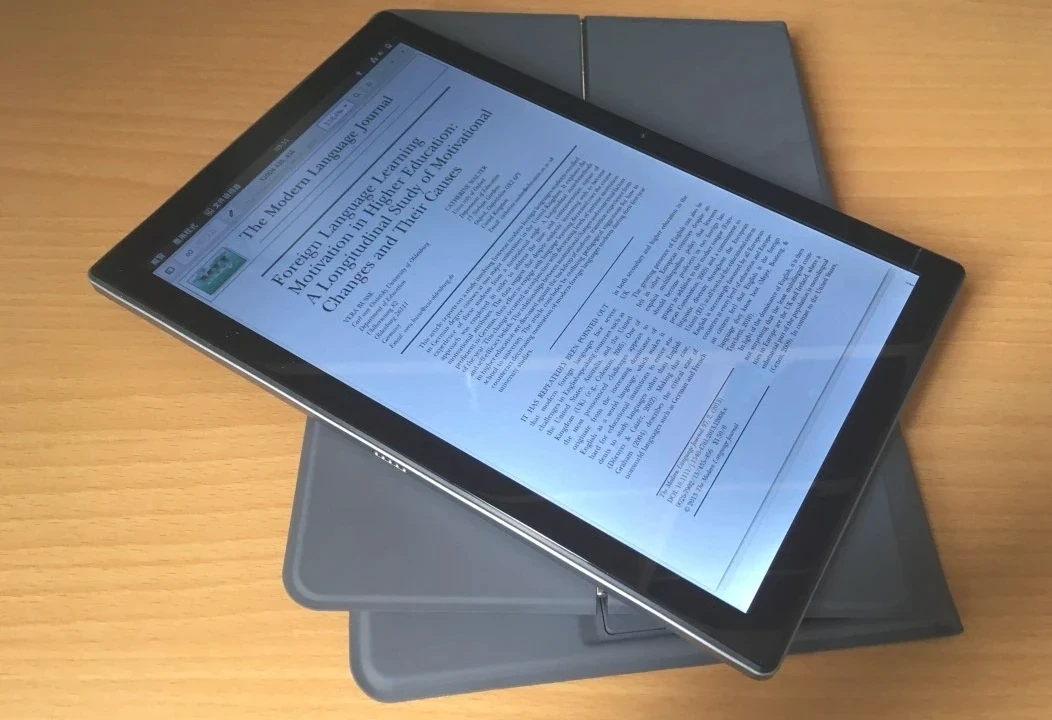
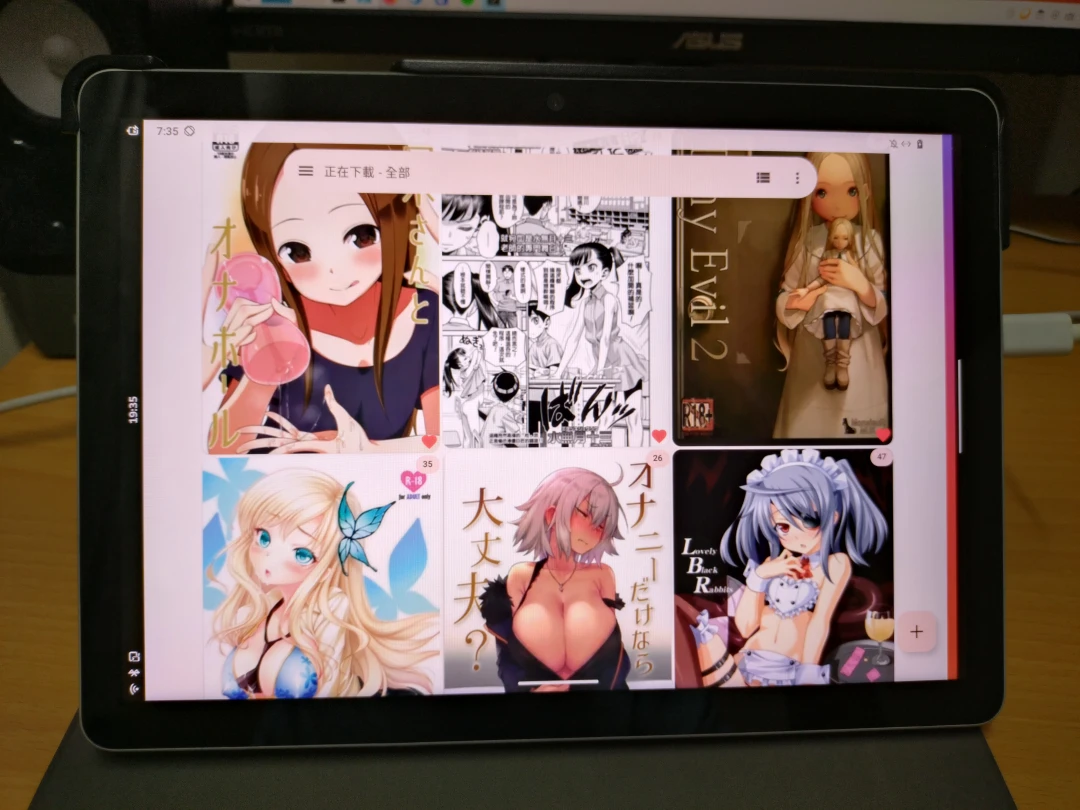
When I want pure touch mode for Android ebook apps, I enter the Phosh desktop and start Waydroid to enter the Android desktop.
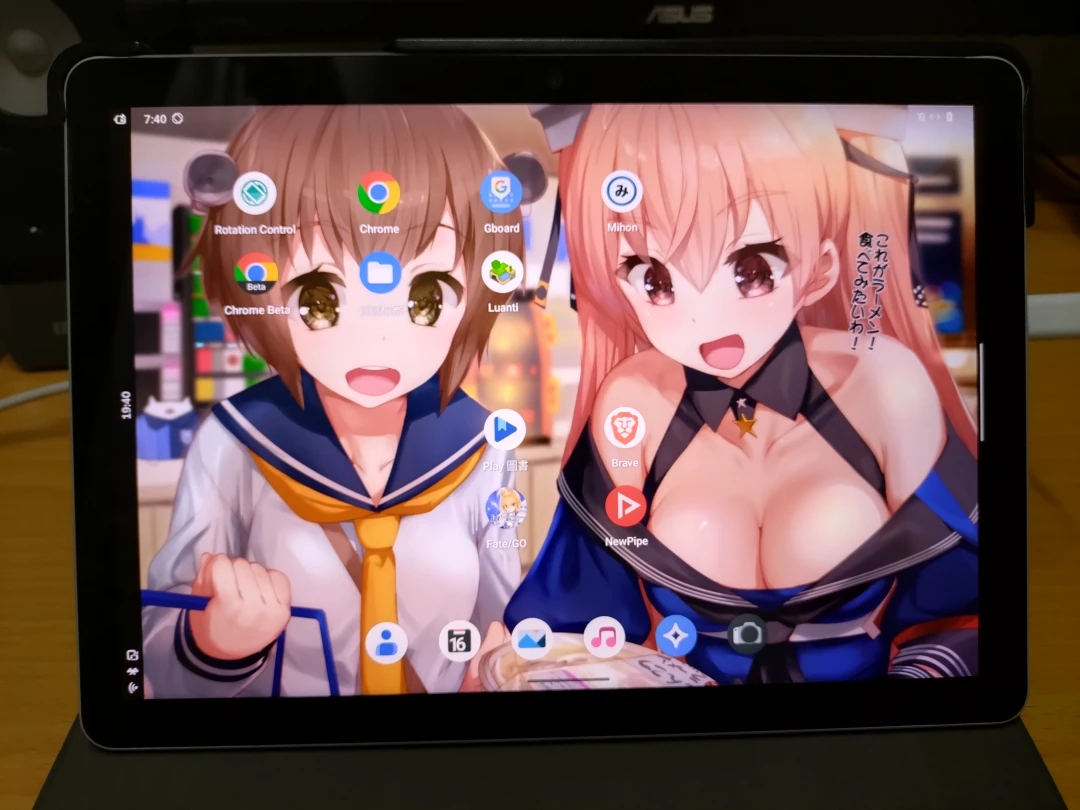
Phosh’s UI elements take up very little screen space, allowing Waydroid Android apps to run almost full screen.
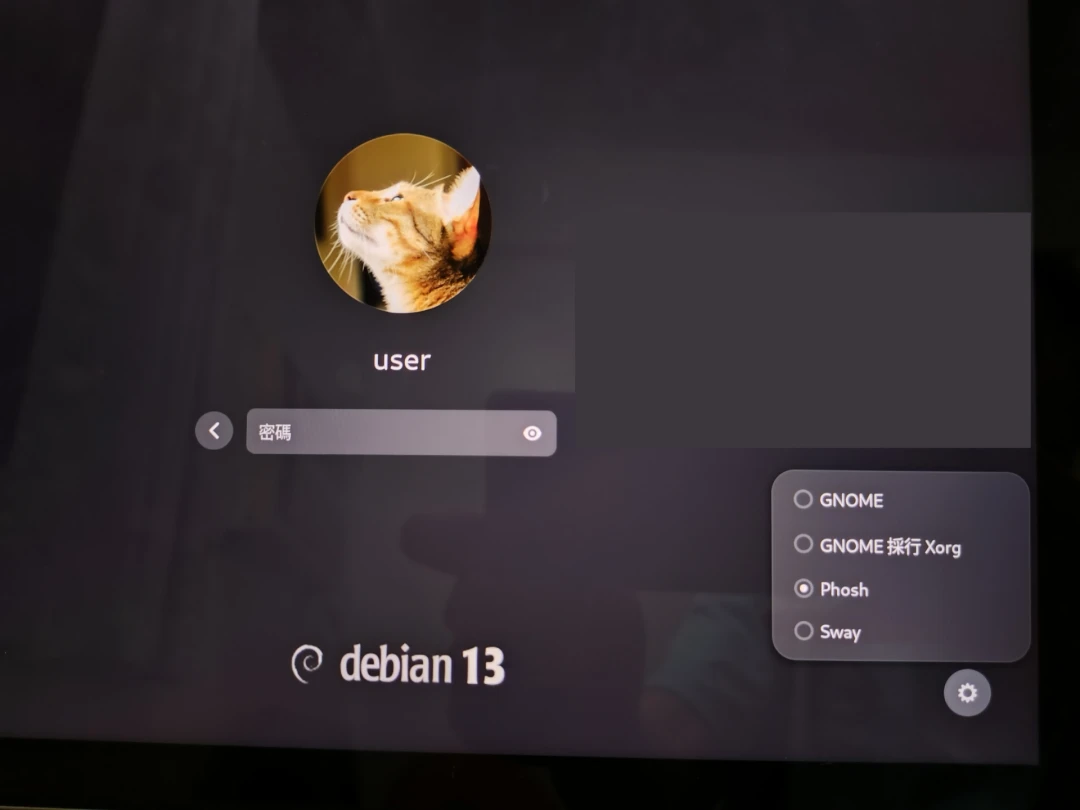
All of this switching is done through the GDM interface. No rebooting, no installing two systems on one drive, and no worrying about GRUB bootloader problems.
I imagine Pine64 PinePhone and Purism Librem 5 users probably operate this way too.
Why not just start Waydroid in GNOME? Because GNOME eats too many resources. On the Surface Go 2 in particular, half the RAM is eaten by the desktop, leaving too little room to run Android comfortably. Phosh’s Wayland compositor uses very few resources, less than 512MB RAM, and its UI takes up very little screen space. It maximizes one app per window. Also, Waydroid’s window canvas size is determined by the currently available screen pixels, so Phosh is a good desktop for running Waydroid almost full screen, temporarily turning a Linux tablet into an Android tablet without the desktop environment getting in the way.
When needed, just switch into Phosh from GDM. Also, Waydroid notifications now sync with both Phosh and GNOME. Of course, there are even leaner Wayland compositors like Sway, but customizing dotfiles for that is annoying. Phosh gives us a ready-made solution.
Of course, Phosh is not only for running Android apps. It can also run Linux programs designed specifically for touchscreens.
2. Test Environment #
- Microsoft Surface Go 2 (Intel Pentium 4425y / 4G / 64G)
- Debian Linux 13
- GNOME 48
- Phosh 0.46
- Waydroid Android 13
3. Linux-Side Setup #
-
Install the GNOME desktop on Debian.
-
Confirm that the display manager is GDM.
sudo systemctl status display-manager- Install the Phosh desktop.
sudo apt install phosh phosh-mobile-settings- Because of a Phosh bug, you may need to add the following to
~/.profileto prevent window buttons from disappearing when switching back from Phosh to GNOME.
if [[ "$XDG_CURRENT_DESKTOP" == *"GNOME"* ]]; then
   gsettings set "org.gnome.desktop.wm.preferences" button-layout "appmenu:minimize,maximize,close"
fi-
Reboot. On the GDM login screen, enter your password, and you should see the button in the lower-right corner for choosing GNOME or Phosh.
-
Log in to Phosh, swipe down from the top of the screen, check the status bar, and confirm whether device auto-rotation, usually controlled by
iio-sensor-proxy, works correctly.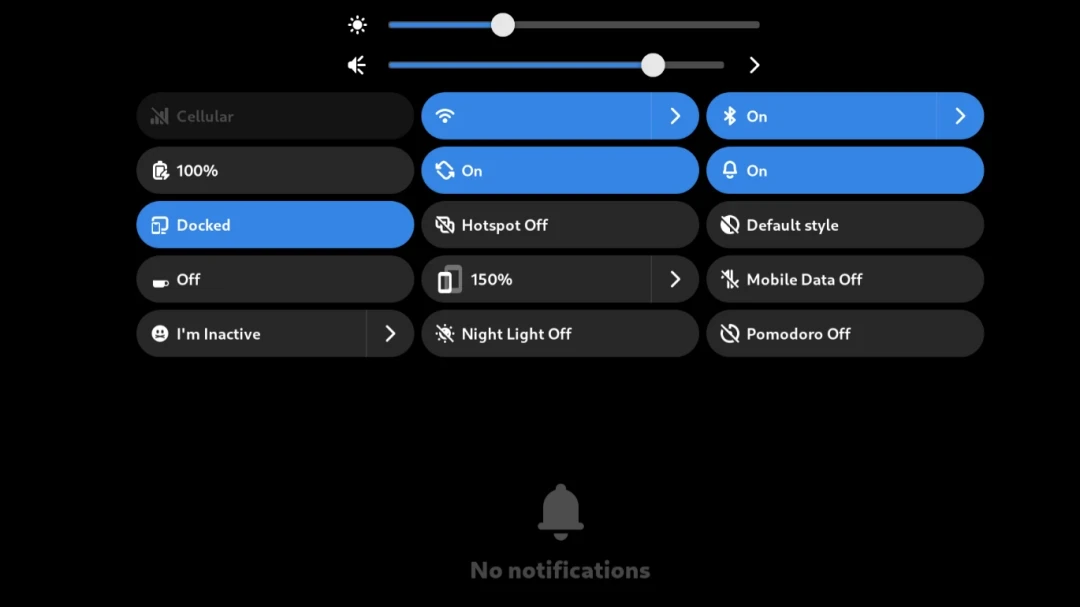
-
In the Phosh status bar, turn off Docked mode. Only then can you long-press the pill bar at the bottom of the screen to bring up the on-screen keyboard.
-
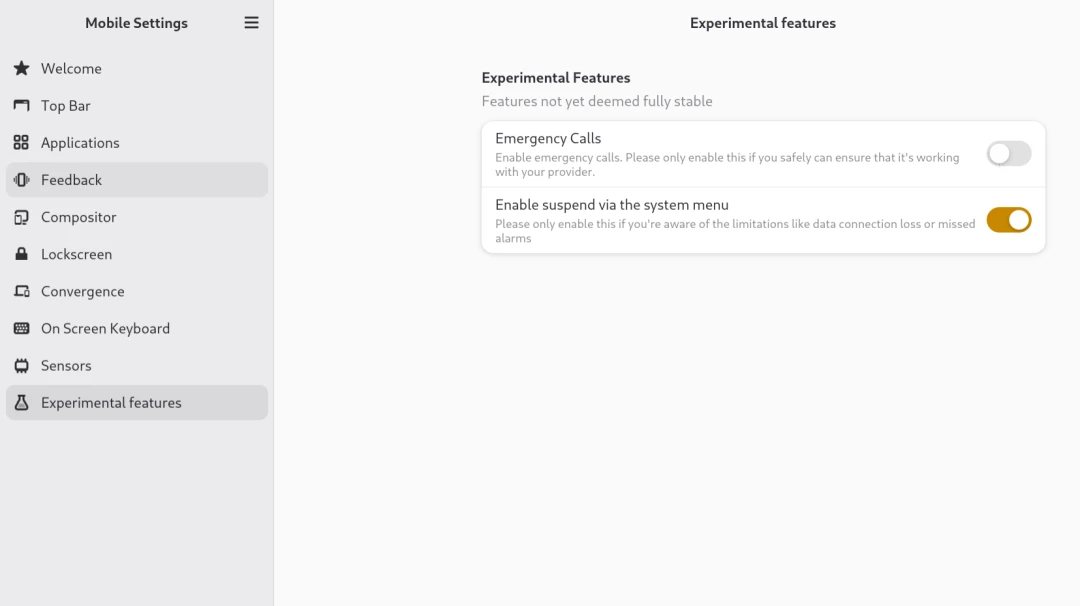
Open Phosh Mobile Settings and allow Linux to enter sleep mode, suspend, from the Phosh status bar menu. You can also enable the Caffeine button in the status bar here, which prevents Linux from automatically going to sleep. Waydroid’s screen toggle is useless for this.
4. Waydroid-Side Setup #
-
Install Waydroid on Debian.
-
If you are not worried about gesture conflicts, go to Android system settings and switch navigation to gesture controls.
-
Install the closed-source Rotation Control on Android. This can force screen rotation.
-
Install Sound Quick Settings to add volume buttons to the Android quick settings menu, because Waydroid cannot adjust volume through the physical keys.
-
After that, before starting Waydroid from the Phosh desktop, first rotate the device upright. Landscape mode causes Phosh to cut the Waydroid window into a long strip.
-
After rotating the screen upright, pull down the Phosh status bar and turn off auto-rotation. Waydroid does not follow Phosh’s screen auto-rotation, so if the screen rotates, the Waydroid display gets cut off. Then start Waydroid.
-
Aside from screen and volume controls, most operations are completed inside the Waydroid window.
-
The main Waydroid window can be closed at any time. Android apps will keep running in the Linux background.
-
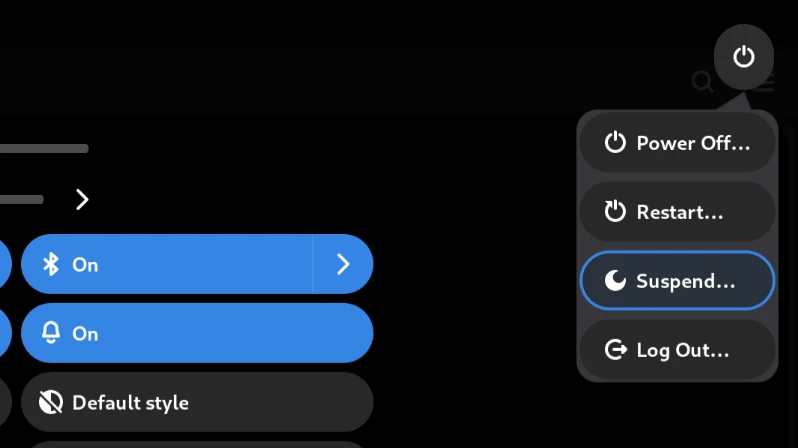
In most cases, Waydroid’s Android apps should suspend together with the Linux system. Click sleep from the Phosh status bar interface. After waking the screen again, you should see the Phosh lock screen; otherwise, it did not sleep. In a few cases, Linux may fail to wake because Waydroid ate too much RAM and SWAP. But I also enabled zSWAP, so memory should not run out that quickly.
-
If Waydroid prevents Linux from suspending, try:
waydroid prop set waydroid.suspend false

waydroid prop set waydroid.no_suspend true

sudo systemctl restart waydroid-container-
Also, when Phosh logs out of the current session and returns to GDM, Waydroid usually gets terminated too. So if you want to run GNOME and Waydroid at the same time, it is better to start Waydroid directly in GNOME.
-
Restarting the Waydroid service multiple times may cause the entire Linux system to freeze, forcing a hard reboot. So unless something is wrong, just leave Waydroid running in the background.