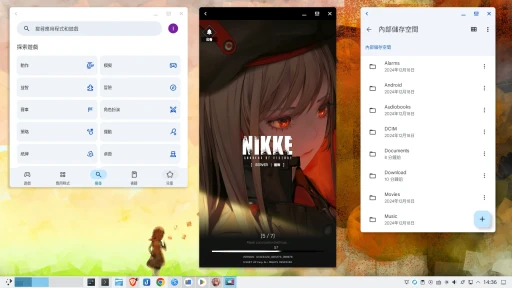
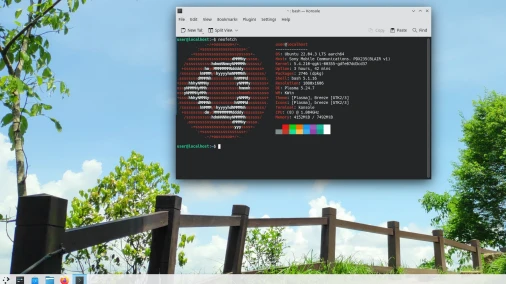
“Waydroid” is software that lets you run Android apps on Linux.
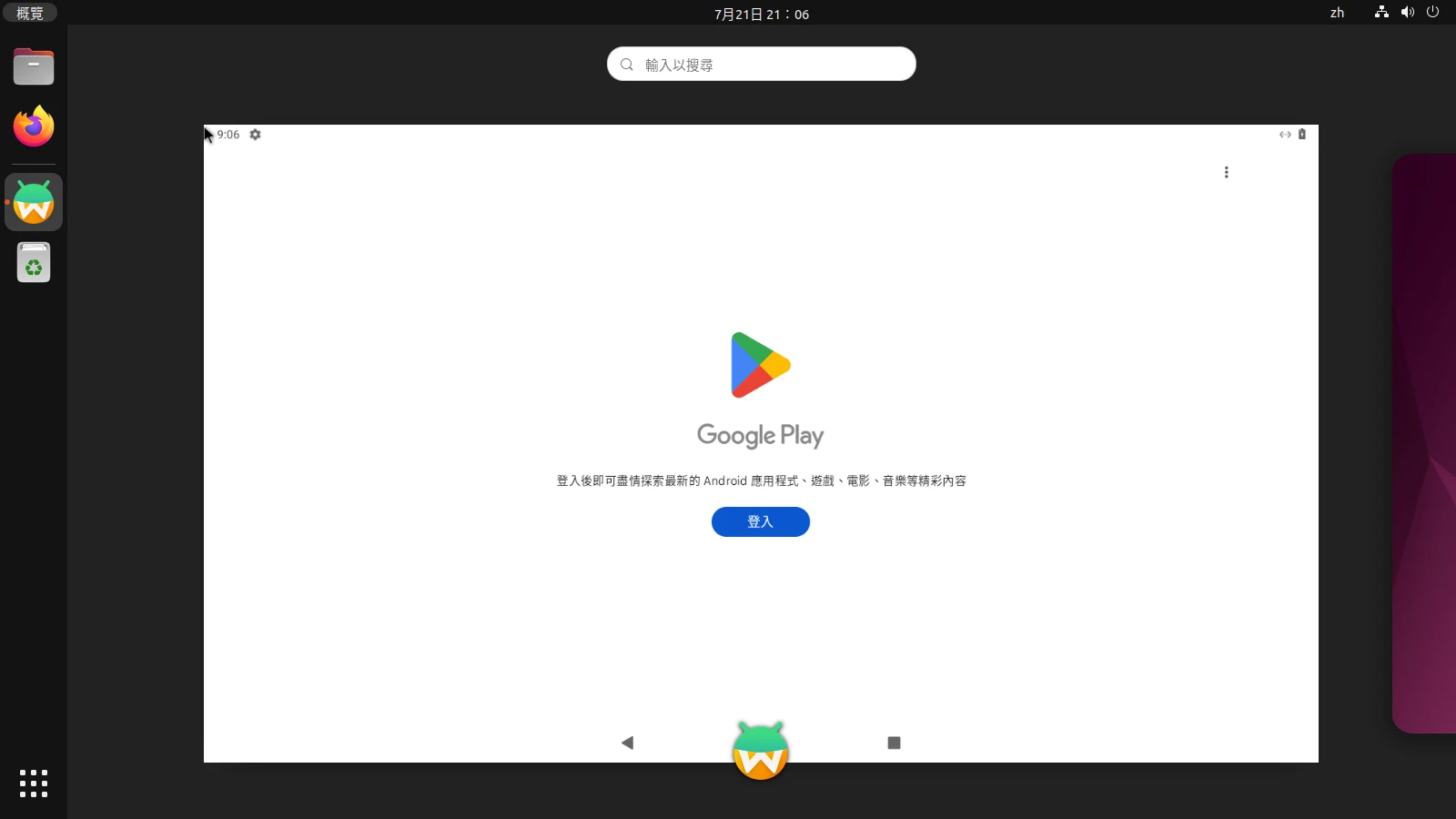
Waydroid can log in to the Google Play Store to download apps and install many commonly used apps. Waydroid also supports GPU hardware acceleration, so it can play many Android mobile games.
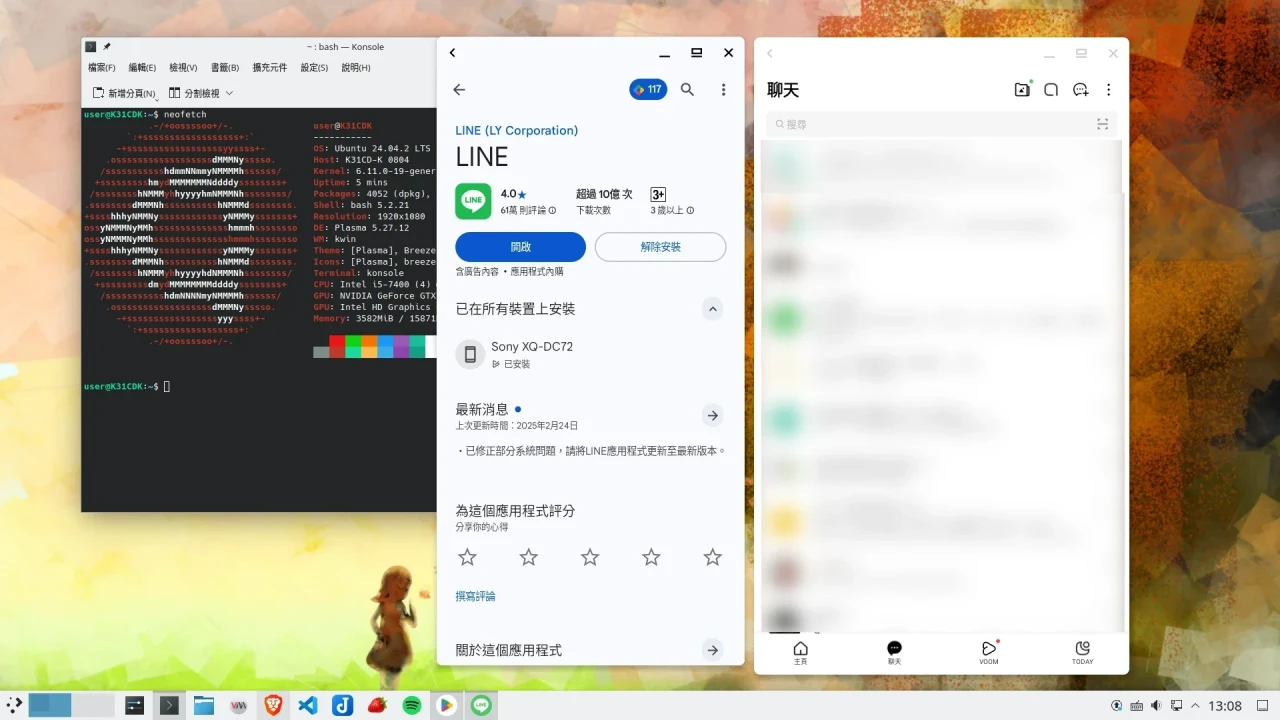
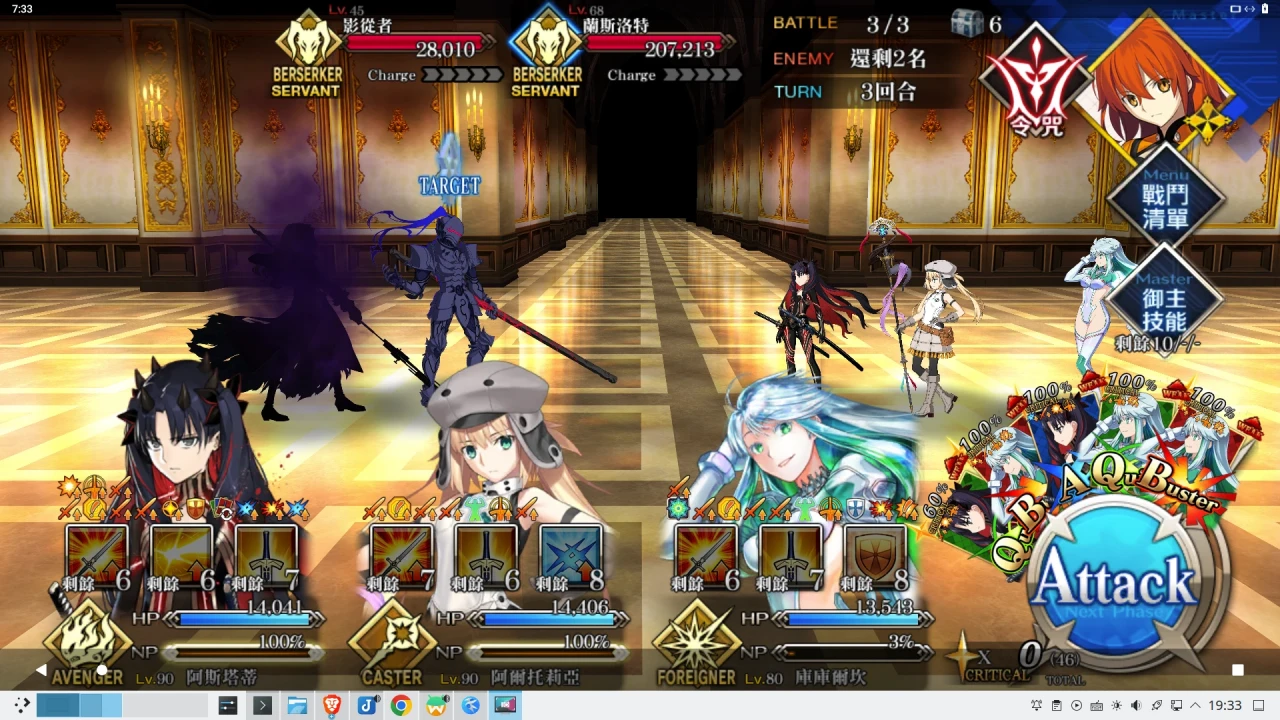
Waydroid’s system is built on LineageOS, and the underlying technology comes from Canonical’s container technology “Anbox”. A new development team has made its features more complete.
Waydroid is containerization technology, not a virtual machine. Because it uses LXC and can use GPU acceleration, Waydroid consumes fewer resources and runs faster than Android Studio’s emulator!
Looking at Waydroid’s design, this project superficially resembles Windows 11’s Android subsystem (WSA), allowing users to use Android apps while operating Linux. Among the many Android emulator solutions for Linux, Waydroid is one that integrates relatively well with the desktop system.
This article lets Ivon explain how to install Waydroid on Ubuntu.
1. Prerequisites #
Please confirm that you meet the following requirements before installing Waydroid.
CPU Architecture #
As for computer architecture, Waydroid supports Ubuntu computers on both x86 and ARM architectures. The installer will determine this automatically when installing packages.
However, note that many mobile games only provide ARM APKs and cannot be used on x86 computers. After installing Waydroid on an x86 computer, you still need to manually install an ARM translator to translate ARM instructions into x86, but this may increase the chance of app runtime errors. Therefore, ideally, an ARM Ubuntu computer is better, since you would not need to install an ARM translator.
GPU Model #
Make sure you are not using an Nvidia graphics card. At present, Waydroid only supports Intel and AMD graphics cards (integrated graphics are also fine). According to the developers, because Nvidia’s closed source driver does not follow graphics driver standards, Nvidia graphics cards will show a black screen. The latest Nvidia closed source driver is now version 590, and this issue has not yet been solved. You can check progress on Github.
Therefore, Nvidia graphics card users have three solutions: 1. Use integrated graphics to run Waydroid 2. Use software rendering 3. Use other Android emulator solutions.
Some Intel and AMD CPUs have integrated graphics, though perhaps you are not using them. Use the vulkaninfo --summary command to print the current primary graphics card model of your computer.
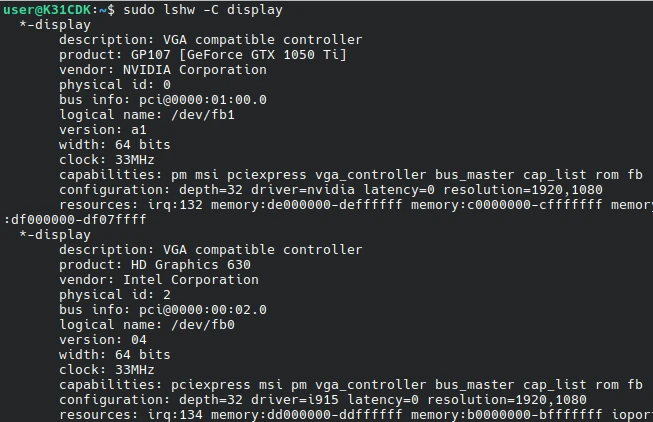
How do you confirm whether your computer has integrated graphics? Use the sudo lshw -C display command to print all graphics cards on the computer and see whether there is a GPU model other than Nvidia. For example, my Intel i5-7400 CPU has UHD 630, and this integrated GPU is enough for some light mobile games. Go to your motherboard UEFI settings and switch to booting with integrated graphics, and then you can use Waydroid.
Linux Kernel Version #
Waydroid depends on the Linux kernel’s binder module. The ANDROID_BINDER option must be enabled when compiling the kernel. Linux 6.0 kernels installed on Ubuntu 24.04 or later should all have it enabled, so no other configuration is needed.
If you are not sure, use the following command to check whether this option is enabled in the kernel configuration:
cat /boot/config-$(uname -r) | grep BINDERWayland Display Protocol #
Waydroid requires a desktop using the Wayland display protocol to start.
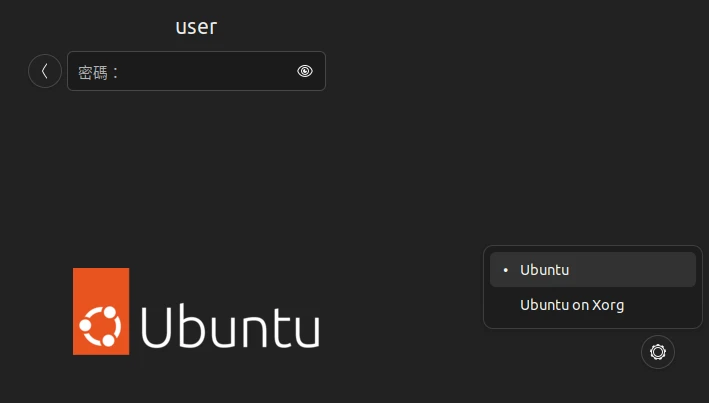
Ubuntu’s default desktop environment is GNOME. Please make sure your current desktop environment is using a Wayland session. Open a terminal and enter the following command to check:
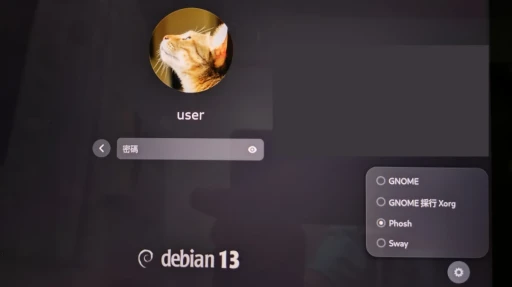
echo $XDG_SESSION_TYPEIf the output is not wayland, that means you are still using X11. Please log out of Ubuntu, click the gear icon in the lower-right corner when entering your password, and choose Ubuntu or an option without Xorg to log in.
2. Install Waydroid #
The commands here only apply to Ubuntu and Debian. For other Linux distributions, please refer to the official documentation.
- Install the following packages, including Waydroid and the packages that later scripts will use
sudo apt install curl ca-certificates lzip python3 python3-pip- Install the following packages so Linux and Waydroid can share the clipboard. One Python package is not included in Ubuntu’s package repository, so it must be forcibly installed with pip
sudo apt install wl-clipboard xclip

sudo pip install pyclip --break-system-packages- Run the official Waydroid repository script to install Waydroid. The installation script should automatically detect the system version
curl https://repo.waydro.id | sudo bash

sudo apt install waydroid- Initialize Waydroid and download the image with built-in GAPPS. If you do not add the
-s GAPPSparameter, Waydroid will download the vanilla image without GMS services.
sudo waydroid init -s GAPPS -f- Start the Waydroid container service
sudo systemctl start waydroid-container

# Start automatically on boot
sudo systemctl enable waydroid-container-
Click the “Waydroid” icon in the application list to start Waydroid. This icon has the same function as running the
waydroid show-full-uicommand.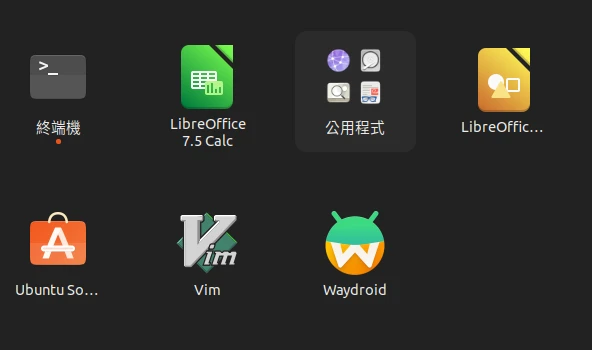
-
Waydroid’s default interface is English. Please go to Android system settings to change the language, drag Traditional Chinese to the top, and adjust the time zone.
-
If Waydroid cannot connect to the network, try opening UFW firewall ports, then restart Waydroid:
sudo ufw allow 53

sudo ufw allow 67

sudo ufw default allow FORWARD

sudo ufw reload

sudo systemctl restart waydroid-container
3. Recommended Things to Do After Installation #
Ivon strongly recommends that you install the Google Play Store and pass device certification, as well as install an ARM translator.
See Waydroid Tips
References #
Report bugs at the Waydroid Github repository