This article introduces several free “Android emulator” solutions for Linux, letting you run Android apps and play mobile games on Linux.
Overview #
There are many commercial Android emulators on the market, such as BlueStacks, NOX, LDPlayer, MEmu, Google Play Games on PC, and so on. They come in many forms, but in the end they all let you play x86 or ARM mobile games on an x86 computer. Multi-instance, idle farming, and keyboard mapping are usually not difficult either.
Compared with the many Android emulators on Windows, GNU/Linux systems (Ubuntu, Fedora, Arch Linux, openSUSE, Gentoo, excluding ChromeOS) have pitifully few options. Most of the famous Android emulators on Windows never released a Linux version. In the early days, Linux only had “Genymotion” and “Android Studio” available, and both of them were basically meant for developers, making them hard to use for gaming.
Also, the Windows Android emulators mentioned above still cannot be run on Linux with Wine.
Fortunately, this situation has improved in recent years. With the appearance of Anbox and Waydroid using LXC container technology, Linux can now run Android apps. Using Linux’s QEMU/KVM technology to install an efficient Android-x86 virtual machine is also a solid and feasible approach.
Today, Linux users who want to run Android apps or even play games on their computers can find solutions composed of open source software to achieve an effect similar to an “Android emulator”, while also escaping all kinds of sponsored content and ad placements bundled into commercial Android emulators.
1. Waydroid #
Waydroid originated from Anbox, which was developed by Canonical. It uses LXC technology, where the container shares the kernel with Linux and runs an Android system. The development team is also responsible for developing Bliss OS.
As for Anbox, it has basically stopped development. Waydroid has replaced it and become the best-known successor to Anbox.
Features:
- License: GPLv3
- LXC containers are very lightweight. Runtime efficiency is much higher than virtual machines and emulators, and they can effectively use the computer’s GPU to accelerate game performance
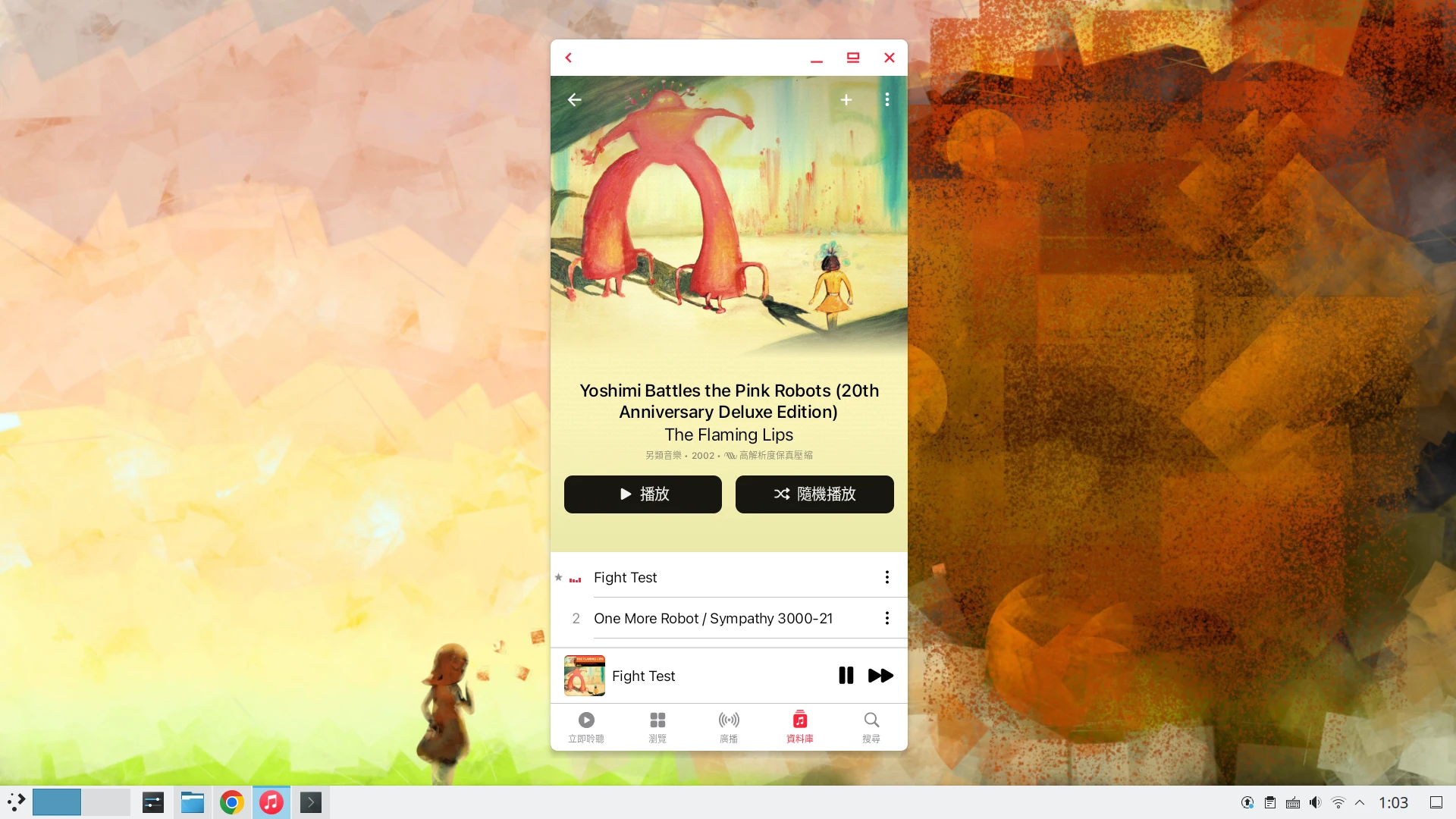
- Shares the Android clipboard with the Linux system, operates apps in window mode, and provides an experience like native Linux applications, similar to Microsoft’s WSA
- Built-in Google Play Store
- Provides x86 and ARM images, so it can be deployed on both x86 computers and Raspberry Pi
- Running Waydroid requires a desktop using the Wayland display protocol
- Waydroid is not convenient for multi-instance use; one computer can only install one Android version
- Requires manually installing an ARM translator
- Currently does not support Nvidia GPUs, only Intel and AMD GPUs using Mesa open source drivers
See the installation tutorial here.
2. ReDroid #
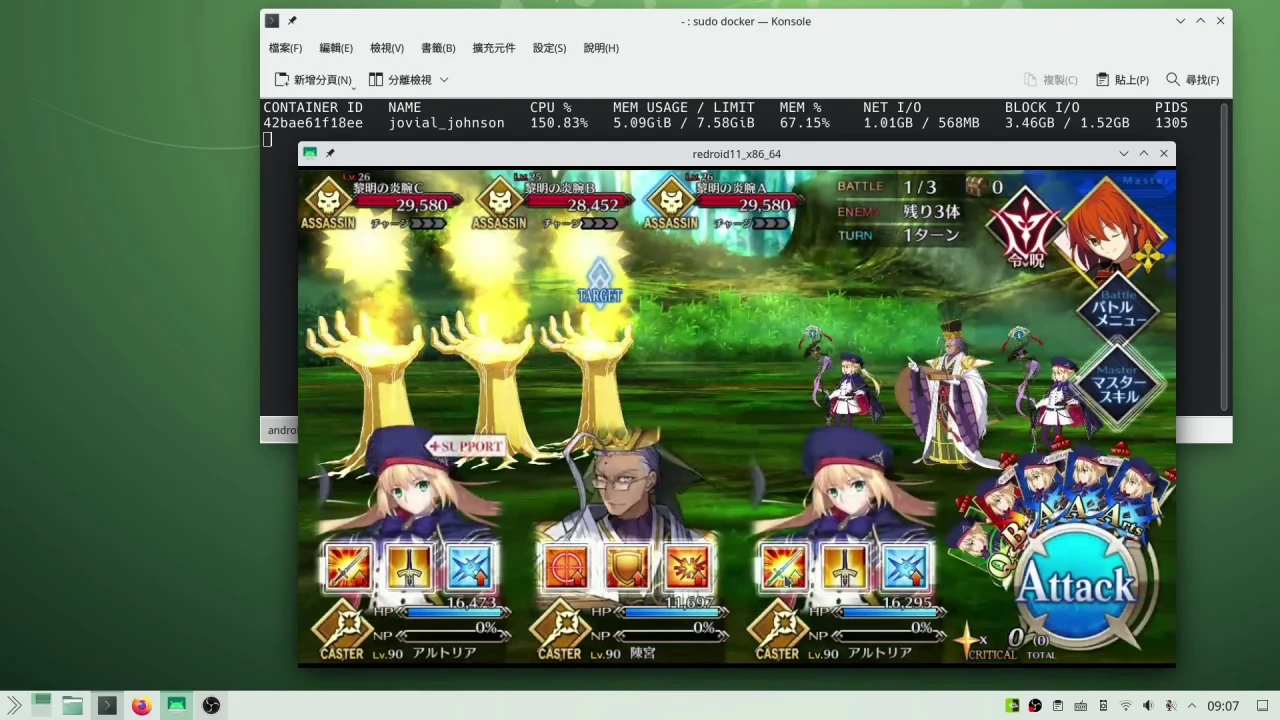
Runs an Android system through a Docker container, then connects to the desktop through Scrcpy. The developer’s original intention was to build cloud phones on servers, but desktop users can also refer to this solution.
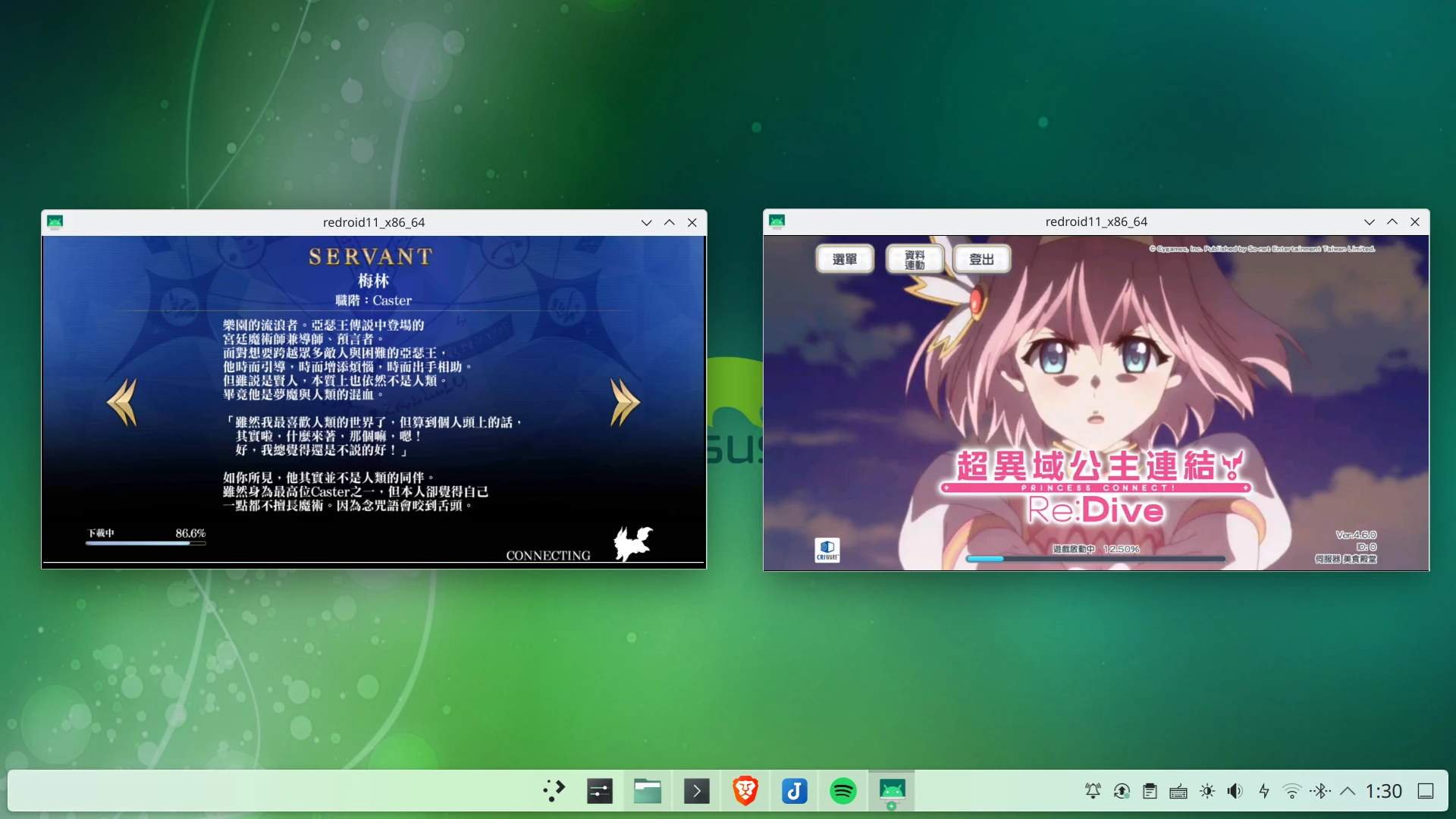
Features:
- License: Apache
- Provides x86 and ARM images, so it can be deployed on both x86 computers and Raspberry Pi
- Supports GPU hardware acceleration
- Provides an ARM translator
- You have to install Google Play Store yourself
- The characteristics of Docker containers let it be quickly deployed on servers and remotely connected with Scrcpy
- Docker containers consume few resources and are easy to copy, so multi-instance use is possible
- The installation process is a little cumbersome, and you need some Docker operating knowledge to use it well
- Currently does not support Nvidia GPUs, only Intel and AMD GPUs using Mesa open source drivers
For installation, see ReDroid usage
3. Android-x86 Virtual Machine #
The Android-x86 virtual machine comes from the long-running project of the same name. It can be installed on physical computers, and likewise can be installed in virtual machines.
However, the original Android-x86 has rarely been updated since Android 9.
In recent years, “Bliss OS”, which is based on Android-x86, has appeared. It is updated very actively and supports Android 15.
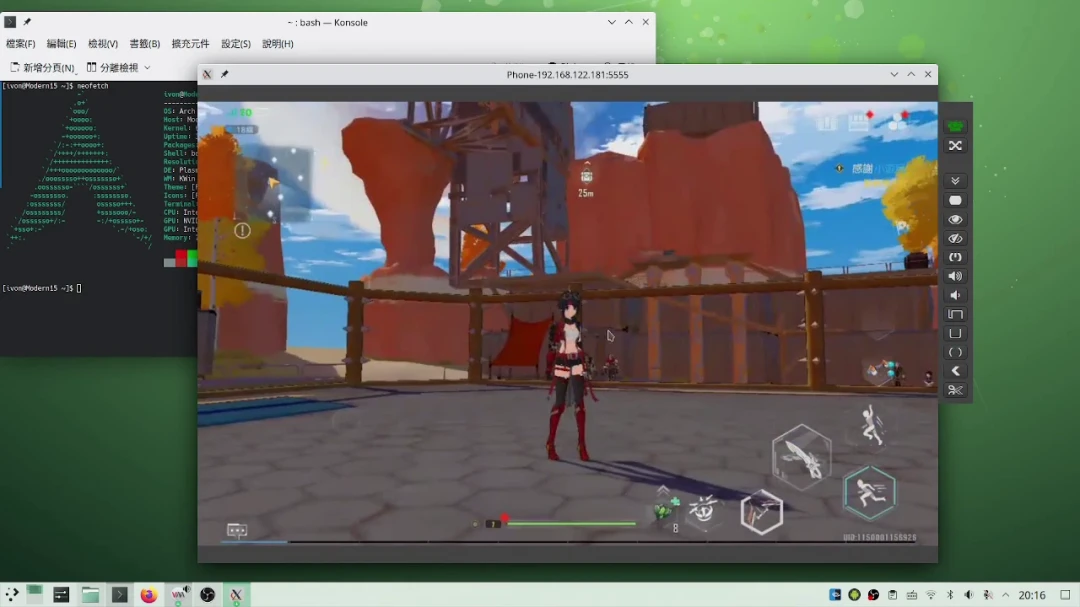
Features:
- License: Apache
- Android-x86 is a complete operating system, with ISOs from Android 7 to Android 15
- Almost entirely an open source software solution; the system is clean and ad-free
- Can be deployed in a virtual machine, or installed on a physical machine as the main system, such as a Microsoft Surface
- Supports ARM to x86 architecture translation, supporting more mobile games
- Can achieve 3D hardware acceleration through VirGL without GPU passthrough, supporting Intel, AMD, and Nvidia GPUs
- Has potential for multi-instance use
- Built-in Google Play Store
- The virtual machine backend can use QEMU/KVM, VirtualBox, VMware, and so on
- Since it is a virtual machine, GPU acceleration capability is limited
- Only supports x86 computers
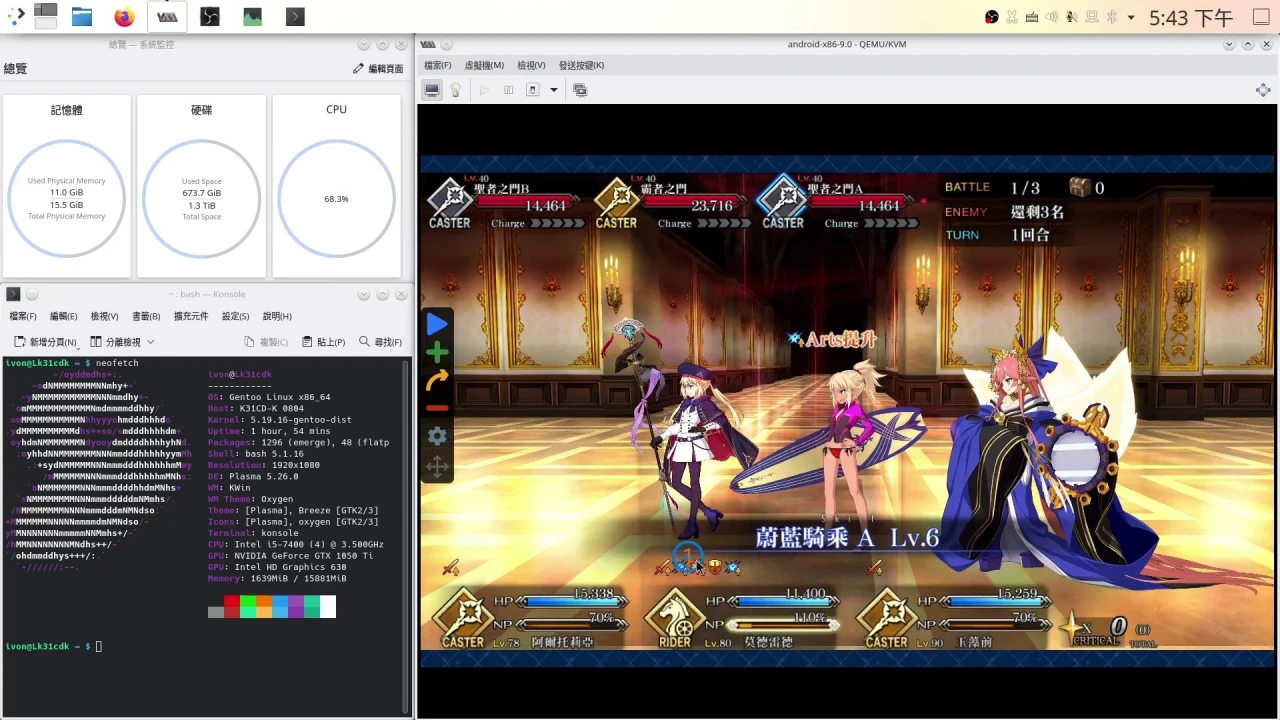
For the tutorial on running an Android-x86 virtual machine with QEMU/KVM, see: Install Bliss OS QEMU VM.
4. Android Studio’s AVD Emulator #
Android Virtual Device, abbreviated AVD, is Google’s official Android emulator and is bundled with Android Studio.
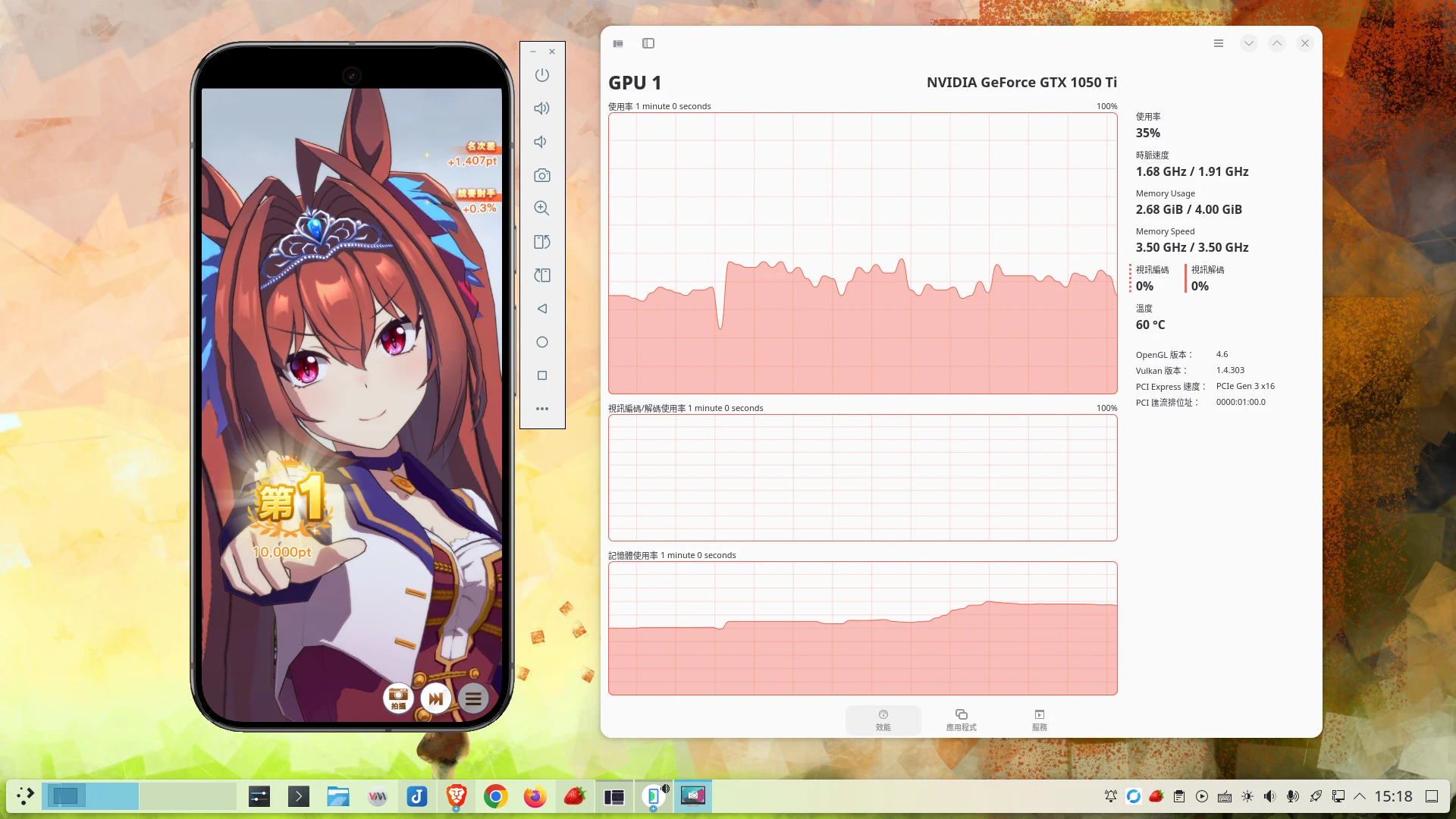
Features:
- License: Proprietary
- Mainly used for Android app development, and relatively mature compared with other solutions
- Cross-platform; the same software stack can also be used on Windows and macOS
- Can use ADB and Root
- Can emulate multiple phone models, and technically can run multiple instances
- Built-in Google Play and ARM translator libndk
- Provides GPU graphics acceleration, supporting Intel, AMD, and Nvidia GPUs.
- Android Studio consumes a lot of resources while running, but the AVD emulator can be configured to run independently without relying on Android Studio
- Only supports x86 computers
Tutorial reference: Use Android Studio AVD as a Gaming Emulator
5. Genymotion Emulator #
A cross-platform commercial Android emulator.
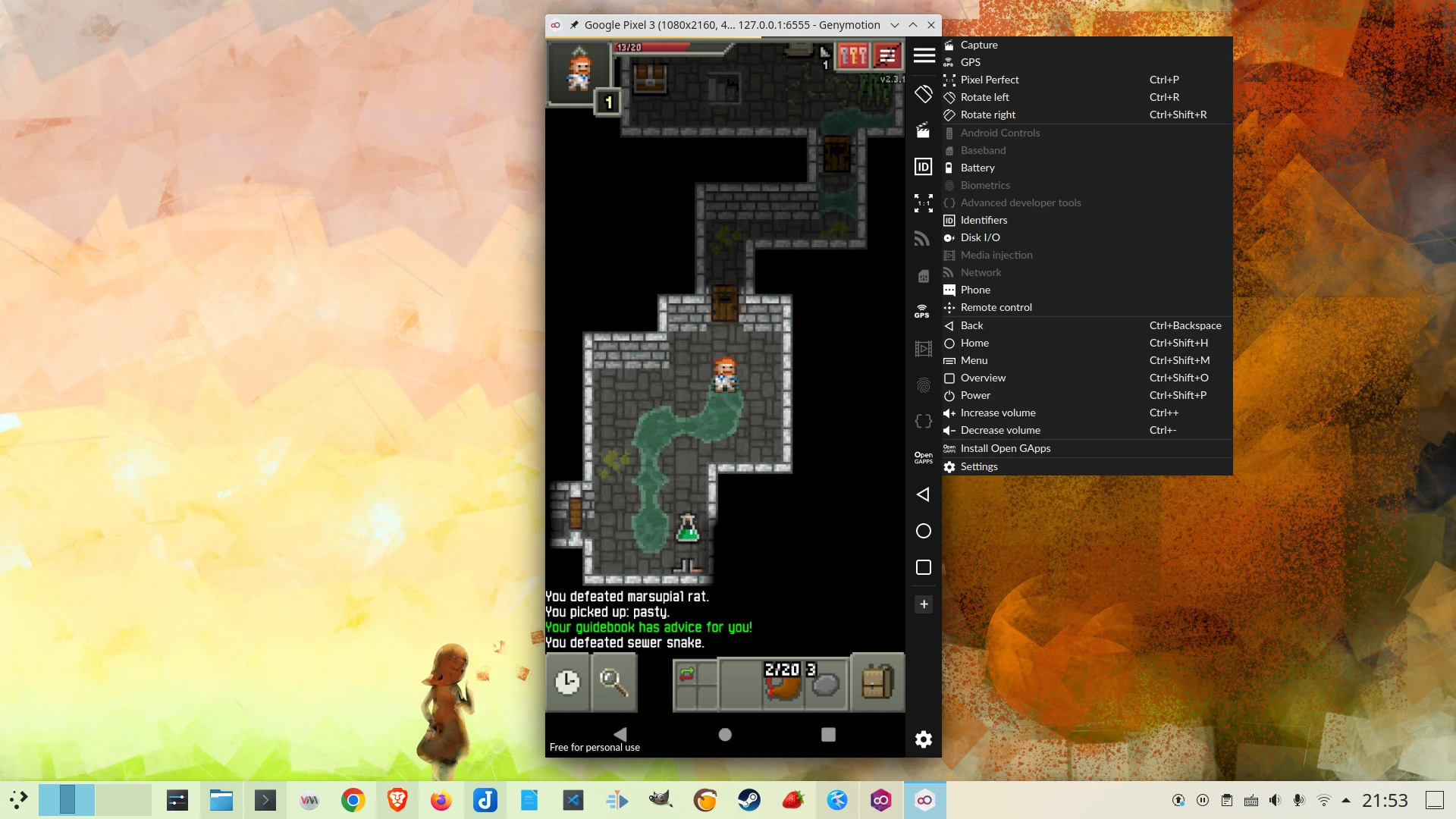
Features:
- License: Proprietary
- The easiest to install
- Depends on QEMU/KVM or VirtualBox at runtime
- Provides emulation for various phone models
- Provides quick button operations for screenshots, recording, and gesture emulation
- Built-in ARM translator
- Supports Intel, AMD, and Nvidia GPU graphics acceleration.
- Requires registration before use
- The free version shows a watermark on the screen, obstructing use, and requires purchasing a license
- Only supports x86 computers
The Linux Genymotion installation tutorial is here
Which One Should You Choose? #
If you are an Nvidia graphics card user, have no integrated GPU, and do not want to tinker, then your only choices are Android Studio’s AVD and Genymotion.
If you are an Intel or AMD graphics card user, you have more options. Among the various “Android emulator” solutions on Linux, Waydroid absolutely has the best performance. Because it uses LXC container technology and shares the kernel with Linux, there is almost no performance loss during computation. Waydroid’s performance feels like installing Android directly on a physical computer.
Compared with Android Studio’s AVD emulator or the Android-x86 virtual machine approach, Waydroid is much faster than them. Especially for low-spec computers, Waydroid is the most economical choice. After my Geekbench benchmark tests, Android performance with a virtualization layer can lose almost half of its performance at most! This means virtual machine performance needs more CPU cores allocated to hold it up. If your computer CPU has only 4 cores or fewer, starting an Android-x86 virtual machine will eat up all resources! In comparison, Waydroid’s resource usage is lower.
The graphics acceleration of an Android-x86 virtual machine relies on VirGL, and this performance is somewhat weaker than Android Studio’s AVD emulator.
As for ReDroid, it is for advanced users, suitable for players who want to remotely connect to a cloud phone.